ChatGPT
Koble OpenAI's ChatGPT til kirkens B1-data og la det gjøre det tunge løftet. Når det er koblet, kan ChatGPT se dine live kirkepost og hjelpe deg med å få ting gjort som ellers ville ta flere trinn i B1 Admin — eller som du ikke kunne finne ut hvordan å gjøre i det hele tatt.
Noen ting du kan be det om å gjøre:
- "Sett opp søndagsskole-klasserom og plasser hver lærer i riktig rom basert på deres gruppe"
- "Vis meg alle som møtte opp forrige uke men ikke er tildelt til en smågruppe"
- "Oppsummerer denne månedens giving etter fond"
- "Hvem er vår nyeste medlemmer og har vi fulgt opp med dem?"
- "Jeg kan ikke finne ut hvordan å gjøre X i B1 — kan du gå gjennom det med meg eller gjøre det for meg?"
ChatGPT henter svarene og tar handlingene direkte fra dine B1-data, begrenset til din kirke bare.
For den glatteste MCP-opplevelsen er Claude Code den anbefalte klienten — oppsett tar en kommando og det fungerer out of the box. ChatGPT fungerer også og er et flott valg hvis laget ditt allerede bruker det.
To stier støttes: MCP Connector (innebygd i ChatGPT) og et tilpasset GPT for team som ønsker en delbar assistent.
Før du starter
- En kirkeadministrator med Rediger innstillinger-tilgang i B1 Admin (nødvendig for å opprette en API-nøkkel)
- En ChatGPT Plus, Pro, Team, eller Enterprise-konto
Hurtig oppsett-guide
Følg disse trinnene i ChatGPT desktop-appen (Mac/Windows). Skjermene kan se litt annerledes ut i andre versjoner.
Trinn 1 — Få din API-nøkkel fra B1 Admin først
Før du berører ChatGPT, opprett en API-nøkkel i B1 Admin slik at du har den klar til å lime inn:
- Gå til Innstillinger → Utvikler → API-nøkler i B1 Admin
- Klikk Ny API-nøkkel, gi den navn
ChatGPT, velg dine områder (start medpeople:read,groups:read,attendance:read,donations:read), og klikk Lagre - Kopier
cak_…-nøkkelen — den vises bare en gang
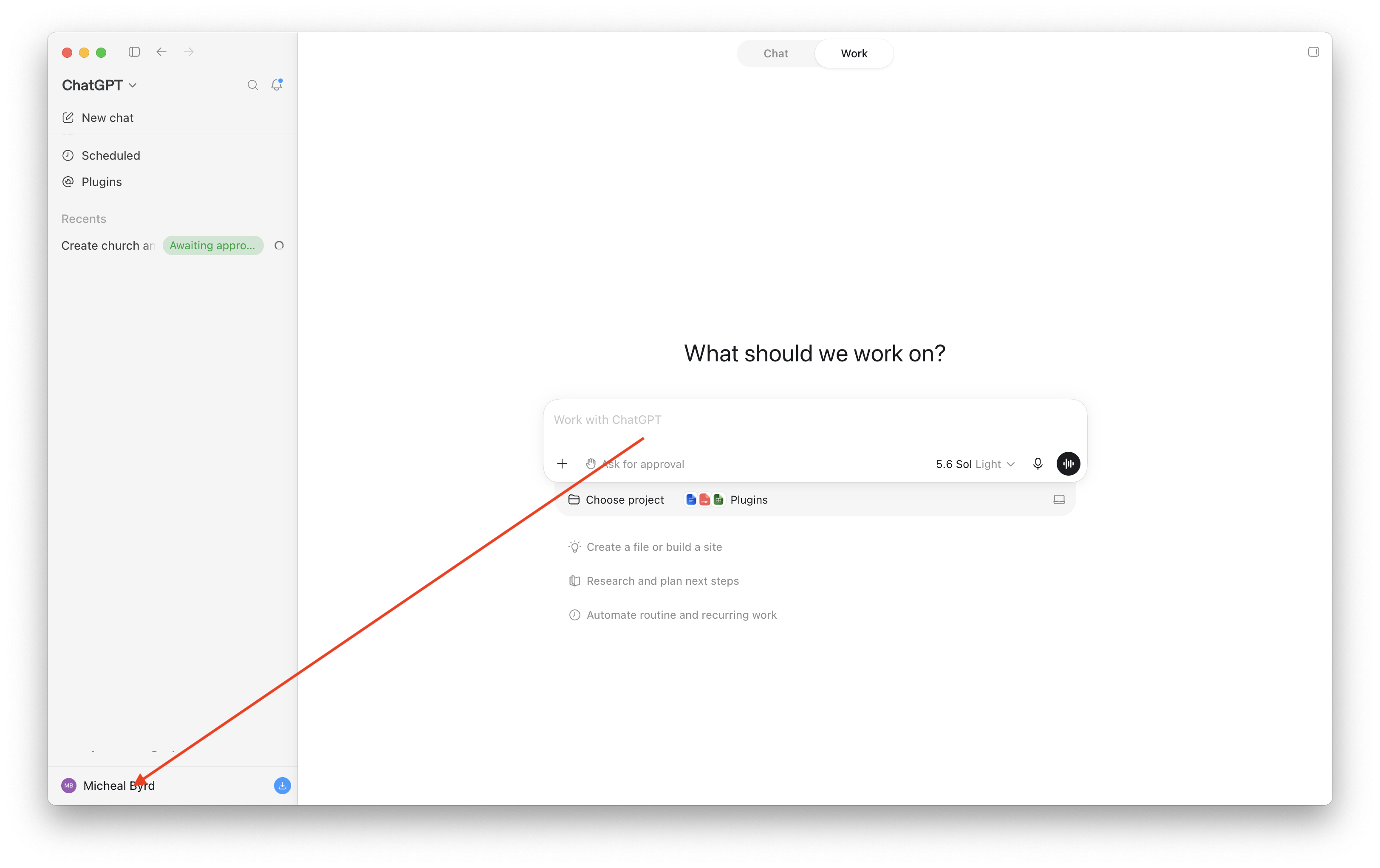
Trinn 2 — Klikk på navnet ditt i nedre venstre hjørne av ChatGPT
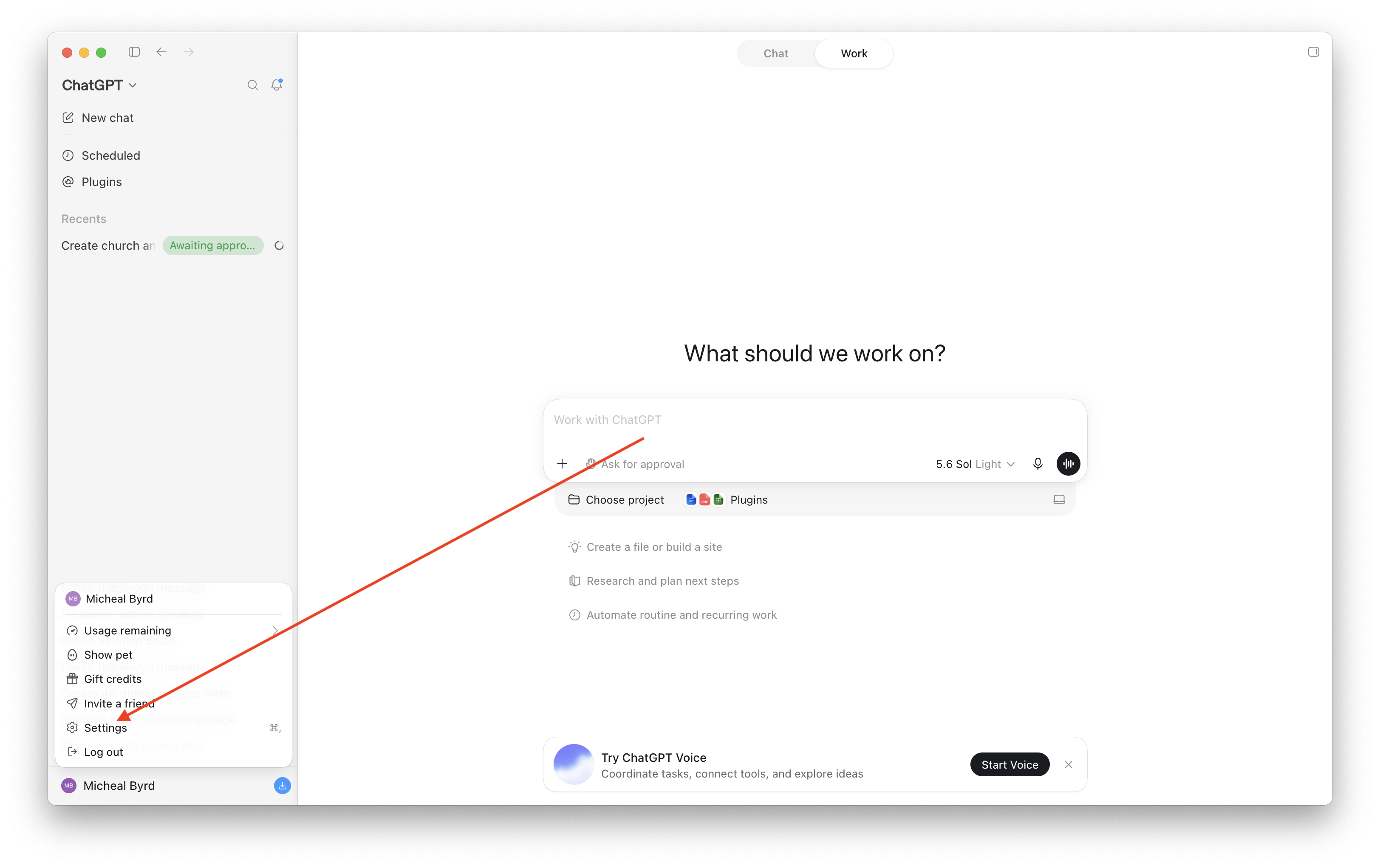
Trinn 3 — Klikk Innstillinger
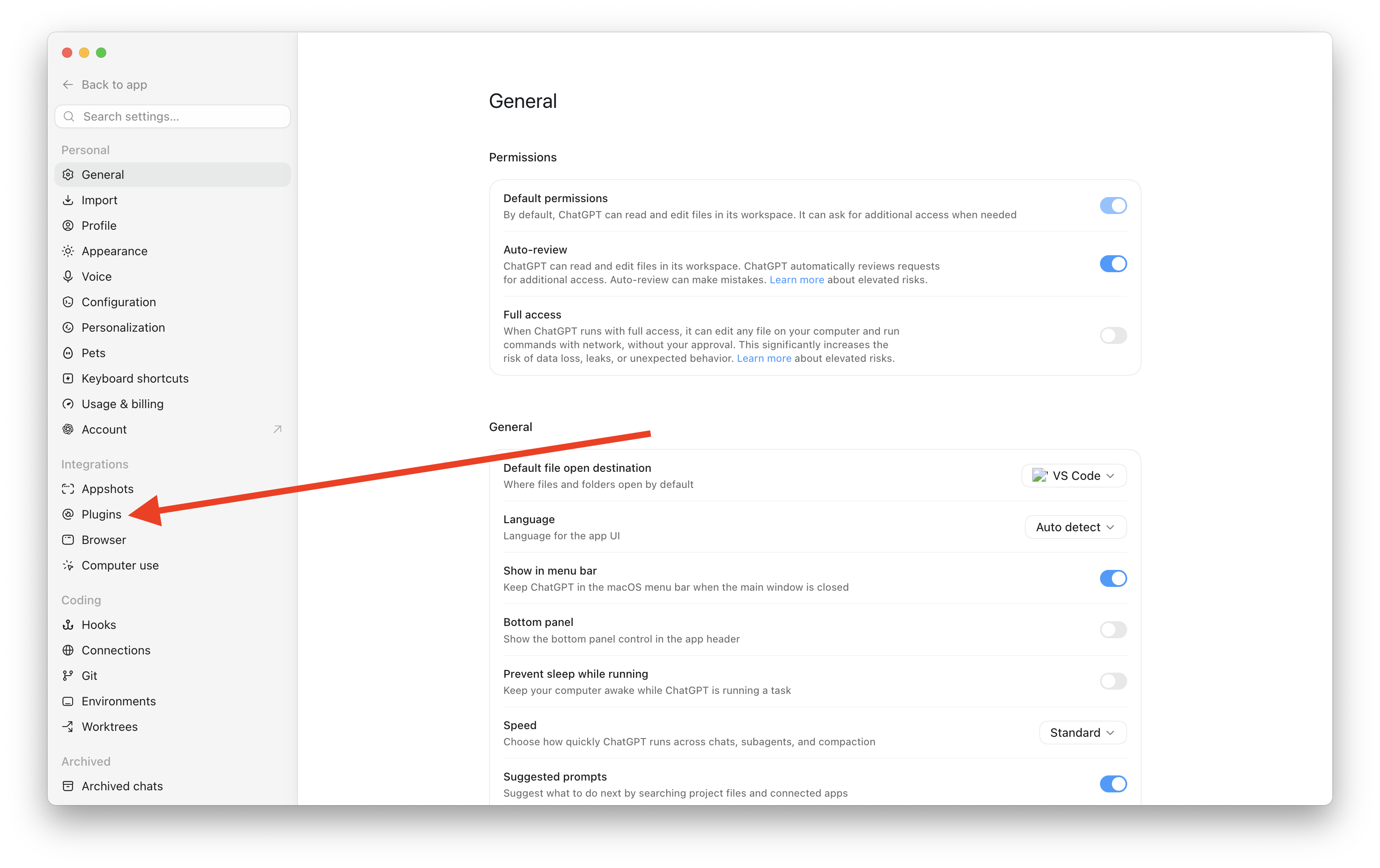
Trinn 4 — Klikk Programtillegg i venstre sidestolpe
Trinn 5 — Klikk fanen MCPs
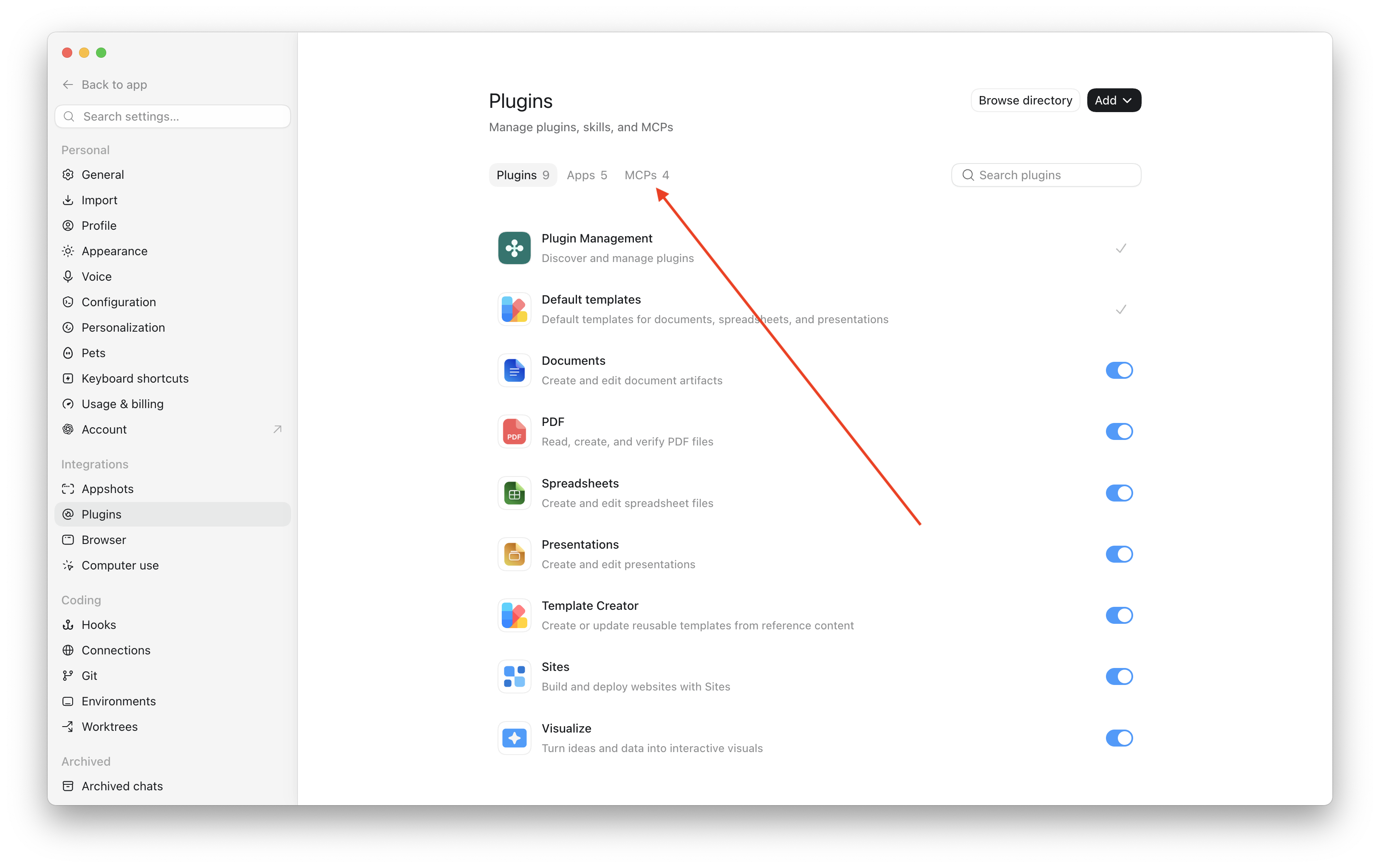
Du vil se eventuelle MCP-servere du allerede har lagt til her.
Trinn 6 — Klikk Legg til → Legg til MCP-server
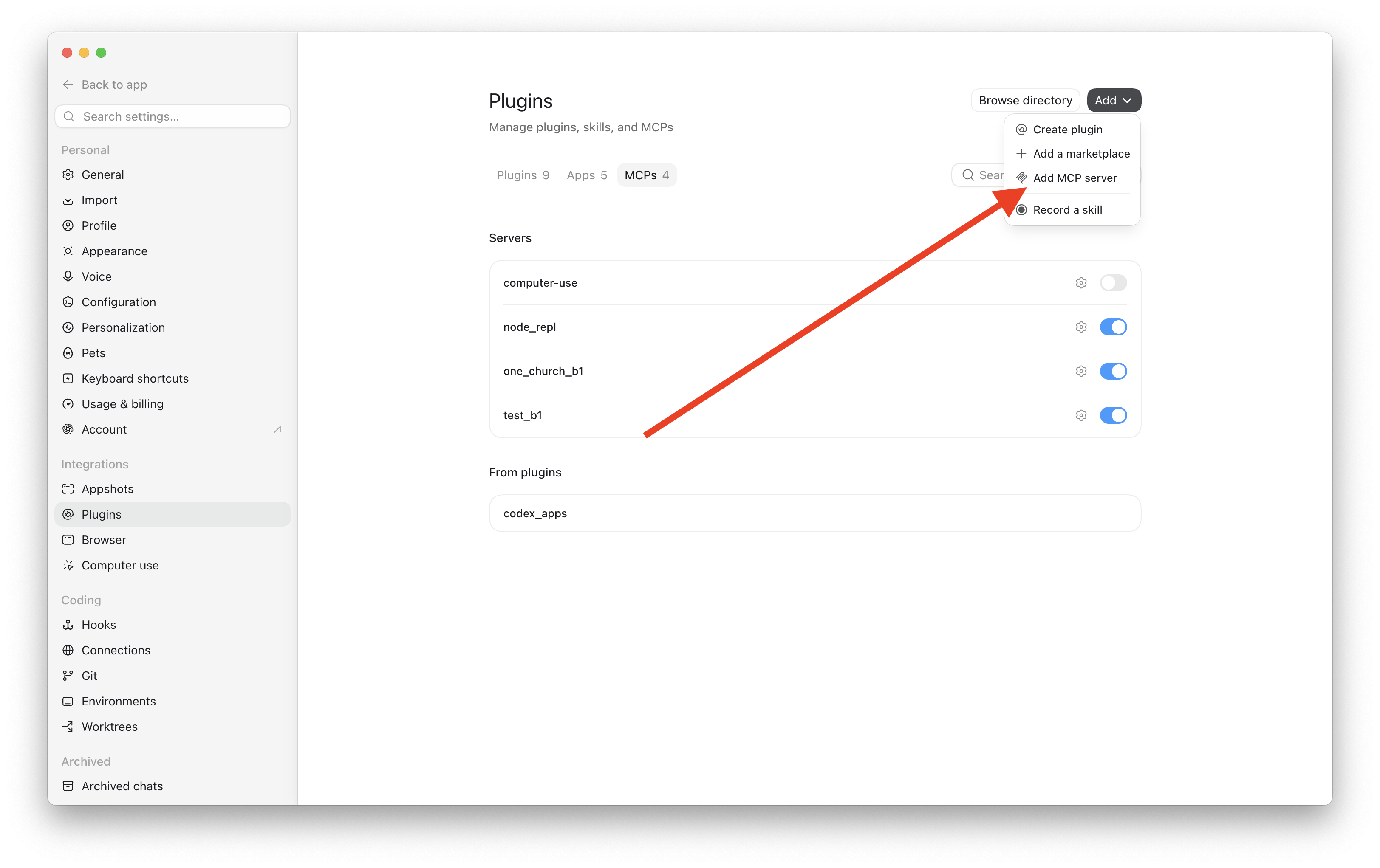
Trinn 7 — Fyll ut skjemaet og klikk Lagre
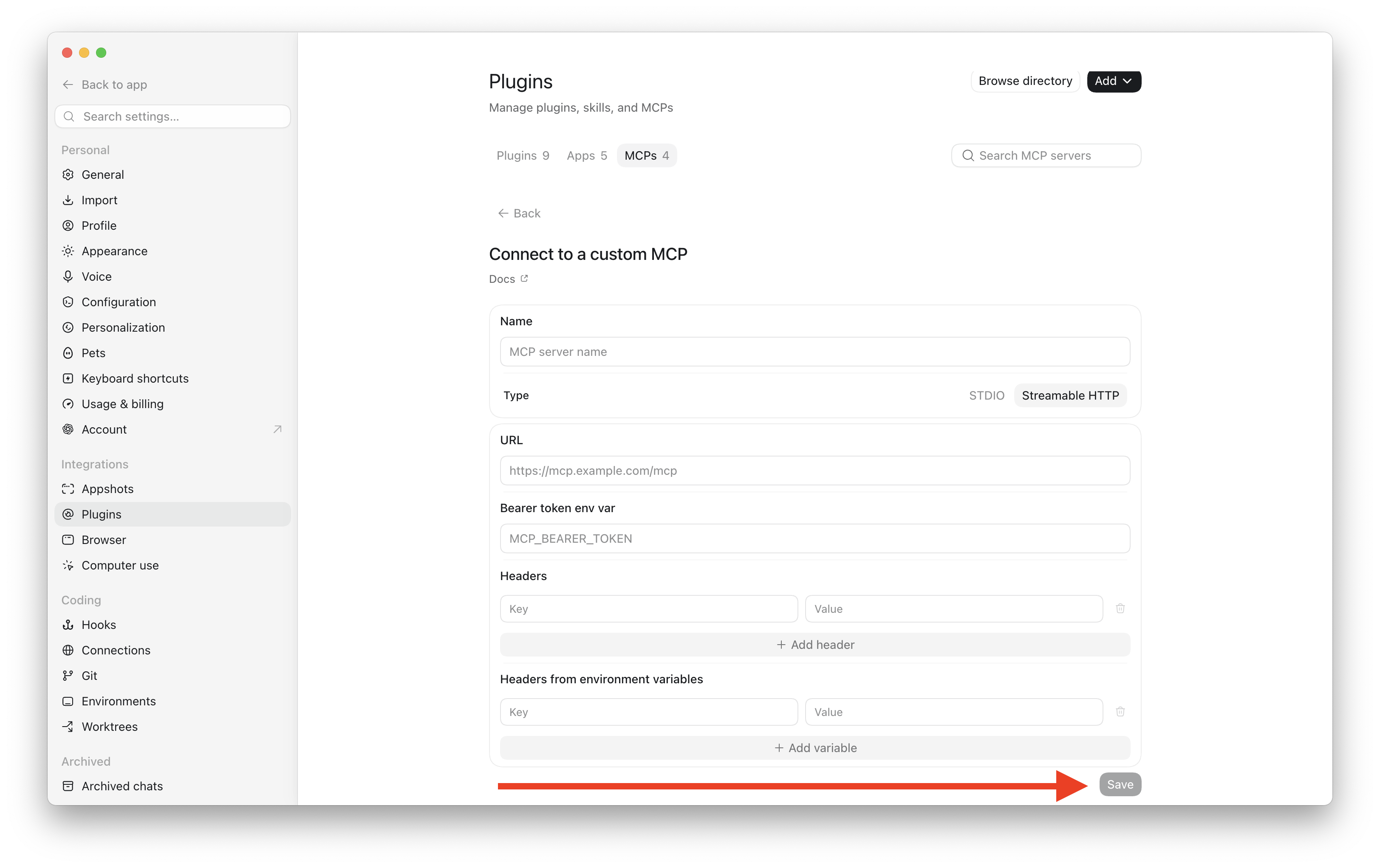
Klikk Streamable HTTP, deretter fyll inn:
| Felt | Hva du skal skrive |
|---|---|
| Navn | B1 Church (eller ethvert navn du liker) |
| Type | Klikk Streamable HTTP |
| URL | https://api.churchapps.org/mcp |
| Bearer token env var | La det stå tomt |
| Hode | Klikk + Legg til hode → Nøkkel: Authorization → Verdi: se nedenfor |
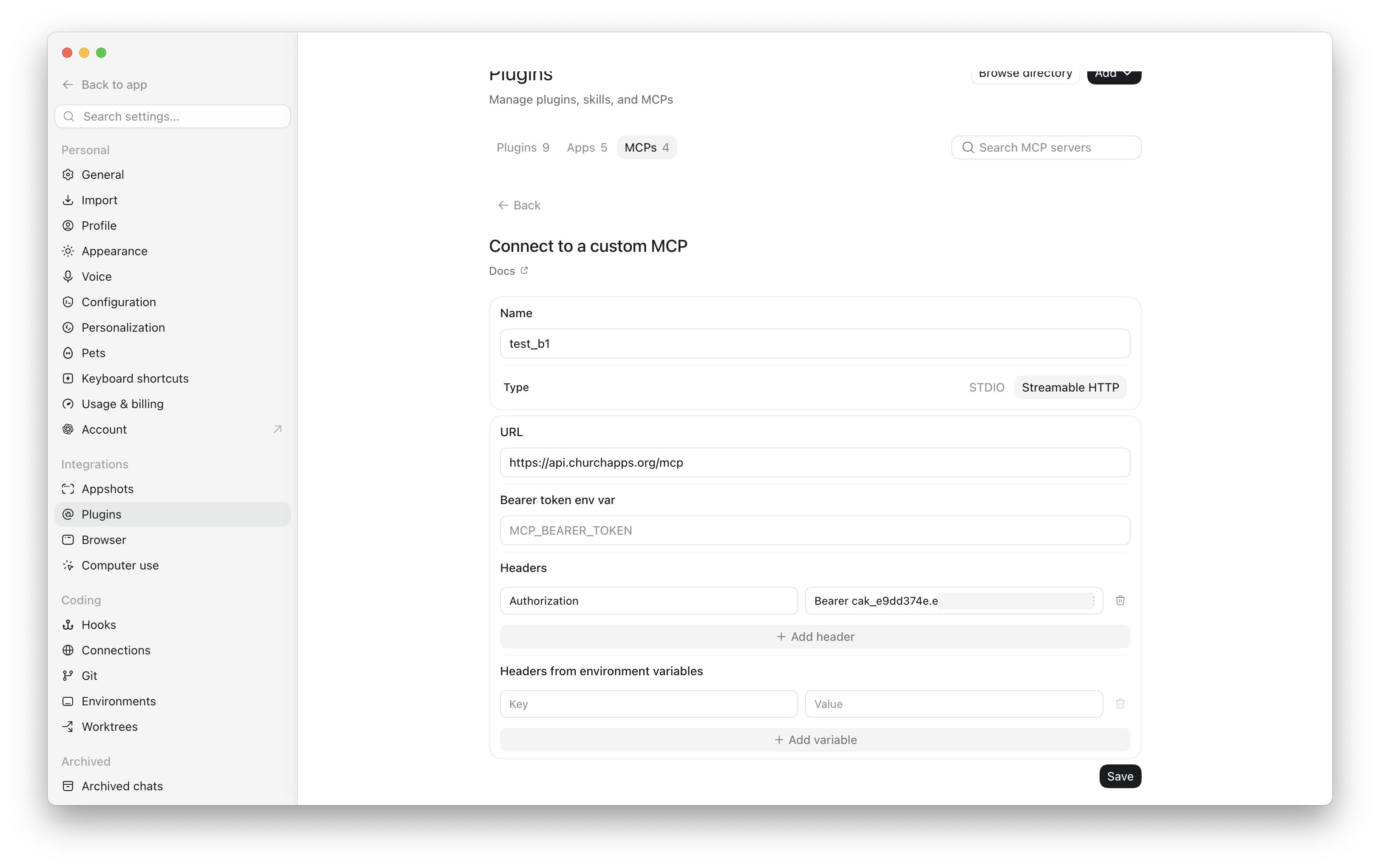
- Nøkkel:
Authorization - Verdi:
Bearer cak_yourkey— ordet Bearer, et mellomrom, deretter din nøkkel
Klikk Lagre.
Det er alt! Gå tilbake til en chat og spør noe som "Hvor mange mennesker er i kirken vår?" og ChatGPT vil hente svaret direkte fra B1.
Trinn 1 — Opprett en API-nøkkel i B1 Admin
Hver tilkobling til B1 bruker en API-nøkkel som du oppretter. Denne nøkkelen identifiserer kirken din, kontrollerer hva ChatGPT kan se, og kan tilbakekalles når som helst.
- Åpne B1 Admin og gå til Innstillinger → Utvikler → API-nøkler.
- Klikk Ny API-nøkkel.
- Gi nøkkelen et navn —
ChatGPTfungerer godt. - Velg områdene (tillatelsene) ChatGPT bør ha. Et godt start-sett for en skrivebeskyttet assistent:
people:readgroups:readattendance:readdonations:read
- Klikk Lagre.
- Kopier hele nøkkelen som vises — den starter med
cak_og vises bare en gang. Lim den inn noe sted sikkert.
Hvis du noen gang må tilbakekalle ChatGPT-tilgang, gå tilbake til Innstillinger → Utvikler → API-nøkler og slett nøkkelen. Tilgangen slutter umiddelbart.
Banen A — ChatGPT MCP Connector (Anbefalt)
Dette er den enkleste måten å koble til. ChatGPT har en innebygd "Koble til et tilpasset MCP"-dialog som fungerer direkte med B1s MCP-server — ingen tilpasset GPT nødvendig.
Hva du trenger
- Din
cak_…-nøkkel fra Trinn 1
Åpne MCP-koblingen i ChatGPT
I ChatGPT, gå til Innstillinger → Programtillegg → MCPs og klikk Legg til → Legg til MCP-server.
Fyll ut dialogen
Klikk Streamable HTTP, deretter bruk disse verdiene:
| Felt | Verdi |
|---|---|
| Navn | B1 Church (eller ethvert navn du liker) |
| Type | Streamable HTTP |
| URL | https://api.churchapps.org/mcp |
| Bearer token env var | La det stå tomt |
| Hode | Nøkkel: Authorization / Verdi: Bearer cak_yourprefix.yoursecret |
For verdifelt, skriv ordet Bearer, ett mellomrom, deretter lim inn din nøkkel — alt i samme boks. Eksempel: Bearer cak_prefix.secret.
Klikk Lagre.
Spør ChatGPT noe
Når det er koblet, spør bare på vanlig språk — ingen spesielle kommandoer nødvendig:
- "Hvor mange mennesker er i kirken vår?"
- "Hvem koblet til de siste 30 dagene?"
- "Hvilke grupper er aktive nå?"
- "Oppsummerer denne månedens giving etter fond."
ChatGPT vil kalle B1 bak kulissene og svare fra dine live data.
Banen B — Tilpasset GPT med handlinger
Et tilpasset GPT lar deg opprette en dedikert assistent hele laget ditt kan dele — de åpner en lenke og begynner å stille spørsmål uten noen oppsett på deres side. Det krever en ChatGPT Plus, Team, eller Enterprise-konto og rundt 10 minutter.
1. Opprett en API-nøkkel
Følg Trinn 1 ovenfor hvis du ikke allerede har gjort det.
2. Bygg det tilpassede GPT
-
I ChatGPT, klikk profilen din → Mine GPTer → Opprett et GPT.
-
Bytt til Konfigurer-fanen, gi GPT et navn (f.eks. "B1 assistent") og legg til instruksjoner:
Du hjelper kirkeansatte med å søke i B1-postene sine. Bruk B1 API-handlinger
til å slå opp mennesker, grupper, oppmøte, donasjoner og innhold. Scope alltid
svar til data brukeren har tillatelse til å se. Vær knapp. -
Scroll til Handlinger → Opprett ny handling → Autentisering.
- Autentiseringstype: API-nøkkel
- API-nøkkel: lim inn din
cak_…-nøkkel - Auth-type: Bearer
- Lagre.
-
I Schema-boksen, lim inn denne starter OpenAPI-spesifikasjonen:
openapi: 3.1.0
info:
  title: B1 API
  version: "1.0"
servers:
  - url: https://api.churchapps.org
paths:
  /membership/people:
    get:
      operationId: listPeople
      summary: List people in the church
      parameters:
        - in: query
          name: firstName
          schema: { type: string }
        - in: query
          name: lastName
          schema: { type: string }
        - in: query
          name: email
          schema: { type: string }
      responses:
        "200":
          description: OK
  /membership/people/{id}:
    get:
      operationId: getPerson
      summary: Get a single person by id
      parameters:
        - in: path
          name: id
          required: true
          schema: { type: string }
      responses:
        "200":
          description: OK
  /membership/groups:
    get:
      operationId: listGroups
      summary: List groups in the church
      responses:
        "200":
          description: OK
  /giving/donations:
    get:
      operationId: listDonations
      summary: List donations
      parameters:
        - in: query
          name: personId
          schema: { type: string }
        - in: query
          name: startDate
          schema: { type: string, format: date }
        - in: query
          name: endDate
          schema: { type: string, format: date }
      responses:
        "200":
          description: OK
  /attendance/attendance:
    get:
      operationId: listAttendance
      summary: List attendance records
      parameters:
        - in: query
          name: serviceTimeId
          schema: { type: string }
        - in: query
          name: campusId
          schema: { type: string }
      responses:
        "200":
description: OK -
Lagre handlingen. Test den: "hvor mange mennesker er i kirken?" — ChatGPT kaller
listPeopleog svarer. -
Publiser GPT (Bare meg / Hvem som helst med lenke / Organisasjon) og del lenken med laget ditt.
3. Bruk den
Hvem som helst med lenken kan stille naturlige-språk spørsmål. Nøkkelens områder gjelder fortsatt — en skrivebeskyttet nøkkel nekte skriver uavhengig av hva handlingsskjemaet sier.
Sikkerhet og grenser
- Per-kirke isolasjon. API-nøkkelen løser til en kirke bare. ChatGPT kan ikke se andre kirker-data.
- Tillatelses-avgrenset. Nøkkelen bærer bare områdene du bevilget. Fjerne et område (ved å slette og lage nøkkelen på nytt) kutter denne tilgangen ved neste anrop.
- Tilbakekallbar umiddelbart. Slett nøkkelen i Innstillinger → Utvikler → API-nøkler og tilgangen slutter umiddelbart.
- Dele et tilpasset GPT deler dataene. Alle med tilgang til GPT kan se hva nøkkels områder tillater. Foretrekt smalere områder (f.eks. utelat
donations:read) for GPTer delt bredt. - Revisjonsspor. Eventuelle endringer gjort gjennom ChatGPT går gjennom samme revisjonsspor som B1 Admin-handlinger — finn dem under Rapporter → Revisjonsspor.
Kostnad
ChurchApps er gratis og åpen kildekode — API ChatGPT kaller er del av hva kirken din allerede kjører. OpenAI belaster for ChatGPT-bruk etter deres egne planer. Det er ingen per-anrop kostnad fra ChurchApps.
Problemløsing
MCP-koblingen sier "Uautorisert" eller viser en 401-feil: nøkkelen din mangler eller er feil. Åpne koblings-innstillinger og sjekk at nøkkelen i Authorization:Bearer-argumentet er full cak_…-verdien med ingen ekstra mellomrom.
ChatGPT sier det ikke kan finne visse data: nøkkelen har kanskje ikke de riktige områdene. Opprett en ny nøkkel i Innstillinger → Utvikler → API-nøkler med de ekstra områdene og oppdater koblingen.
npx-kommandoen mislykkes: Node.js er kanskje ikke installert. Last ned og installer den fra nodejs.org, deretter prøv å lagre koblingen igjen.
Tilpasset GPT-handling returnerer 401: i handlingens autentiserings-panel bekrefter du Auth-type: Bearer er valgt og nøkkelen inneholder ikke ordet Bearer (ChatGPT legger det til automatisk).
Tilpasset GPT-handling returnerer 403: nøkkelen har ikke området for det endepunktet. Opprett en ny nøkkel med de riktige områdene og oppdater GPT.
Handlingsskjemaet blir avvist: ChatGPT krever OpenAPI 3.1 med minst en paths-oppføring og en servers-URL. Validere YAML på editor.swagger.io før du limer inn.
Relatert
- API-nøkler — full område-referanse
- MCP-server (utviklerreferanse) — protokoll-detaljer og verktøy-skjemaer
- Claude — samme idé, for Anthropic-modeller
- REST API-referanse — hvert endepunkt et tilpasset GPT-handling kan kalle