04 People
How to Add People in B1.church Admin
Steps
1.Navigate to the B1.church Admin dashboard▼
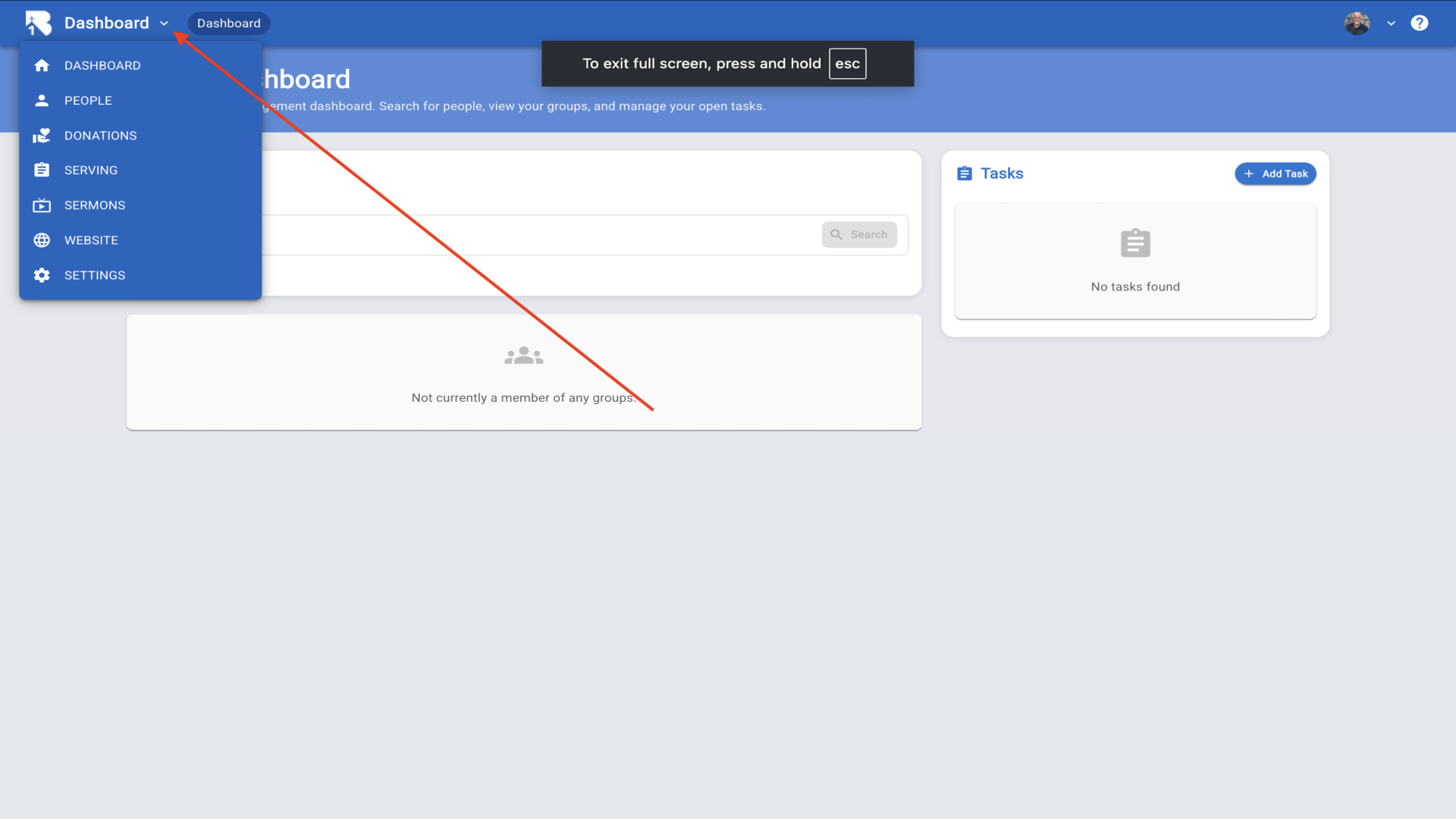
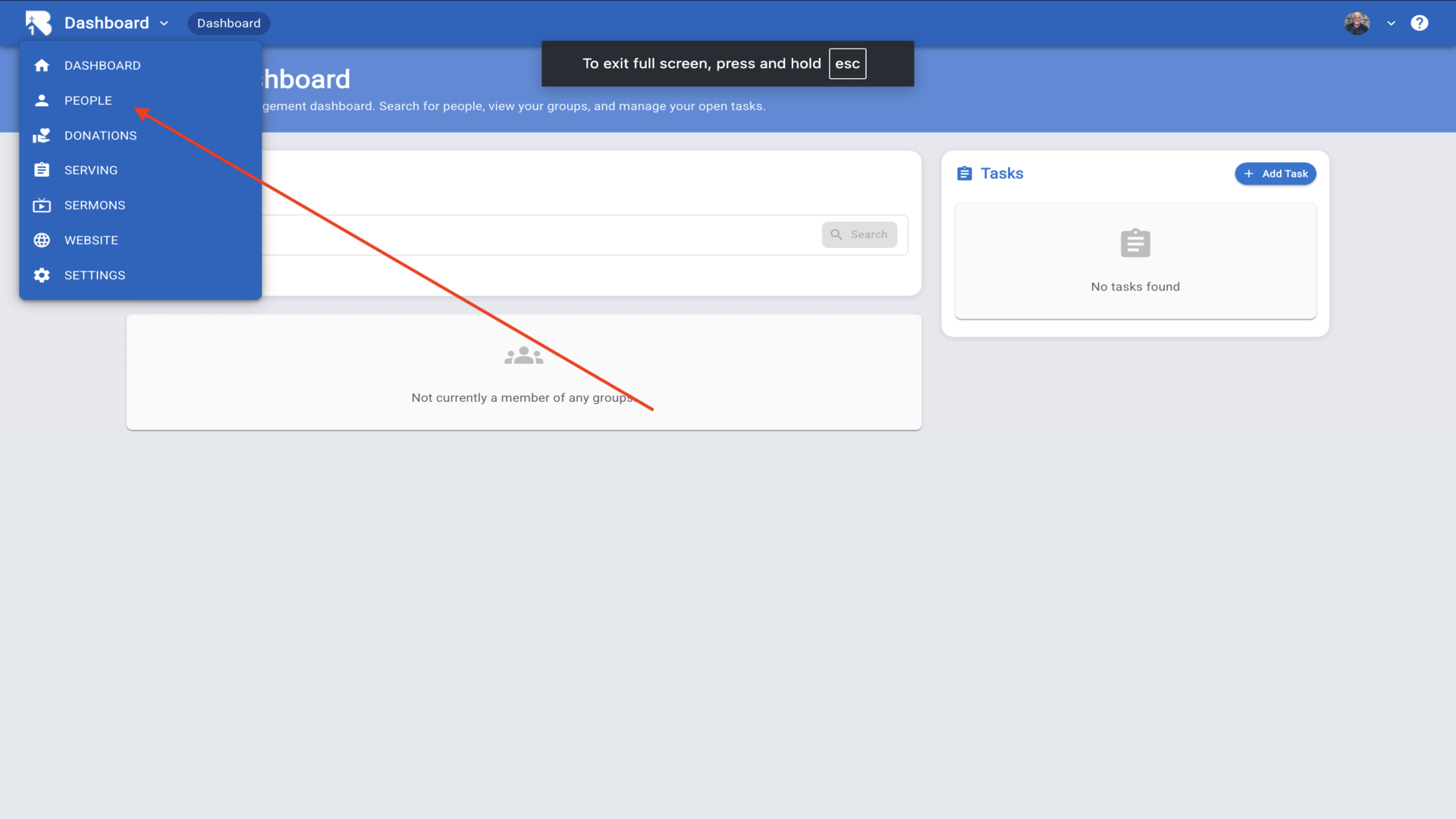
2.Click on People in the left sidebar▼
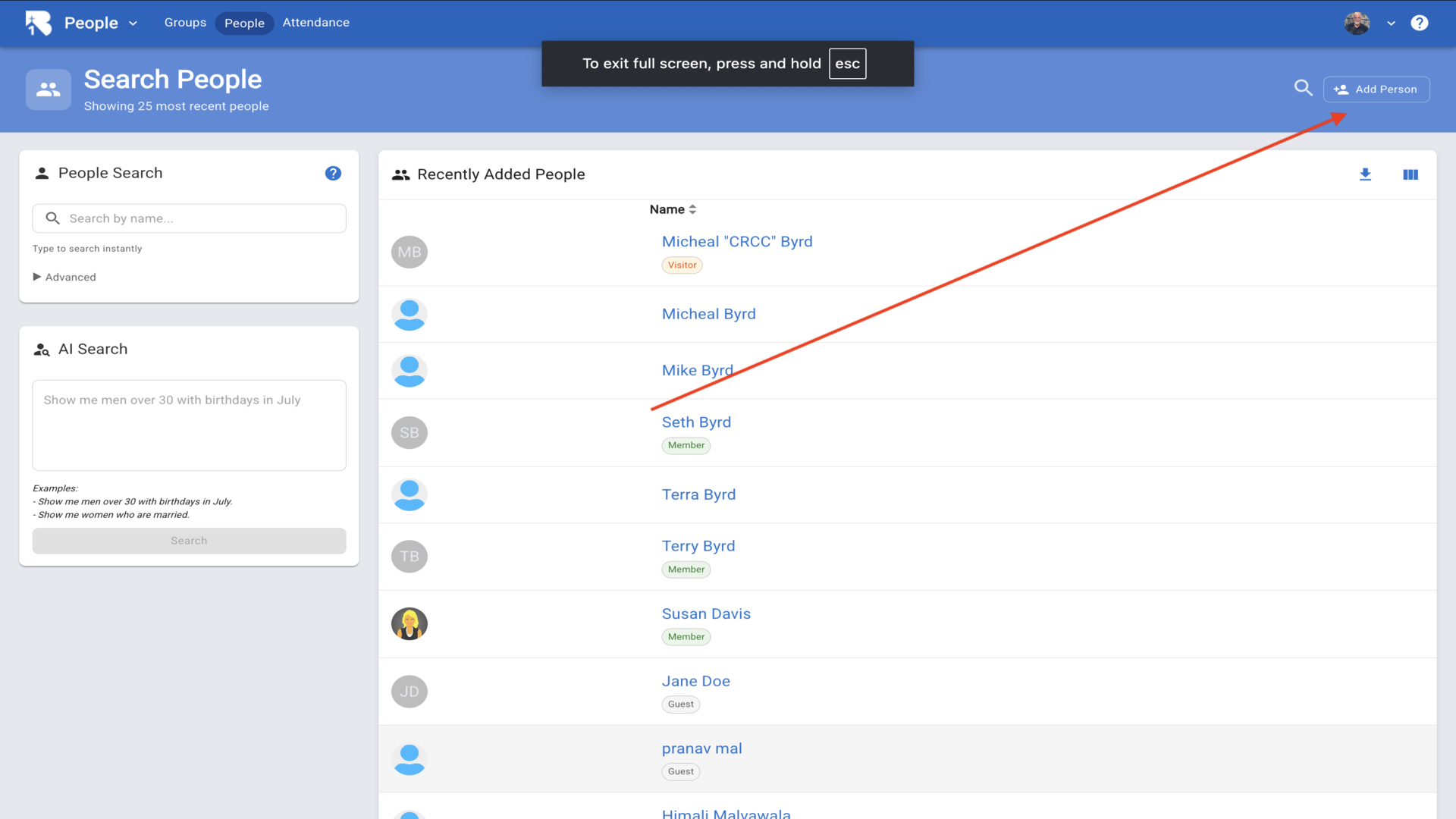
3.Click the Add Person button in the upper right corner▼
4.Fill in the person's first name, last name, and email address, then click Add▼
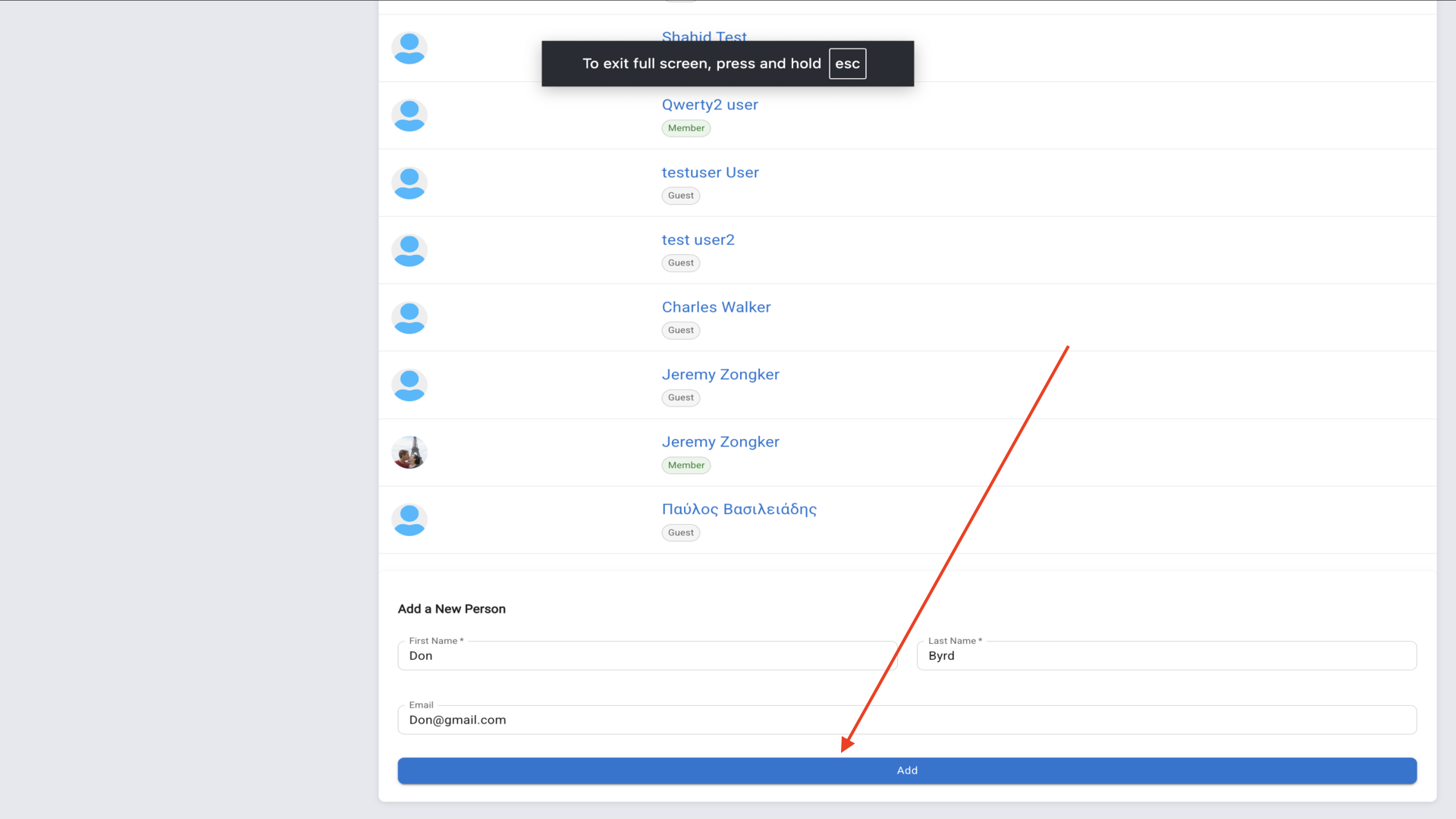
5.The person's profile page will open. Click the edit pencil next to their name to edit their details▼
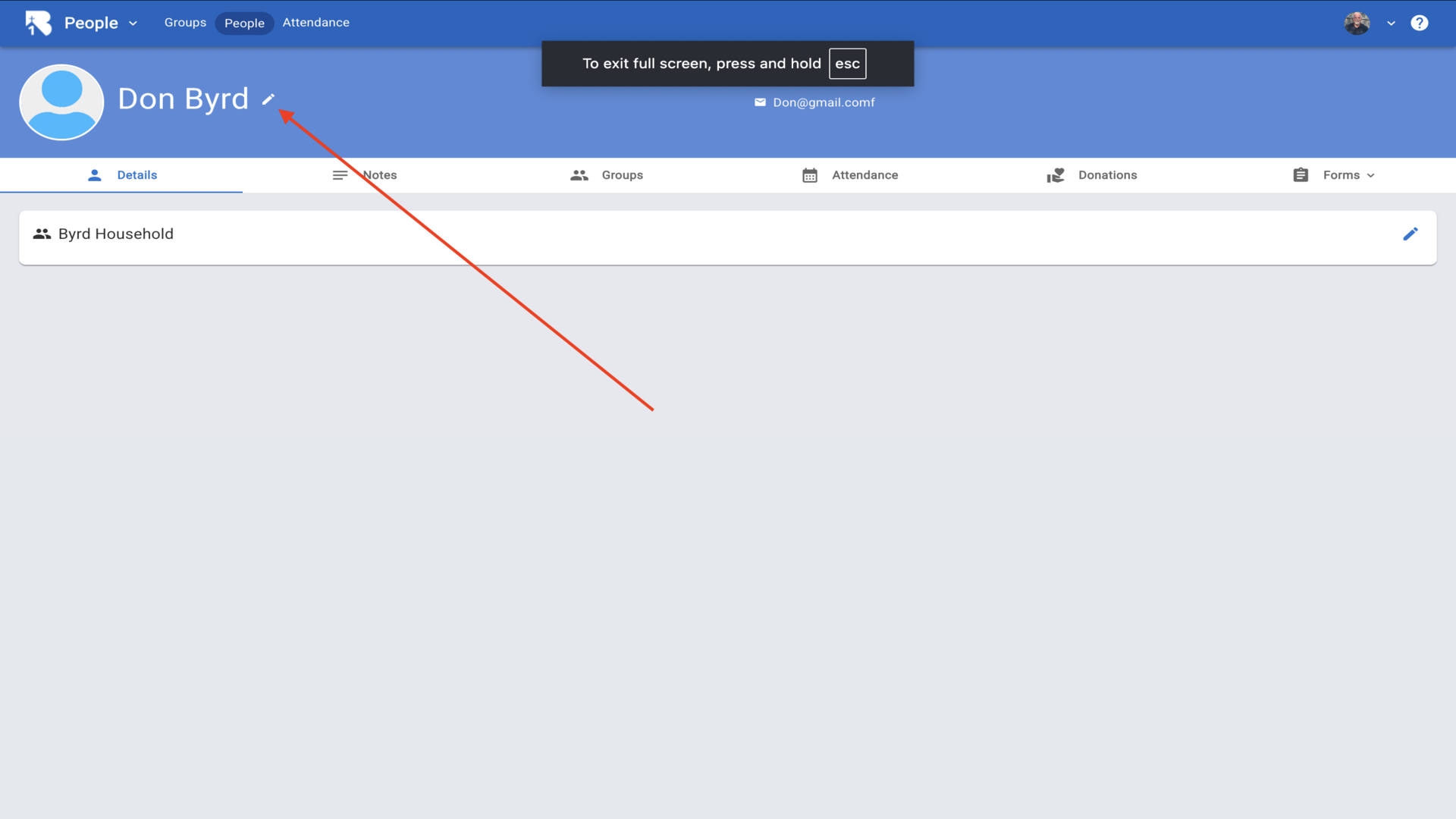
6.Fill in additional information such as middle name, membership status, dates, address, and phone numbers▼
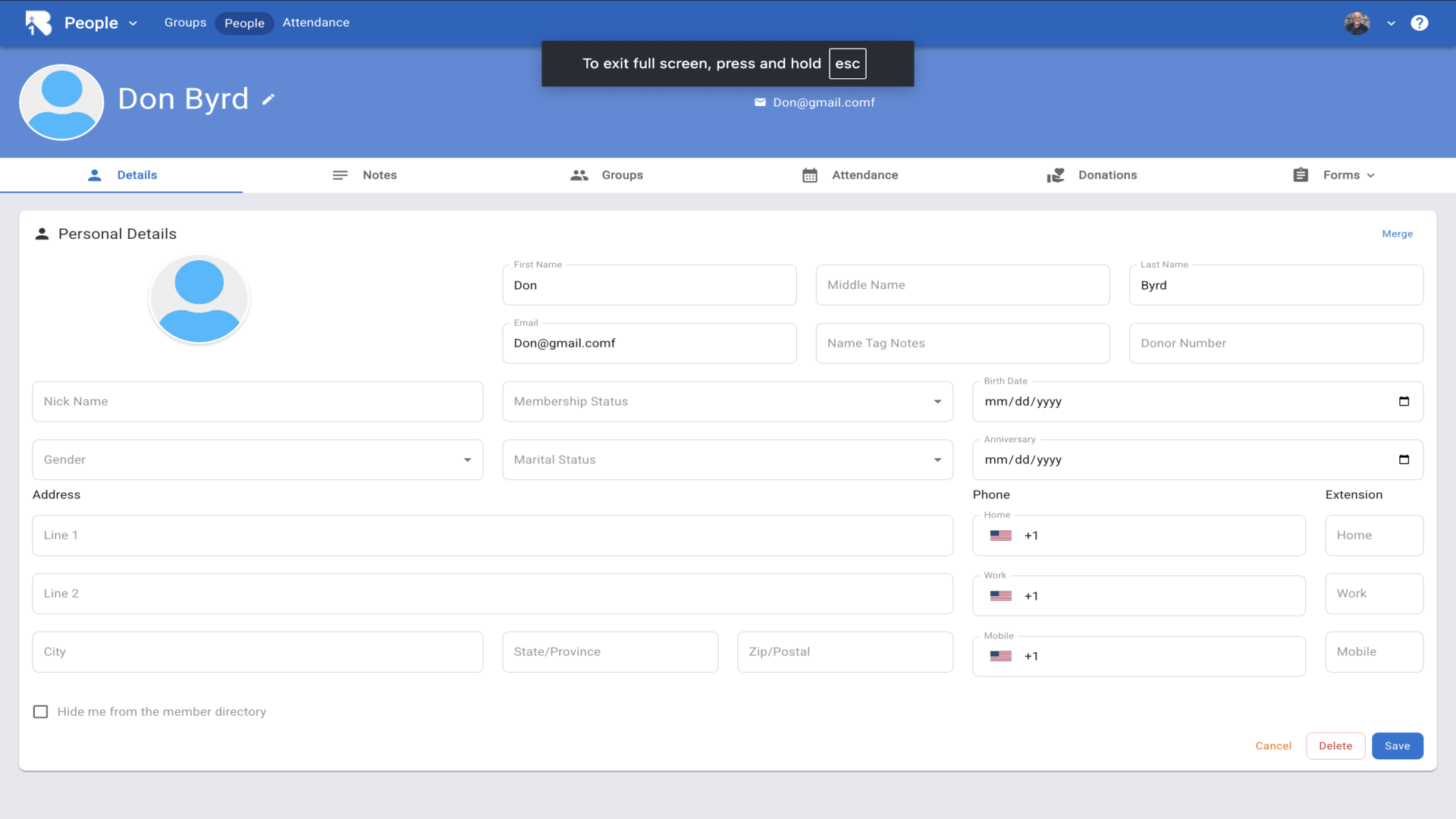
7.Click on the Notes tab to add notes about the person▼
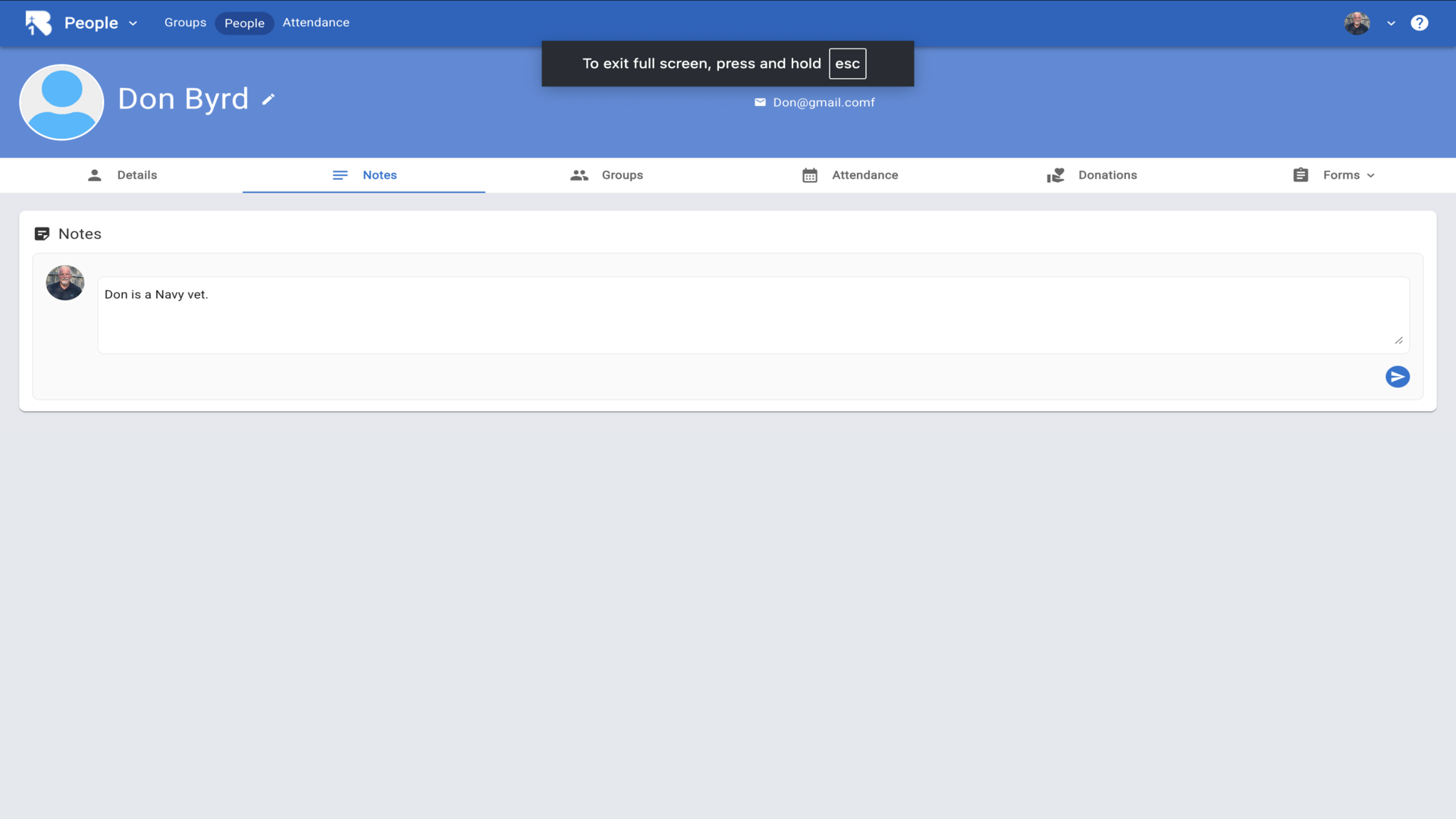
8.Click on the Groups tab to view group memberships▼
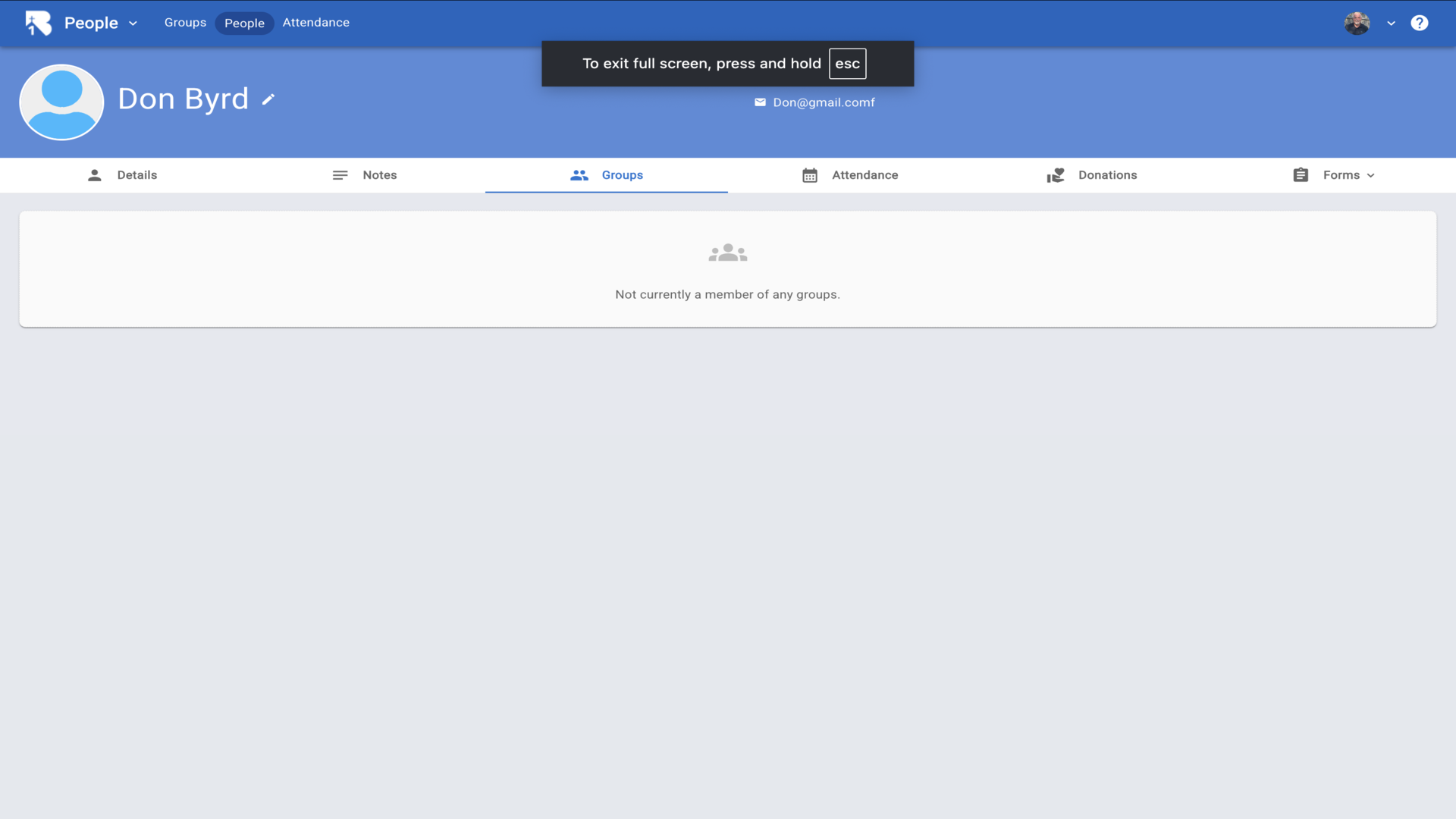
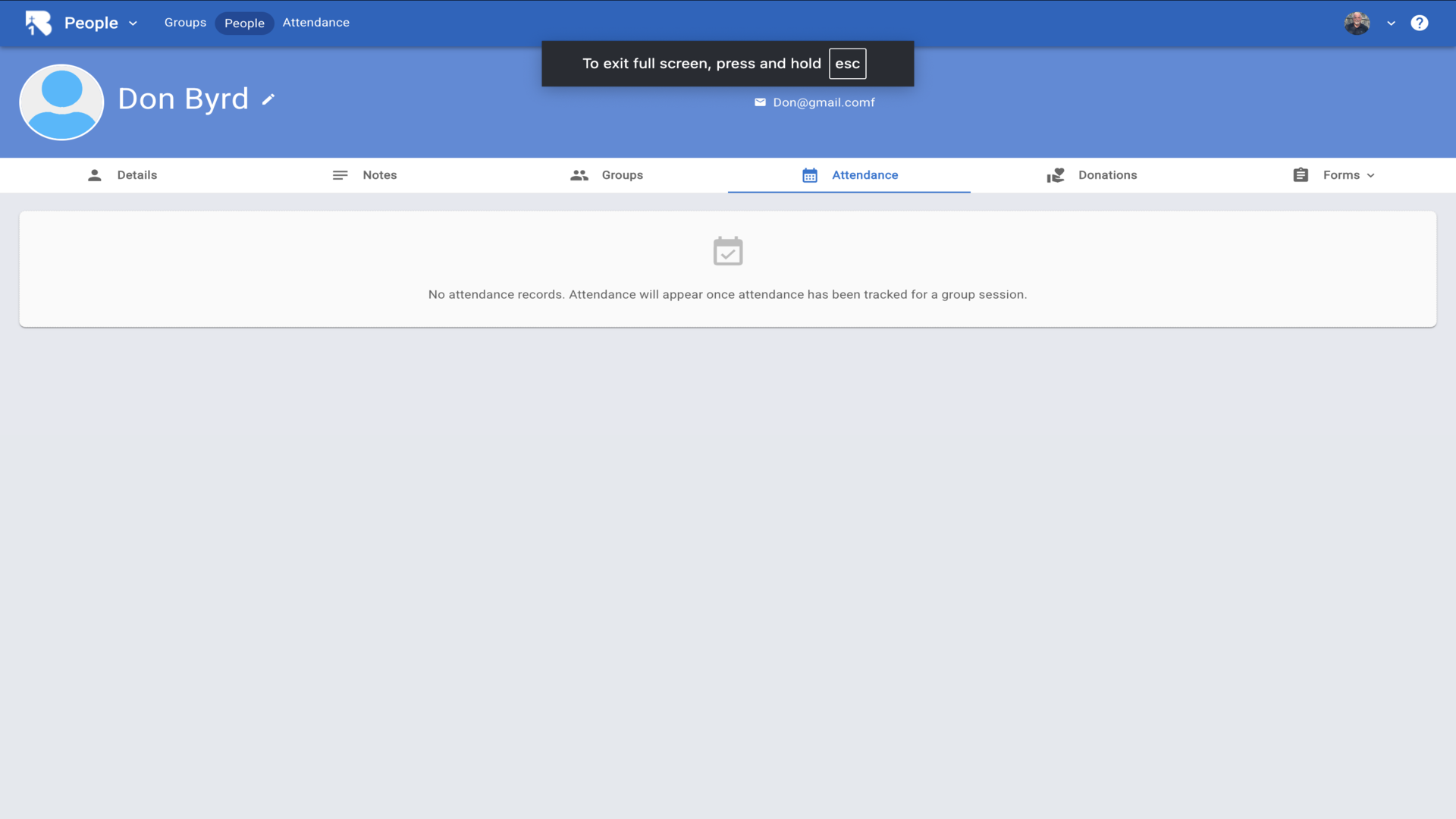
9.Click on the Attendance tab to view attendance records▼
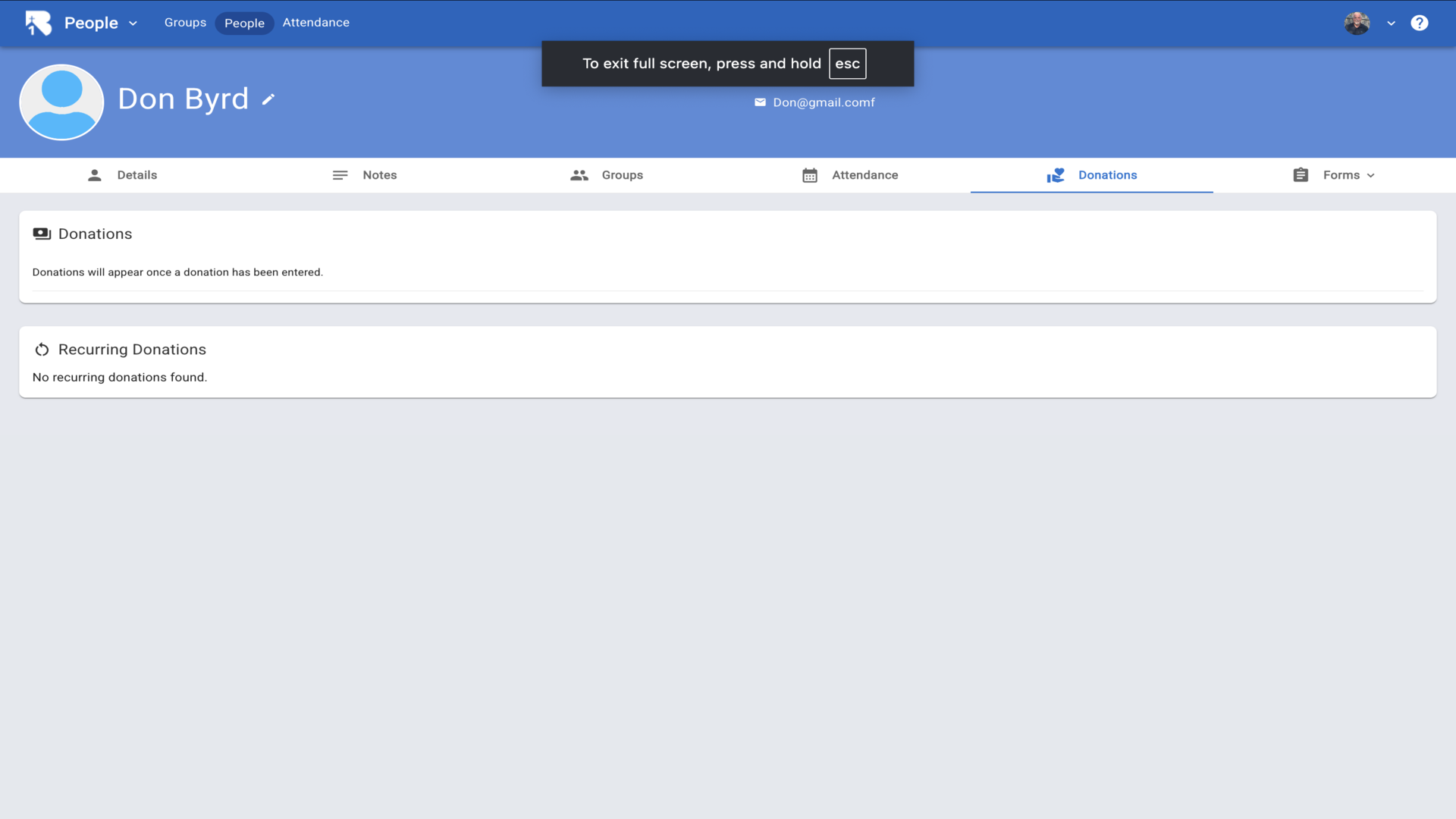
10.Click on the Donations tab to view donations▼
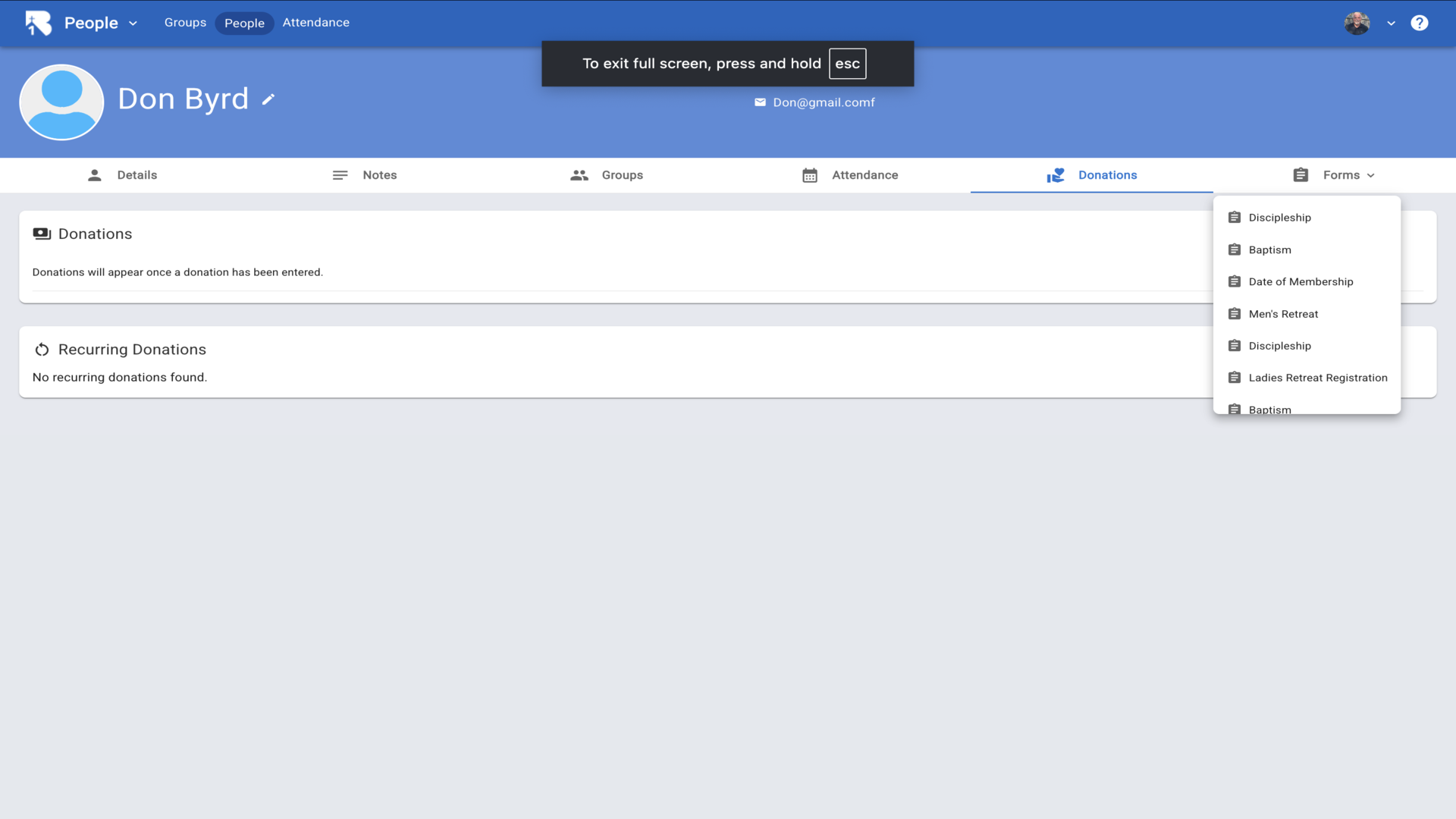
11.Click on the Forms dropdown to select a form to fill out. These forms are user defined forms which you can build by following the forms tutorial▼
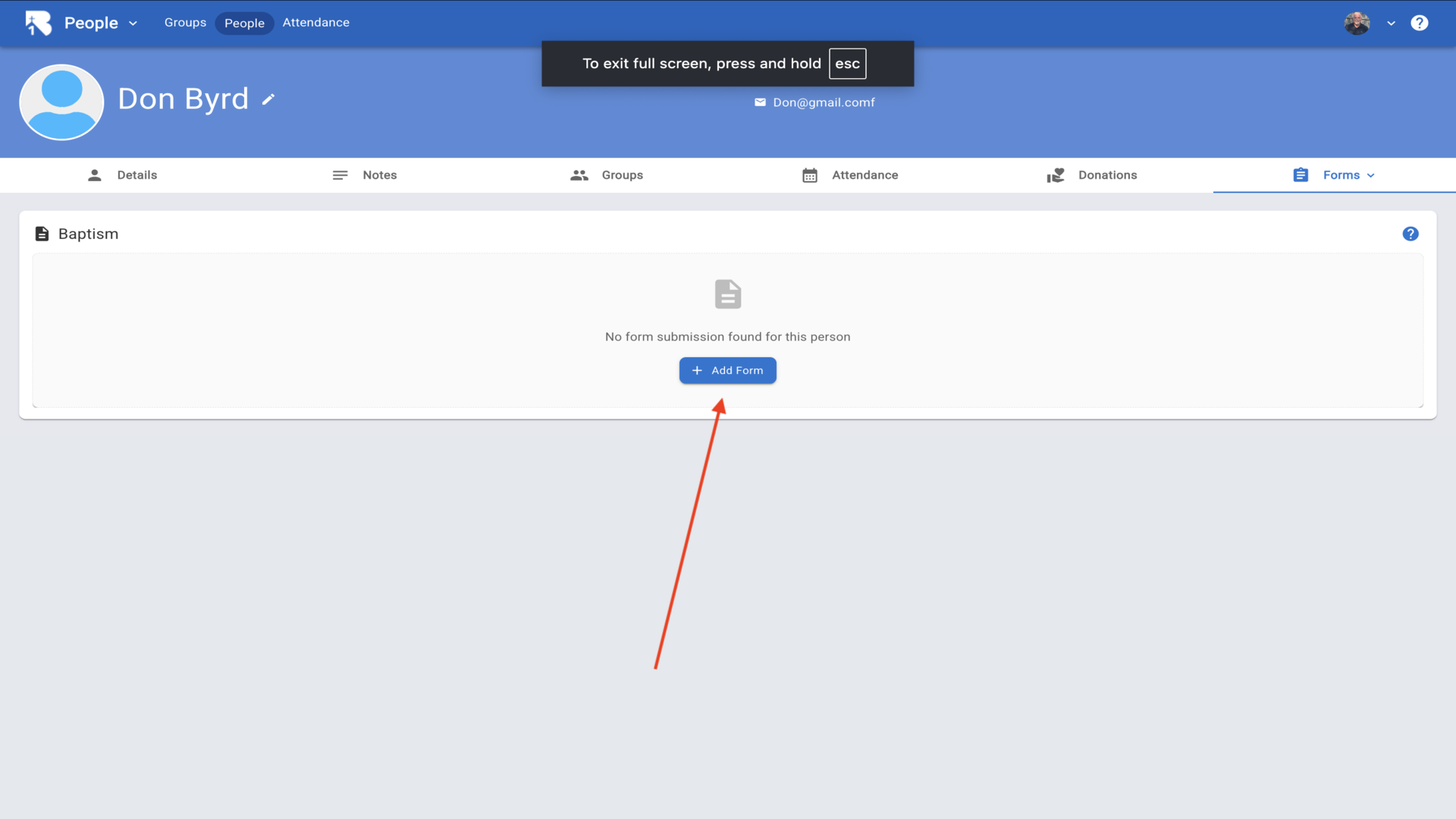
12.Click Add Form to open the form▼
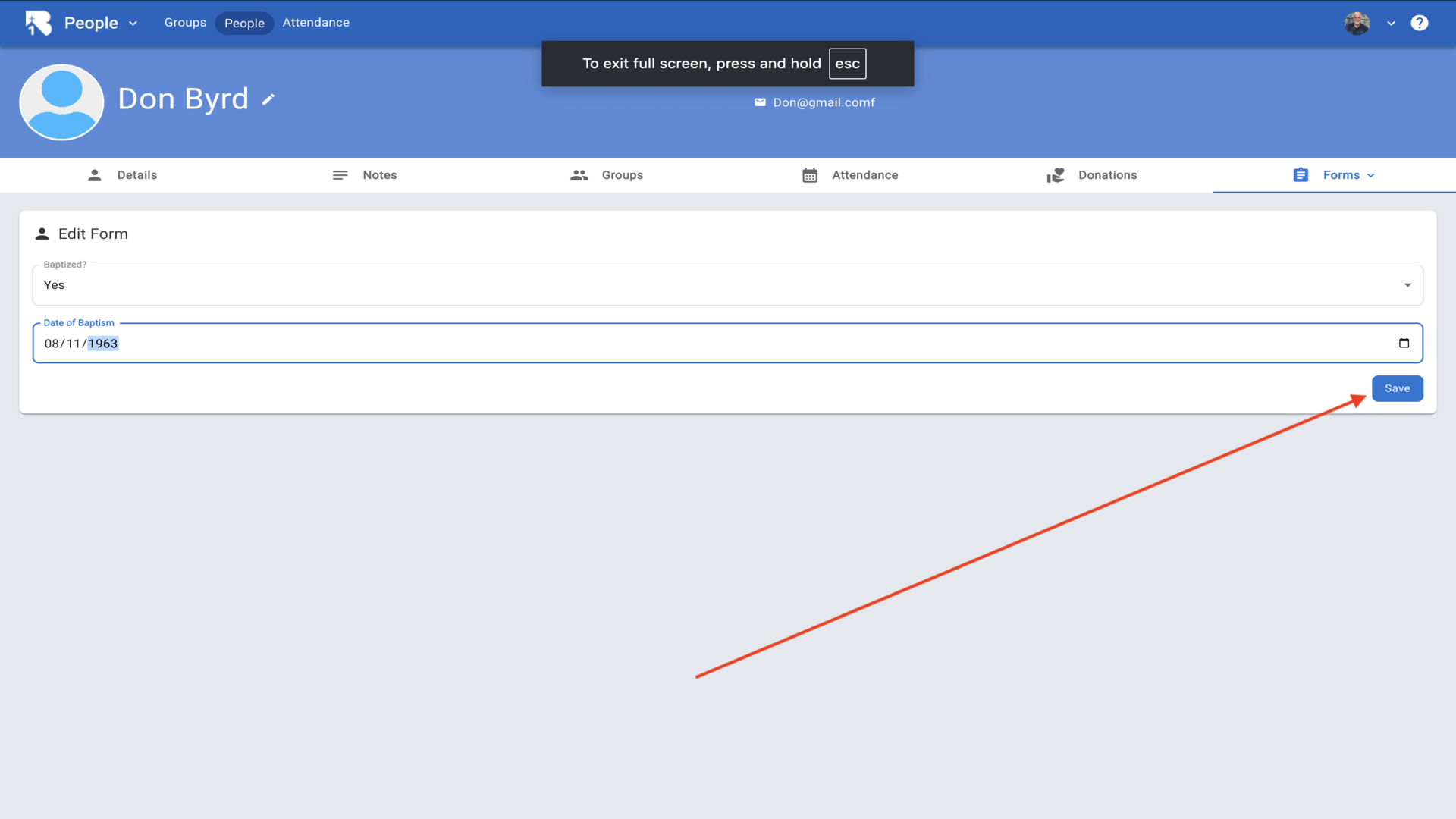
13.Fill in the form details and click Save▼
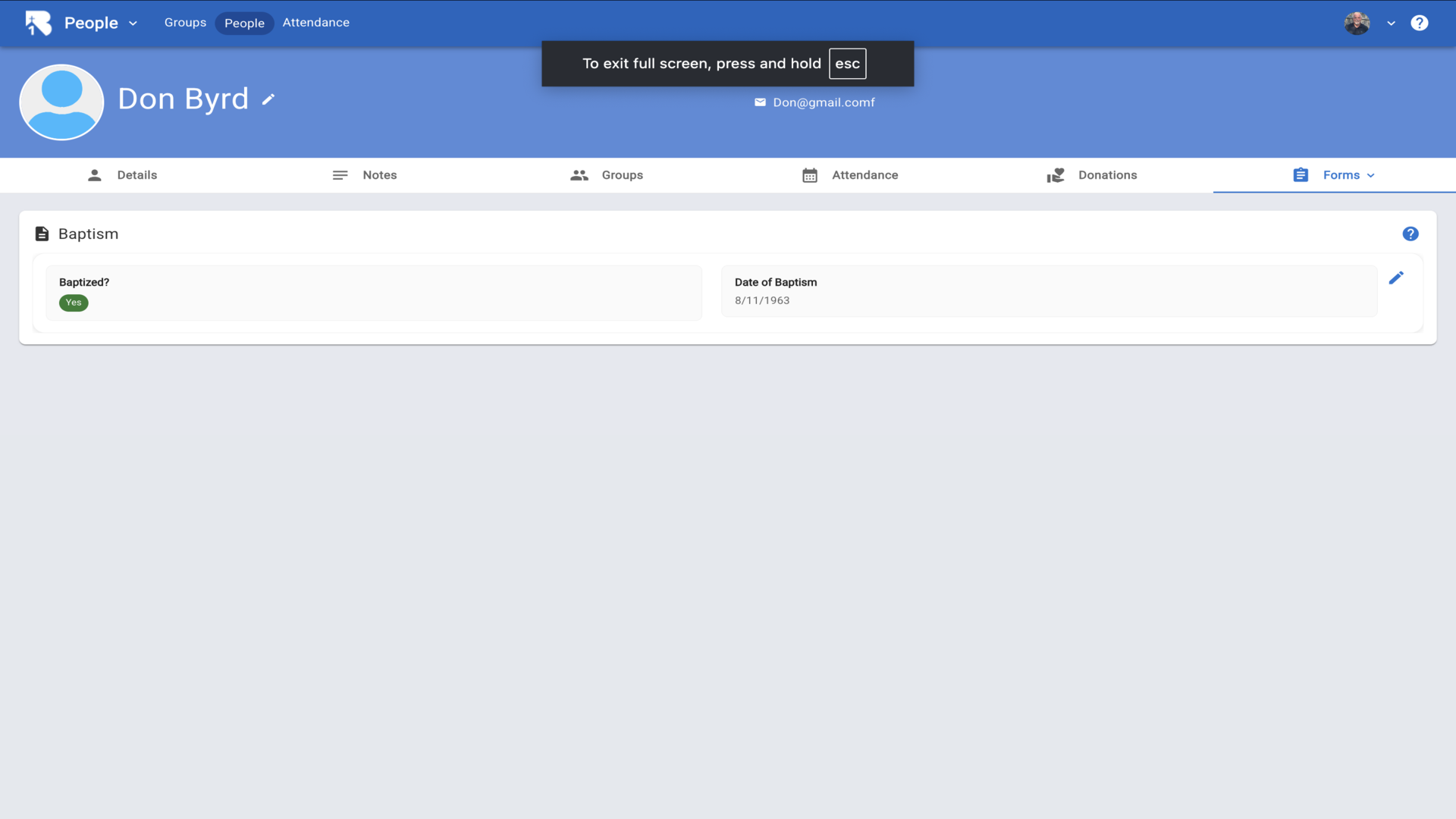
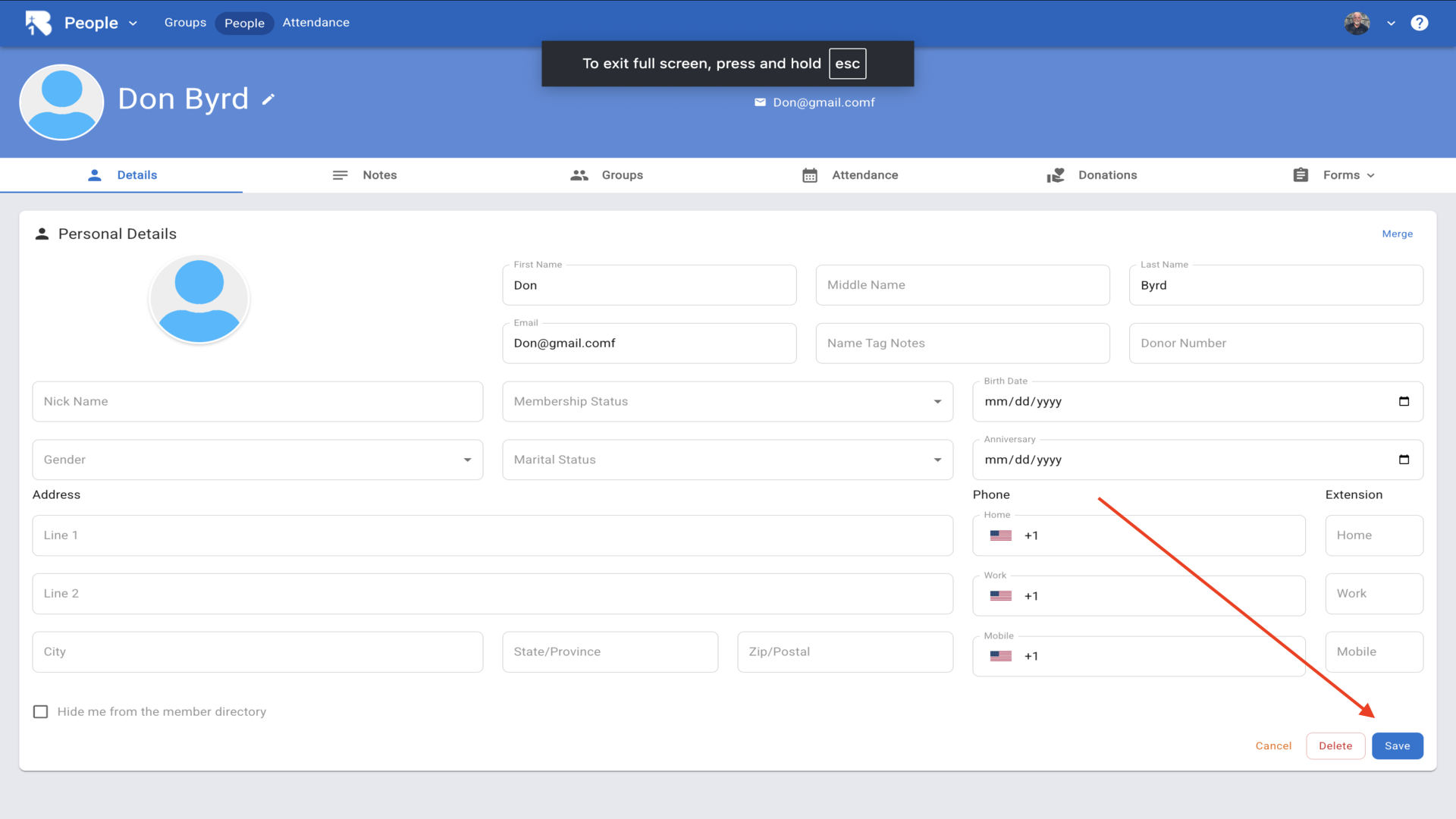
14.Return to the Details tab and click Save to save the personal information▼
15.The details are now saved and visible on the profile▼
16.To add household members, click the edit pencil next to the household name▼
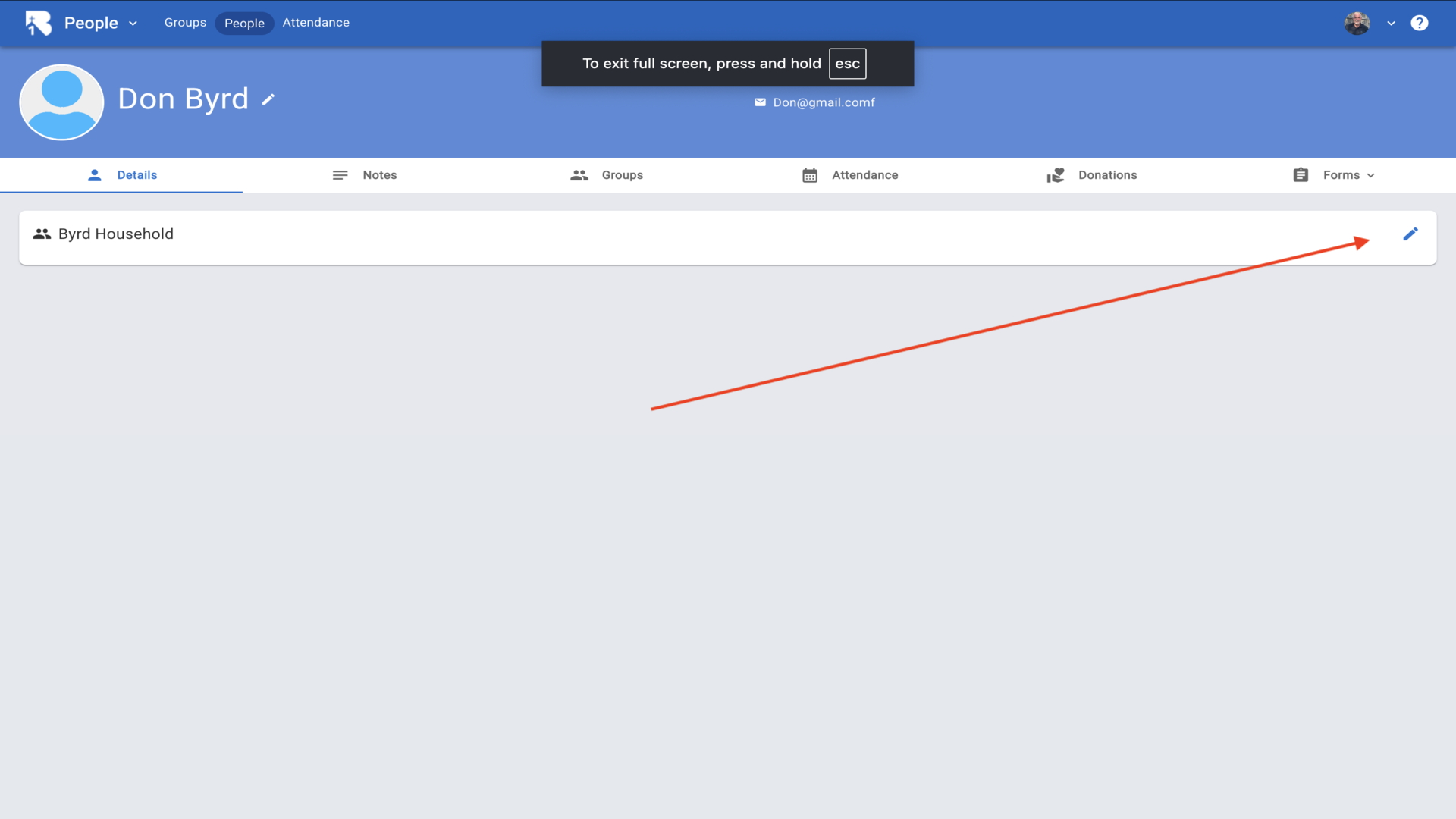
17.The household editor will open. Select the household role for the current person▼
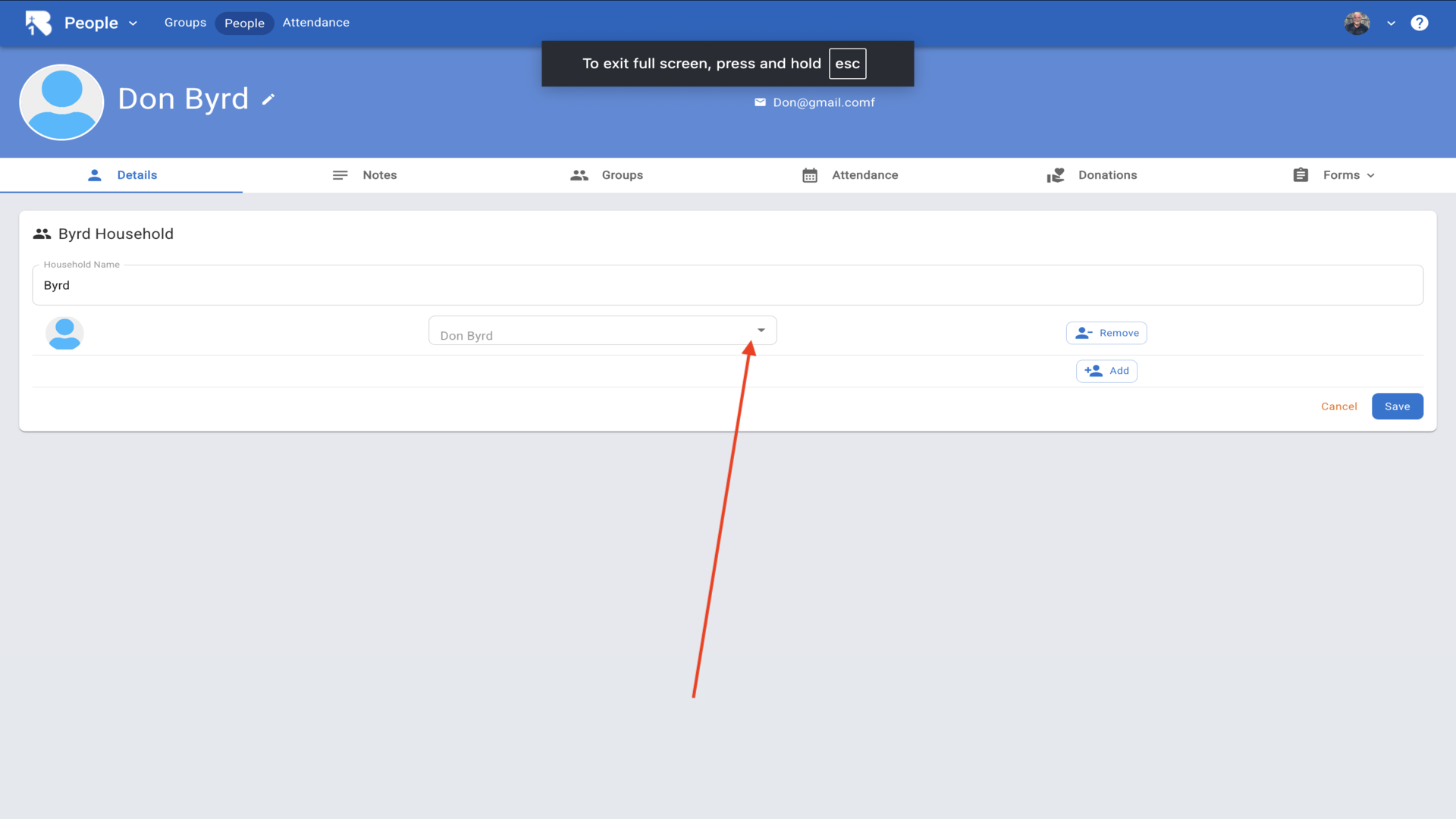
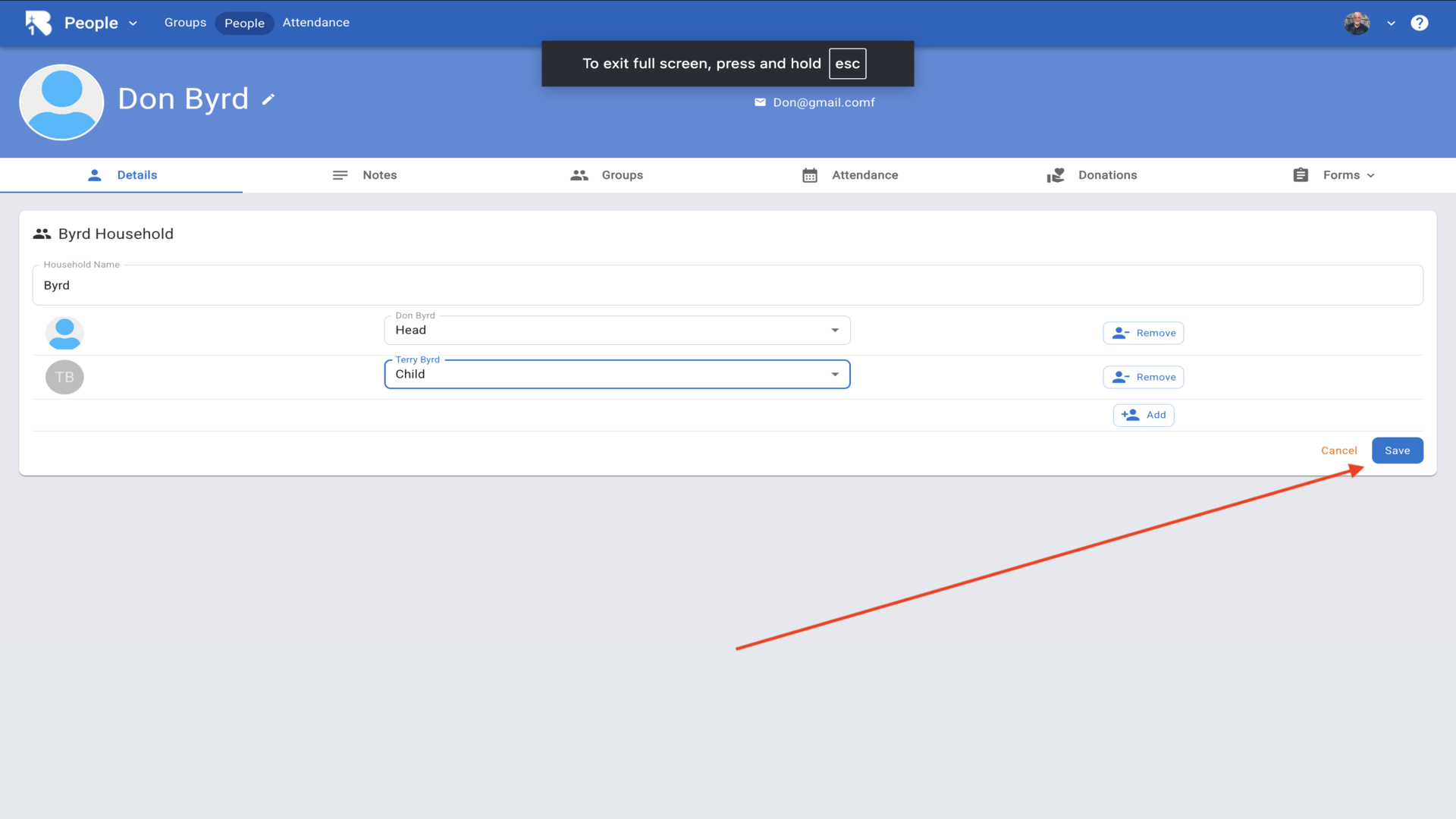
18.After selecting the role, click Add to add another household member▼
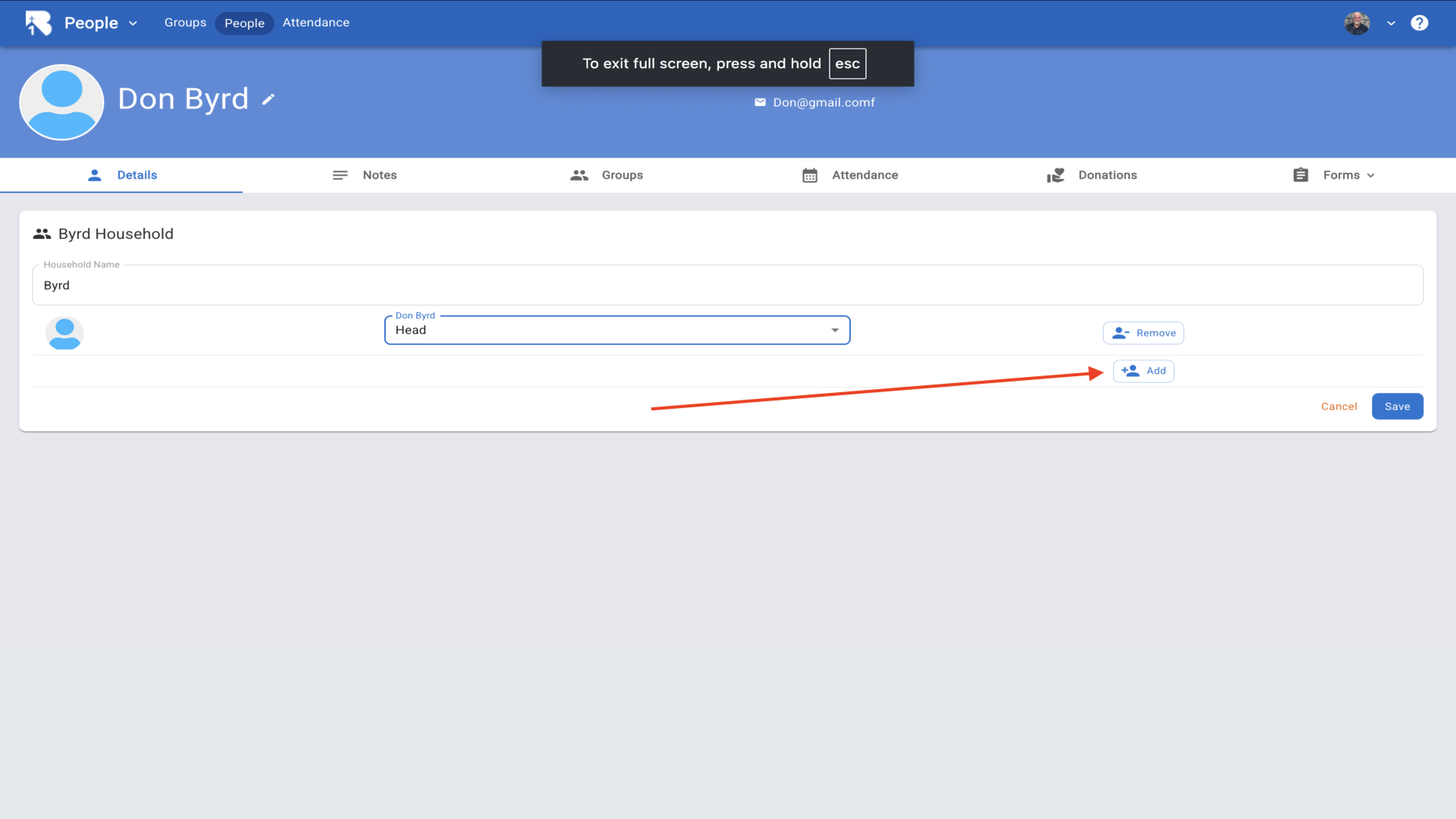
19.Type the person's name in the search box and click Search▼
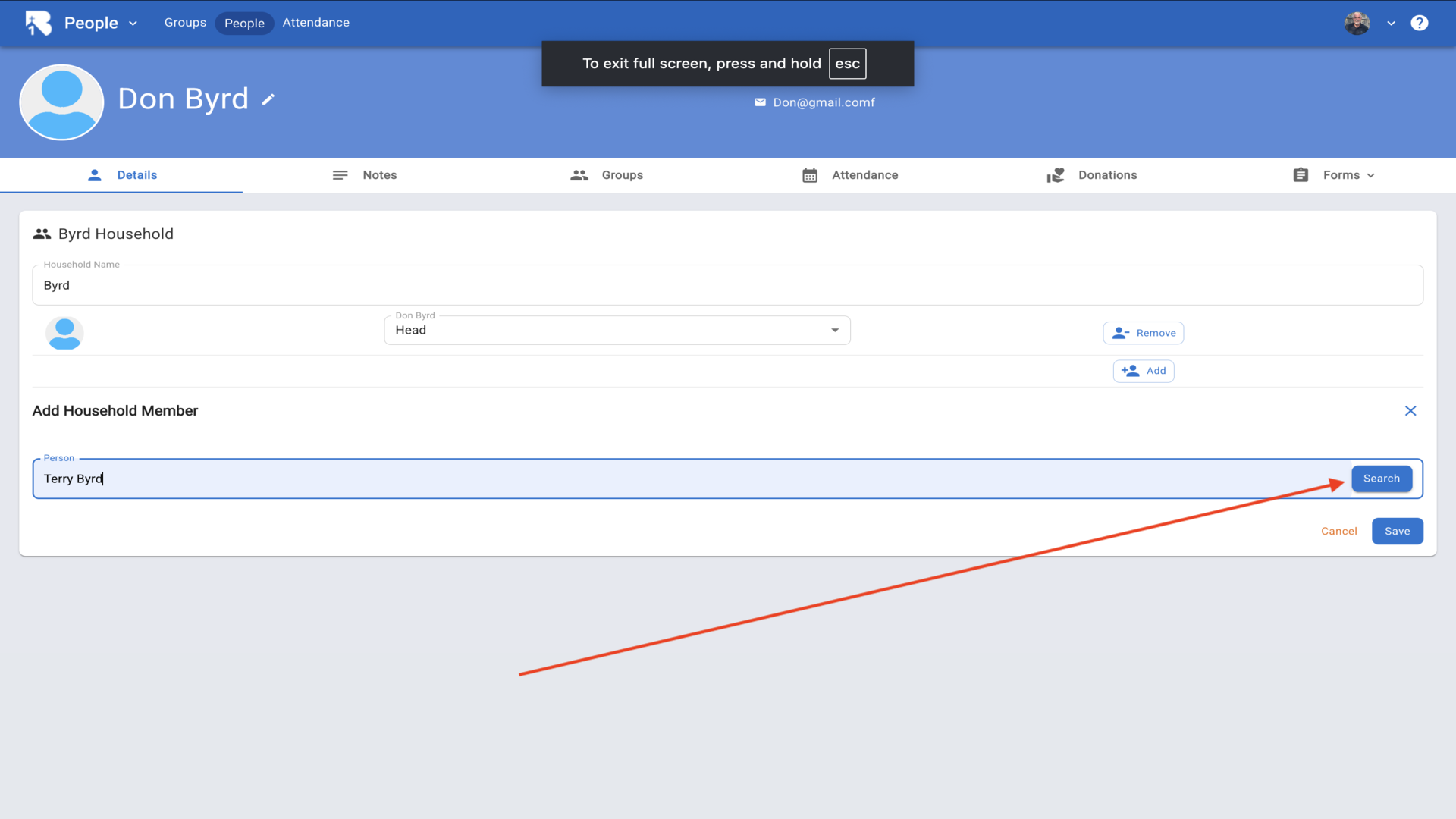
20.When the person appears in the search results, click Select▼
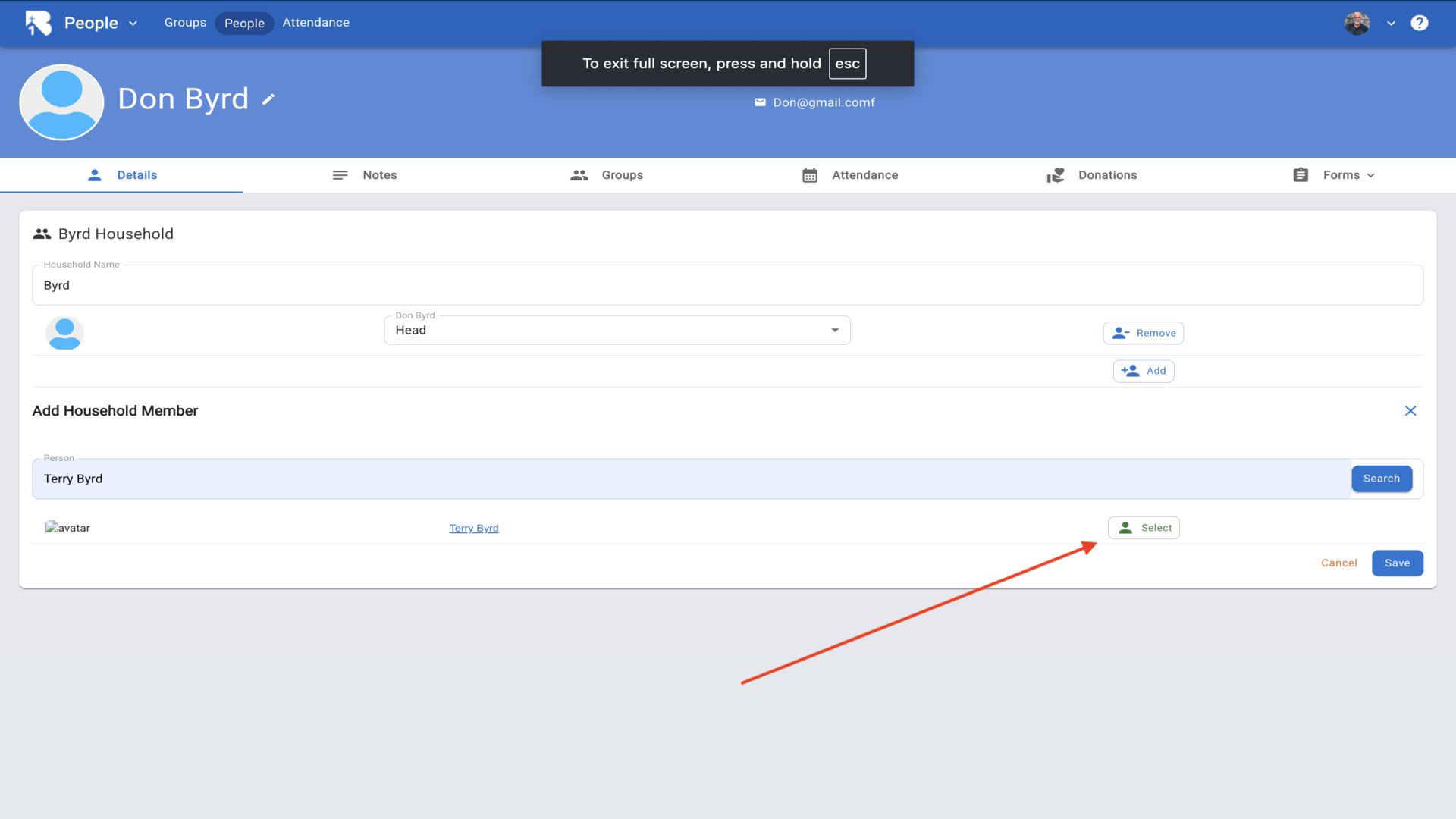
21.Choose their household role and click Save to complete the household setup▼