02 Admin
Mobile Admin
Learn how to configure and customize your church’s mobile app experience using B1.church Admin.
For further support, please email support@churchapps.org.
Steps
1.B1 is the platform for communicating with members and visitors of your church. It is broken into two main parts.▼
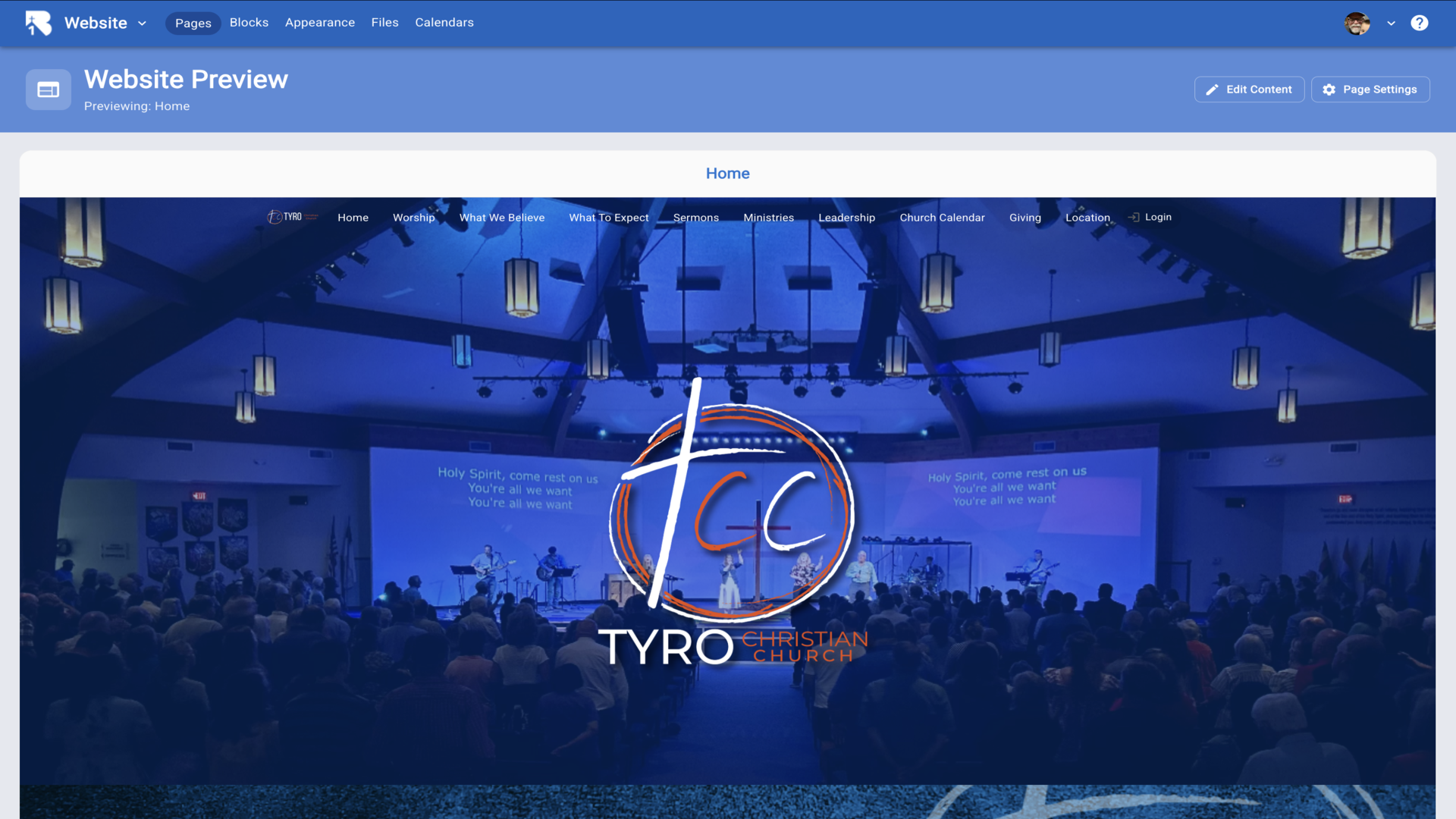
2.A website builder where you can create your primary church website or supplemental web content.▼
3.And the member portal that provides various ways for users to interact with your church.▼
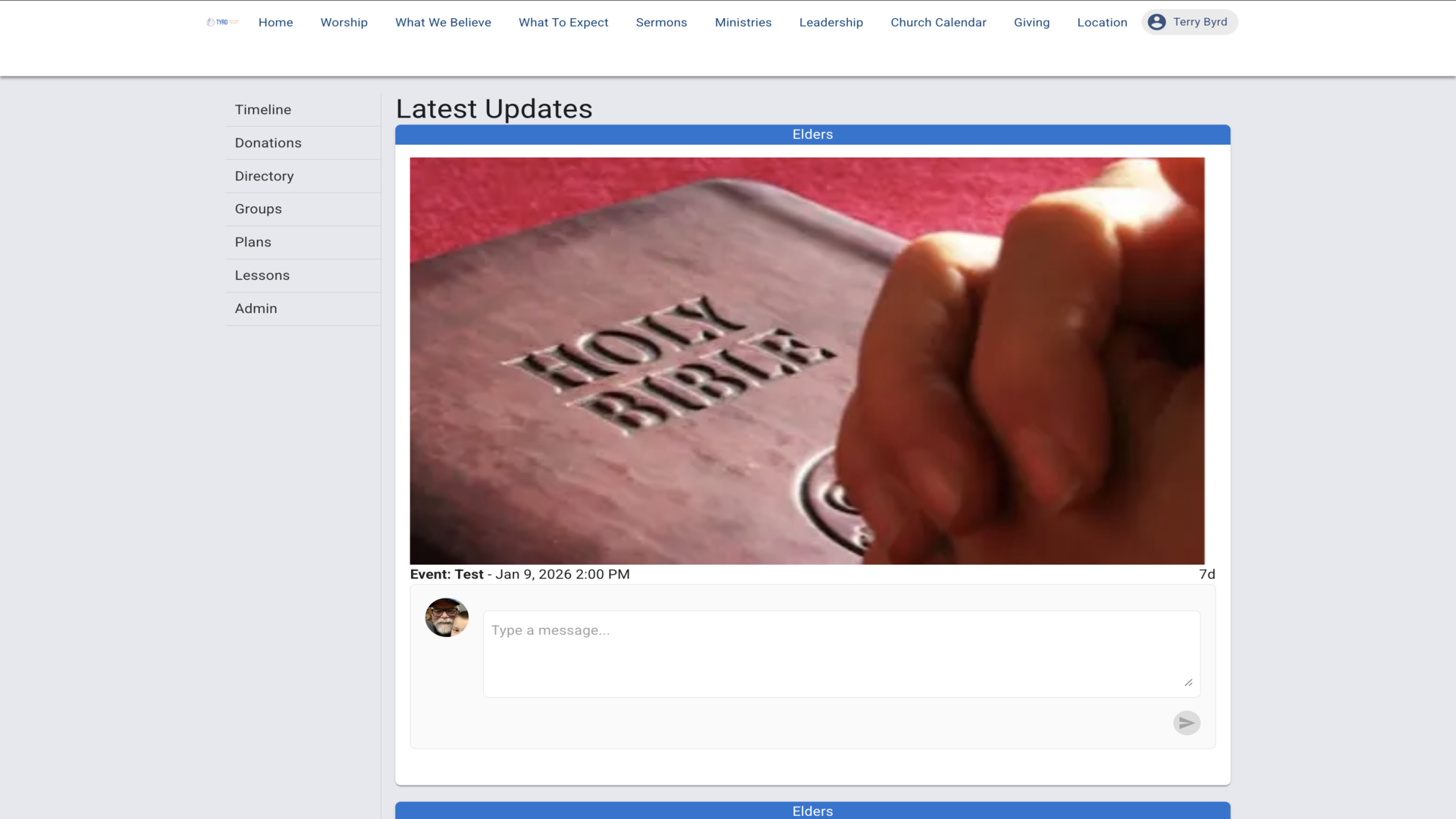
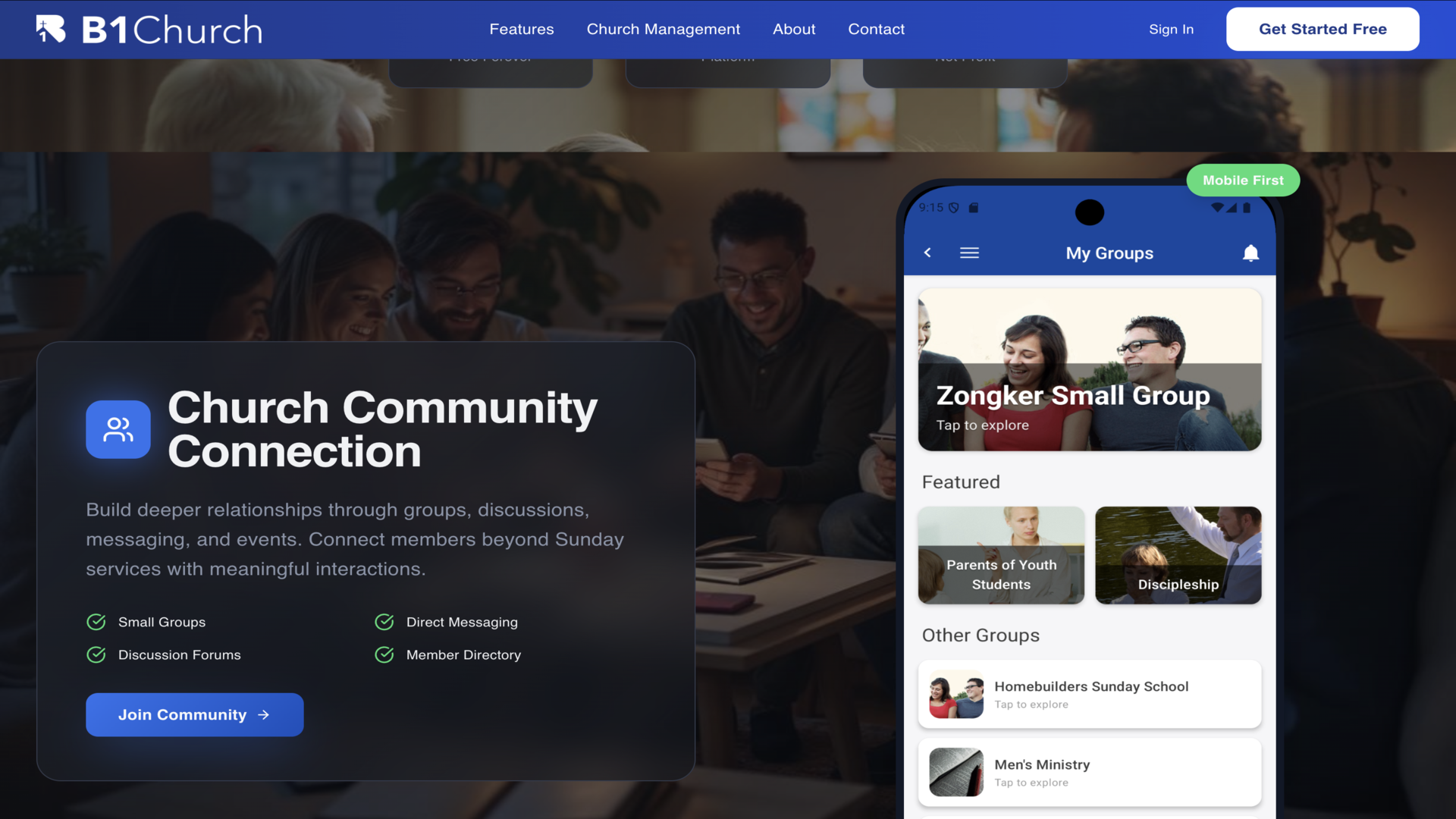
4.This member portal is also available as a mobile app, the B1.church app.▼
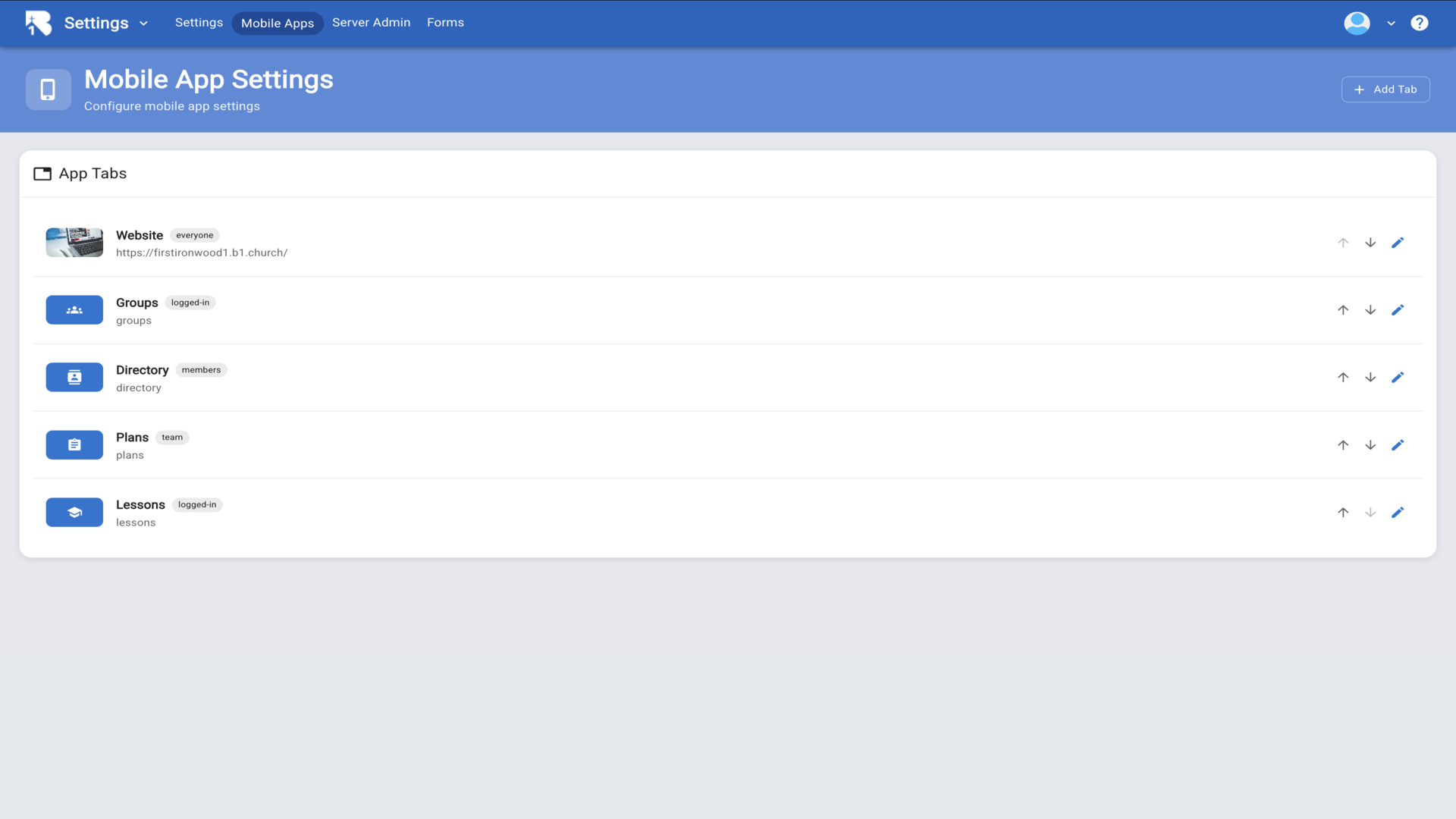
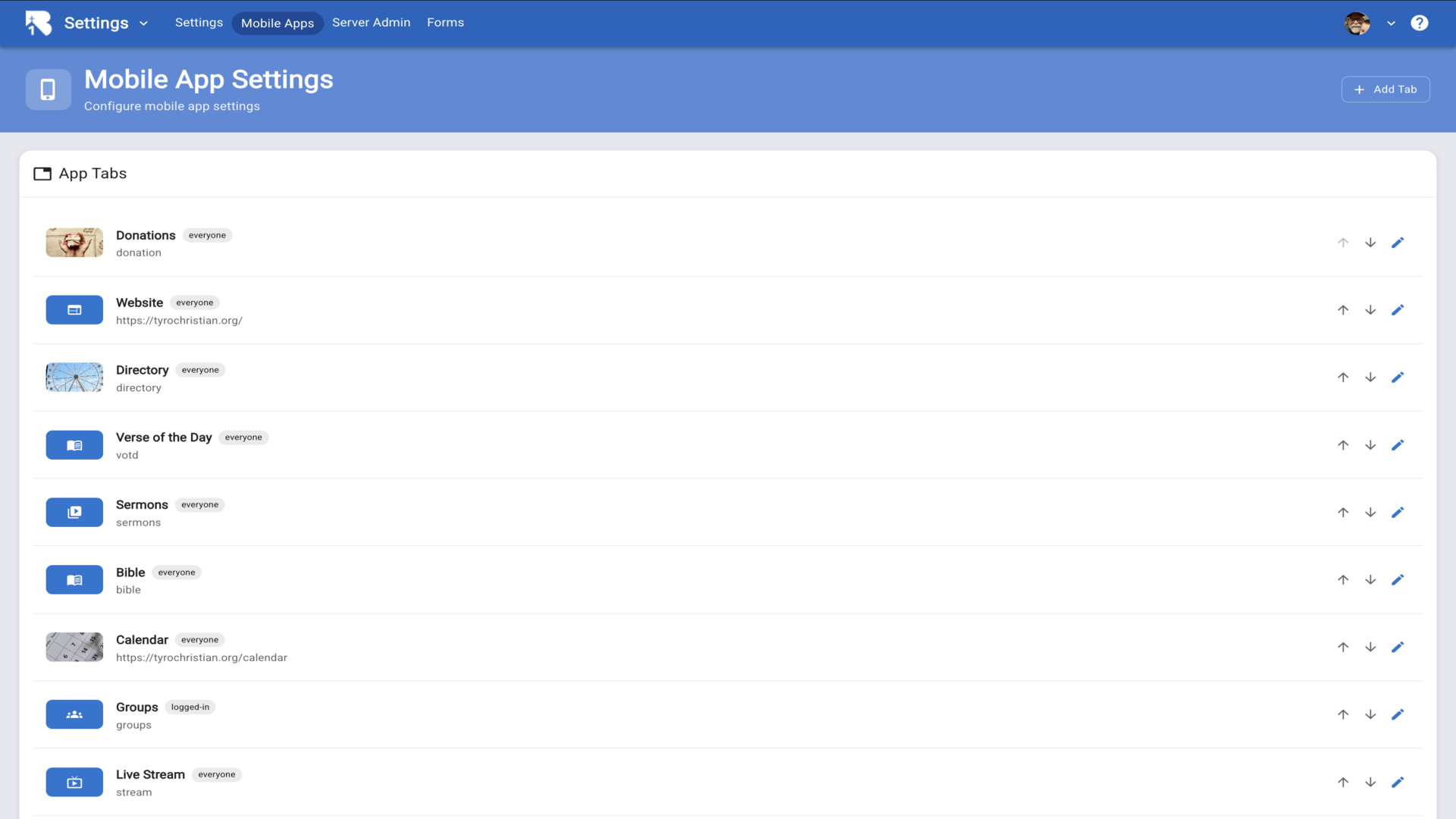
5.As an admin, you can configure which tabs appear in the mobile app from the Mobile App Settings page.▼
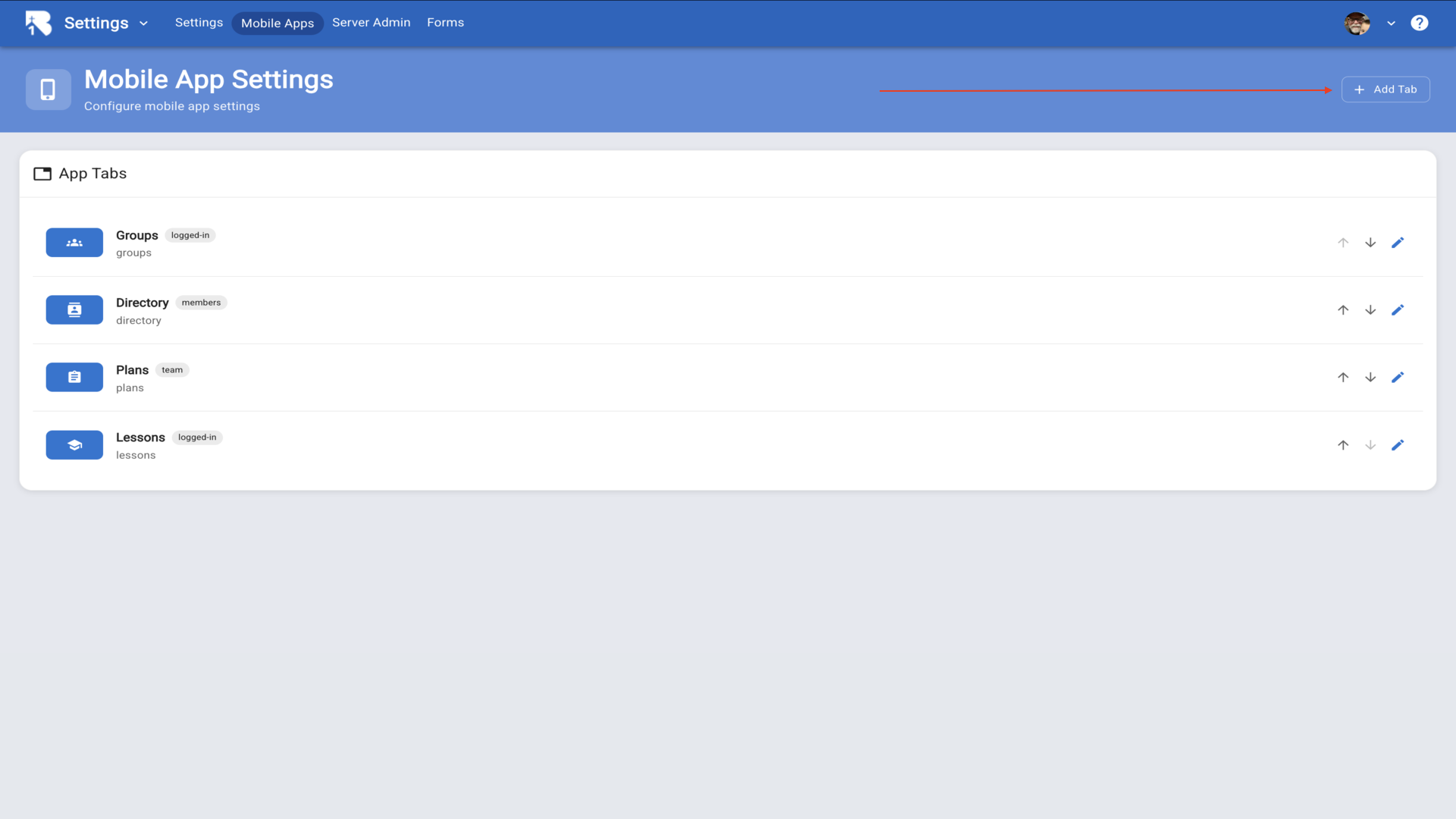
6.Some tabs show up automatically when conditions are met. Others can be manually added by clicking the Add Tab button.▼
Steps
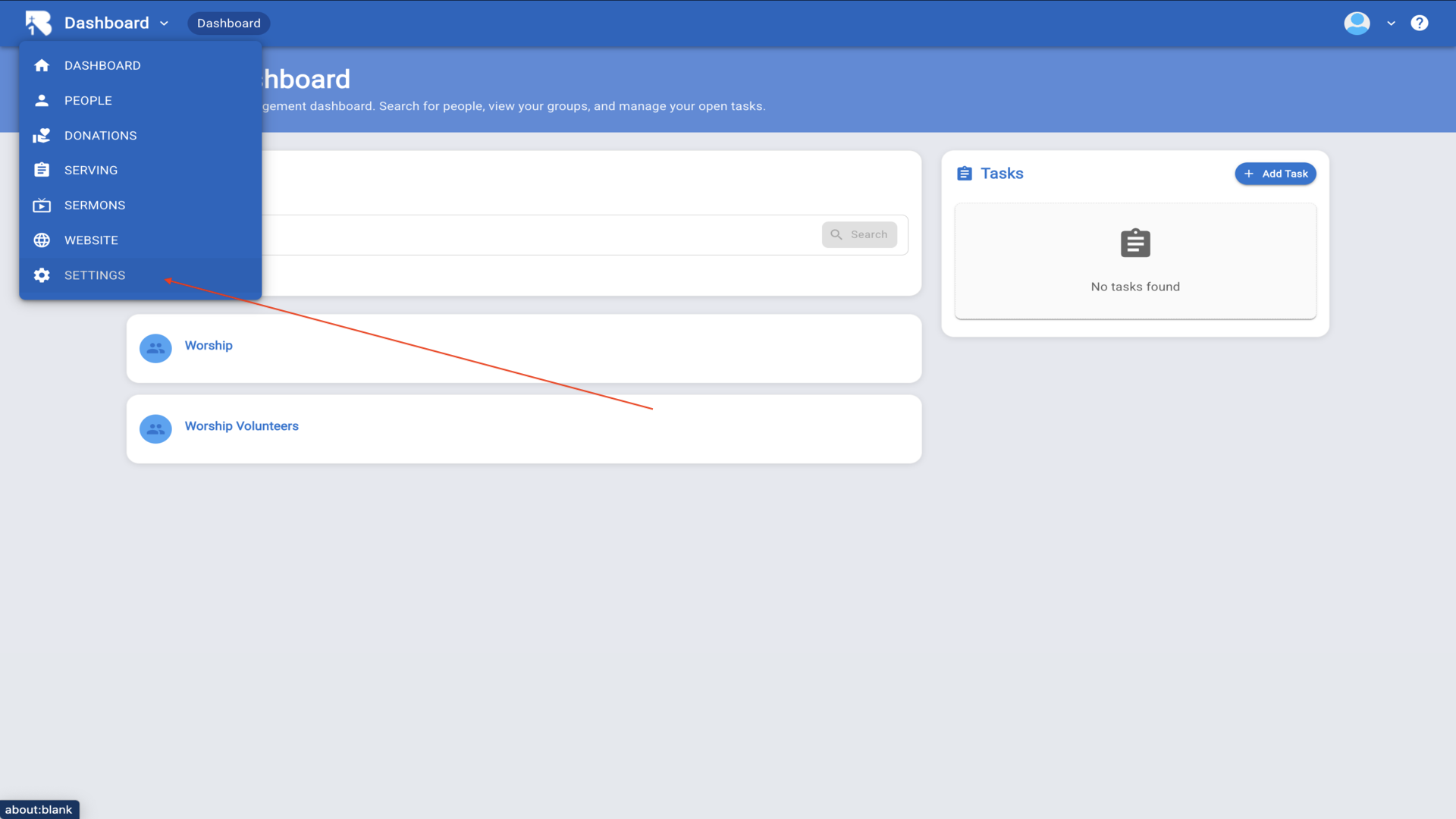
1.This tutorial will help you configure your tabs in the B1 mobile app. From the B1 dashboard, click Settings in the left sidebar.▼
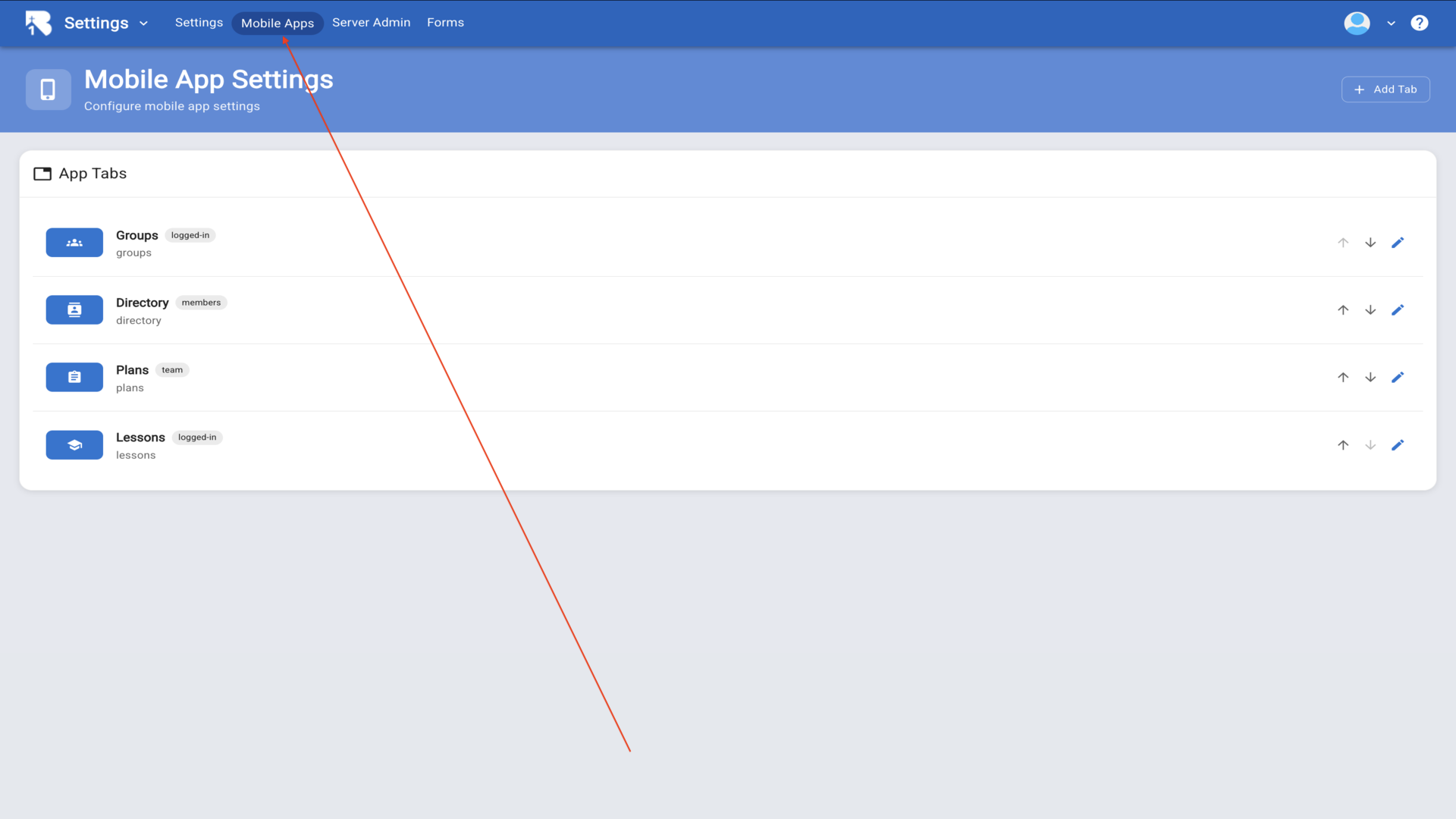
2.Click on Mobile Apps to access the mobile app settings.▼
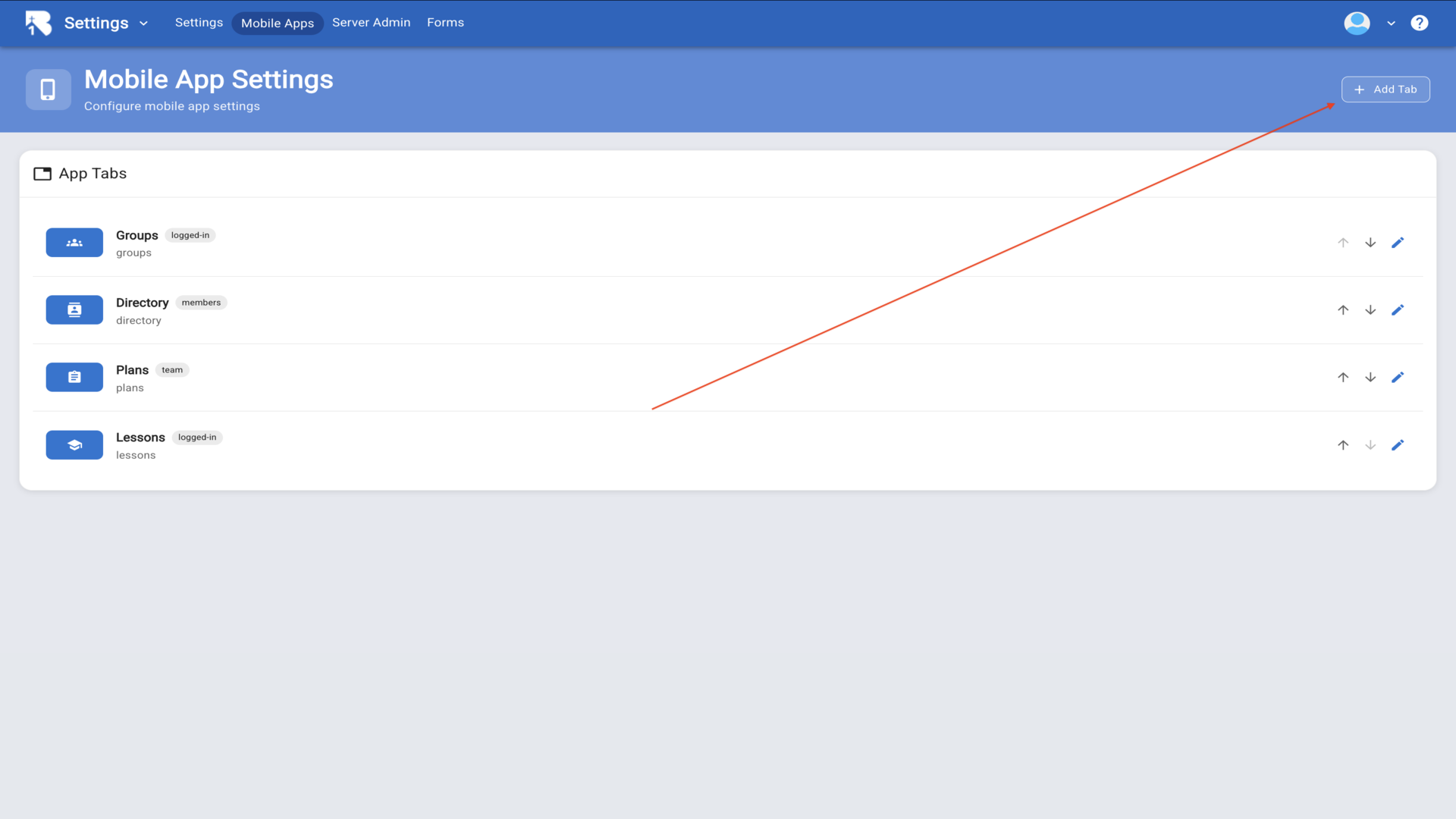
3.Click the Add Tab button in the top right to create a new tab.▼
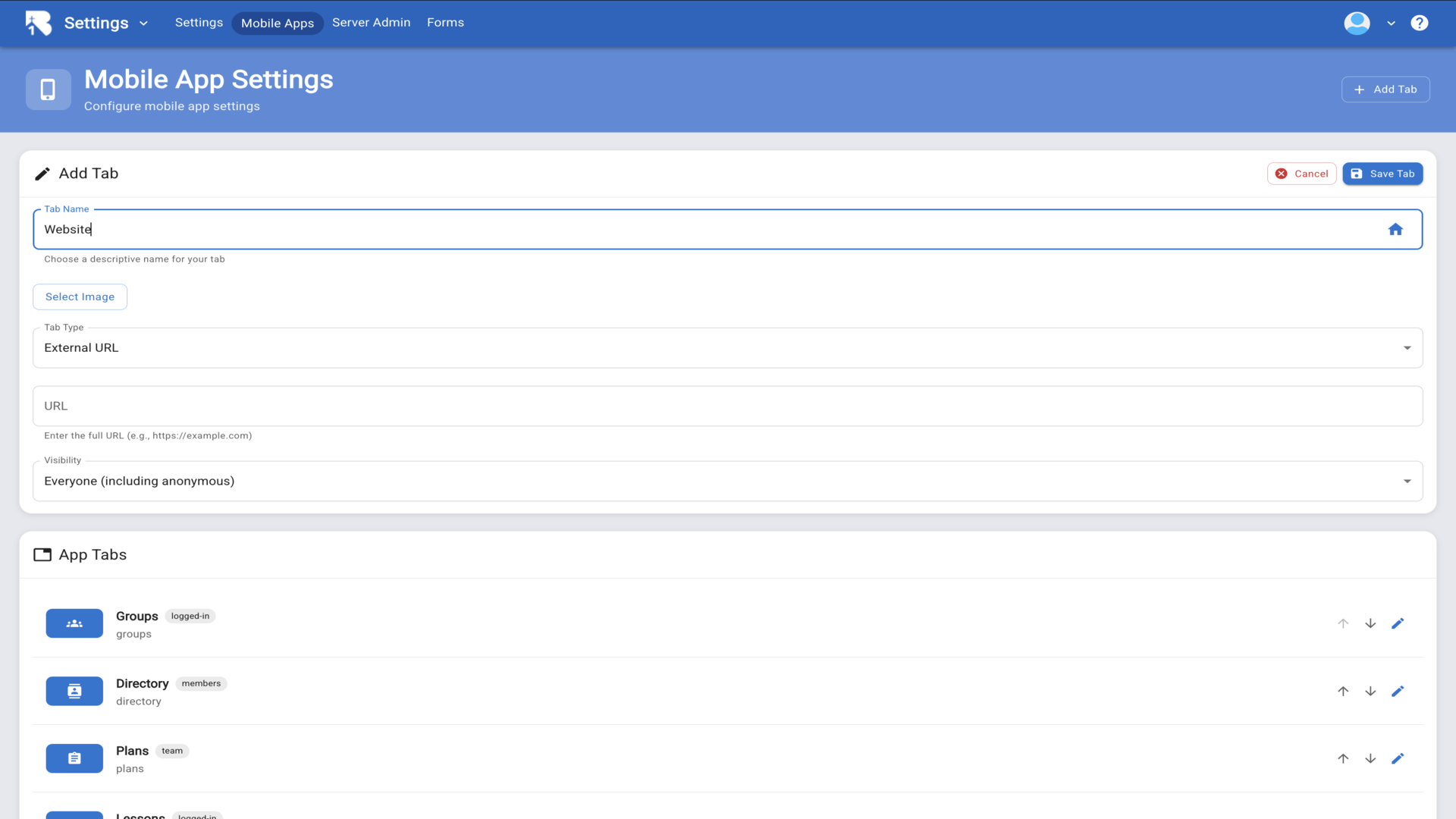
4.The Add Tab dialog opens. Enter a name for your tab, such as Website.▼
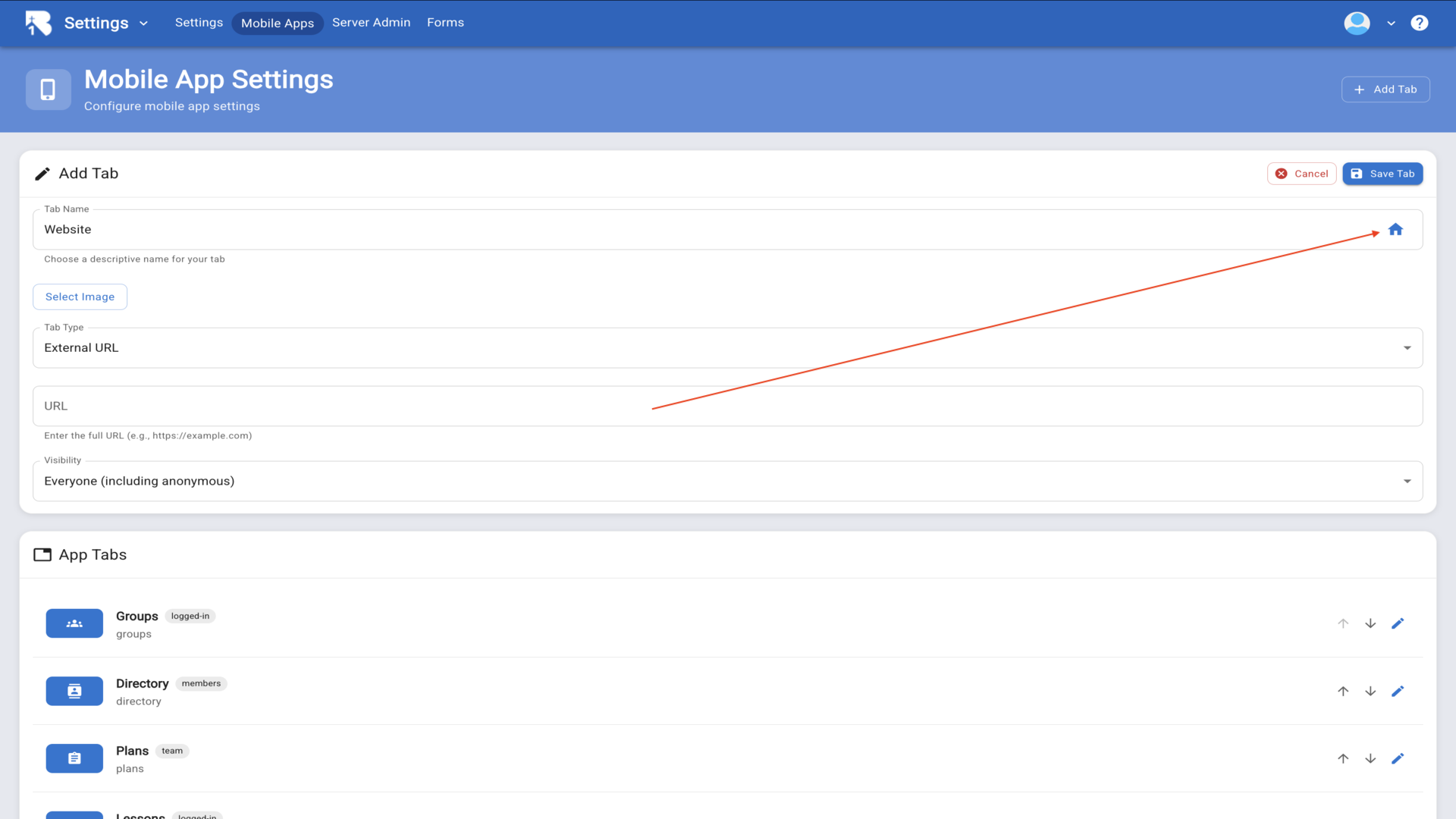
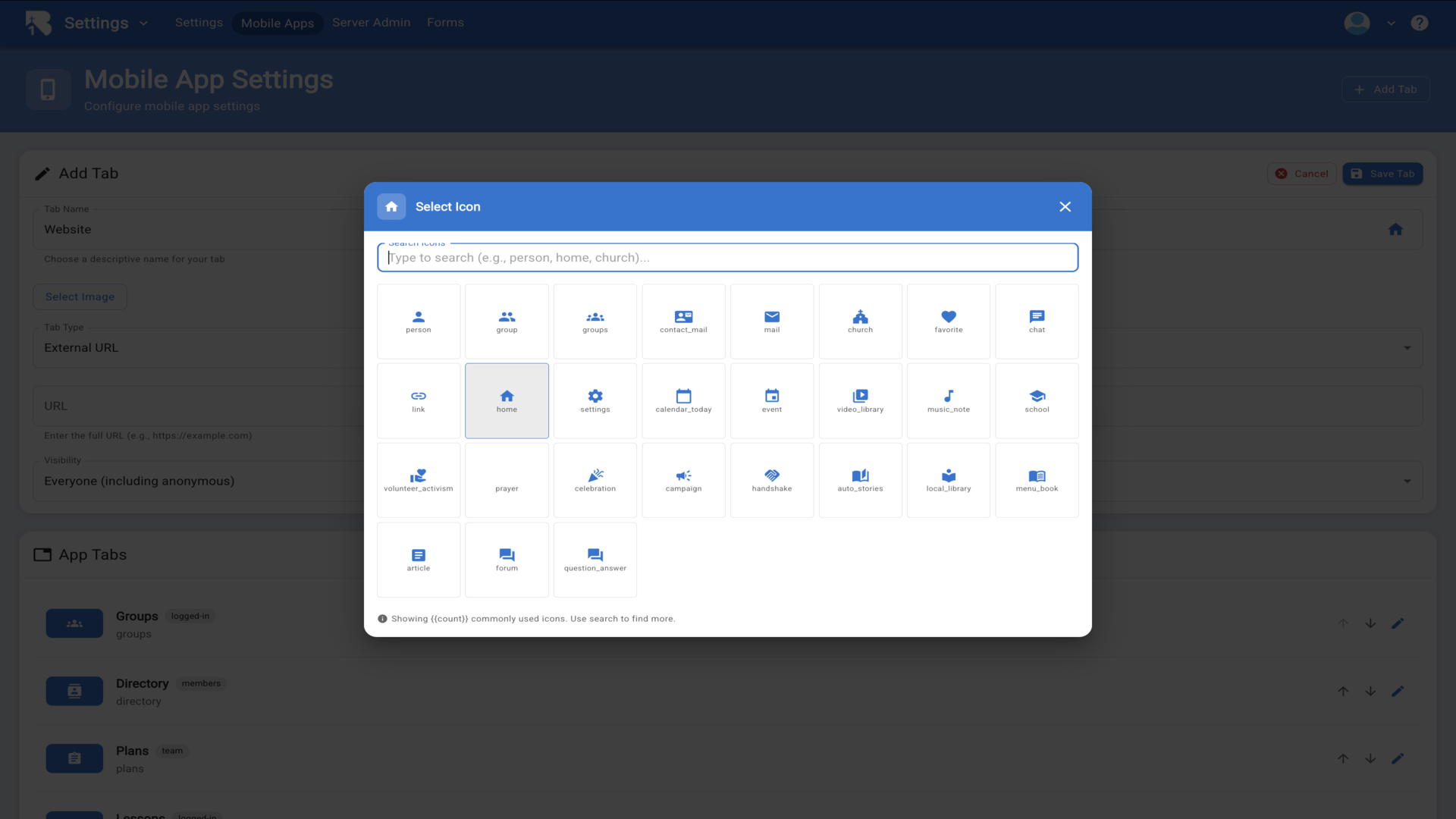
5.Click on the icon to choose an icon for your tab.▼
6.The Select Icon modal opens with various icon options to choose from.▼
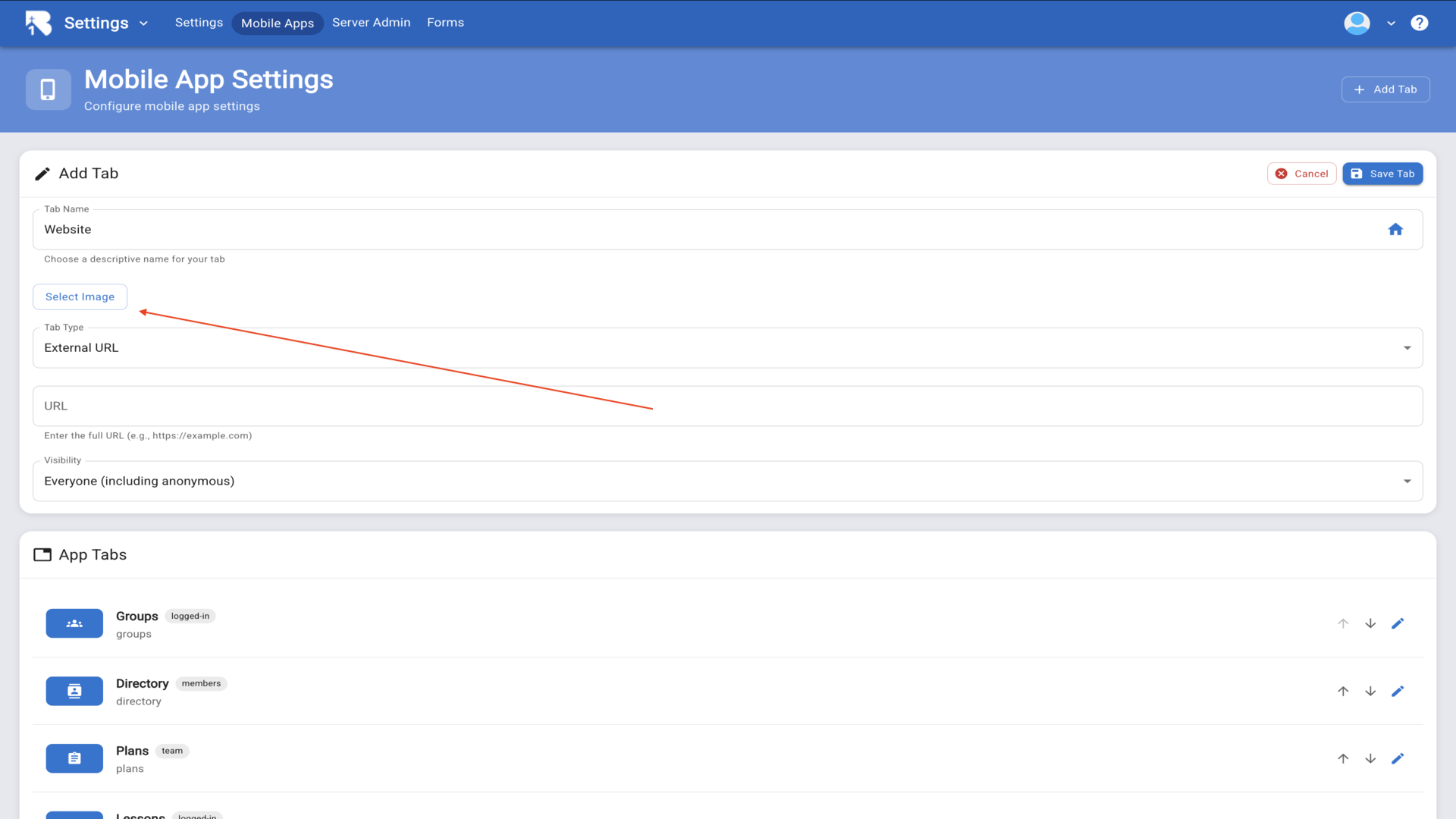
7.Click Select Image to add a custom image to your tab.▼
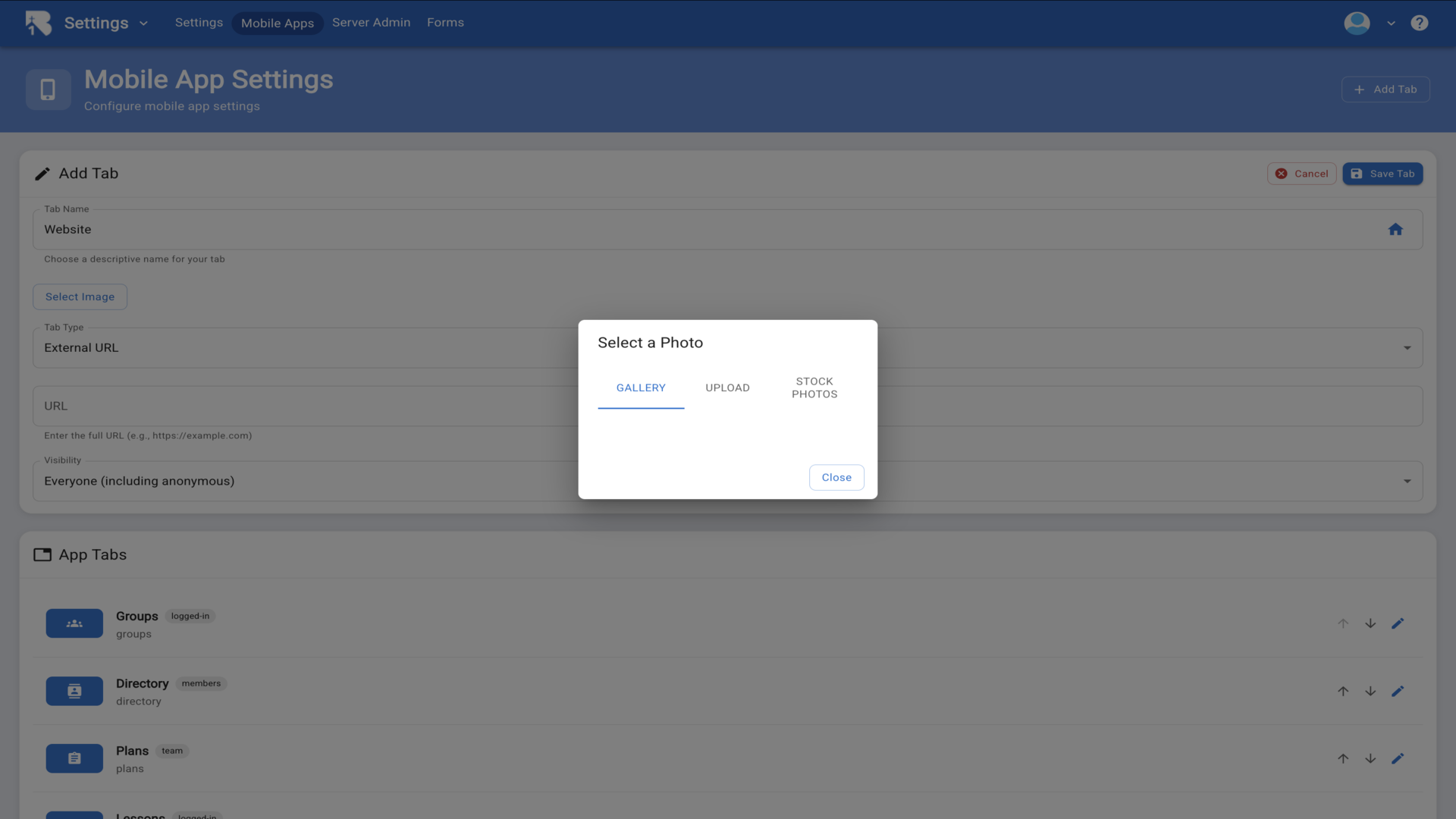
8.Choose your image from the gallery, upload a photo, or stock photos.▼
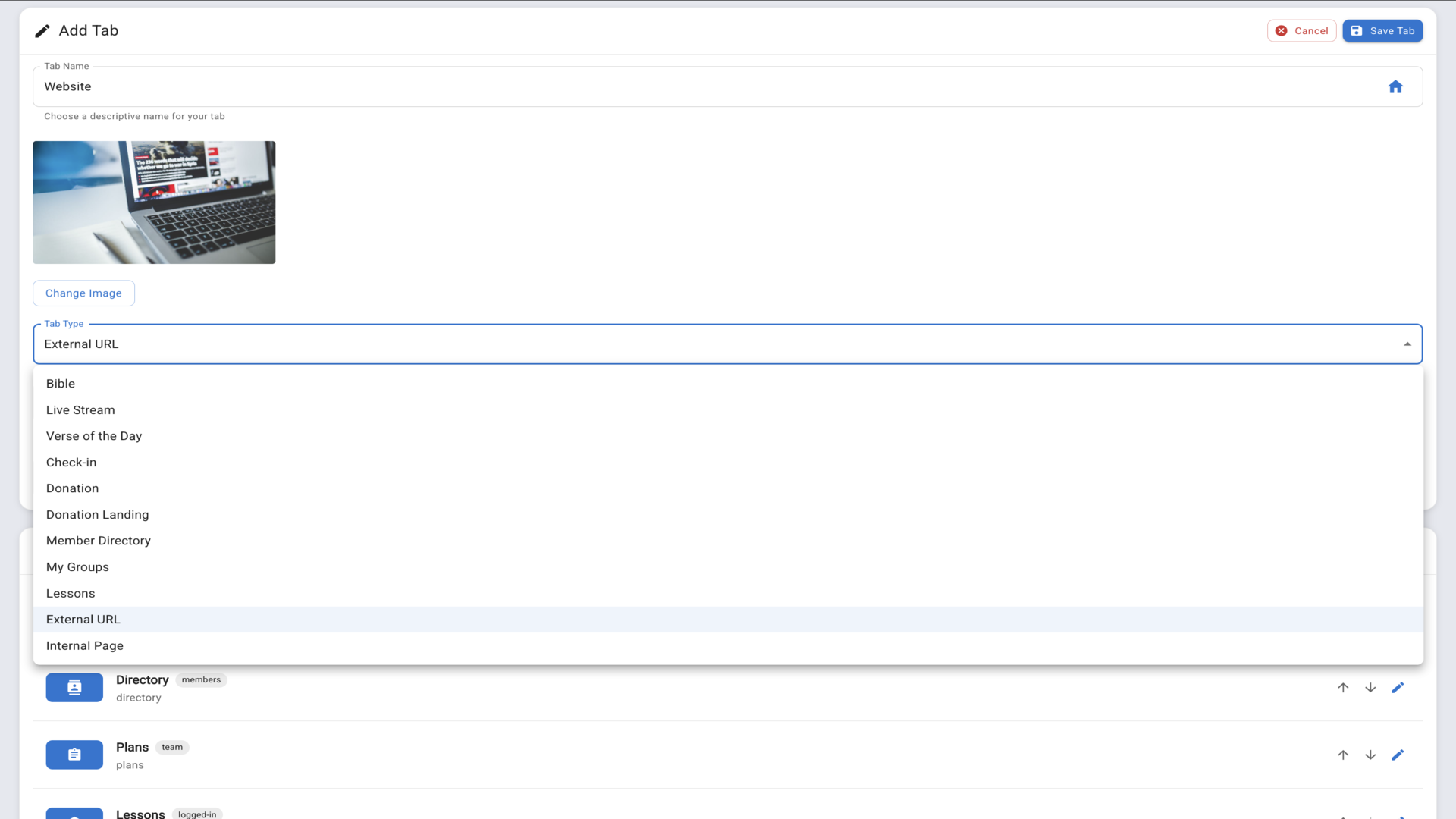
9.The Tab Type dropdown offers many options including Bible, Live Stream, Donation, and more.▼
10.Enter the URL you want the tab to link to in the URL field.▼
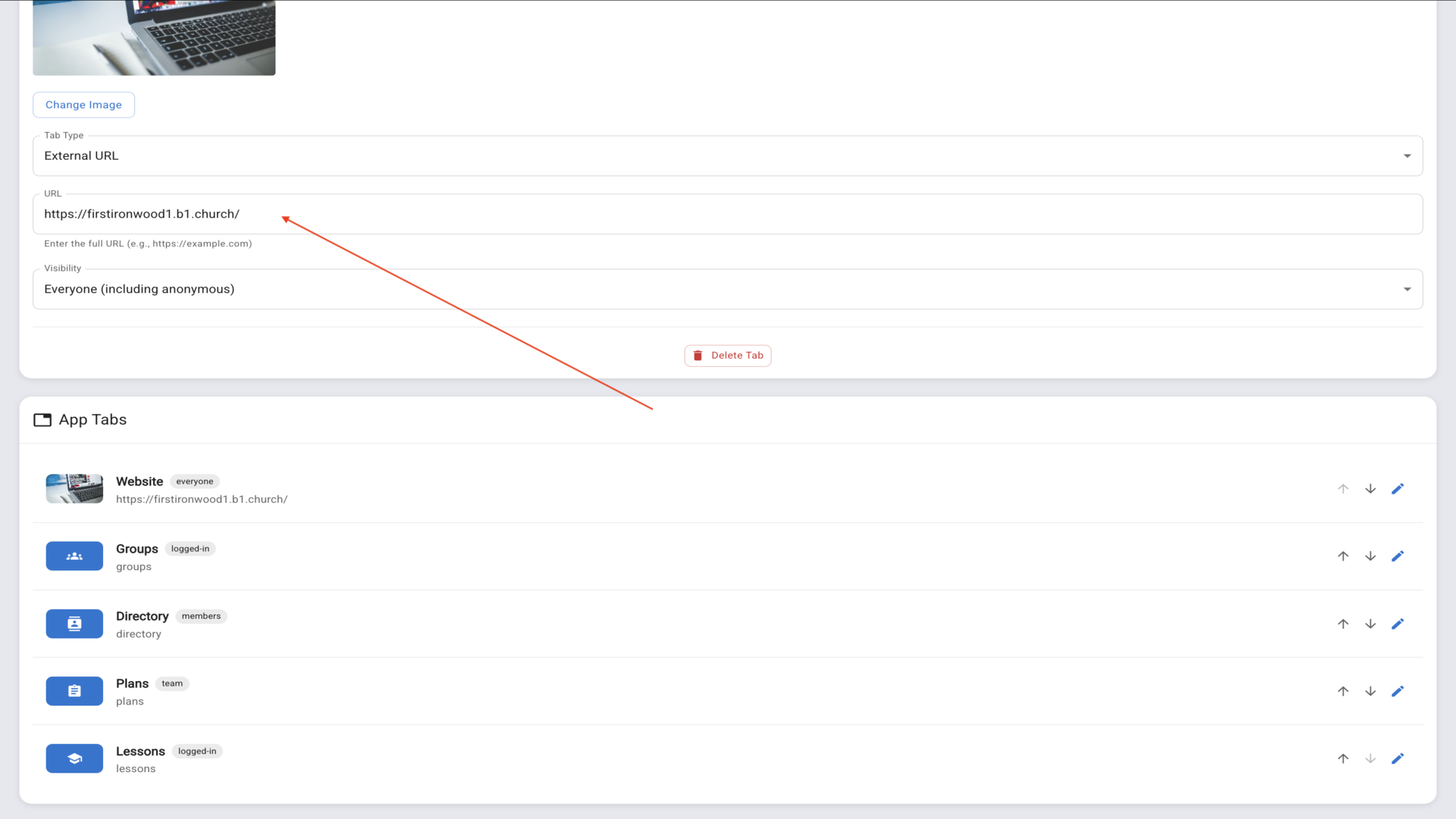
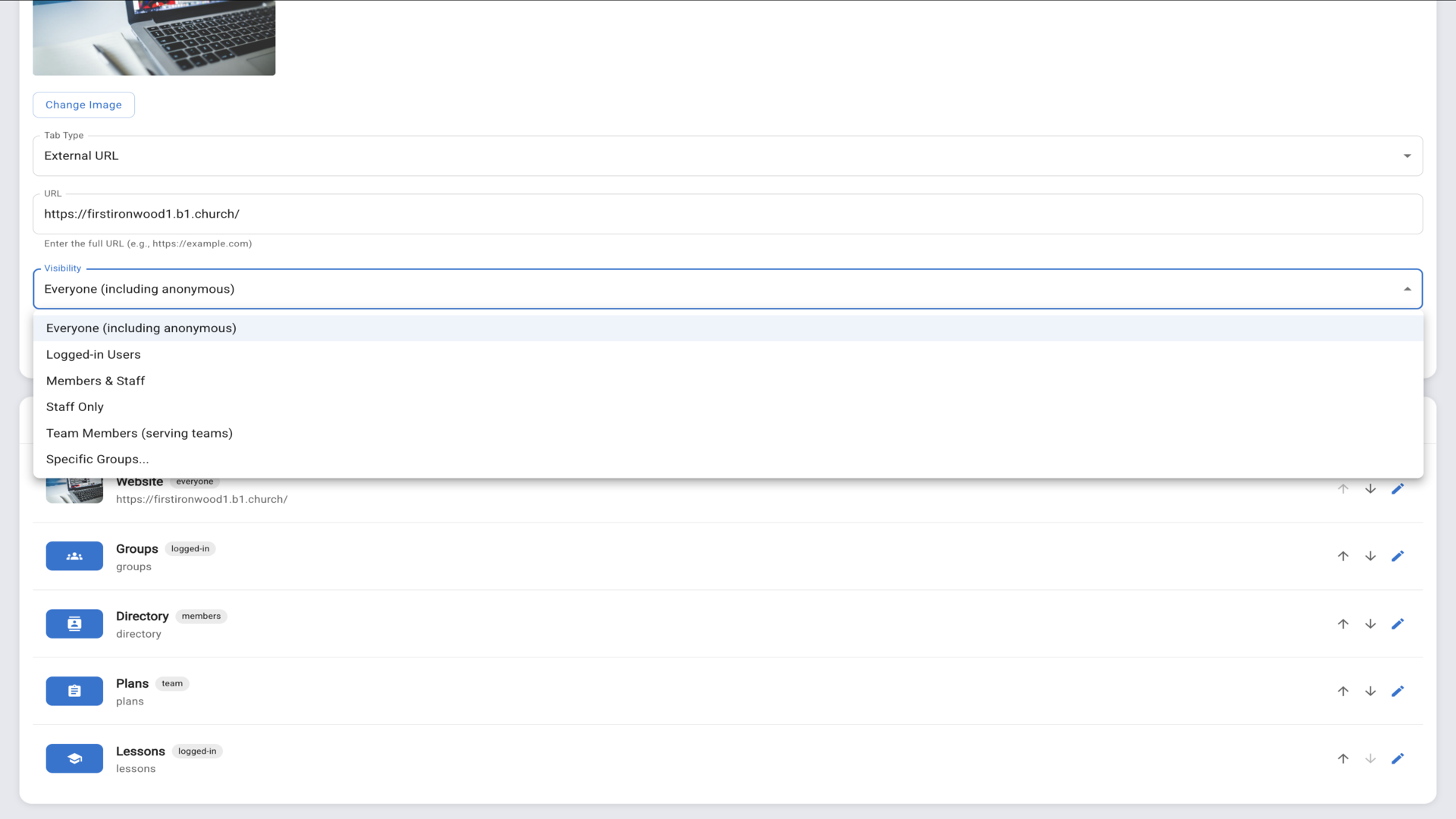
11.Choose the Visibility setting to control who can see this tab.▼
12.Once you've configured all settings, click Save Tab.▼
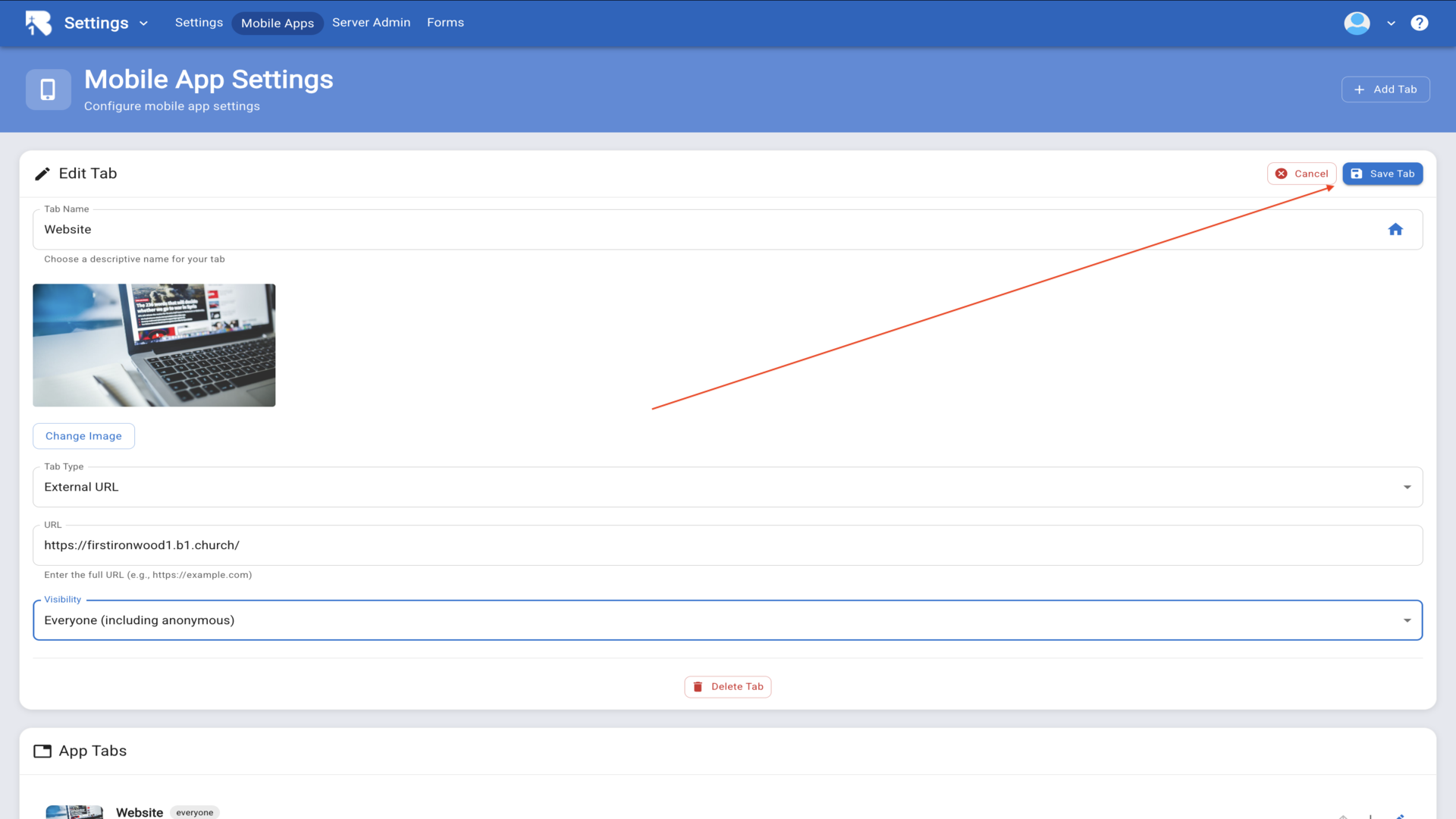
13.Your new tab now appears in the App Tabs list.▼