11 Automation
Setting up Tasks in B1.church Admin
Steps
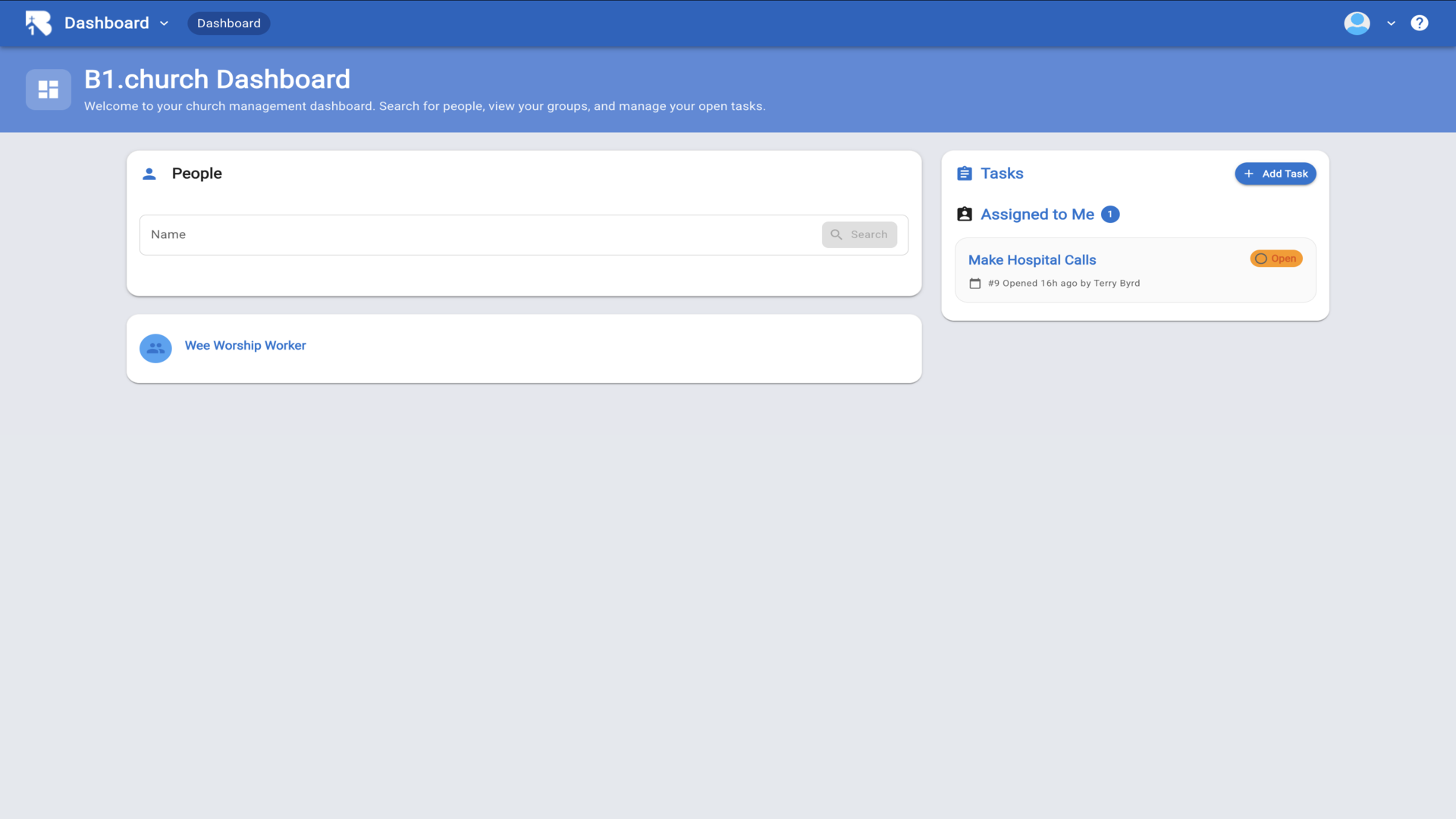
1.To set up tasks for your leaders, church members, or groups, navigate to the B1.church Admin Dashboard▼
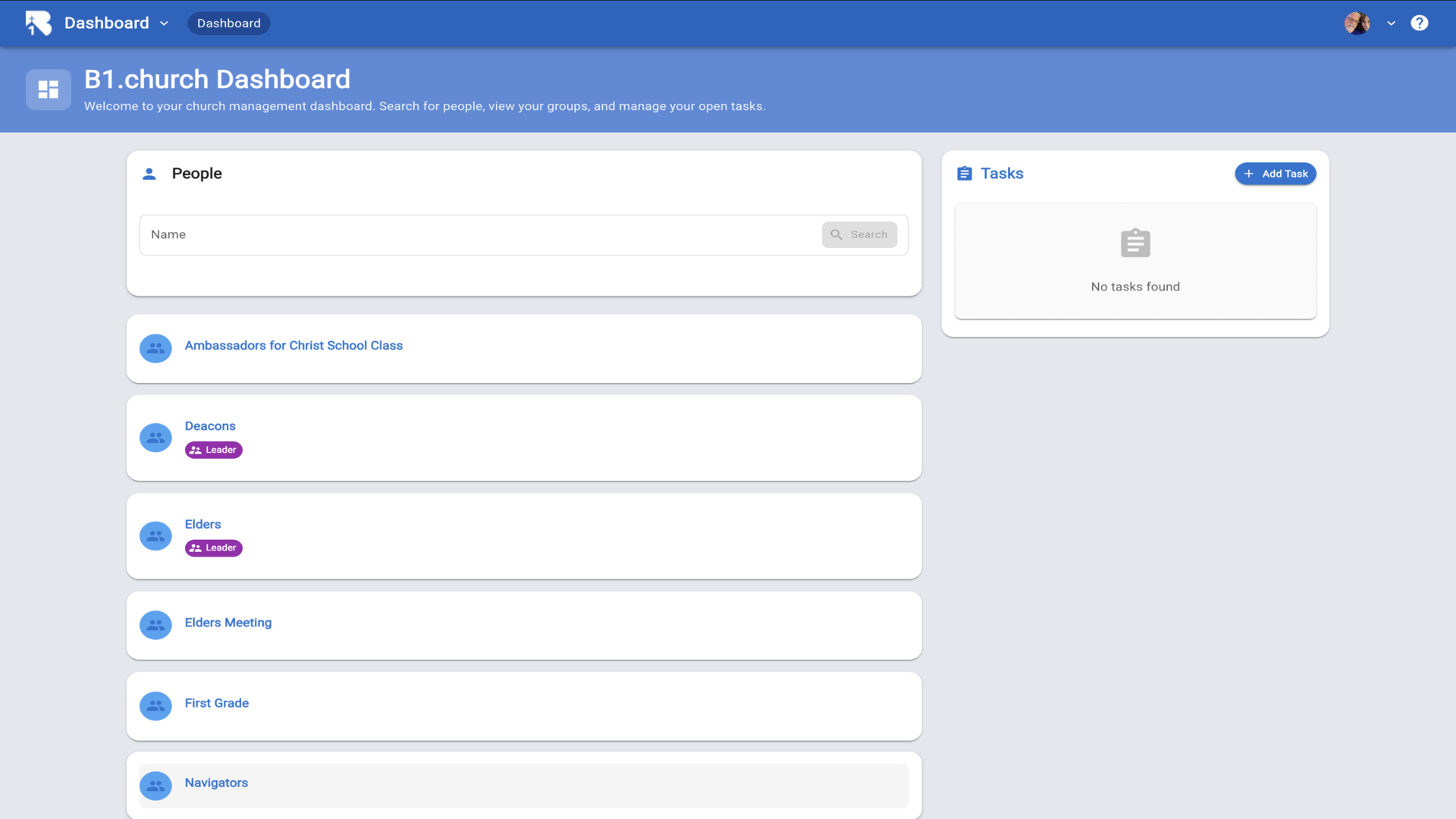
2.Then click the Add Task button on the right side of your screen▼
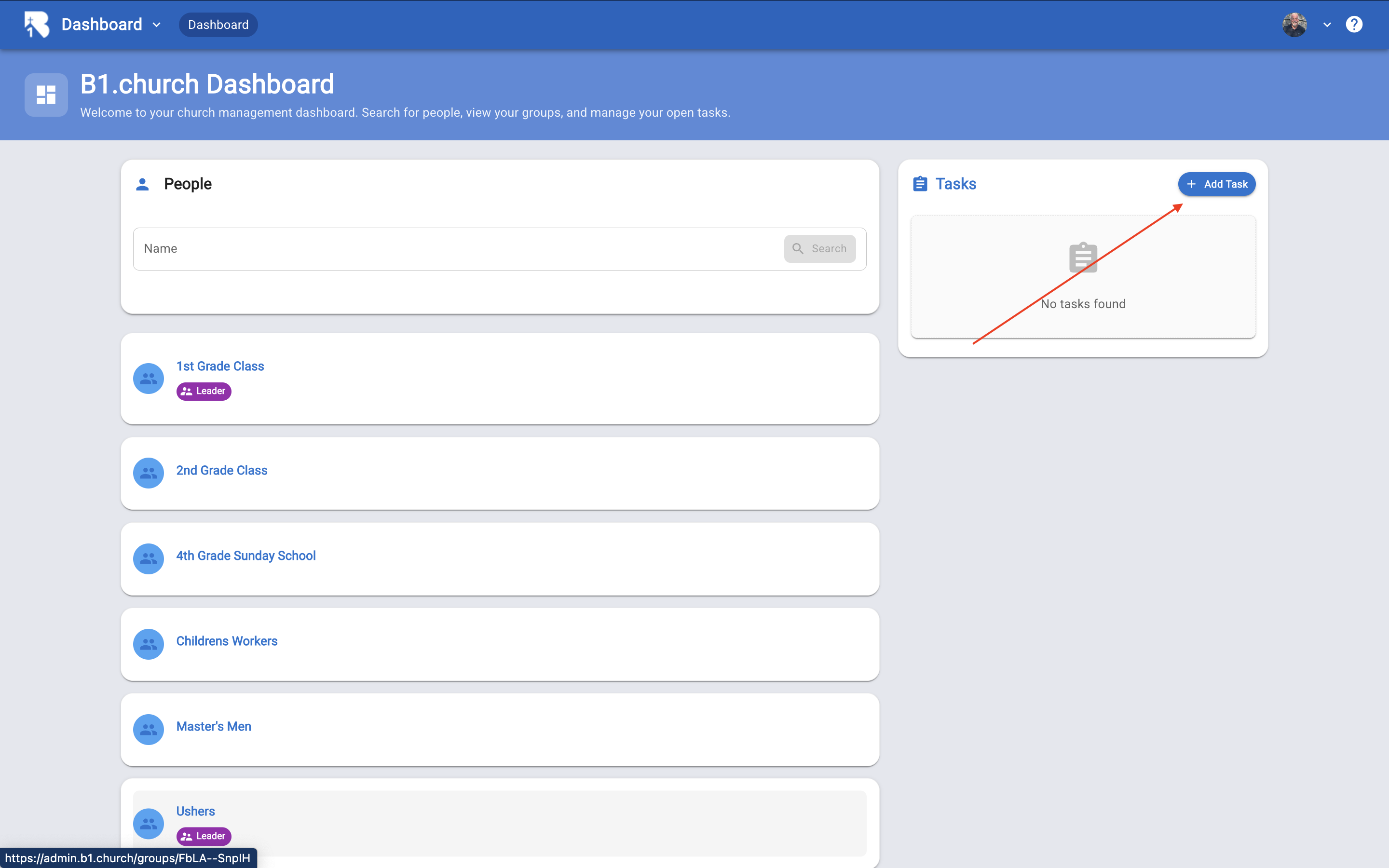
3.Here is where you will fill out the information for your task. Since you are the one that is making the task, it is associated with you▼
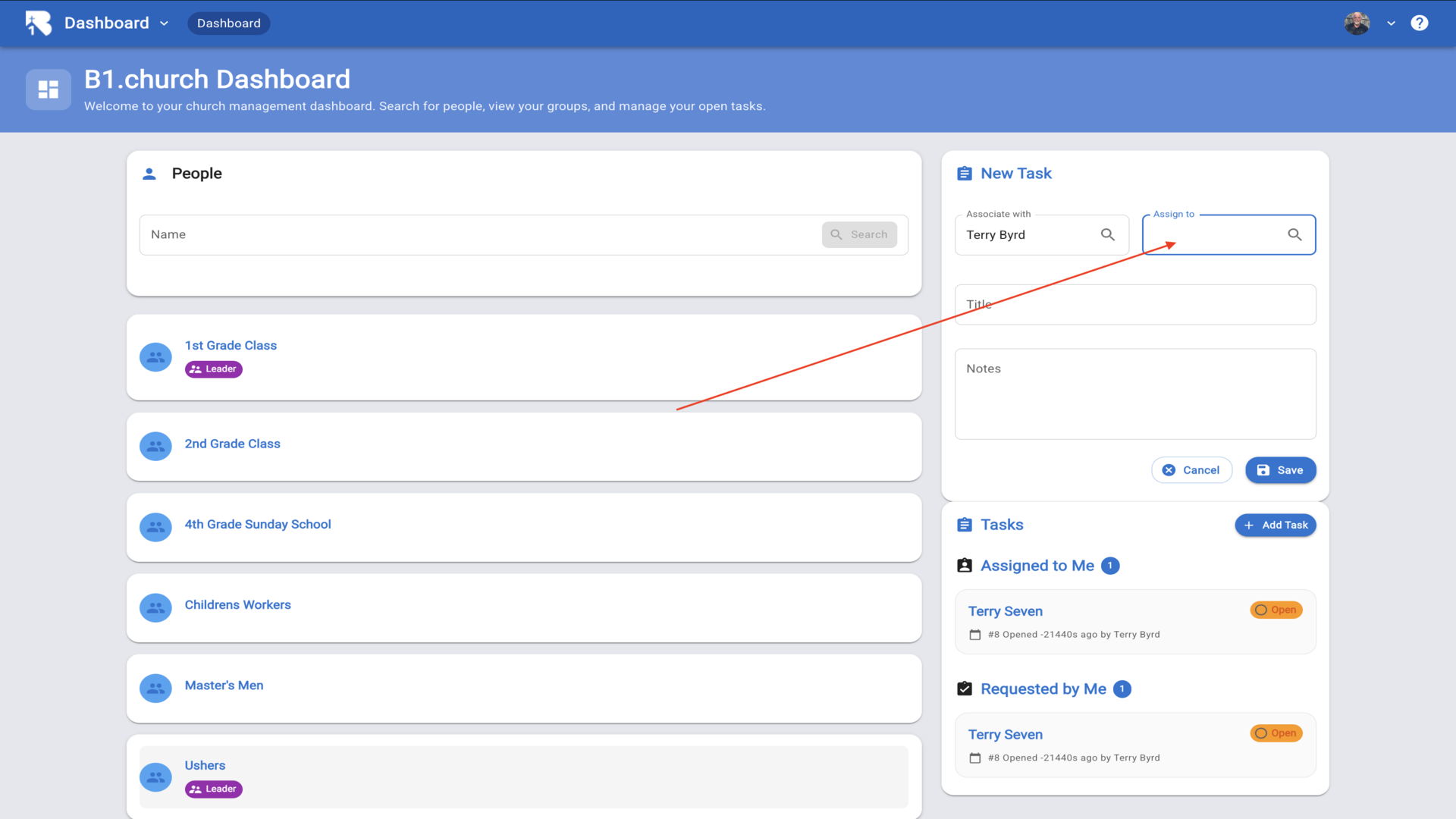
4.Click the assign to box and type in the name of a person or click on group and type the name of a group▼
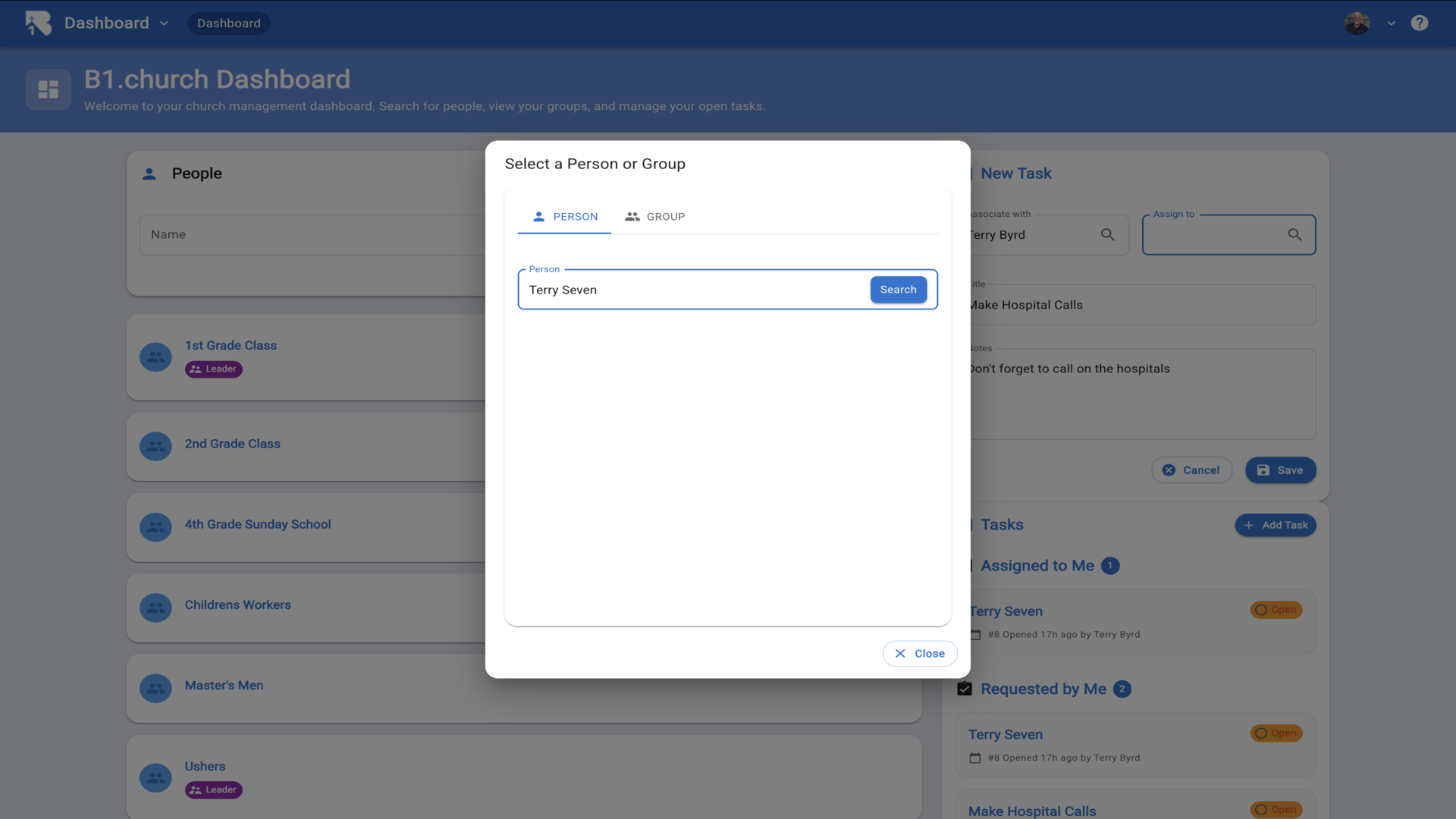
5.Hit search▼
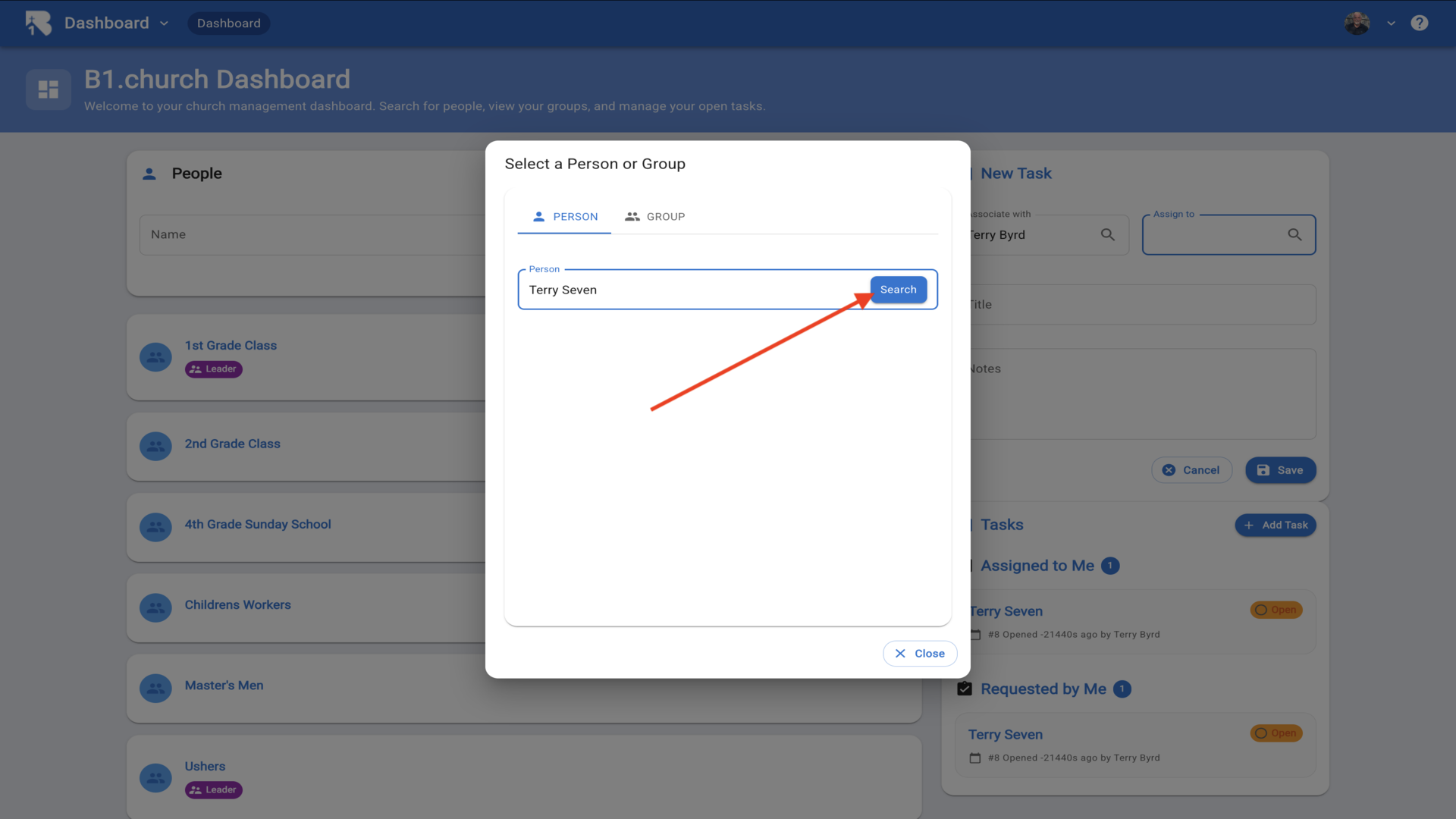
6.Select the person or add them if they are not in the database▼
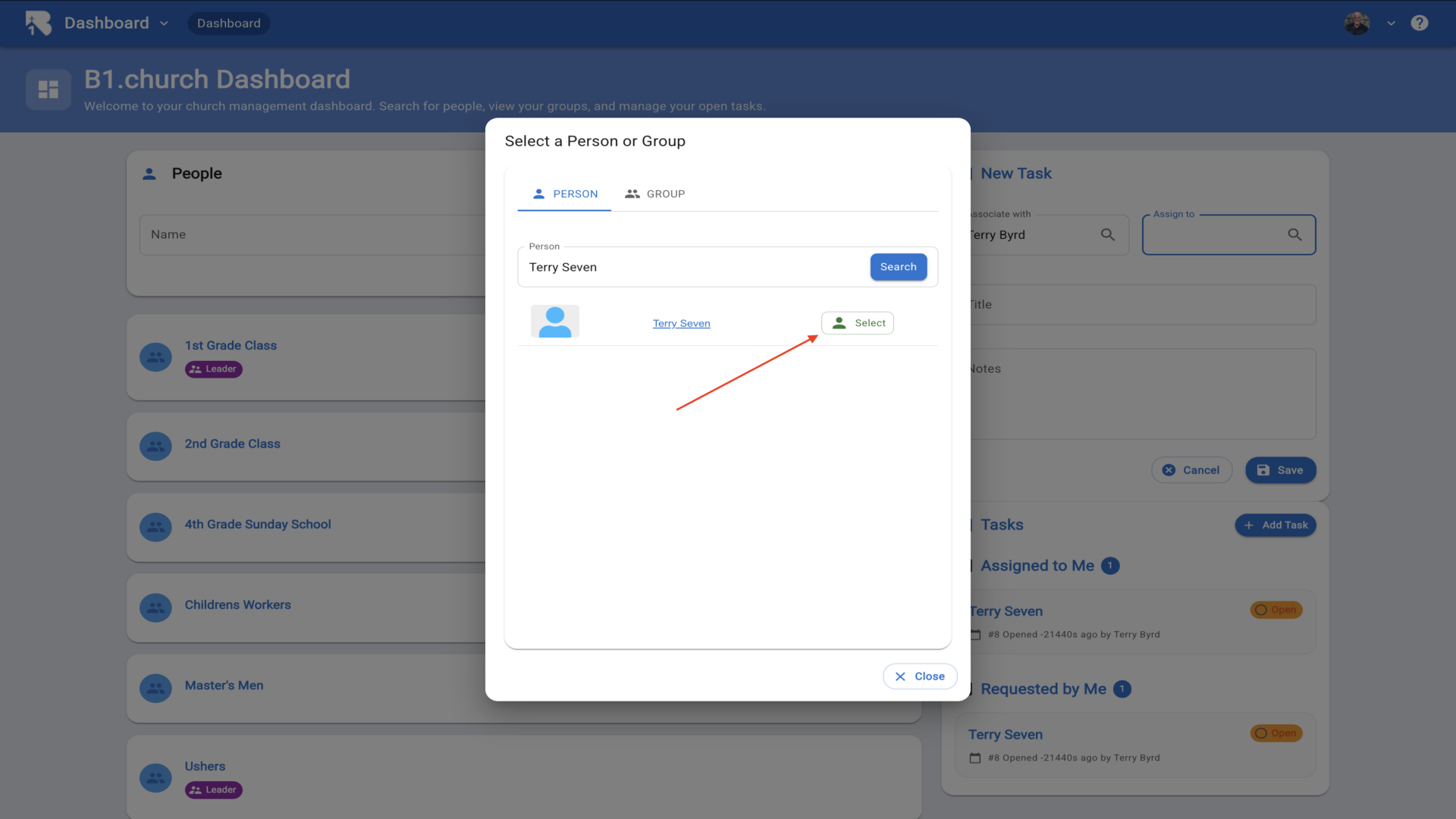
7.Now give the task a title▼
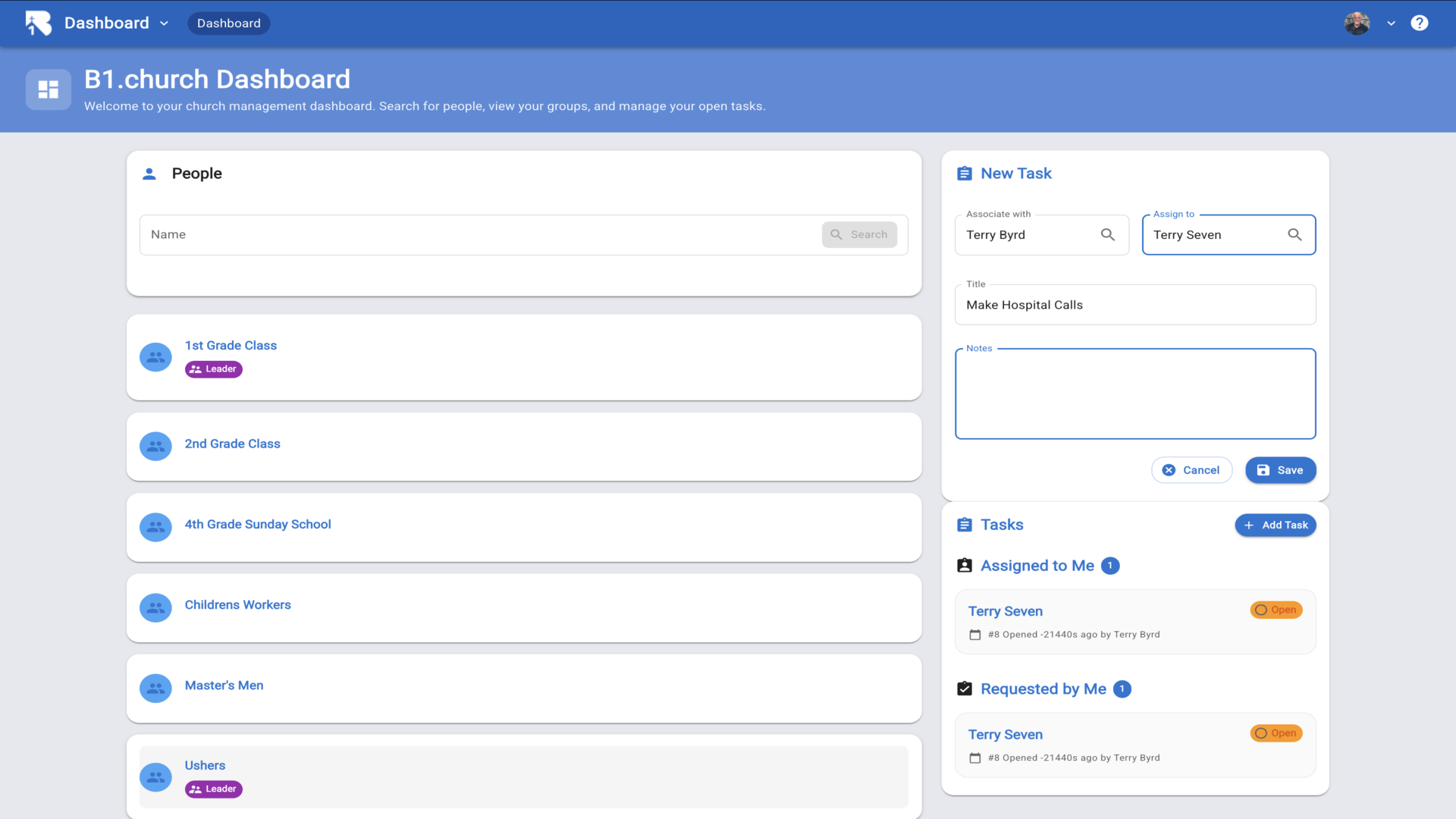
8.Type in a note to the person the task is assigned to▼
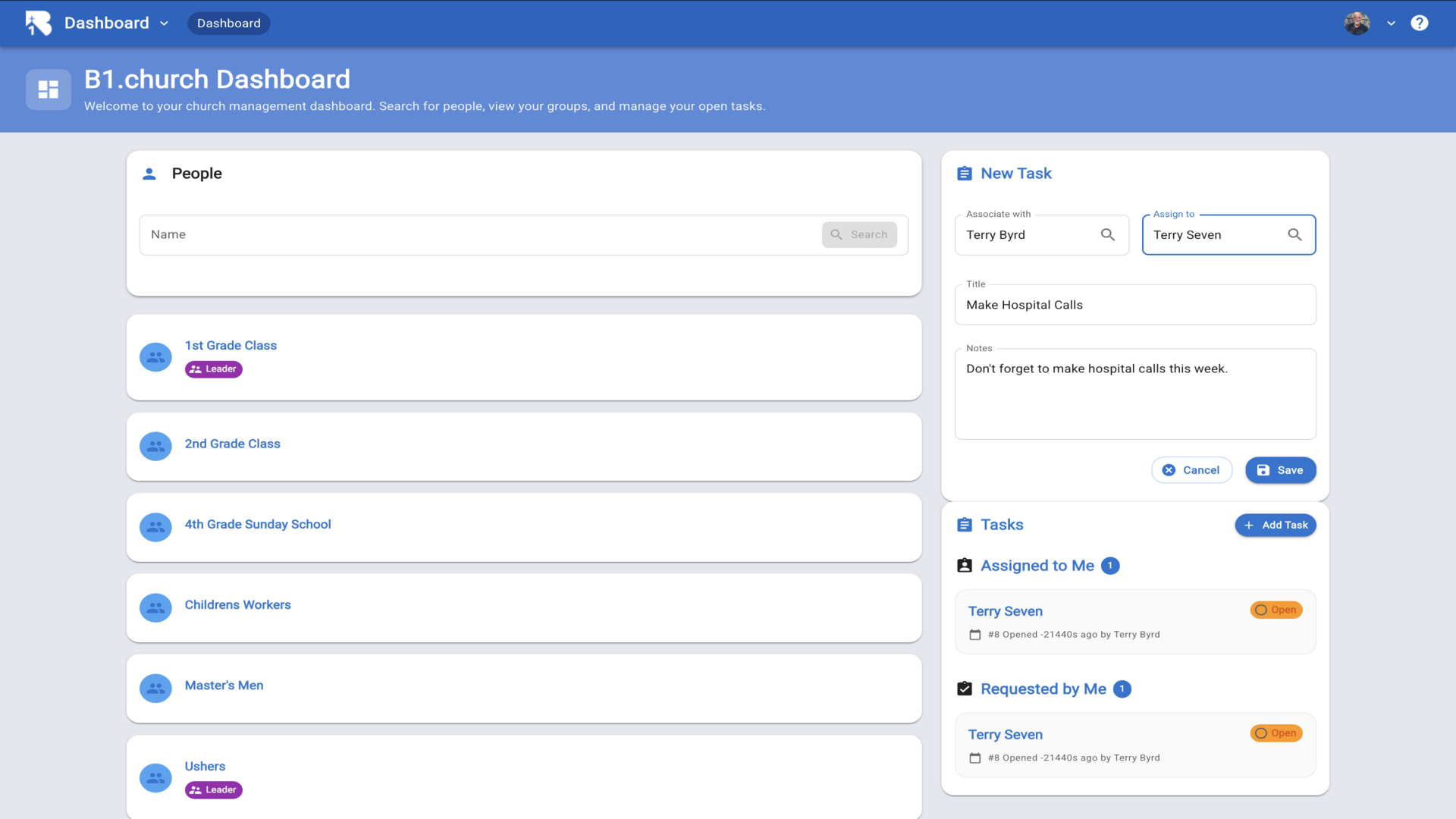
9.Click save▼
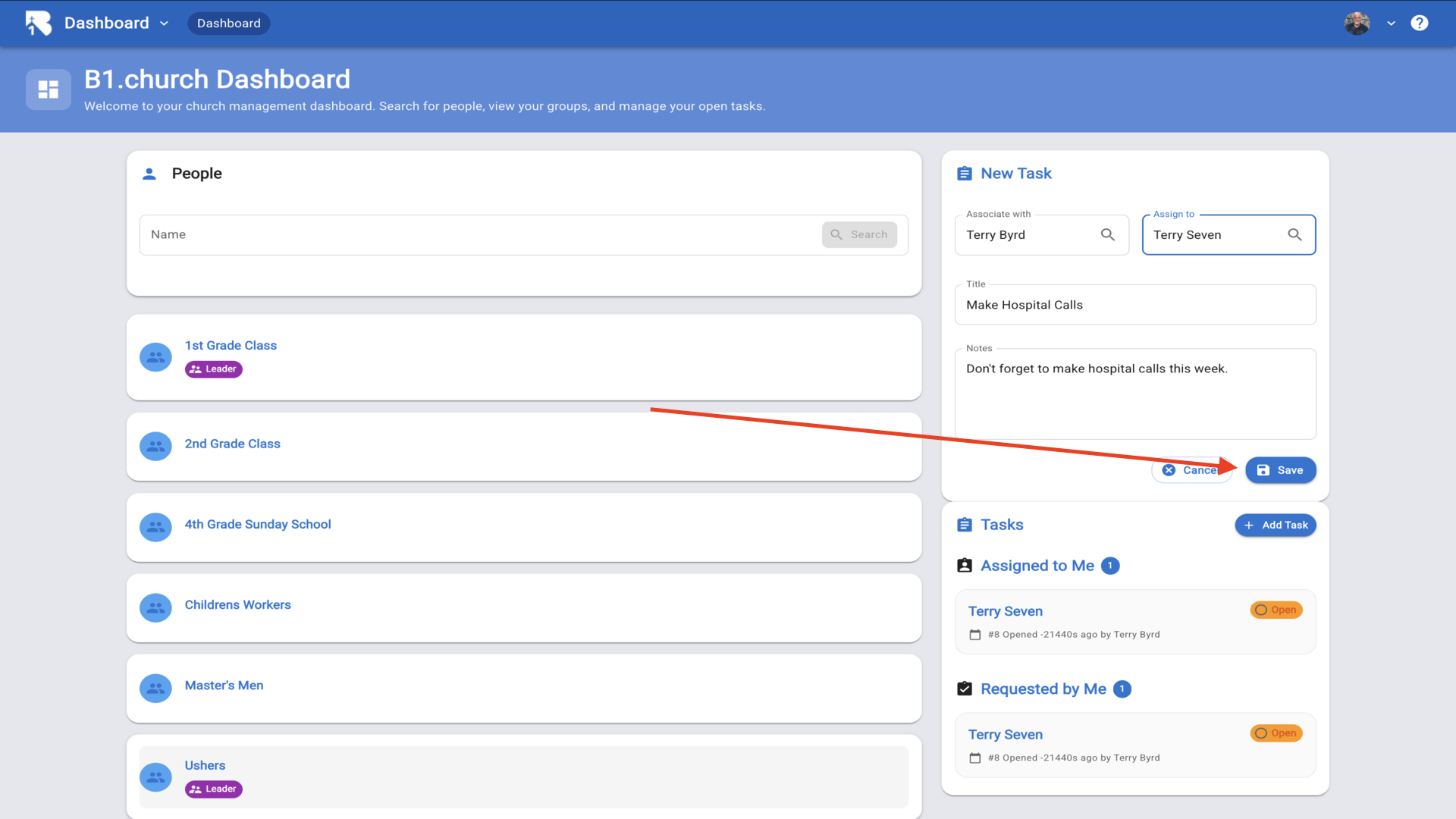
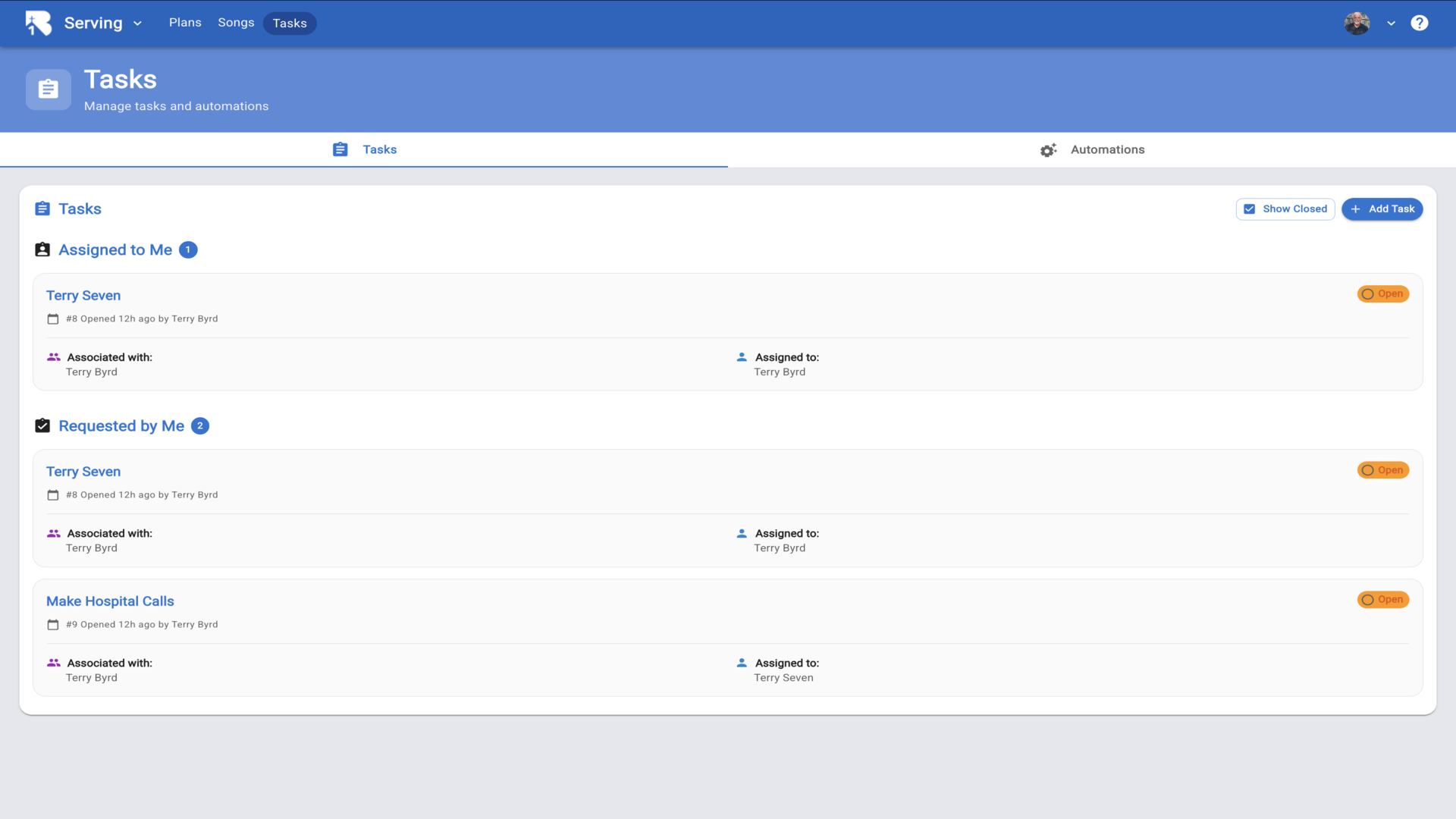
10.You can now see the task that you assigned. If you need to edit the task, just click on it and edit▼
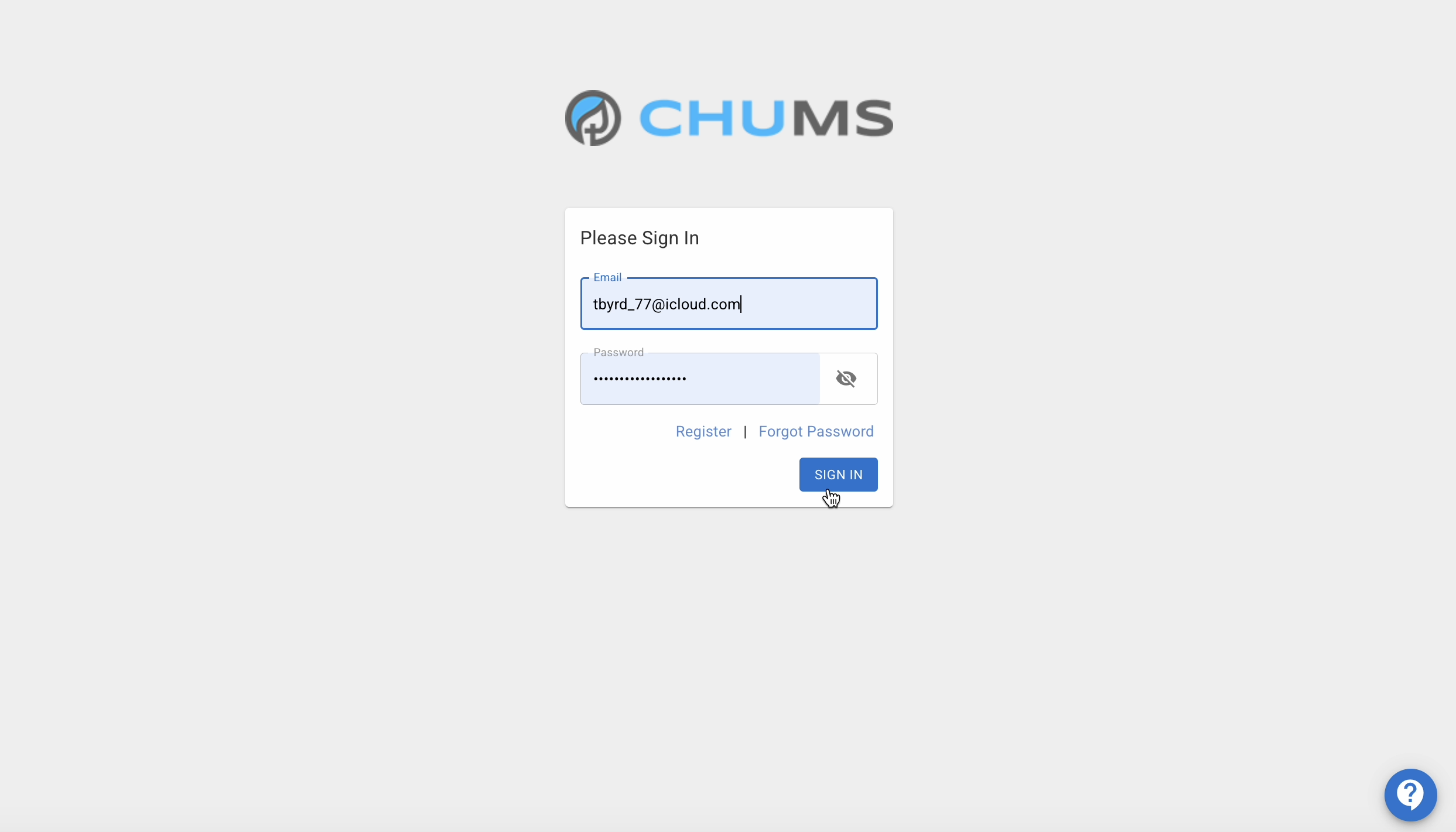
11.Now I'll log in as Terry Seven so you can see what the task notification looks like to the person receiving the task▼
12.I'm now logged in as Terry Seven and navigated to the Tasks page▼
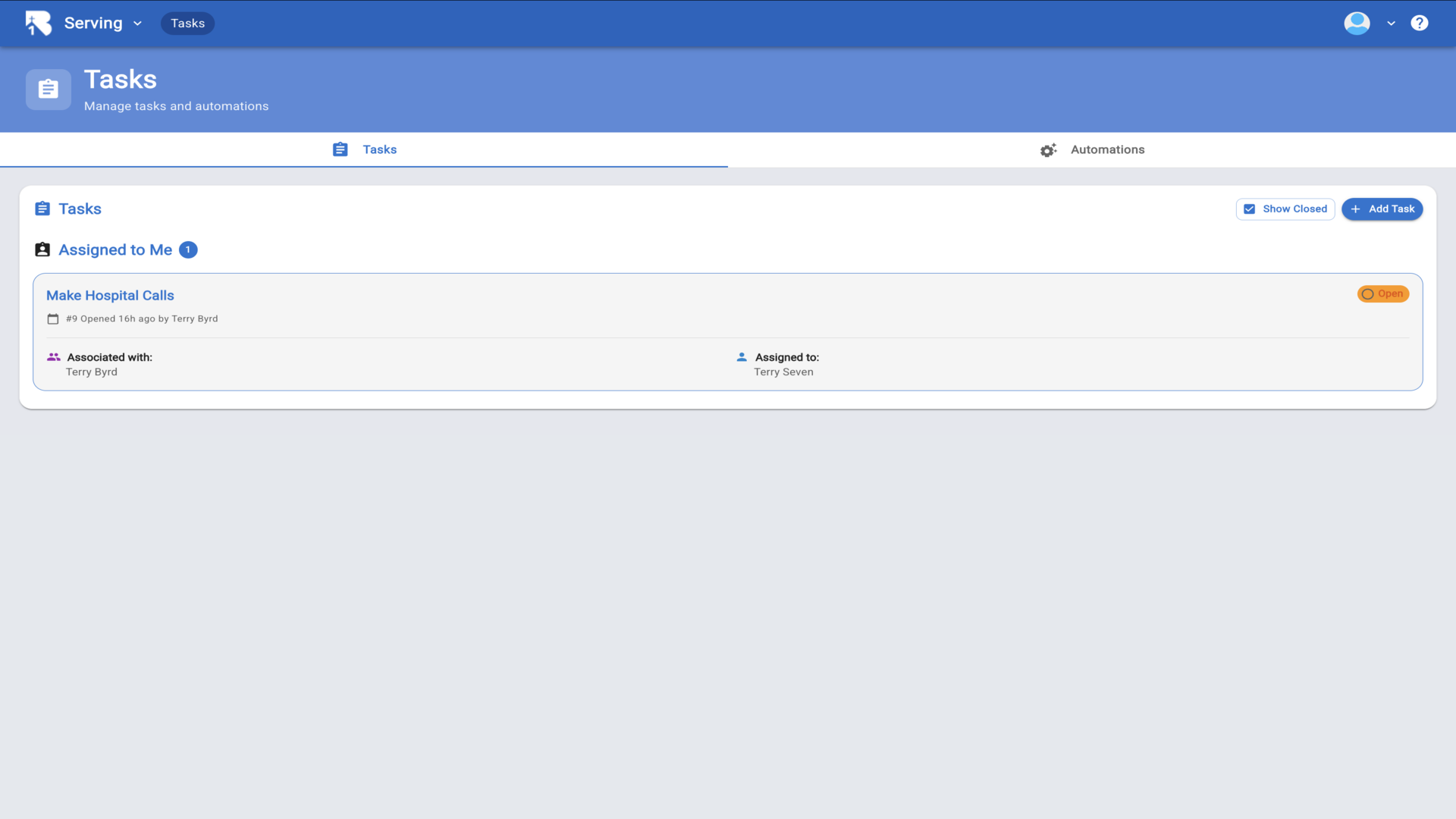
13.Here you can see the task assigned to me. You can also see these tasks on the Dashboard and on your mobile app▼
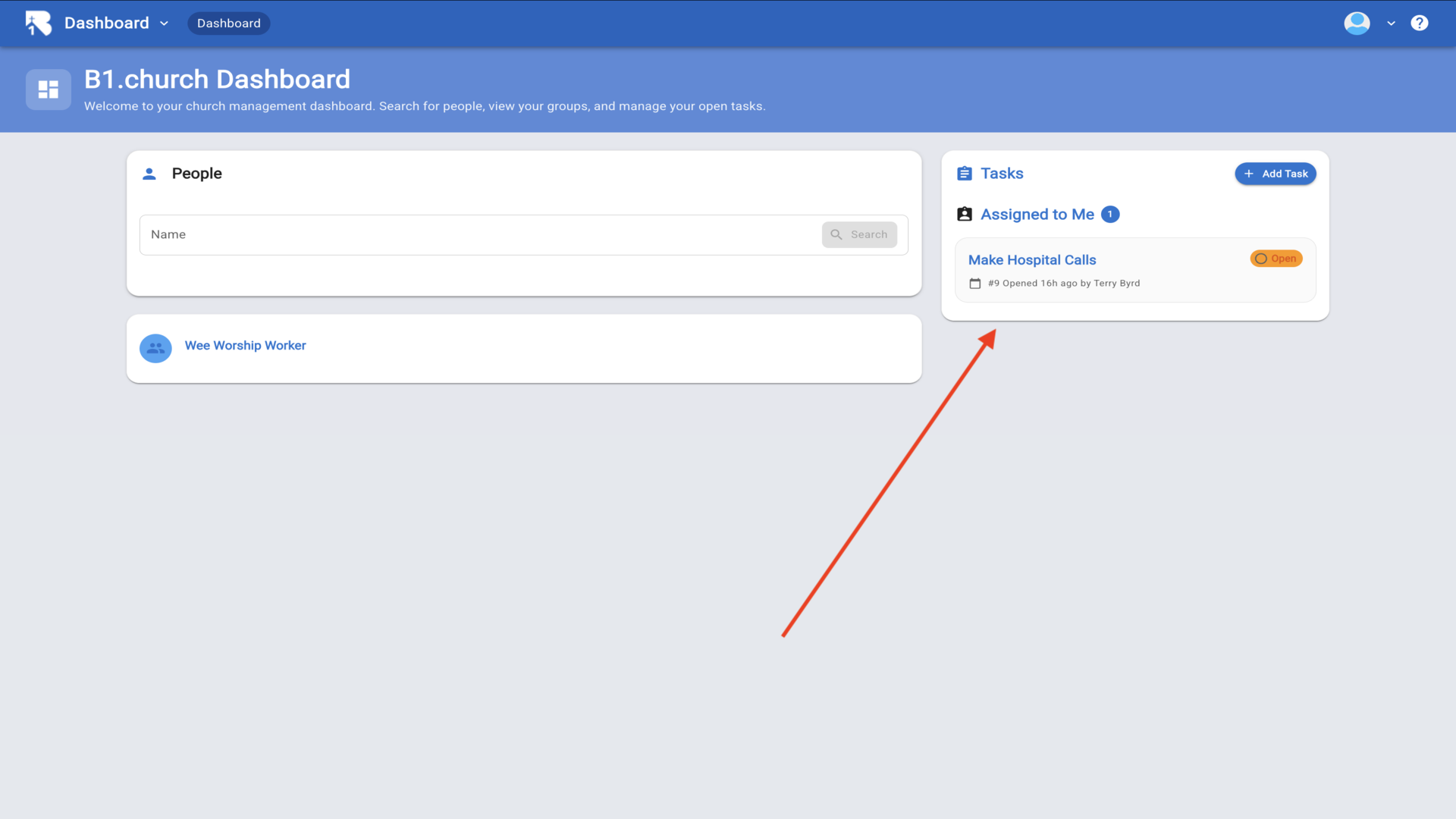
14.You can view your assigned tasks from either the Tasks page or from the Dashboard tasks panel▼
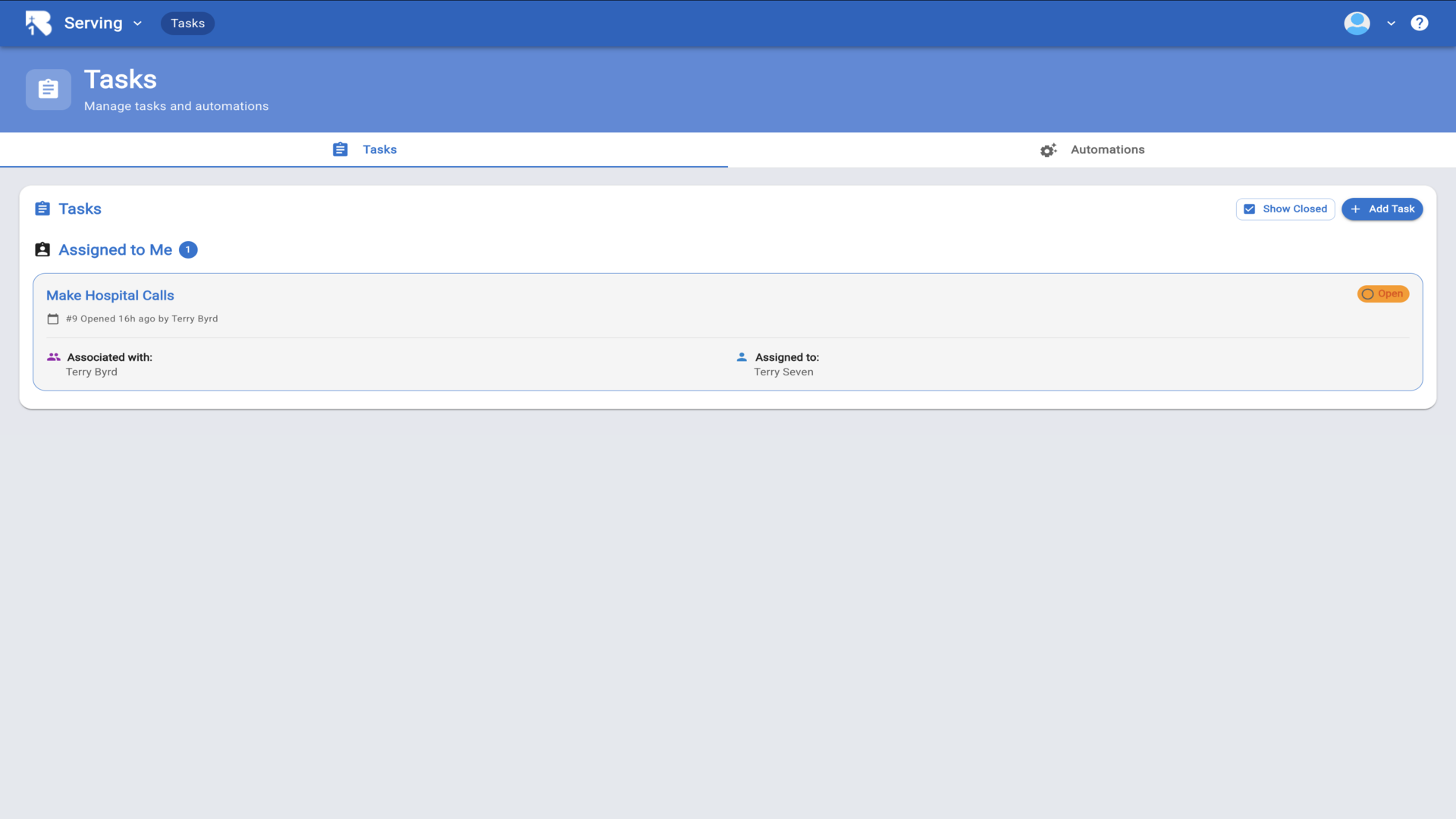
15.Click on the task to open the details. Once the task is completed, you can change the status from open to closed▼
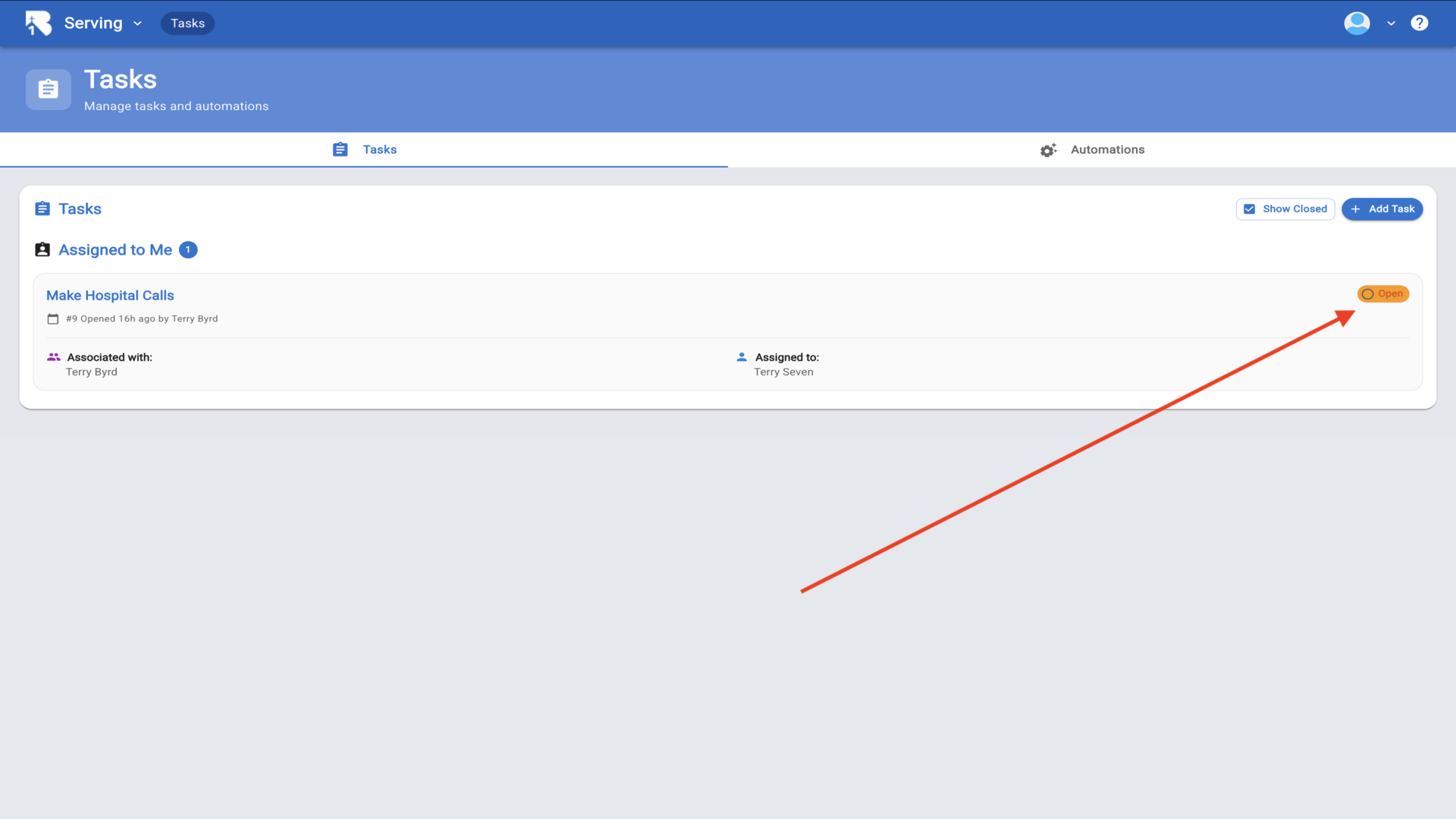
16.Click on the status dropdown and choose closed▼
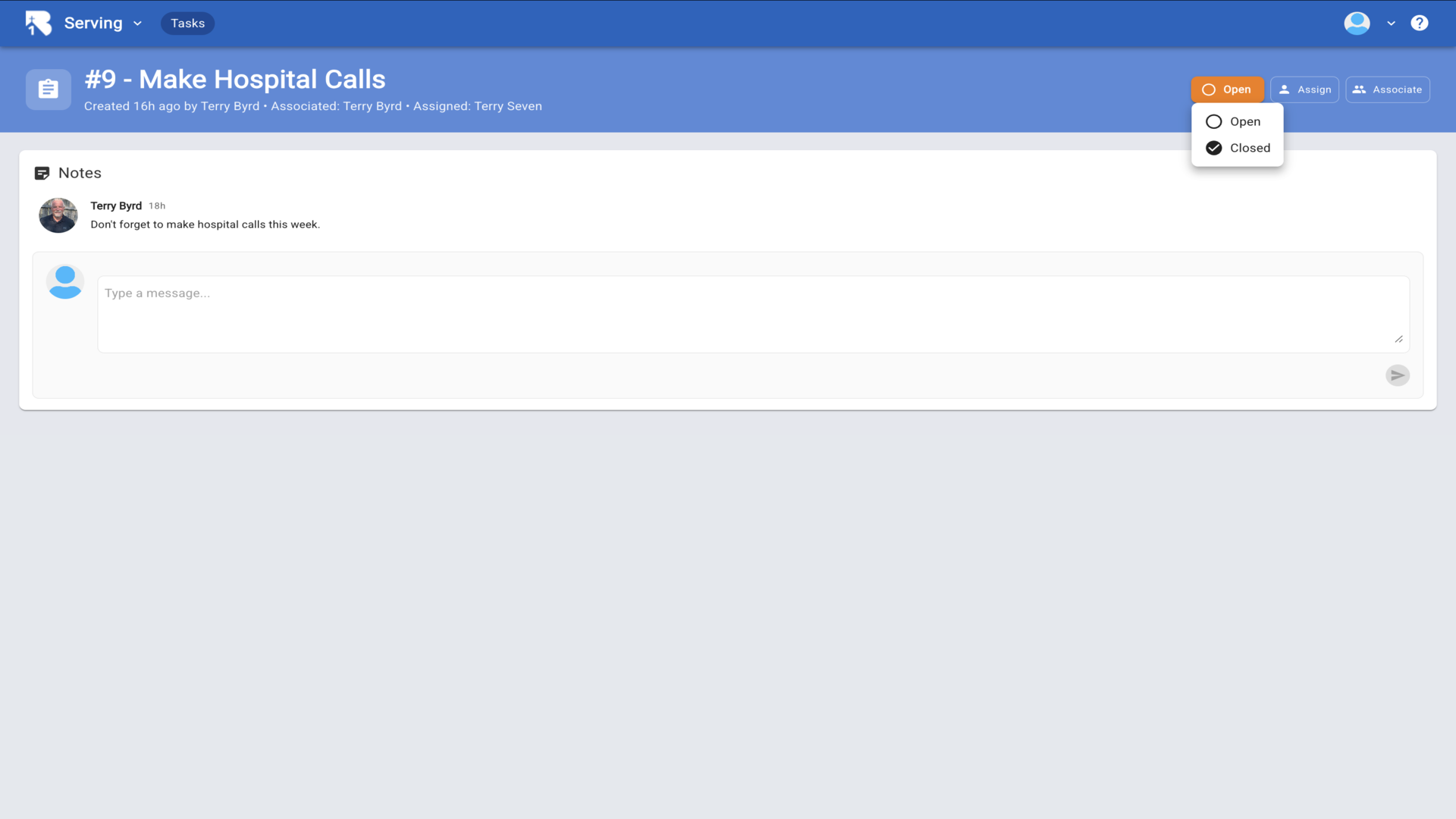
17.The task is now marked as completed and closed▼
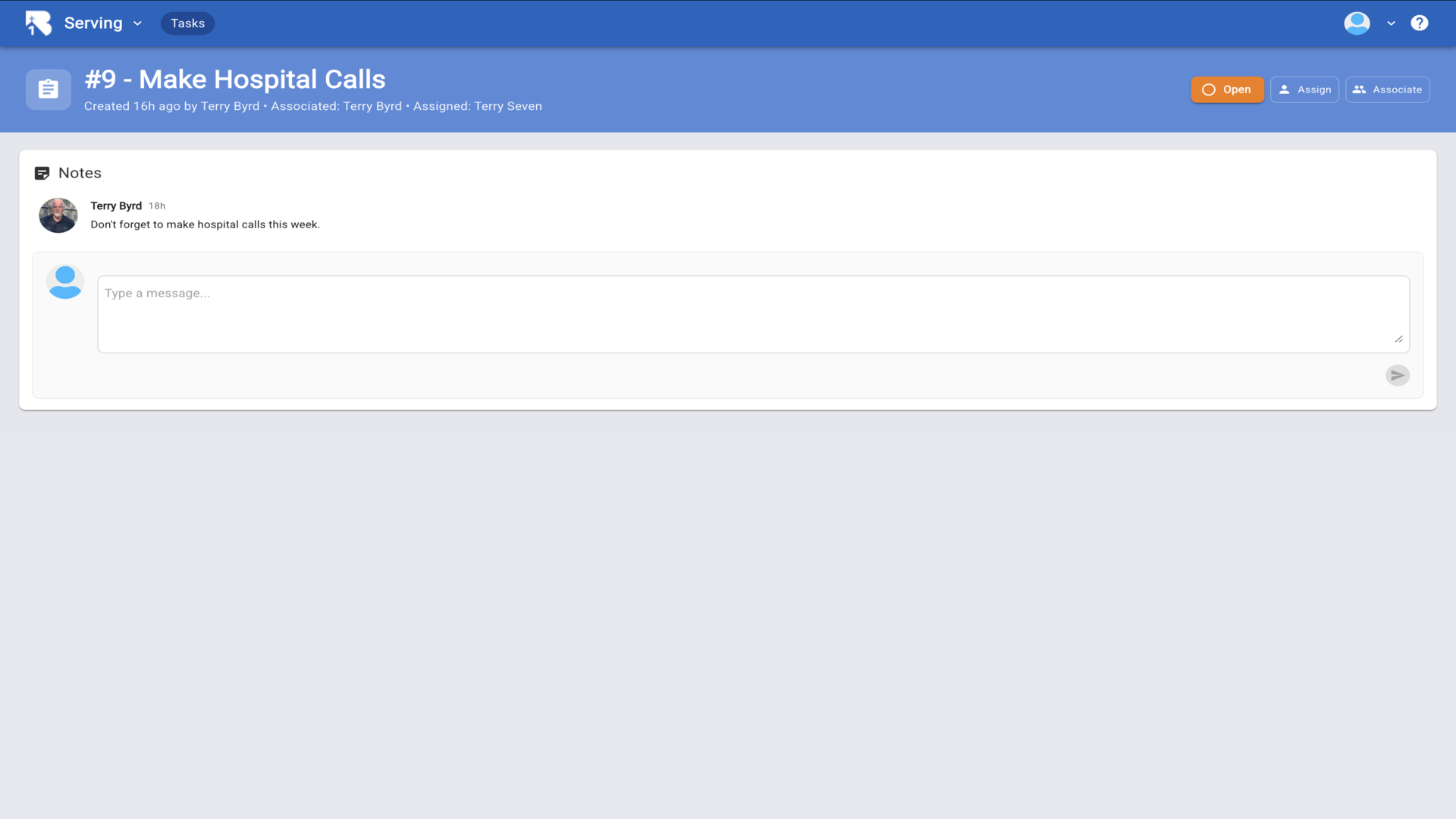
18.Closed tasks will no longer appear in your open tasks list unless you enable Show Closed. To automate a task follow the Automation tutorial below▼