06 Groups
How to set up a Group Calendar in B1.church Admin
Steps
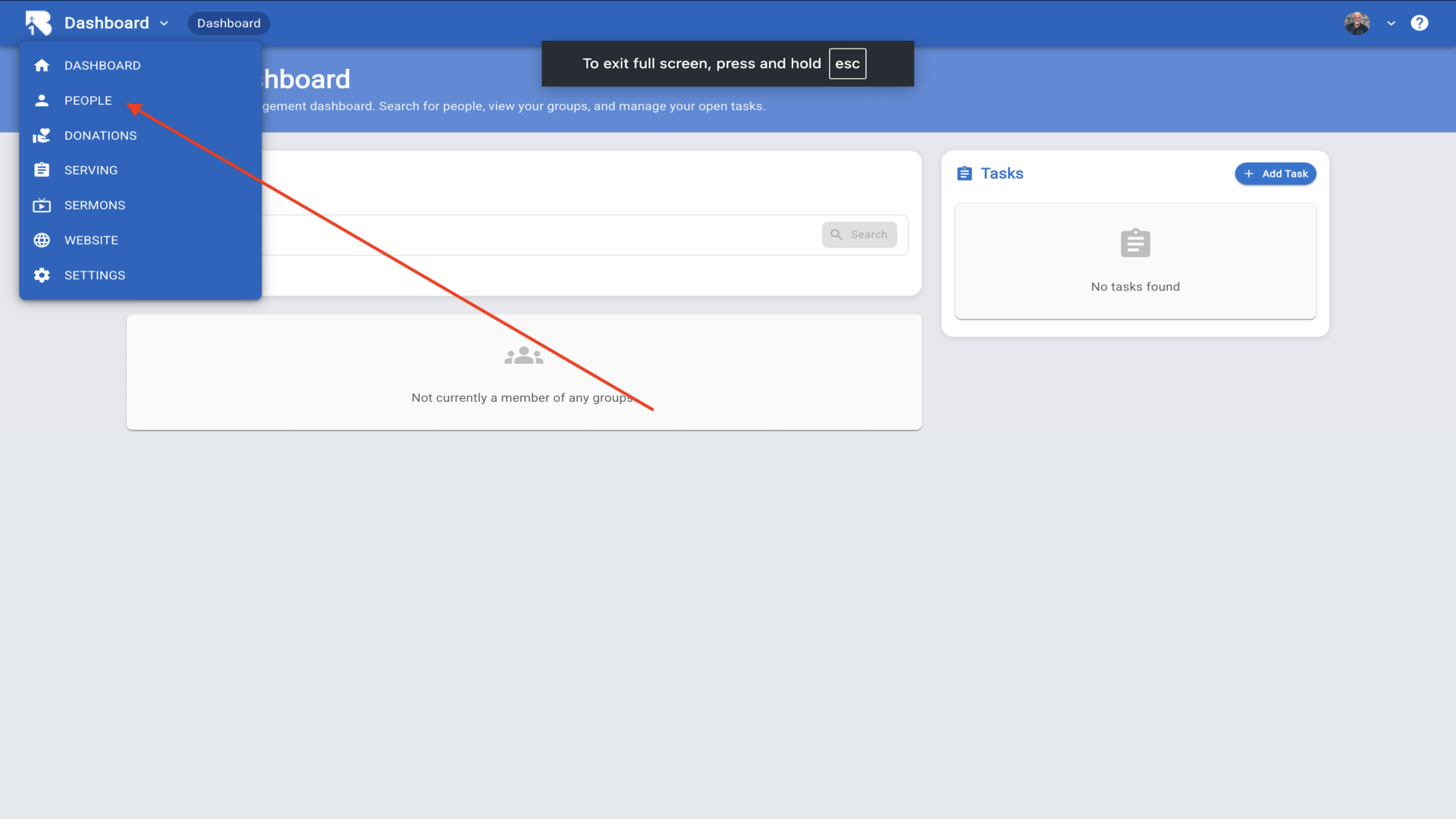
1.Let's make a new group and set up the group calendar. Navigate to the B1.church Admin dashboard then to People▼
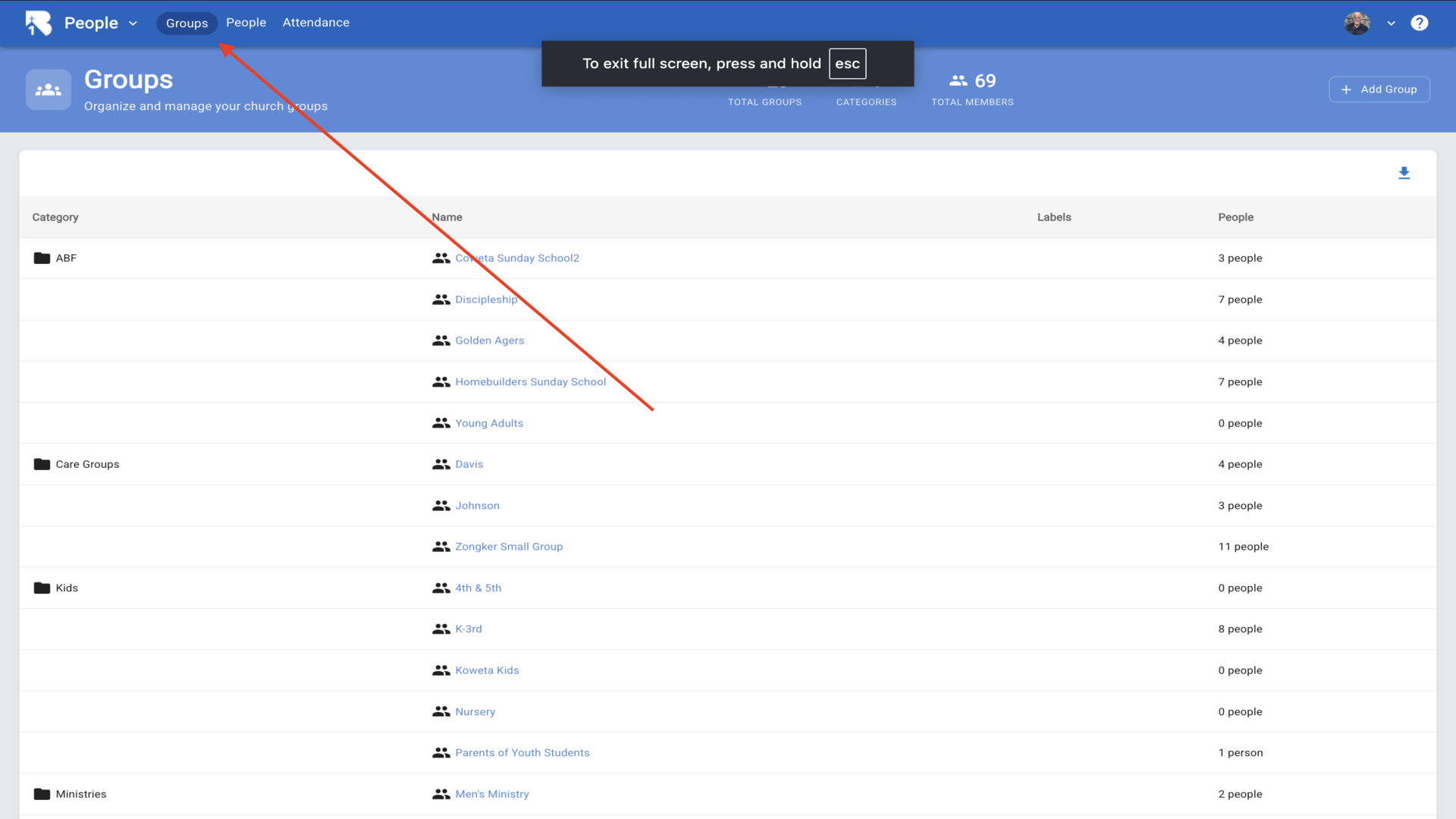
2.Choose Groups▼
3.Click Add Group in the top right corner to add a group▼
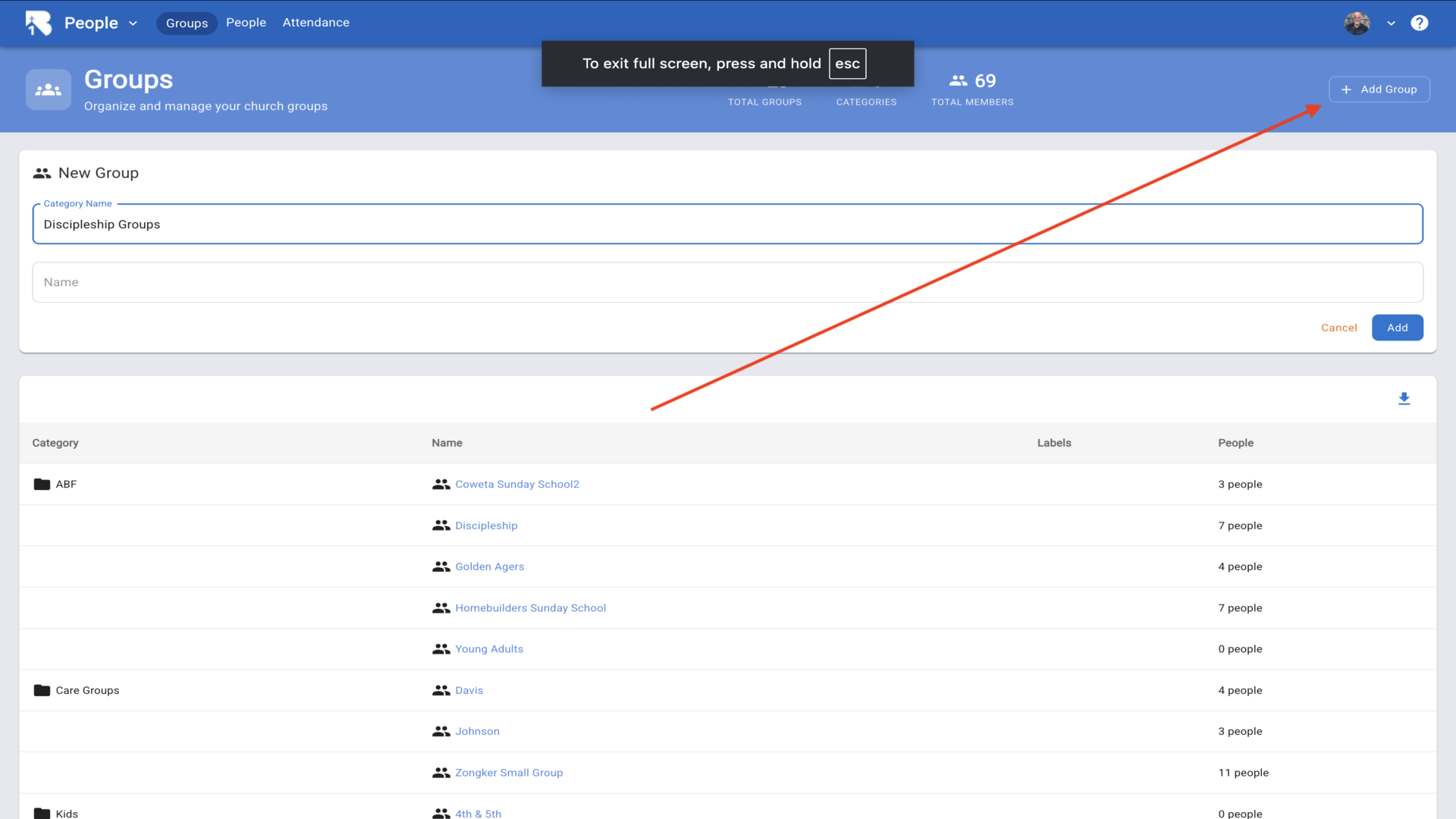
4.Choose a category name or make a new category. Give your group a name. Click add▼
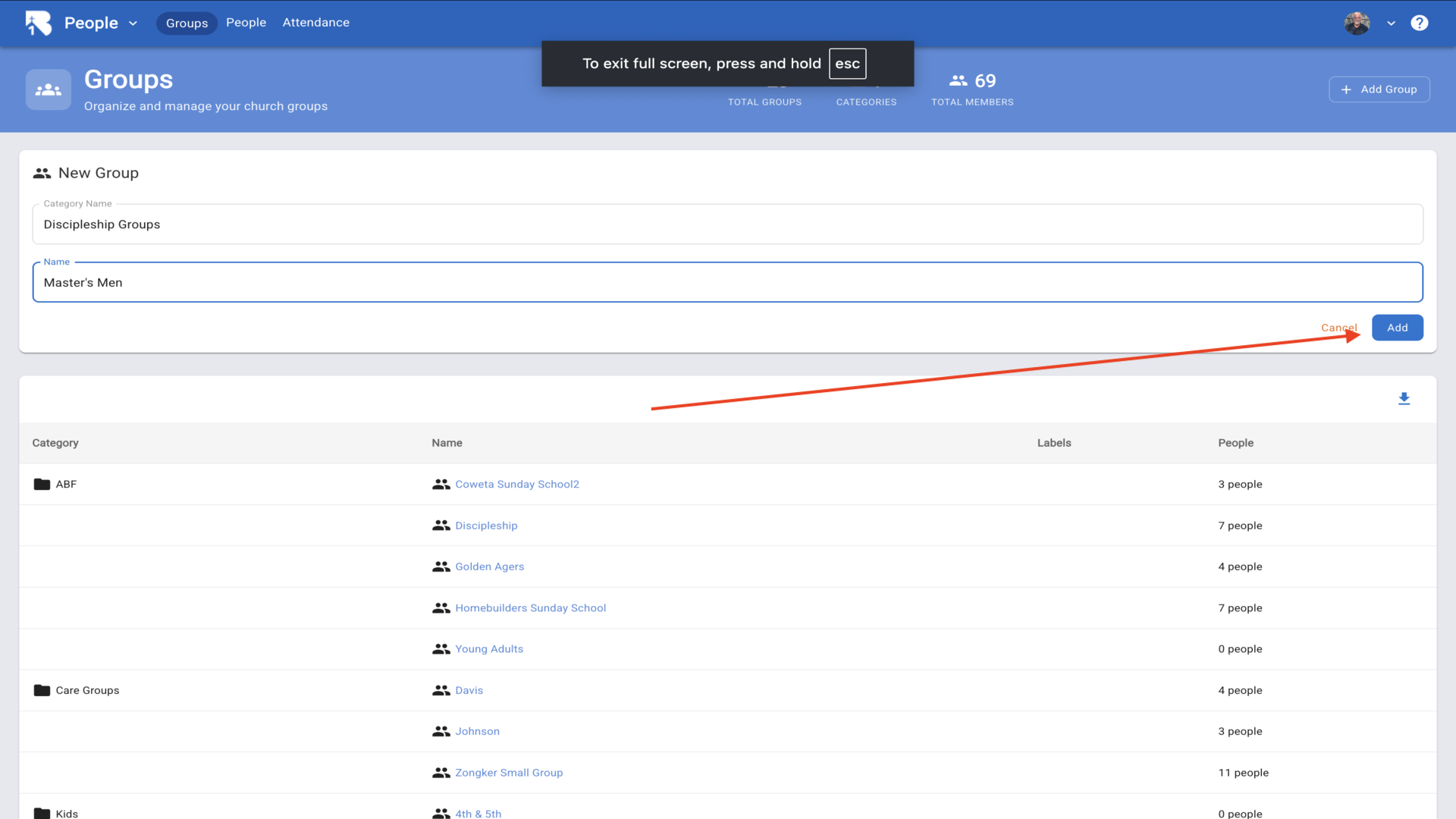
5.Click on your group name▼
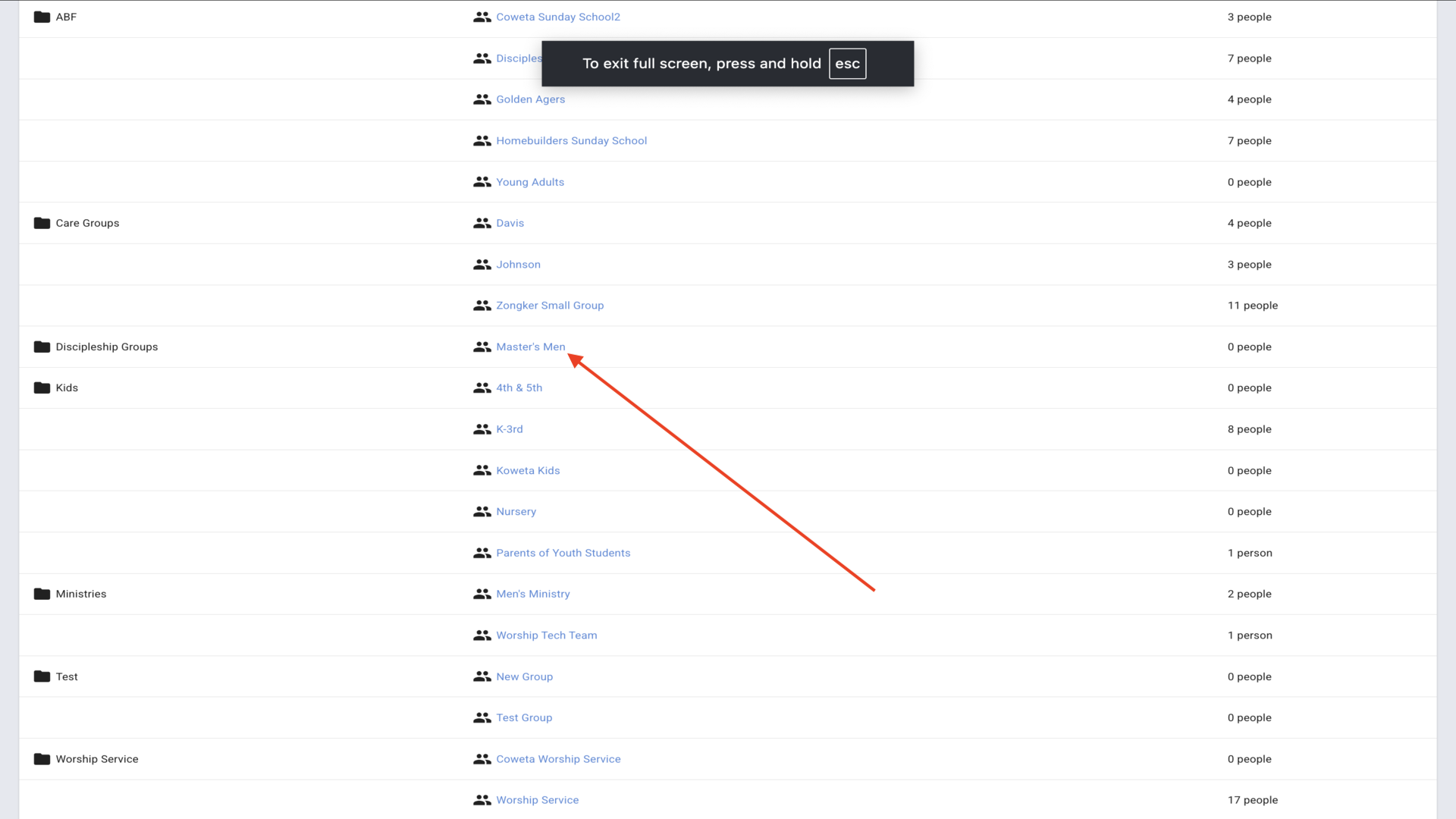
6.Click the edit pencil▼
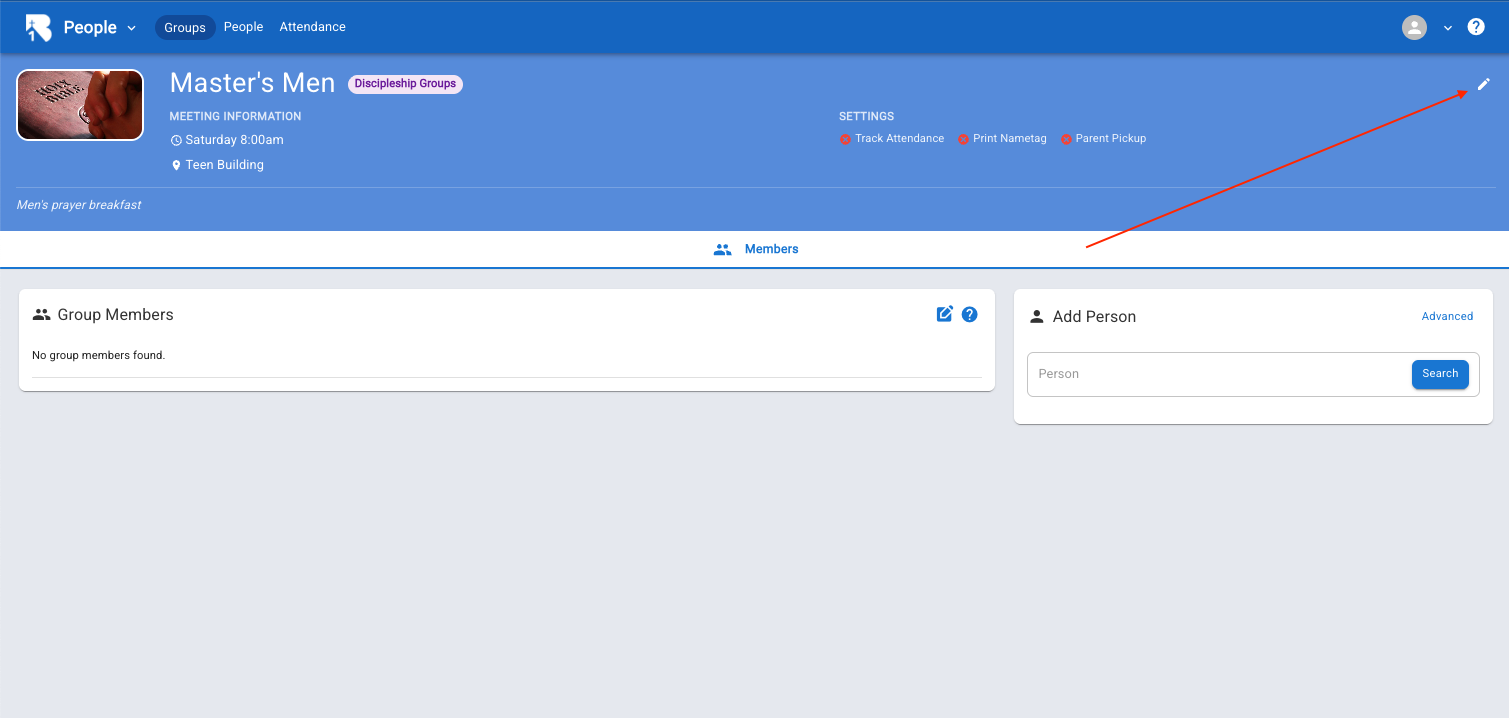
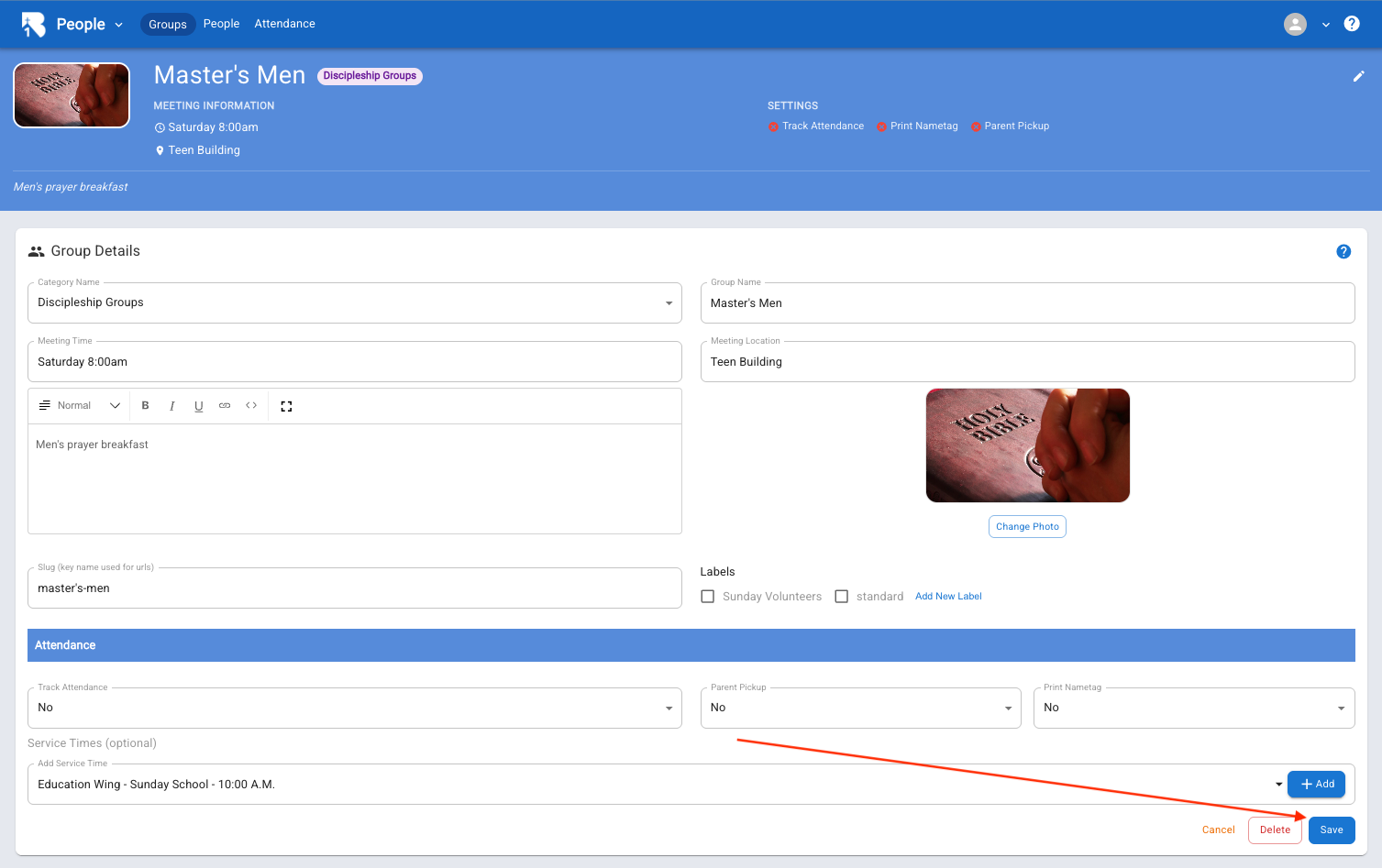
7.Fill in as much information as you like▼
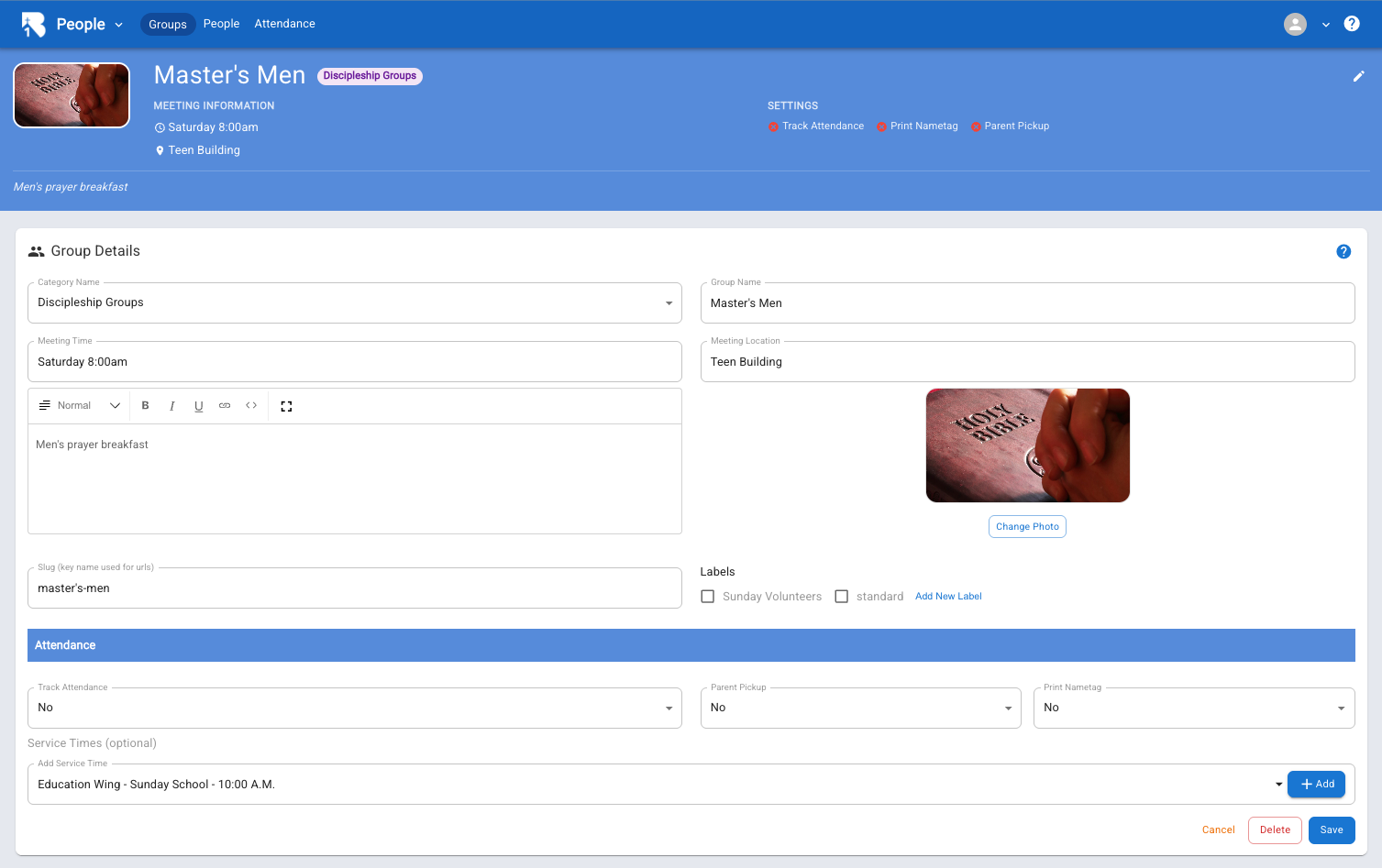
8.Be sure to click save▼
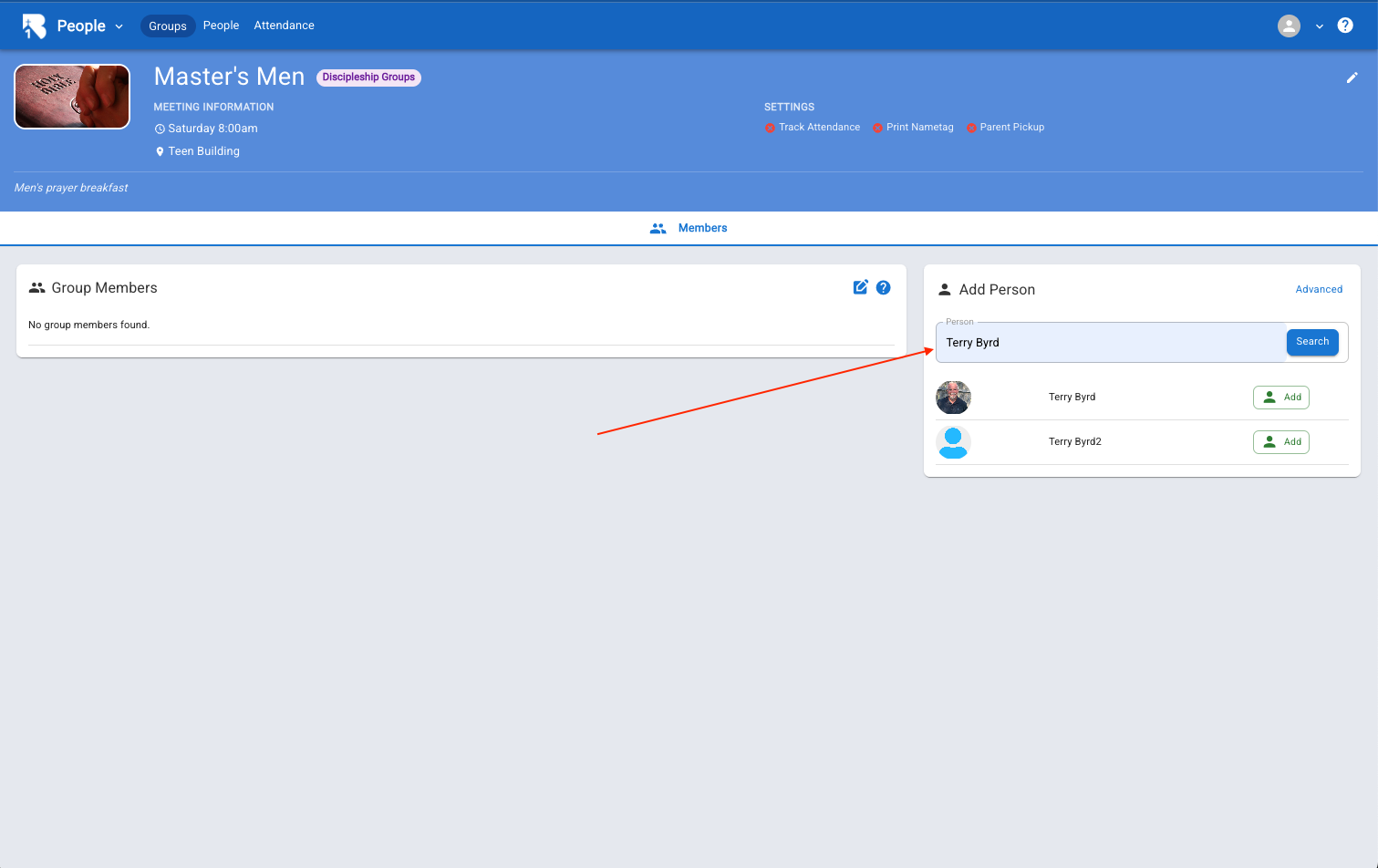
9.To add a person to the group type their name then click add▼
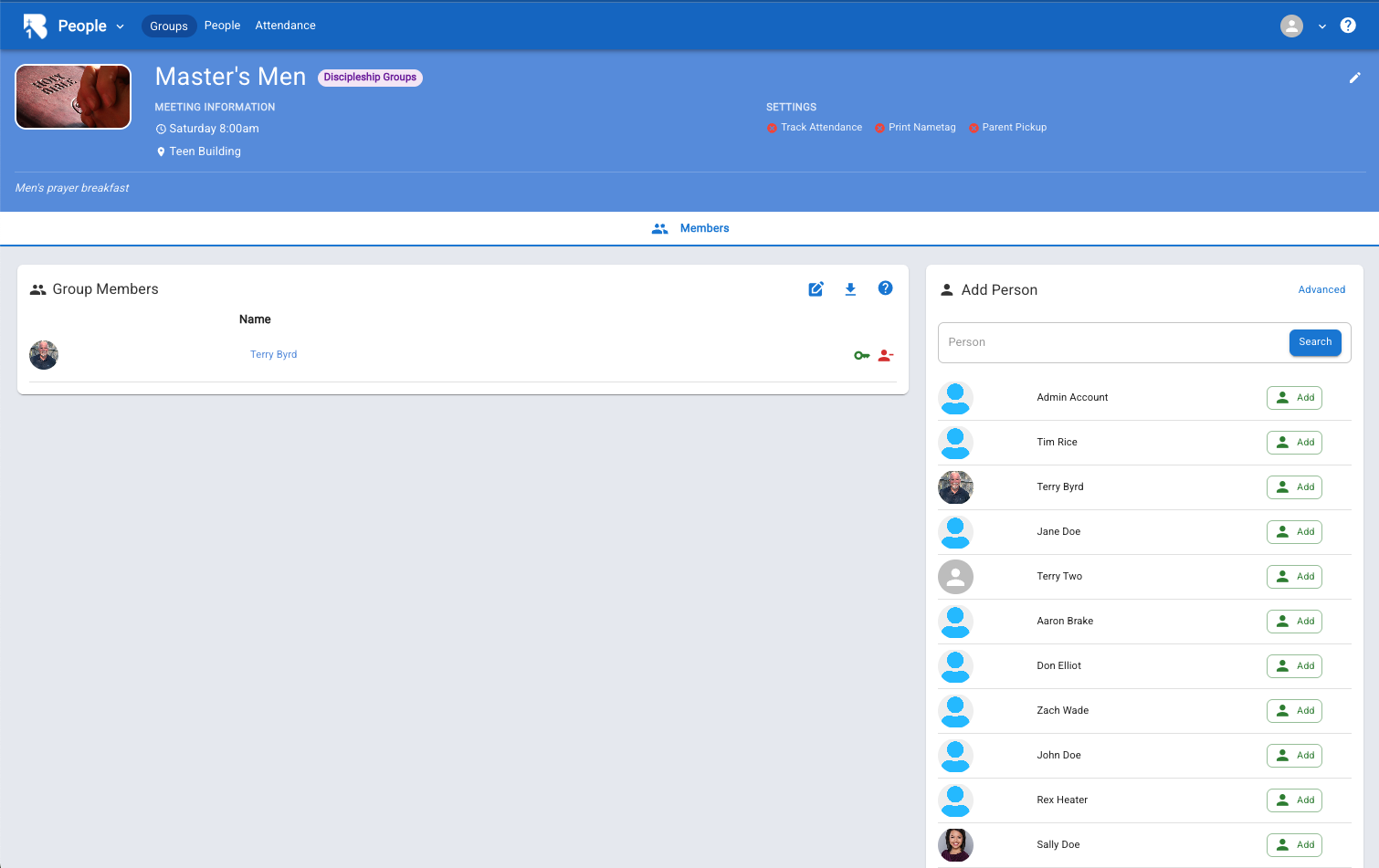
10.You can also add members by leaving the search bar blank and hitting search▼
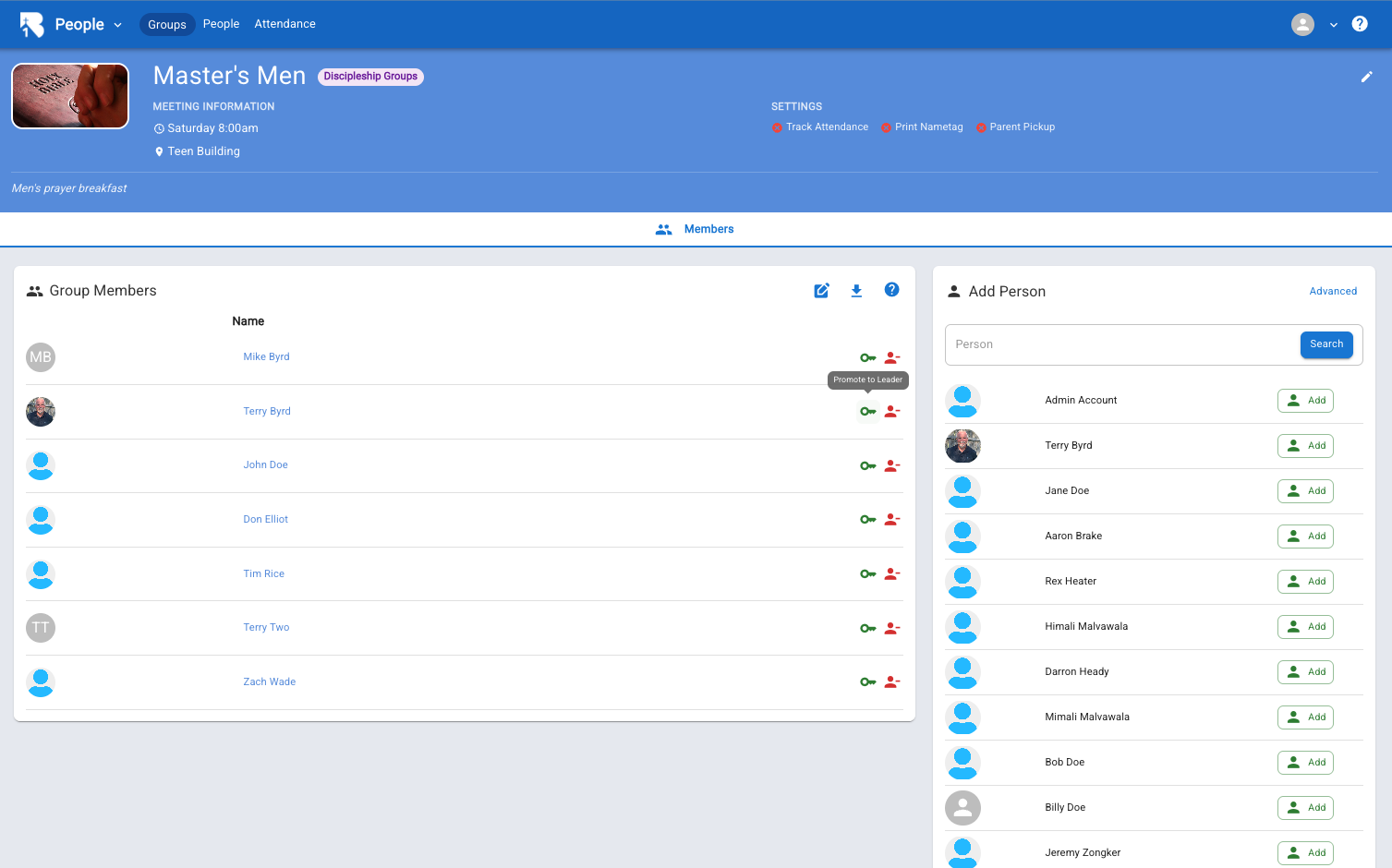
11.Choose a person to be the leader of the group. The leader of the group is the only person who can edit the calendar. Any group member can see a list of events and comment on them▼
12.Navigate to the drop down menu at the top right of your screen▼
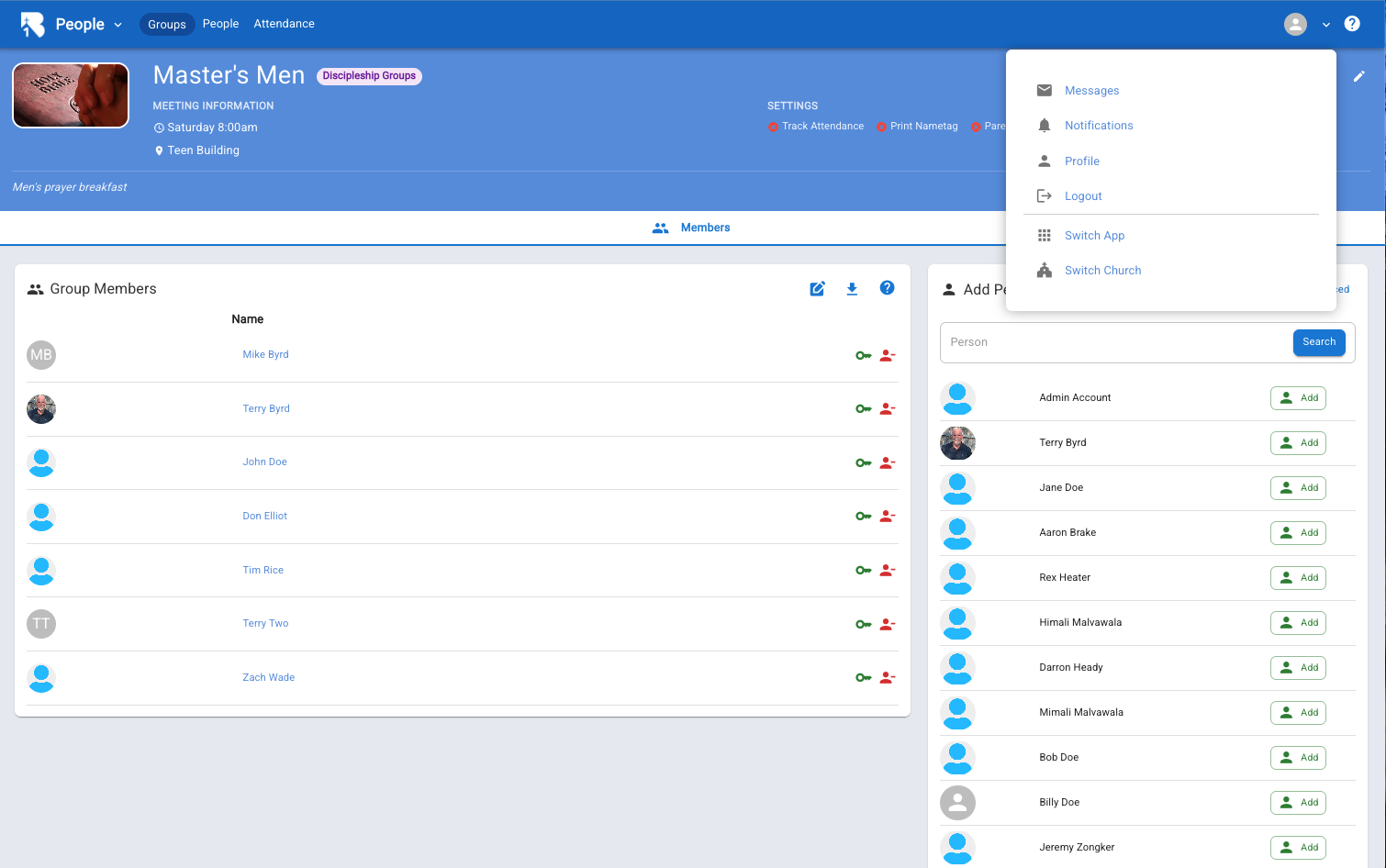
13.Choose switch app▼
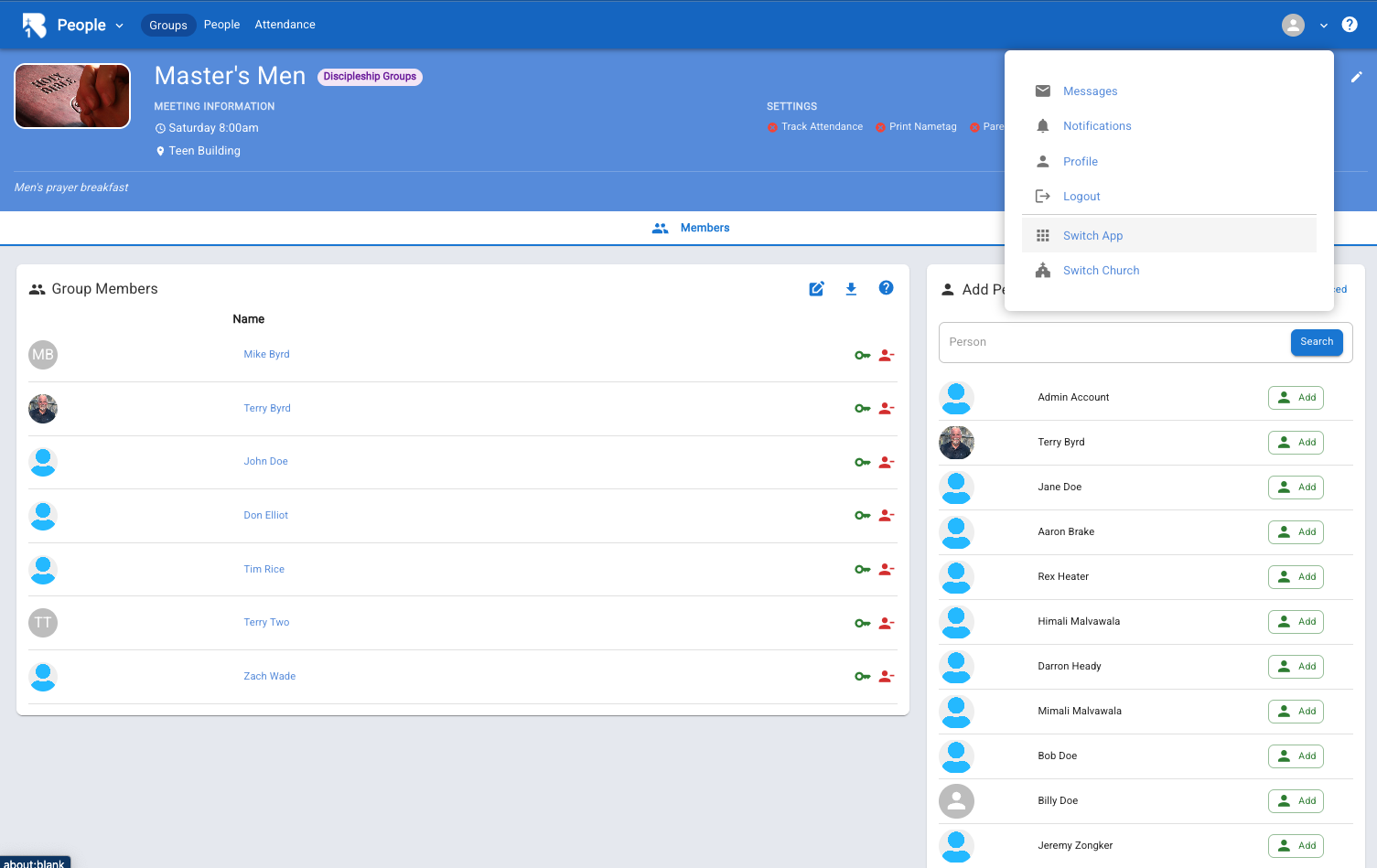
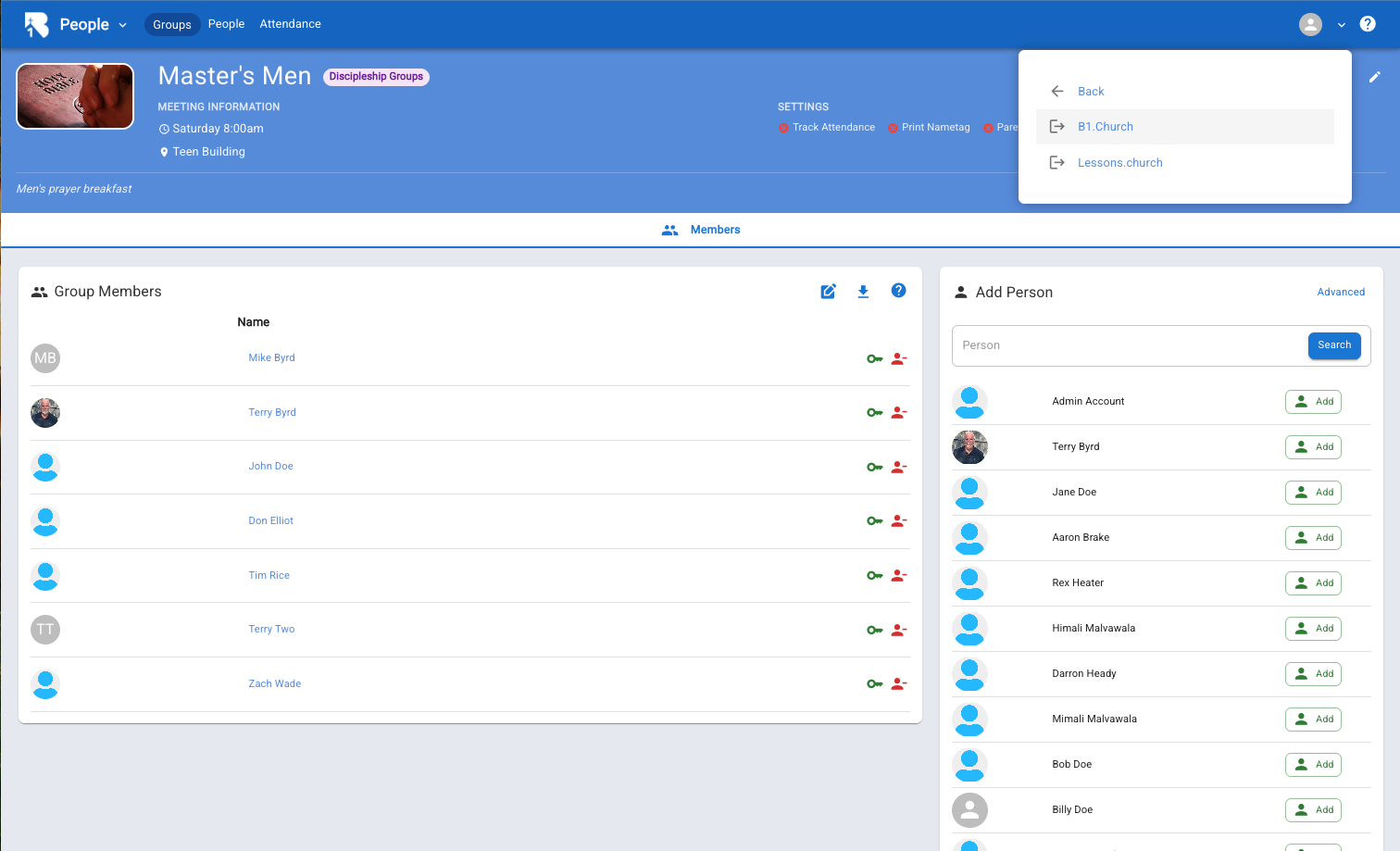
14.Go to B1.church▼
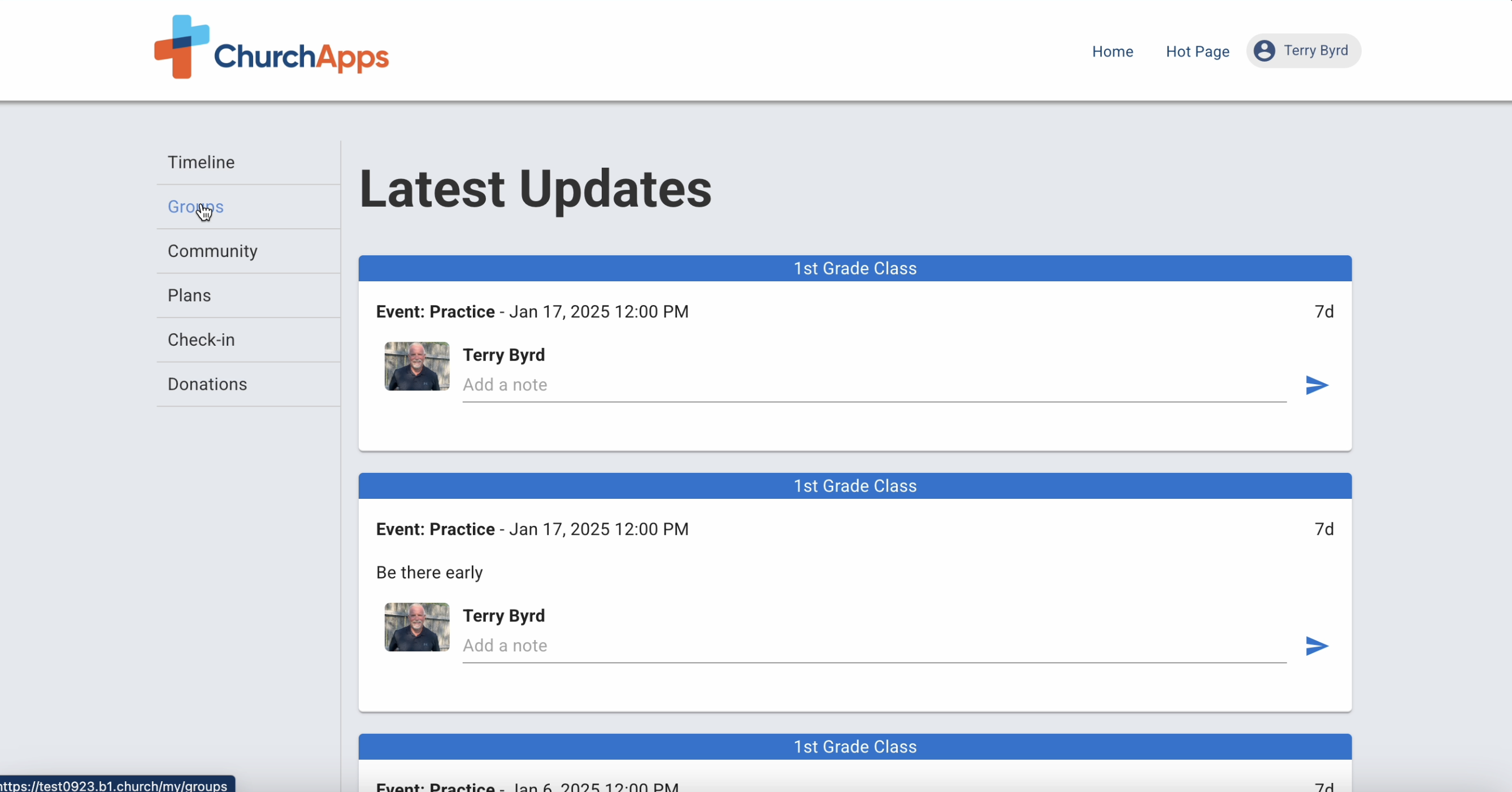
15.On the left side of your screen choose groups▼
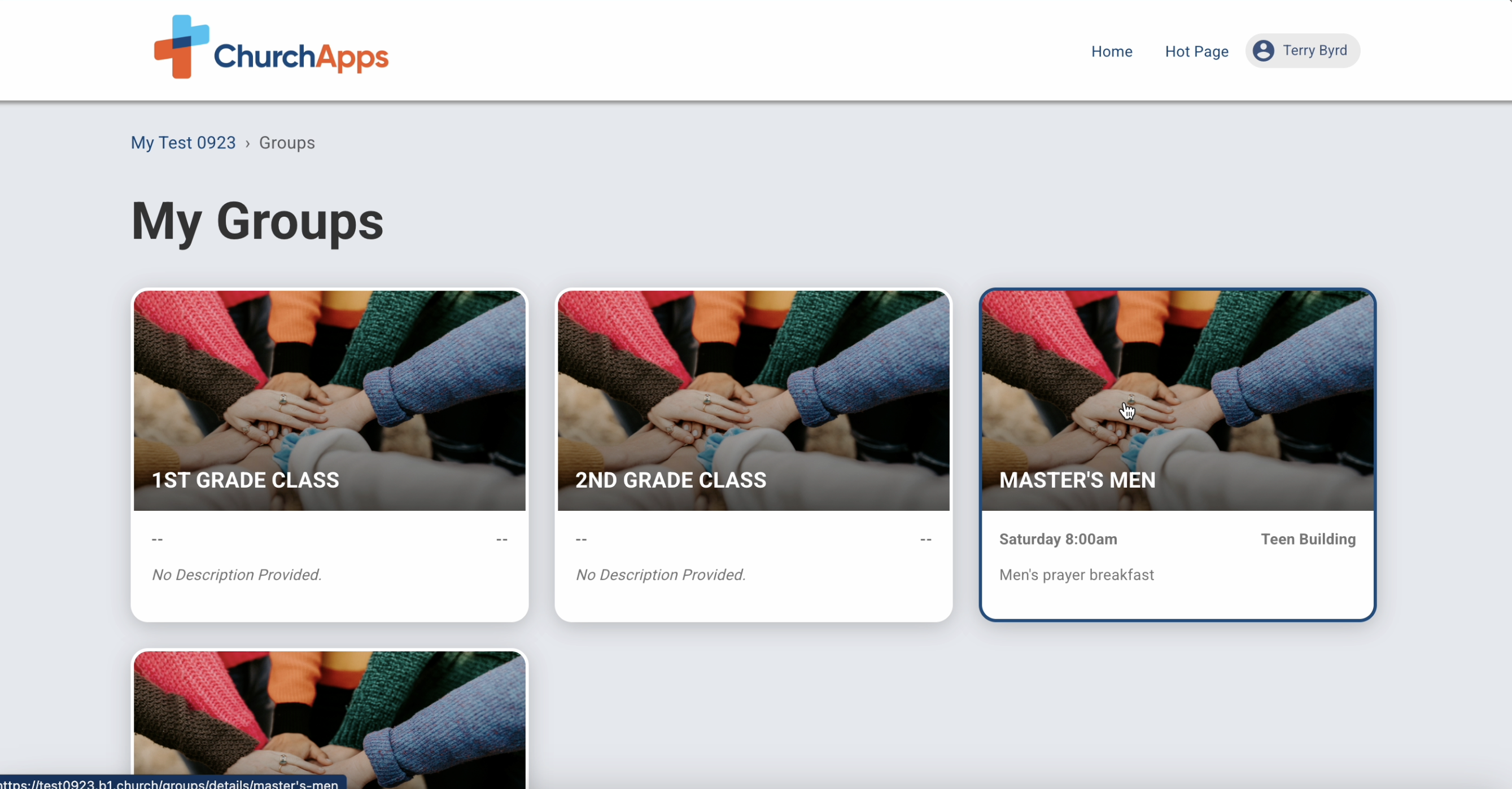
16.Choose your group to edit the calendar. In this case Master's Men▼
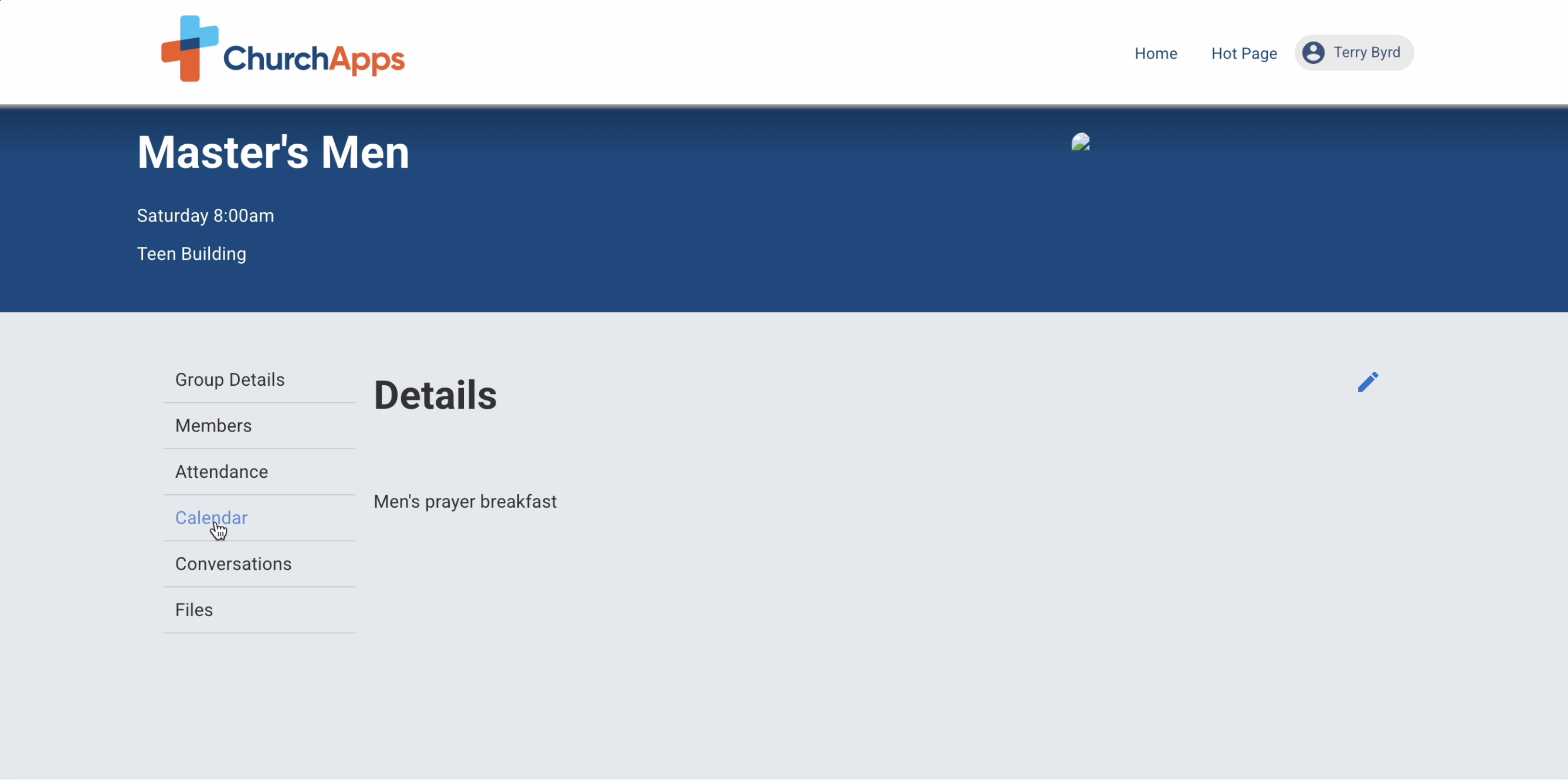
17.Click calendar on the left hand side of the screen▼
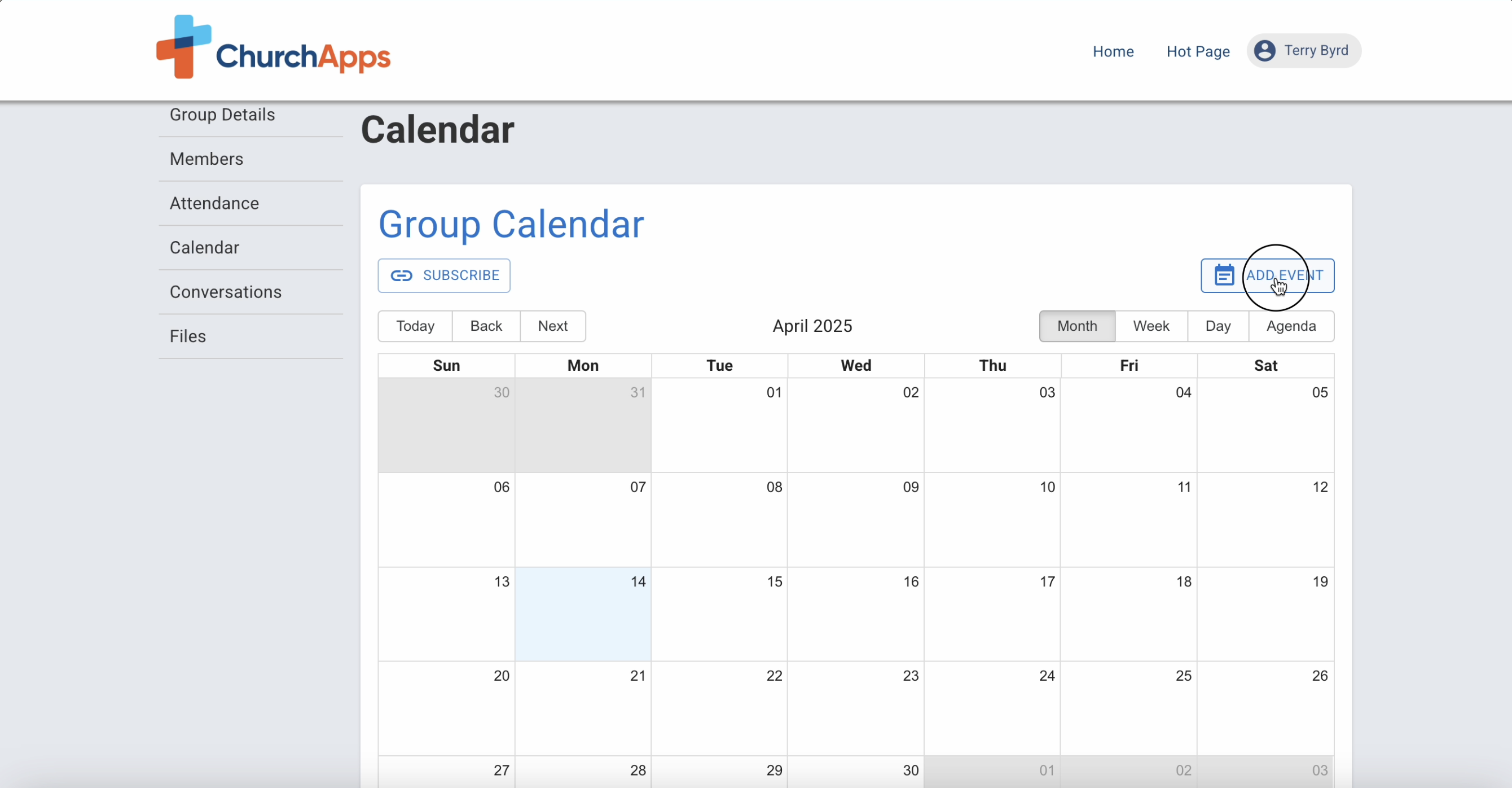
18.Click add an event▼
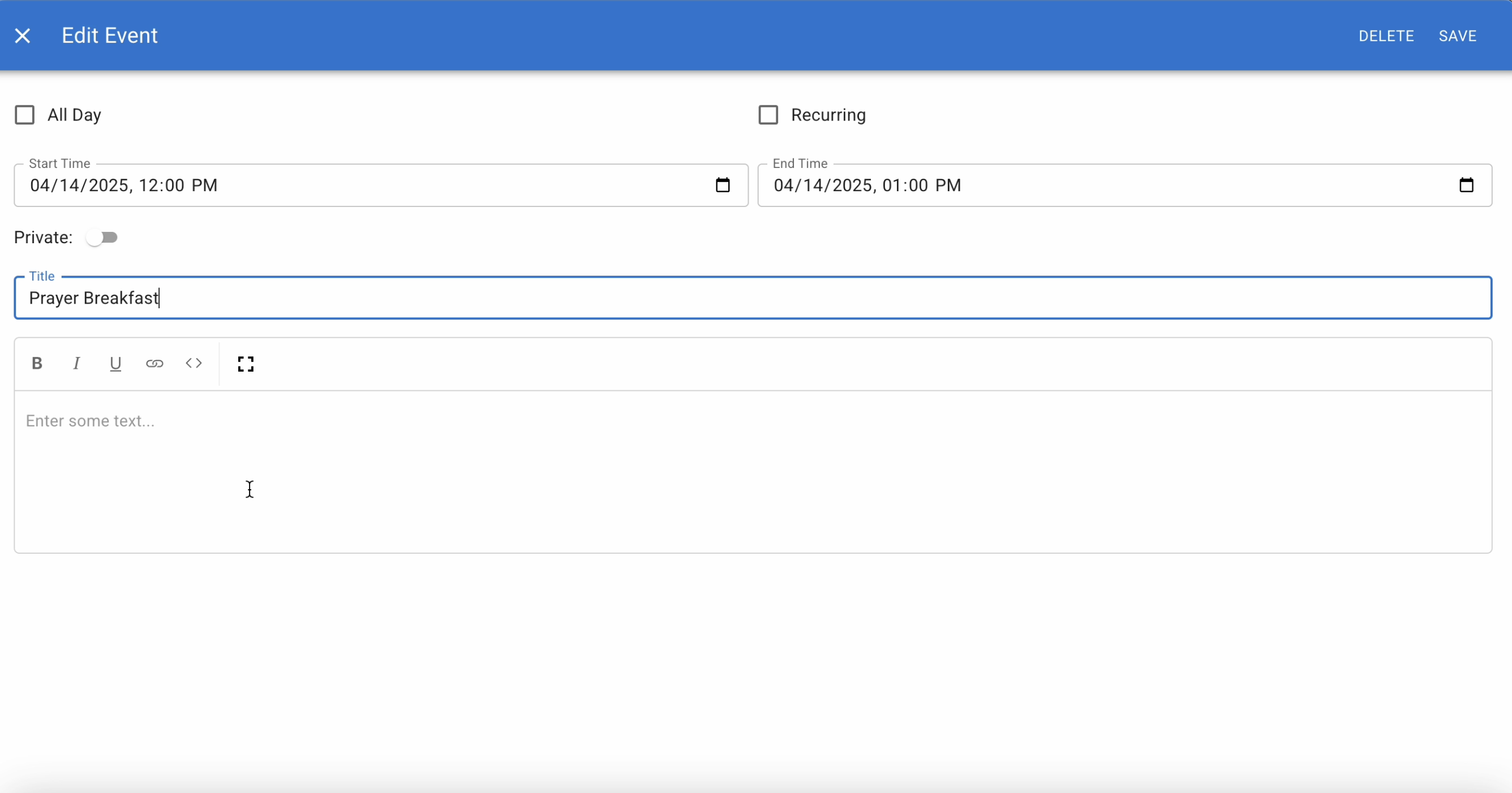
19.Give the event a title▼
20.Write a short description of the event▼
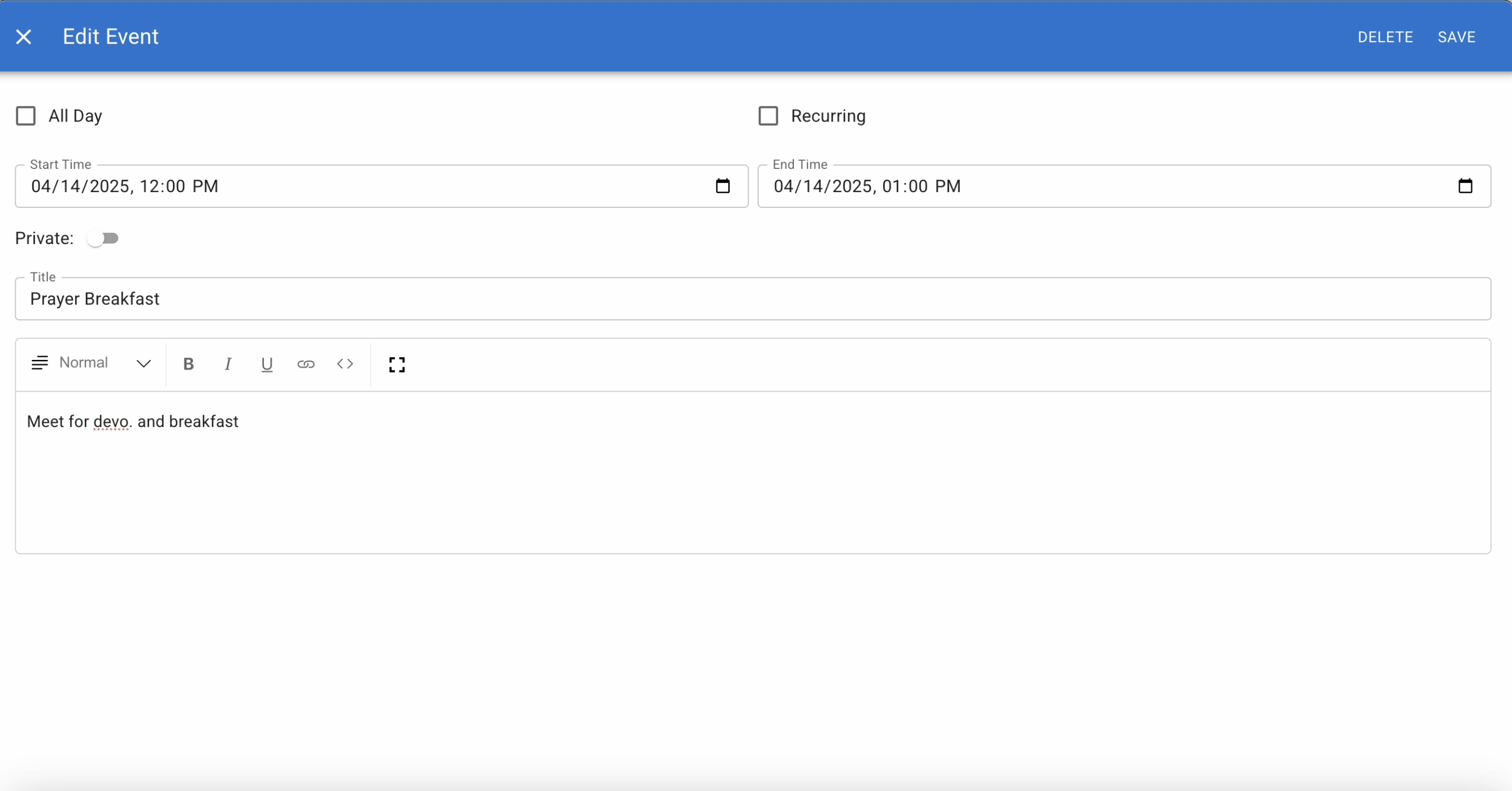
21.Add a start time▼
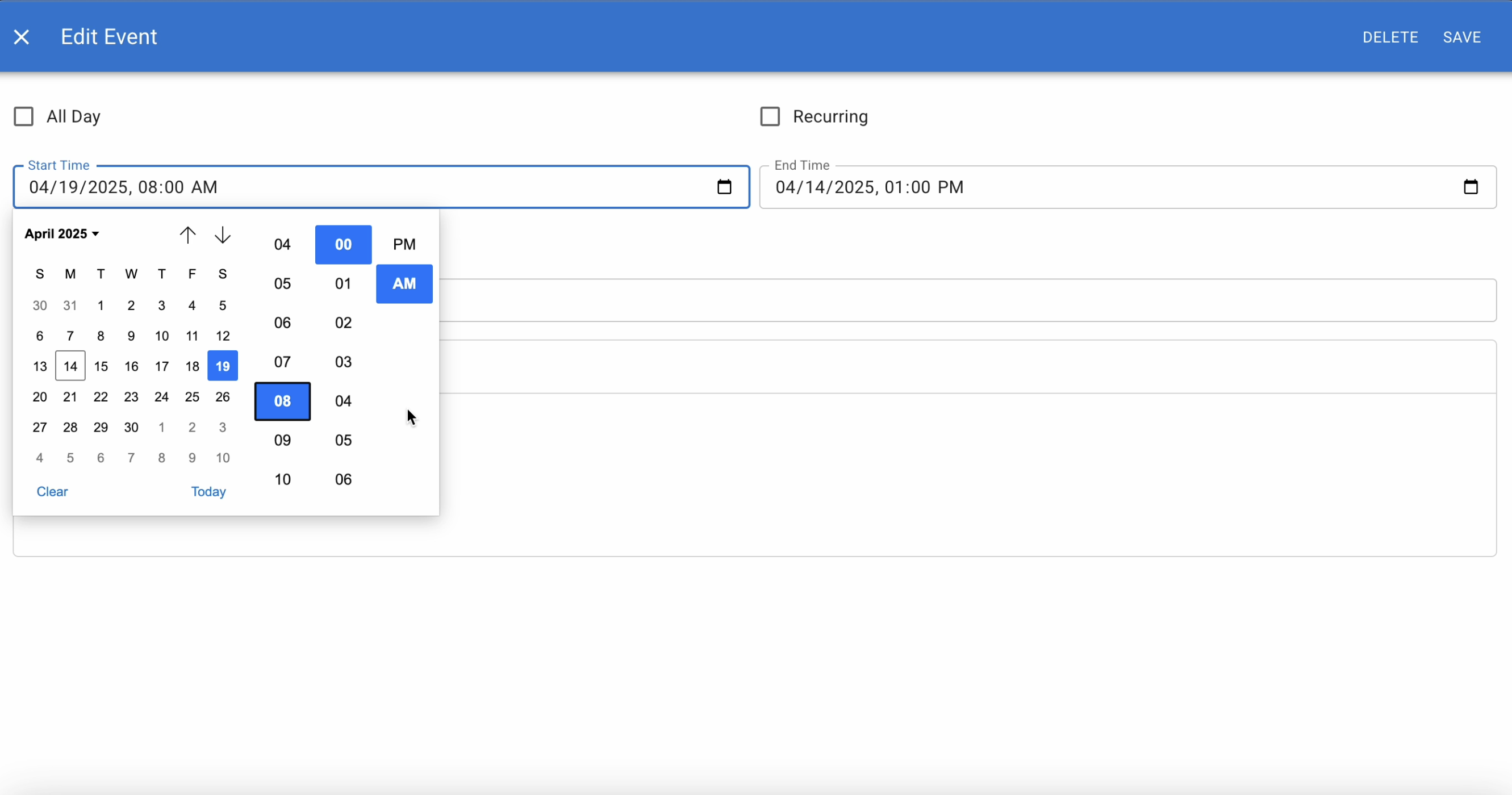
22.And an end time▼
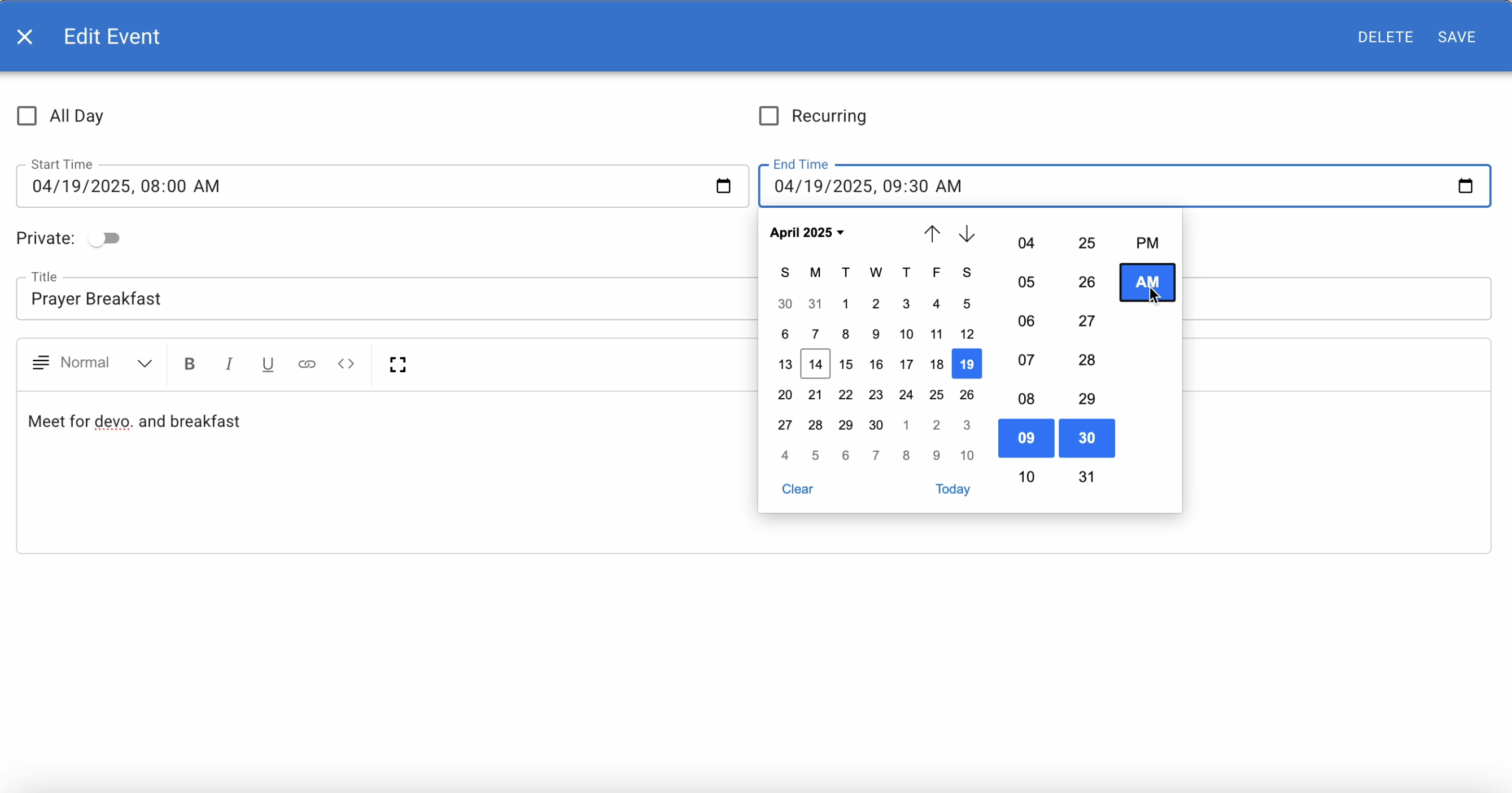
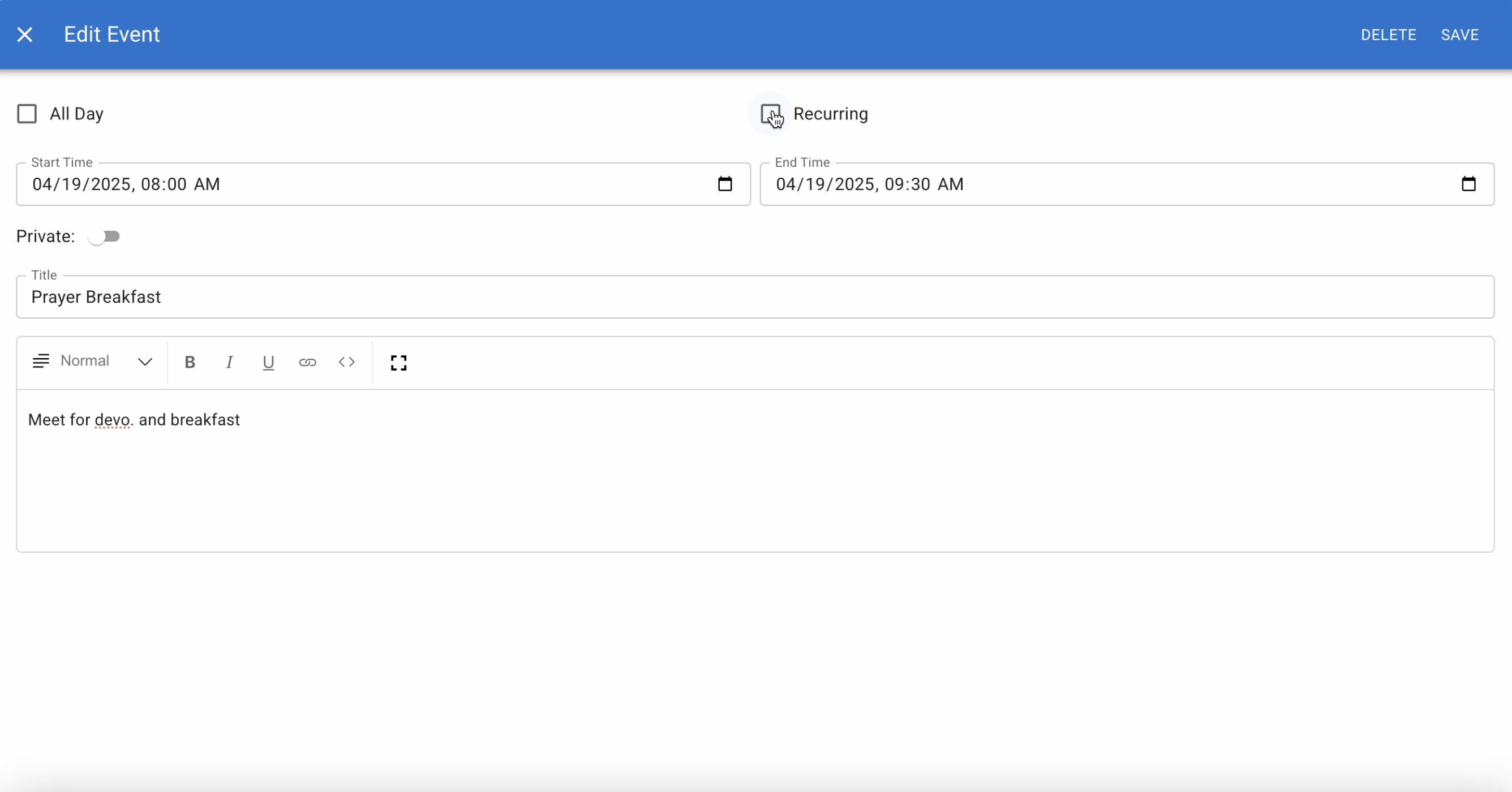
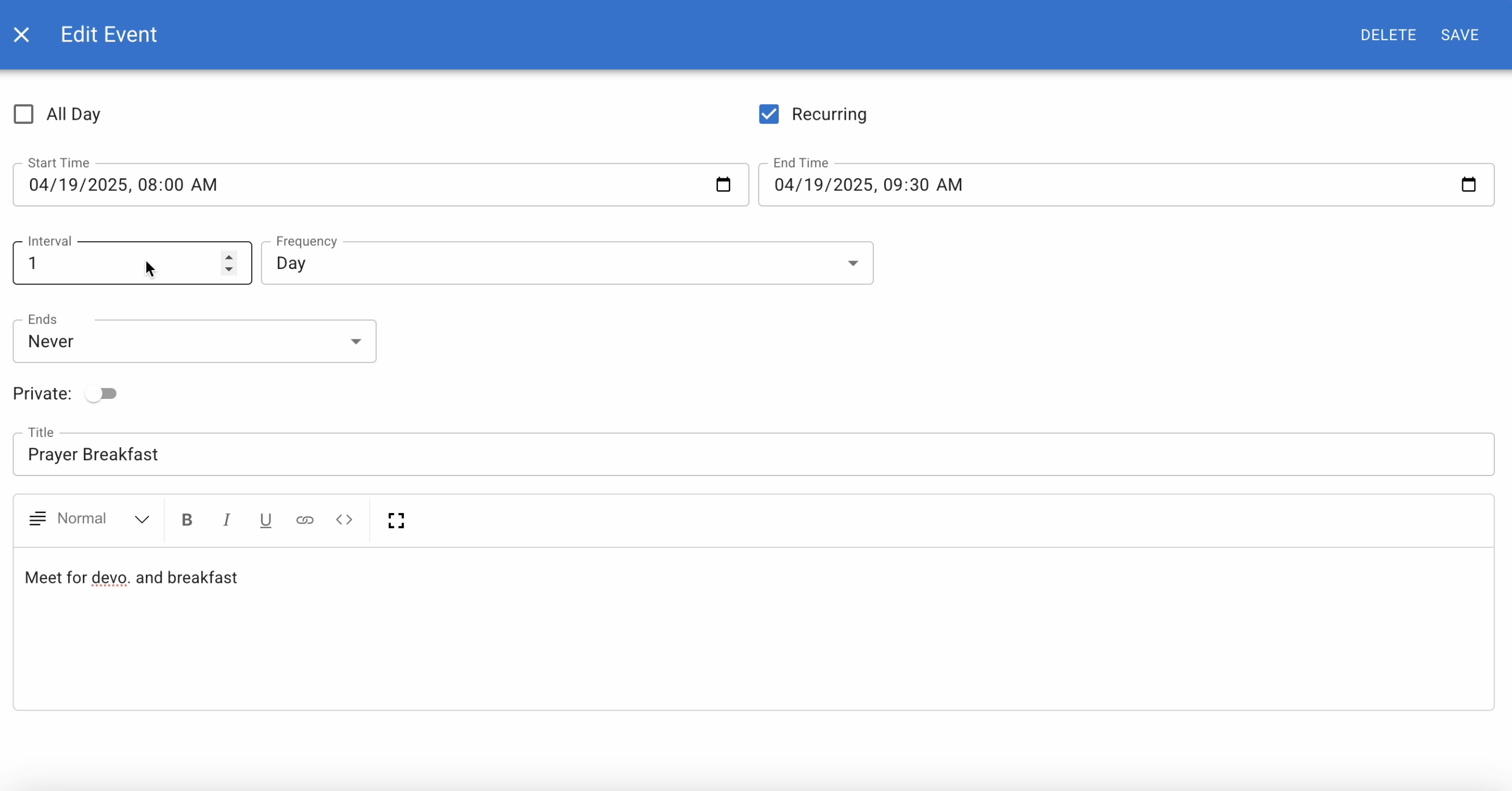
23.Click the recurring box if the event is recurring▼
24.You can choose intervals so the event will recur every so many days. For instance if you put three in the interval box it will repeat every third day▼
25.Or you can choose frequency by day, week or month▼
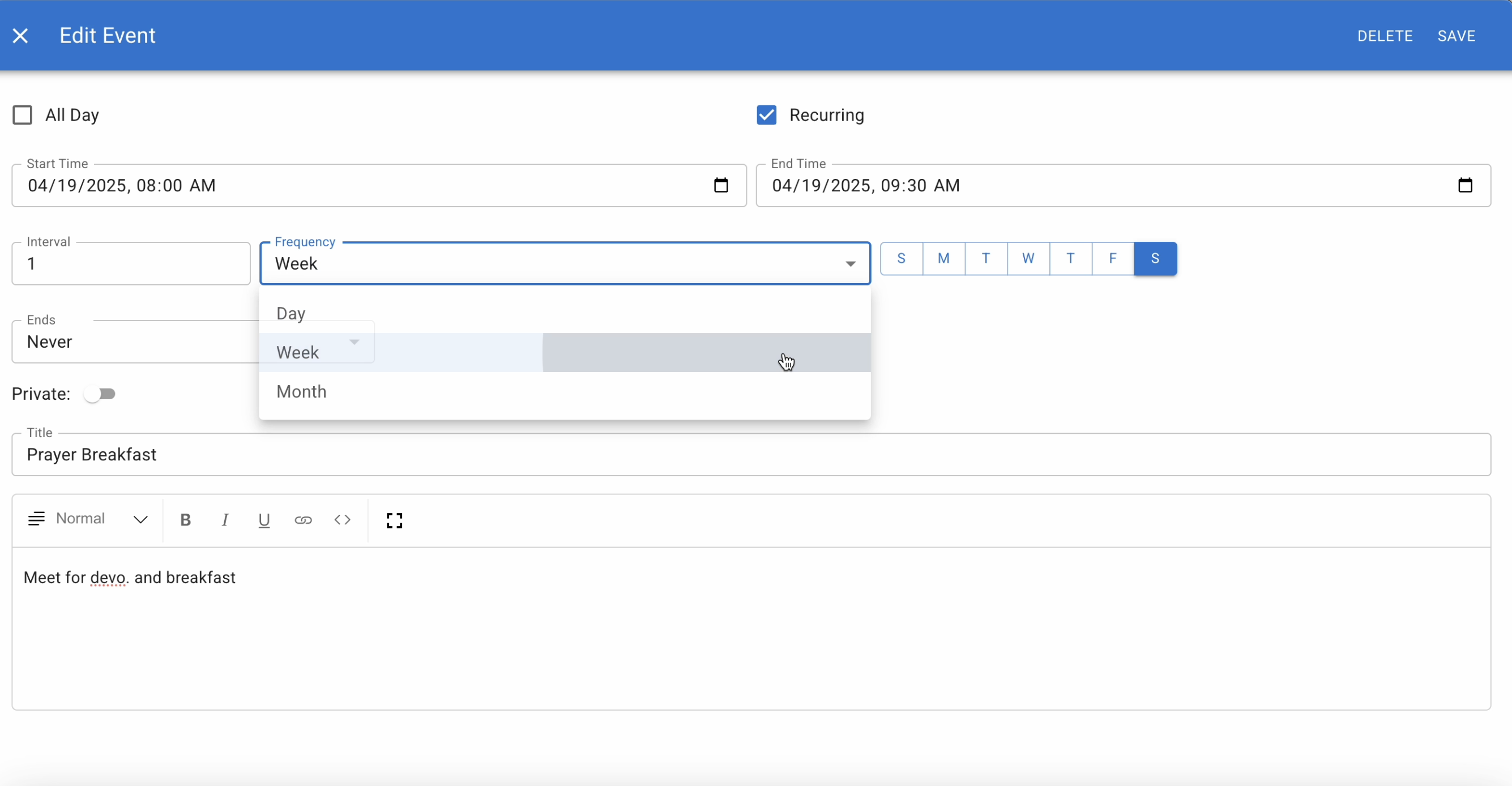
26.This event will repeat every Saturday▼
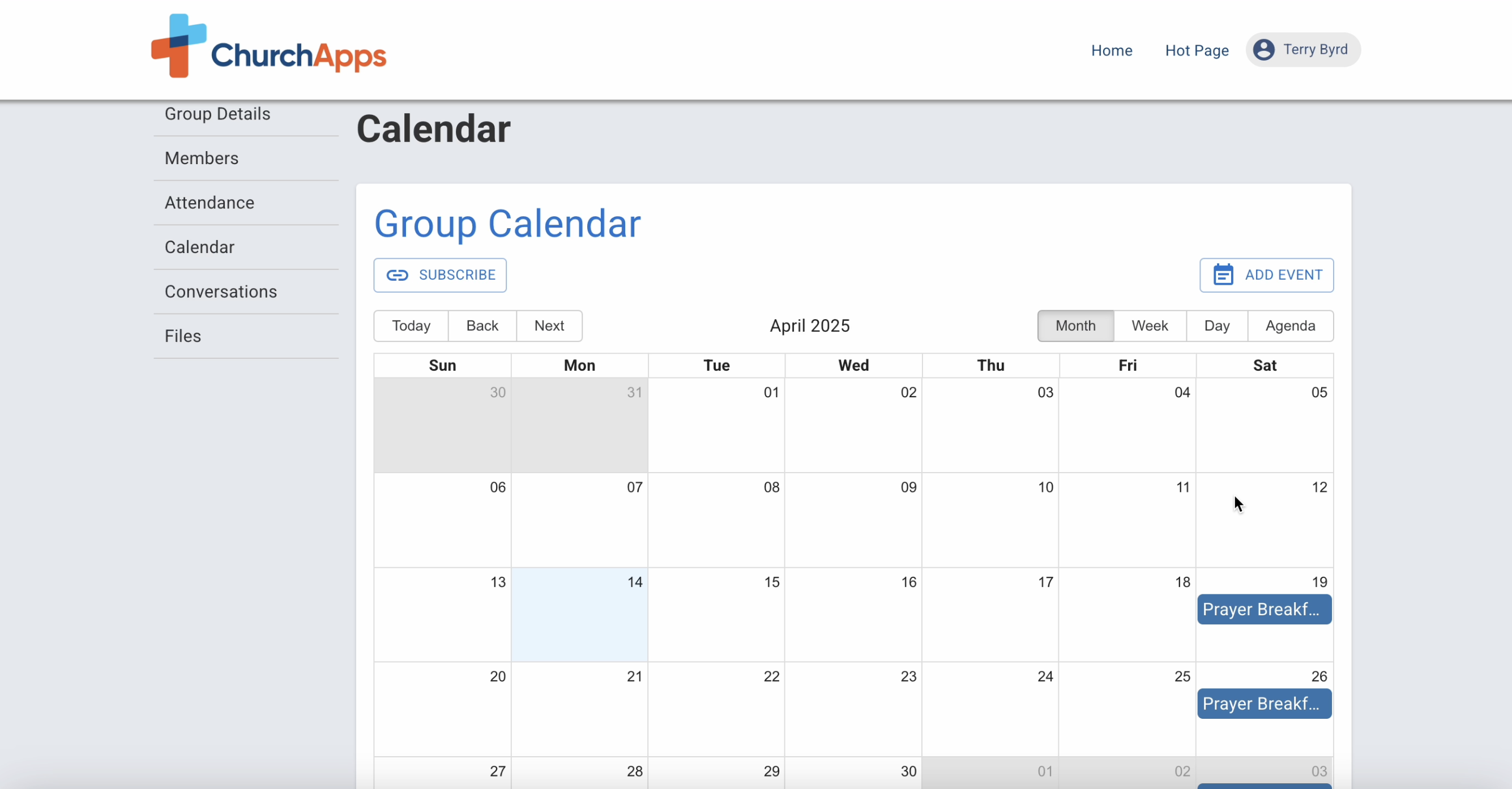
27.There are multiple ways to view the calendar, Month▼
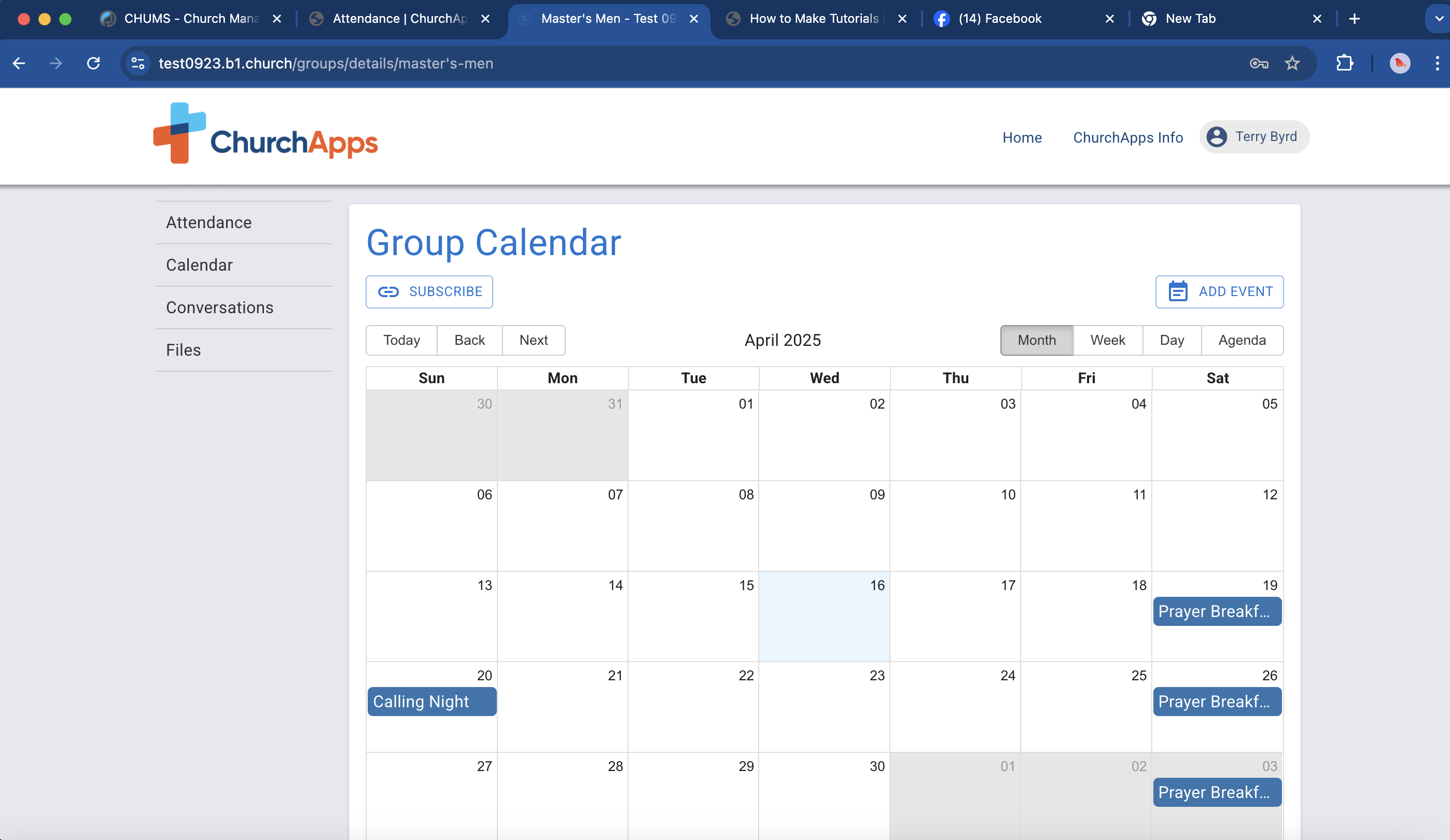
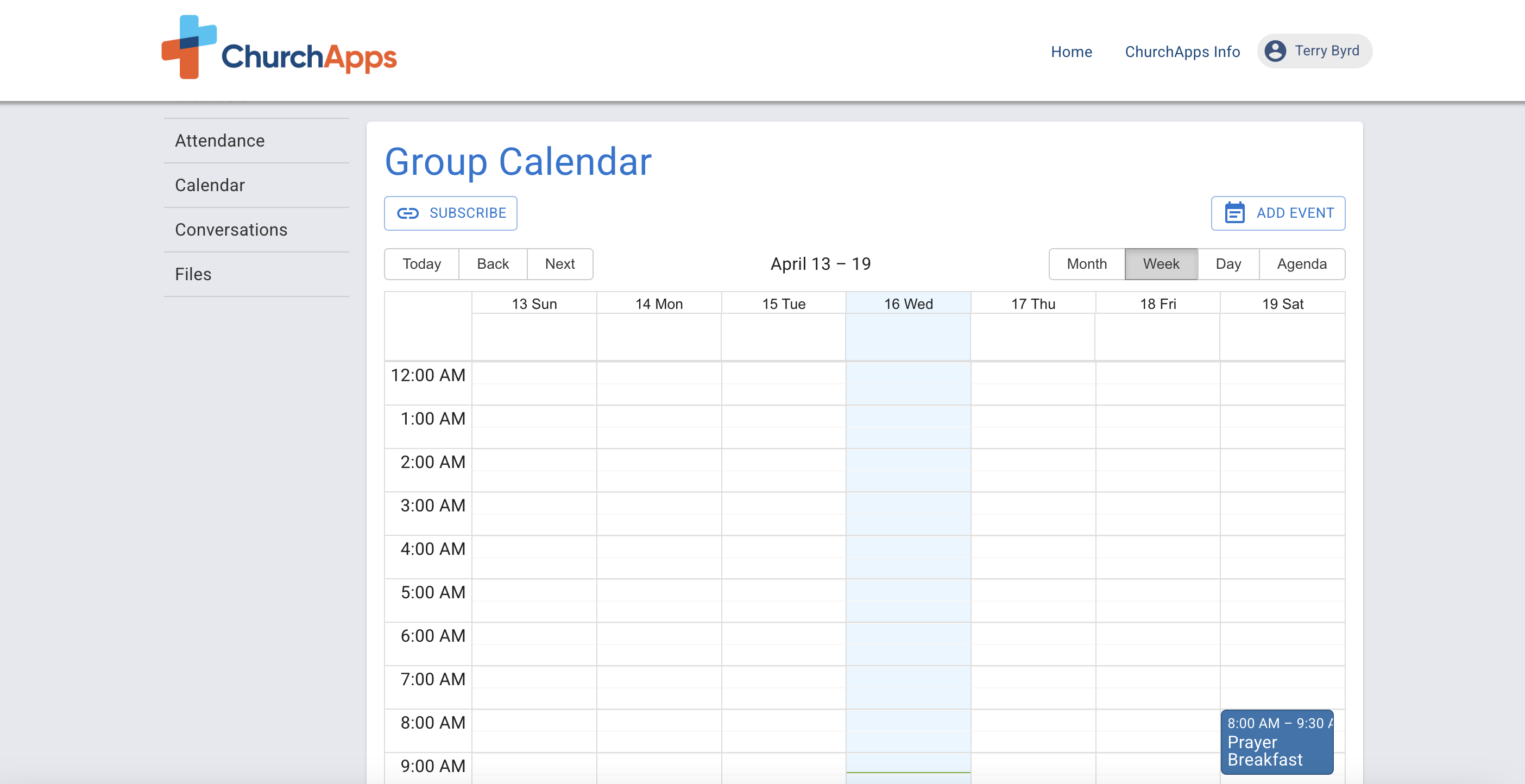
28.Week▼
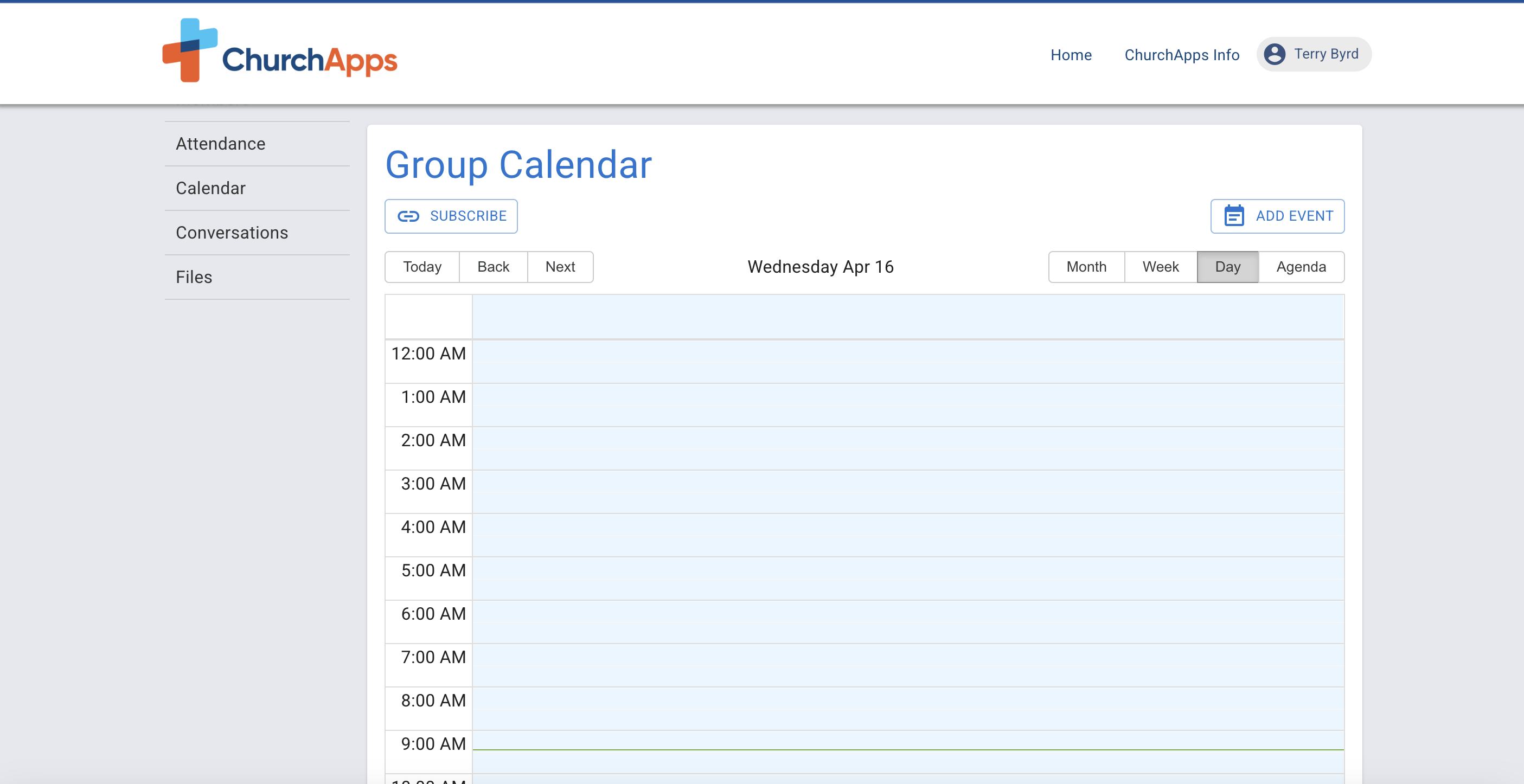
29.Day▼
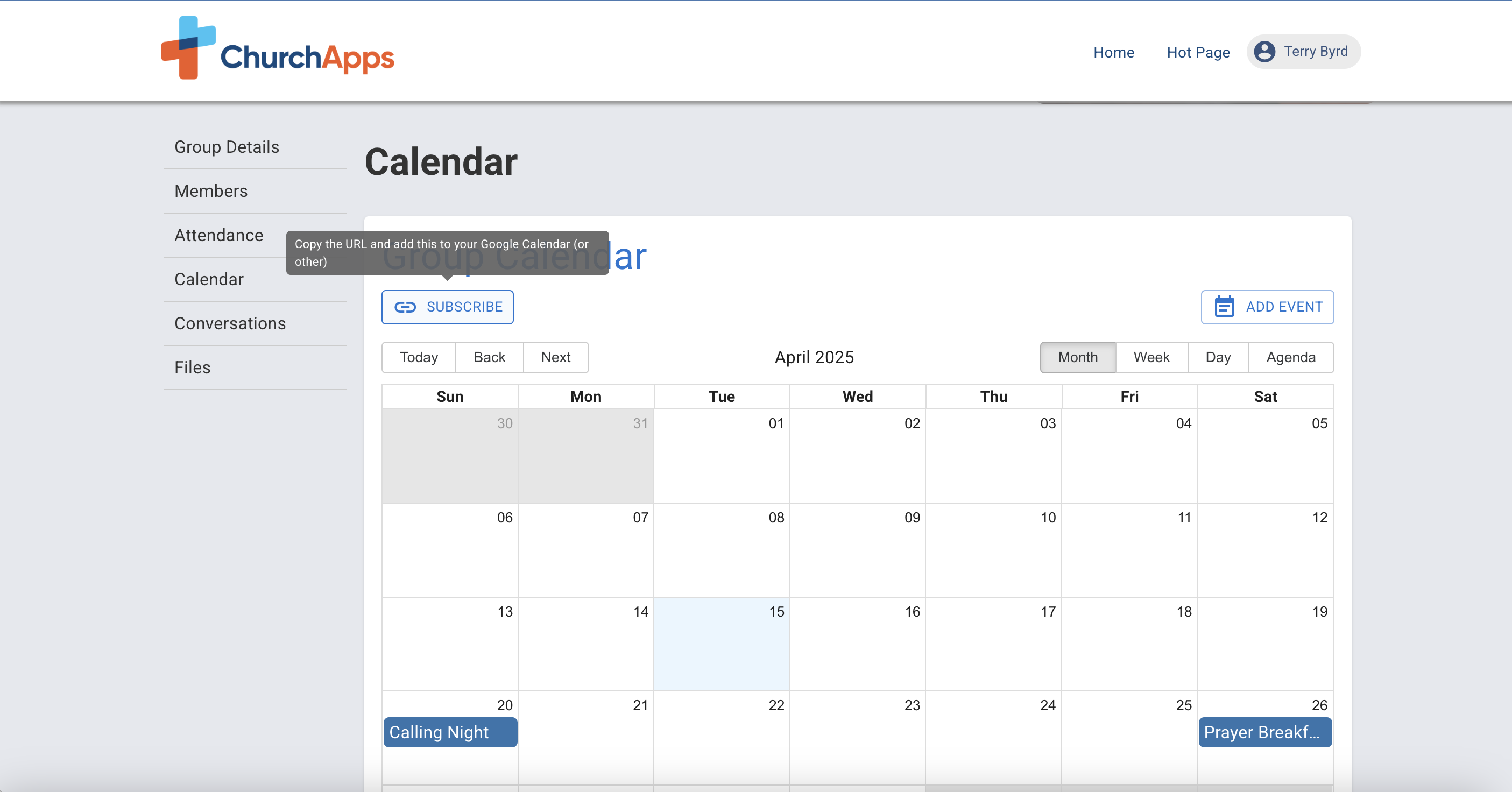
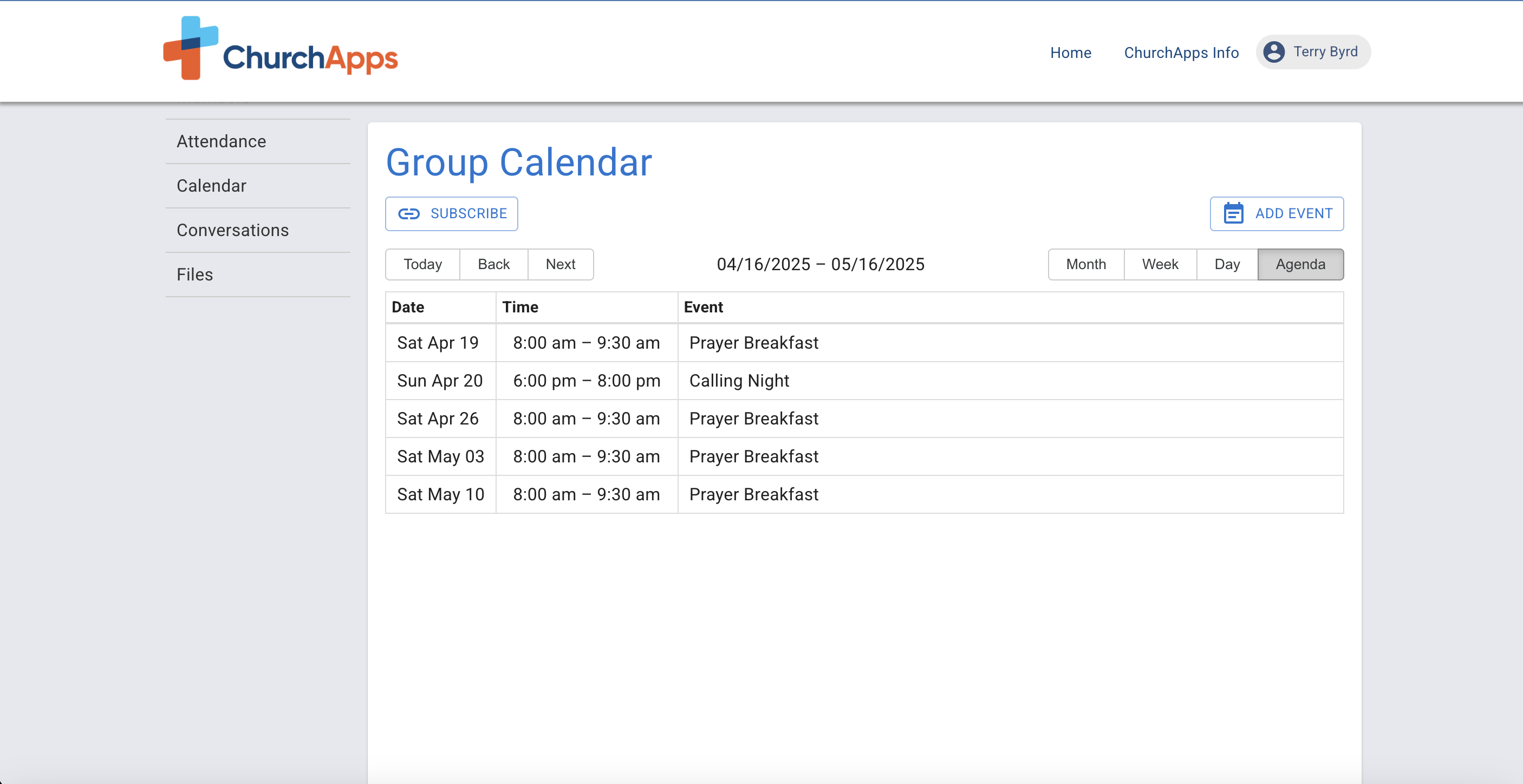
30.And agenda▼
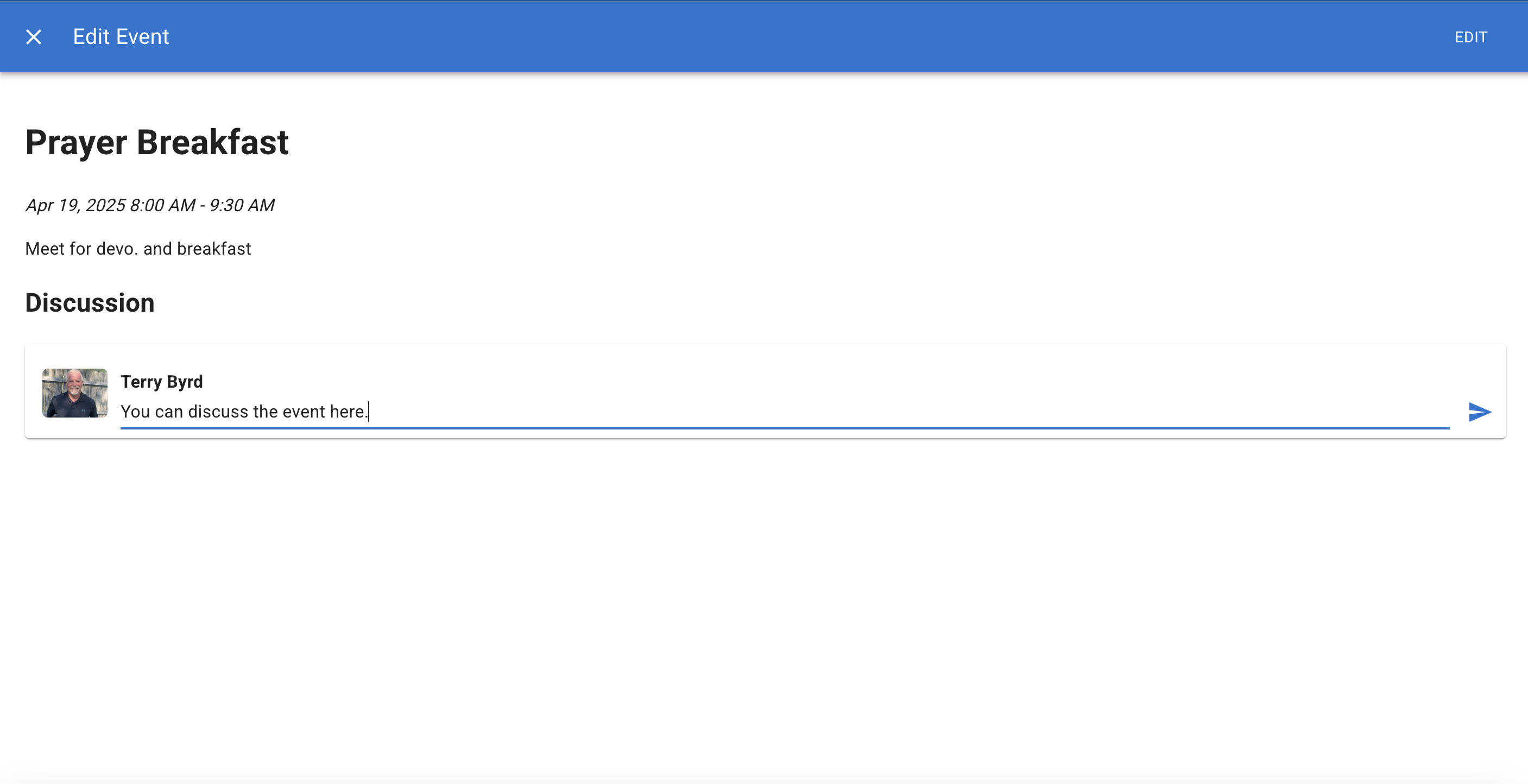
31.Click the event to see details. Members and leaders can start a conversation within the event and leaders can edit▼
32.You can add your calendar to your google calendar (or any other calendar) by clicking subscribe. You can also make a curated calendar to add to your website. Follow the curated calendar tutorial below▼