02 Admin
How to Add a Sermon
Steps
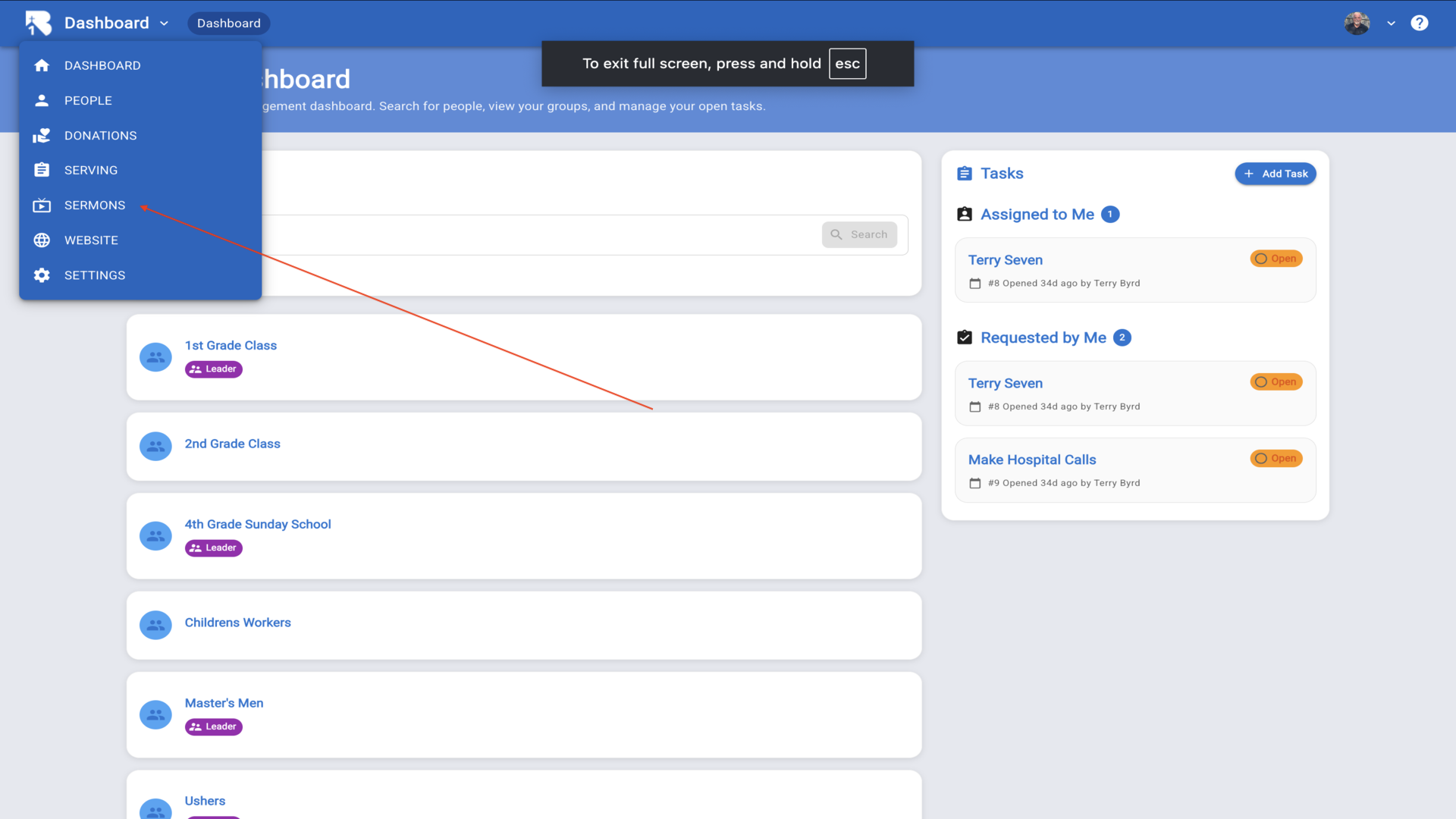
1.From the Dashboard, click on Sermons in the left sidebar to access your sermon library.▼
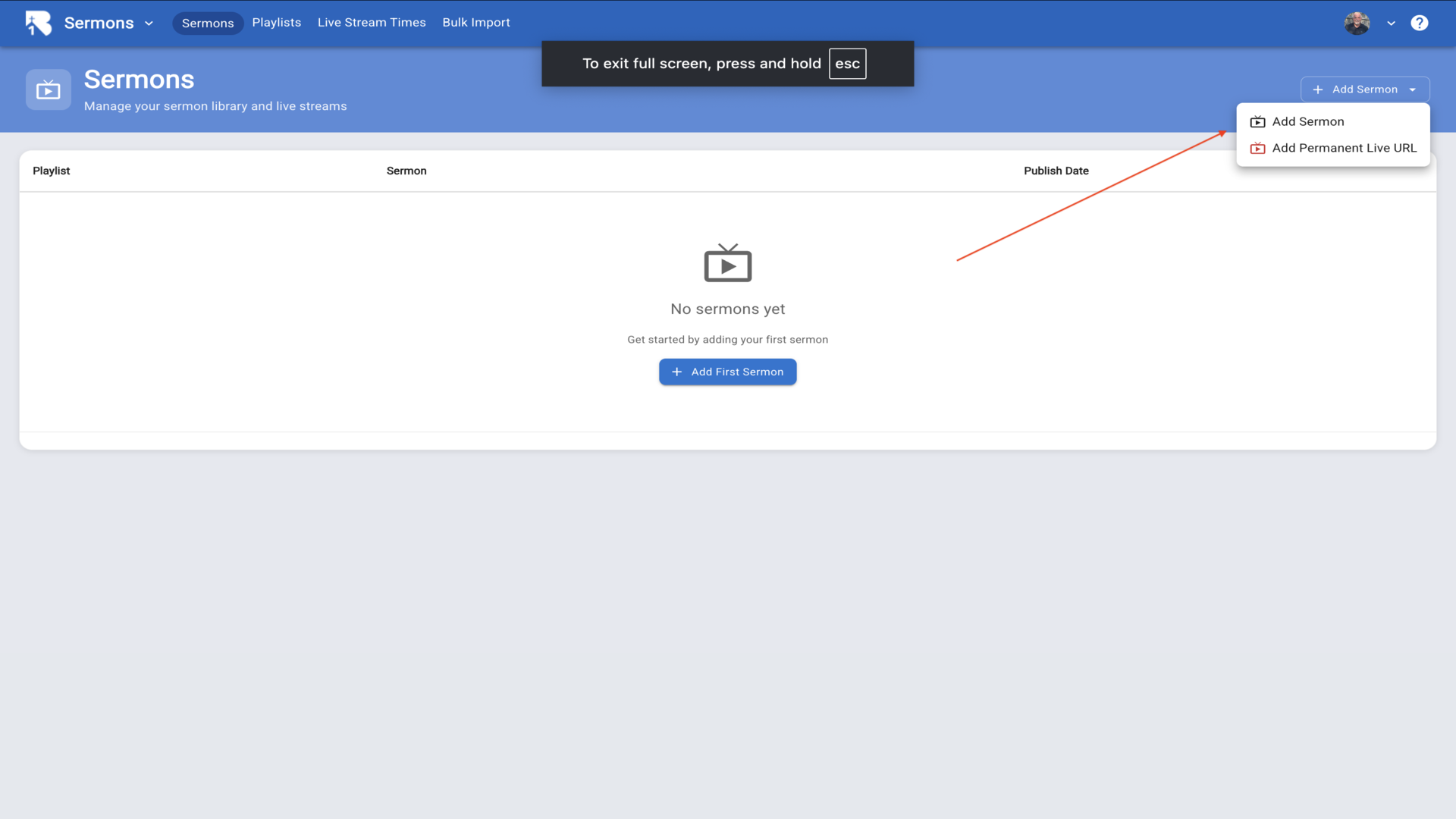
2.On the Sermons page, click the Add Sermon button in the top right corner and select Add Sermon from the dropdown.▼
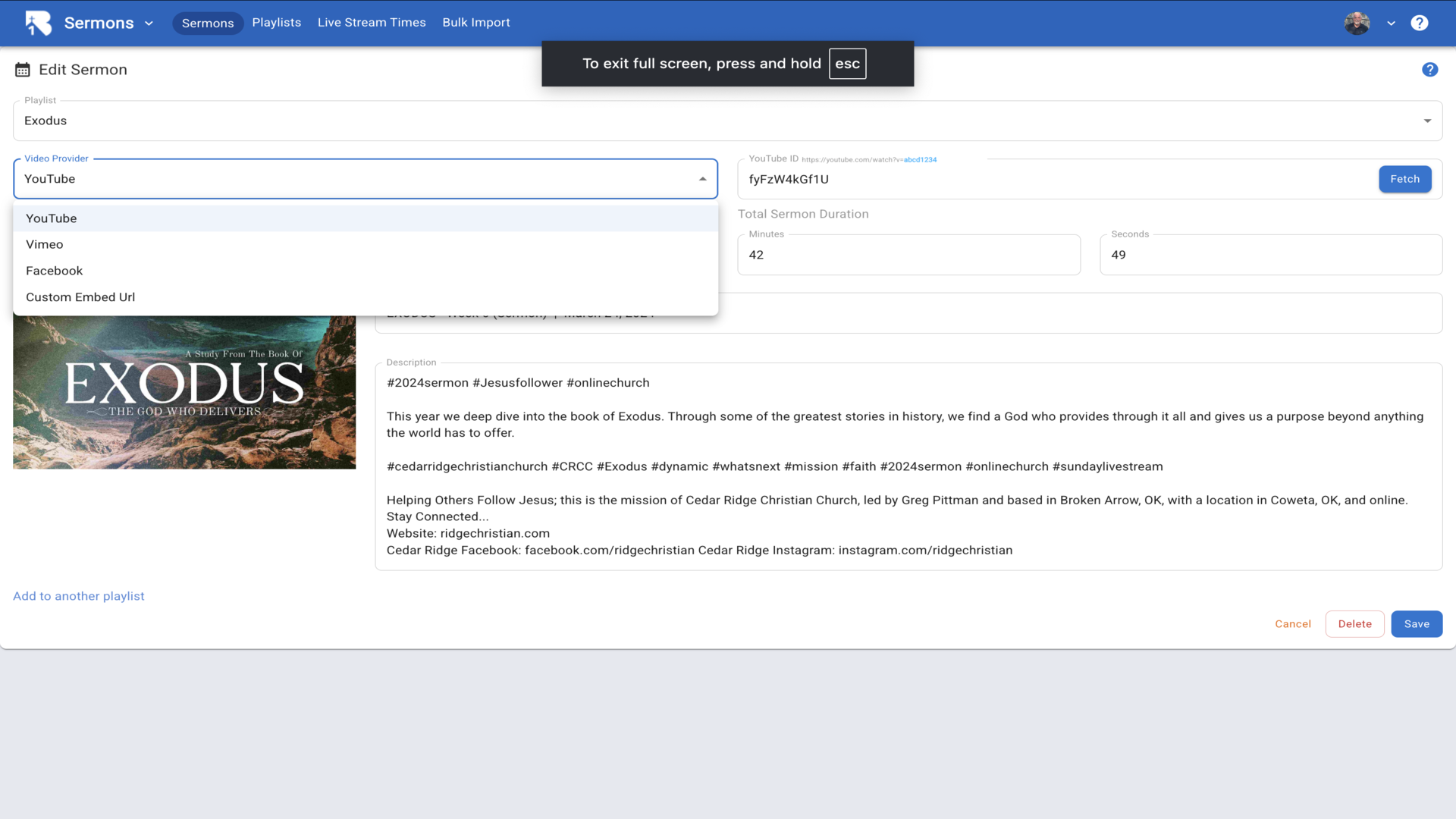
3.Select a Playlist for your sermon, choose YouTube as the video provider, then enter the YouTube video ID and click Fetch.▼
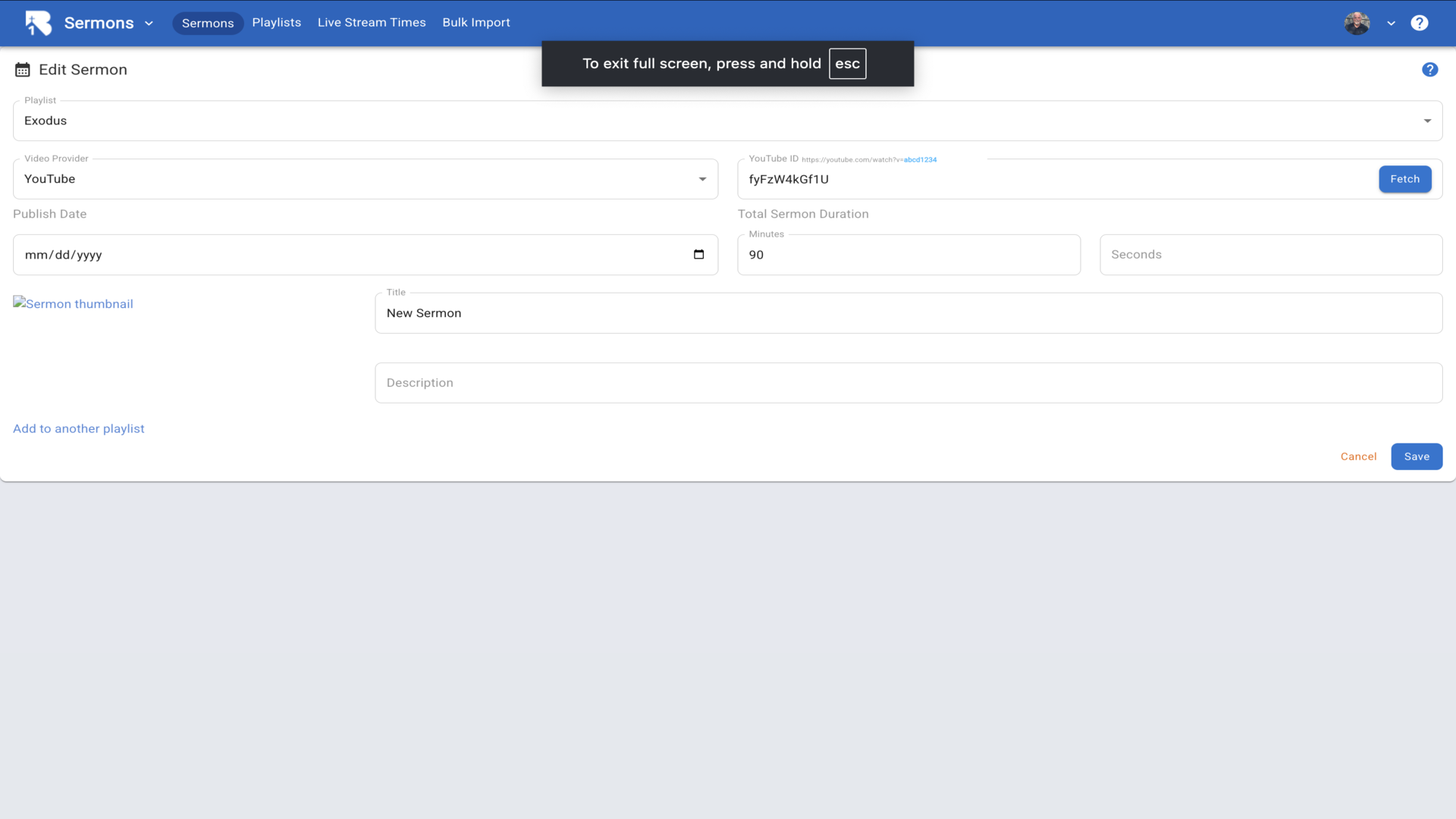
4.We recommend YouTube for your video library. However, we also support Vimeo, Facebook, or your own Custom URL.▼
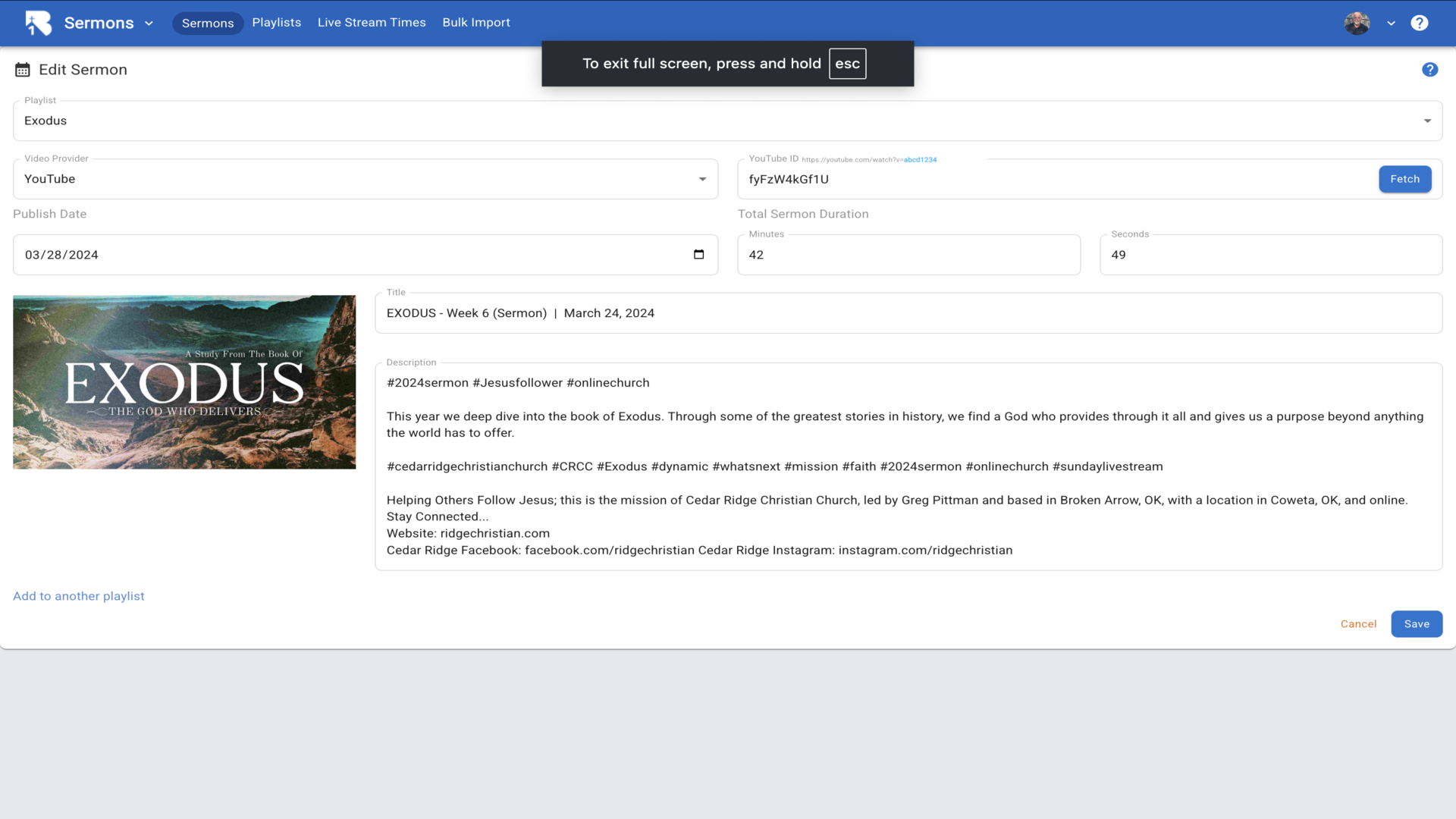
5.When you click Fetch, all of the video details will be imported automatically. Make any changes you wish and click Save.▼
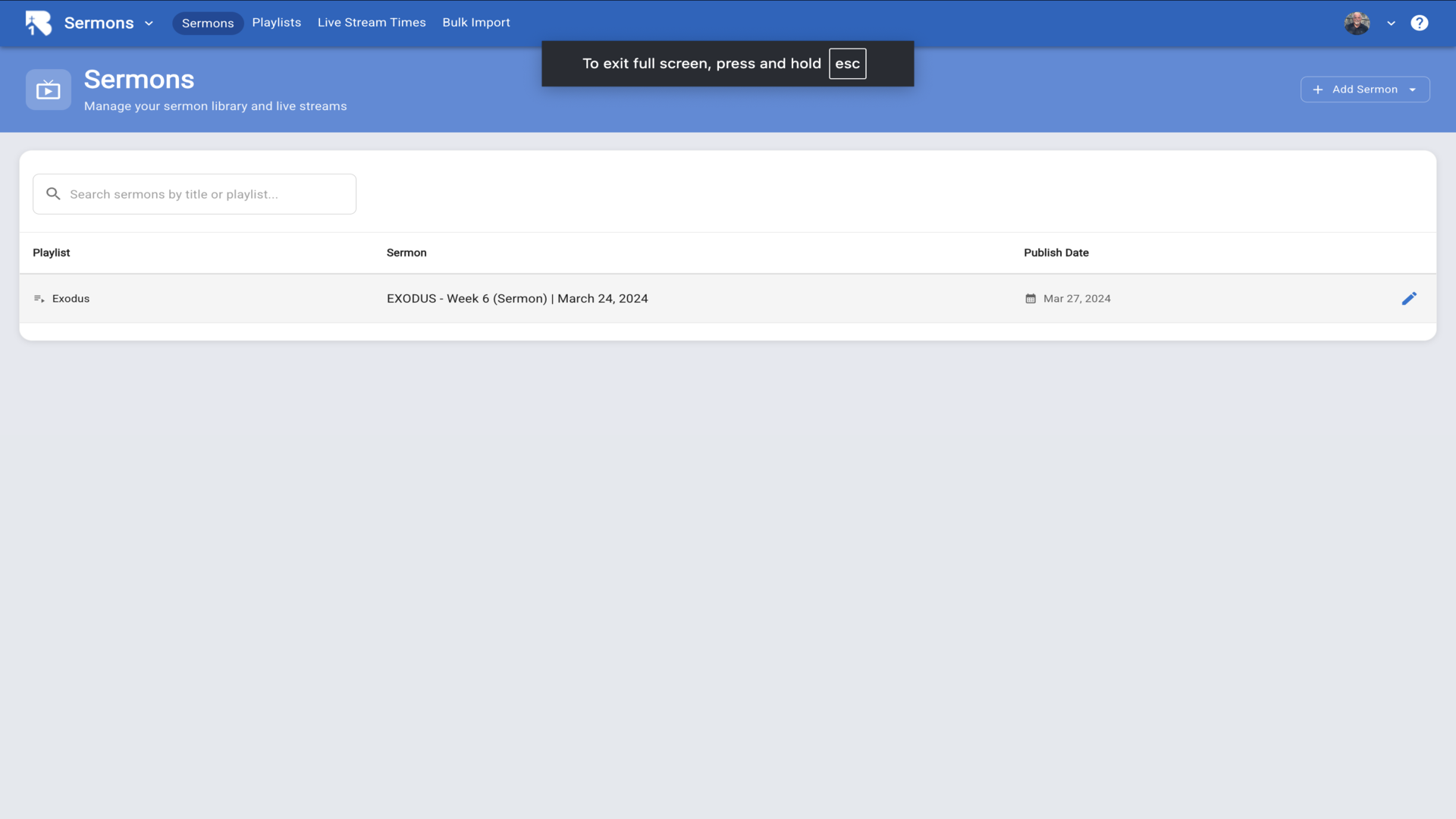
6.The sermon will now appear in your sermons list, organized by playlist.▼
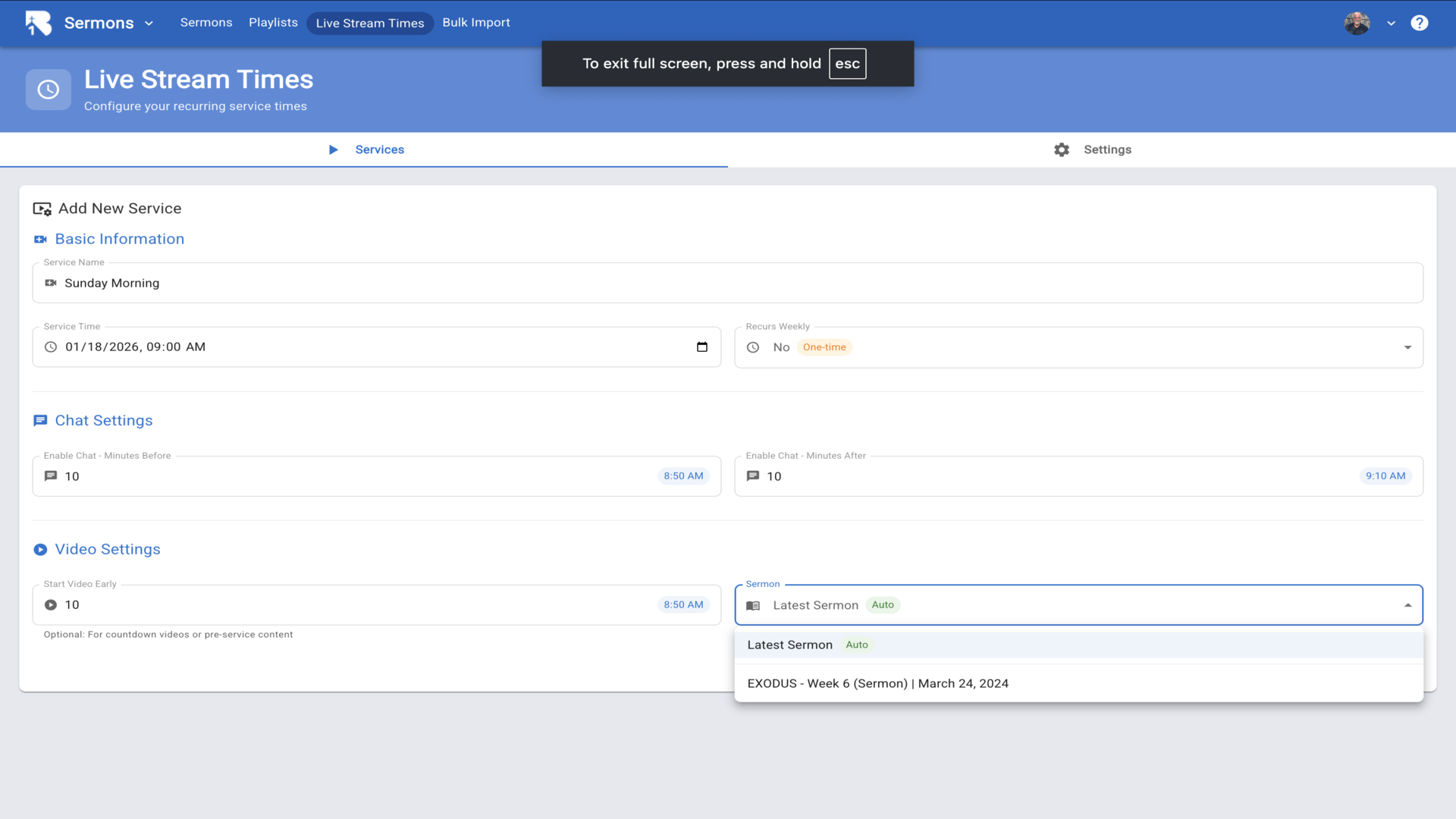
7.To schedule this sermon for a live stream, go to Live Stream Times and select your sermon from the Video Settings dropdown.▼