05 Donations
How to Manually Input Donations in B1.church Admin
Steps
1.Welcome to the Manual Donation Entry tutorial for B1 Admin. This guide will show you how to manually enter donations into a batch.▼
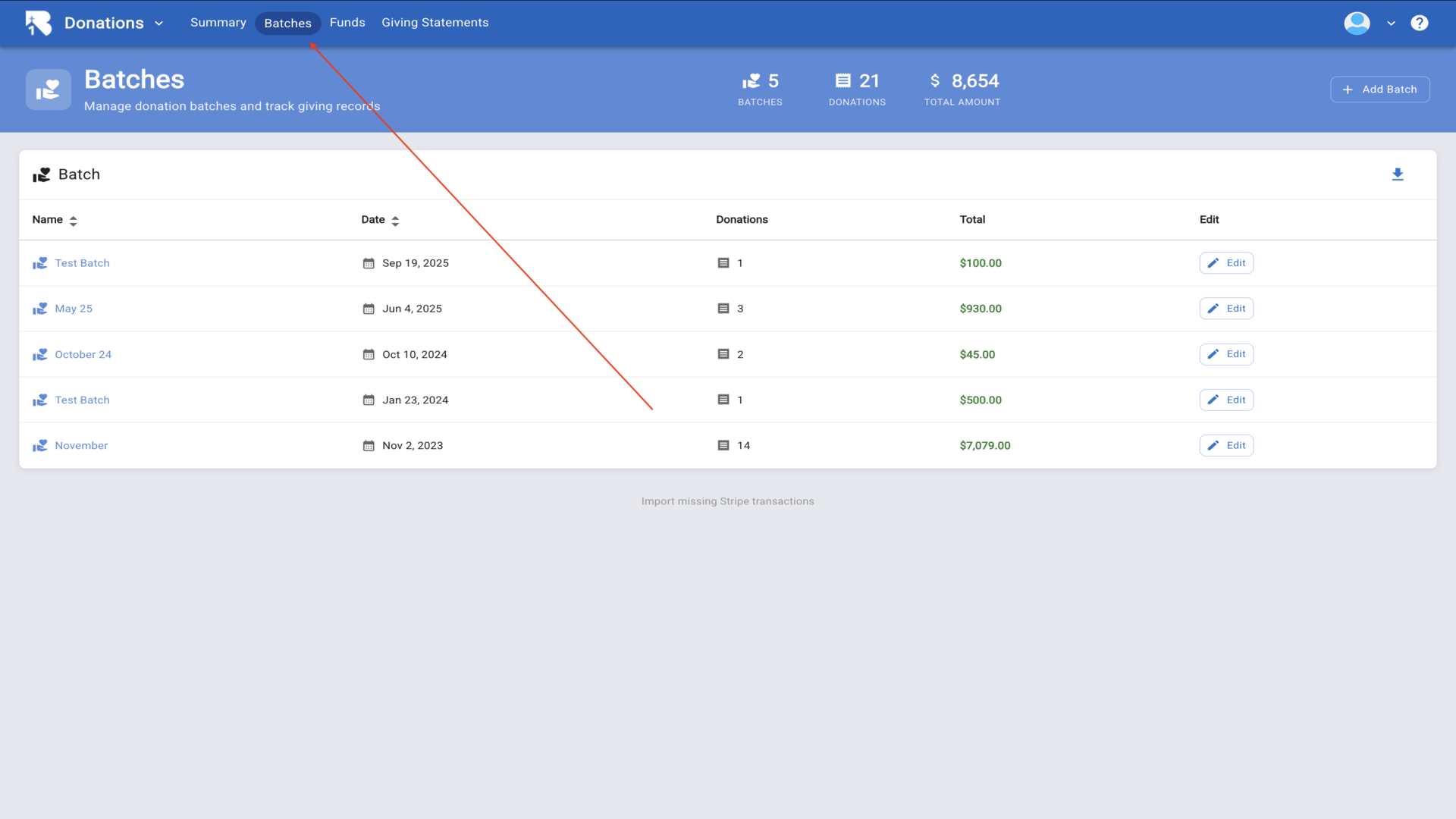
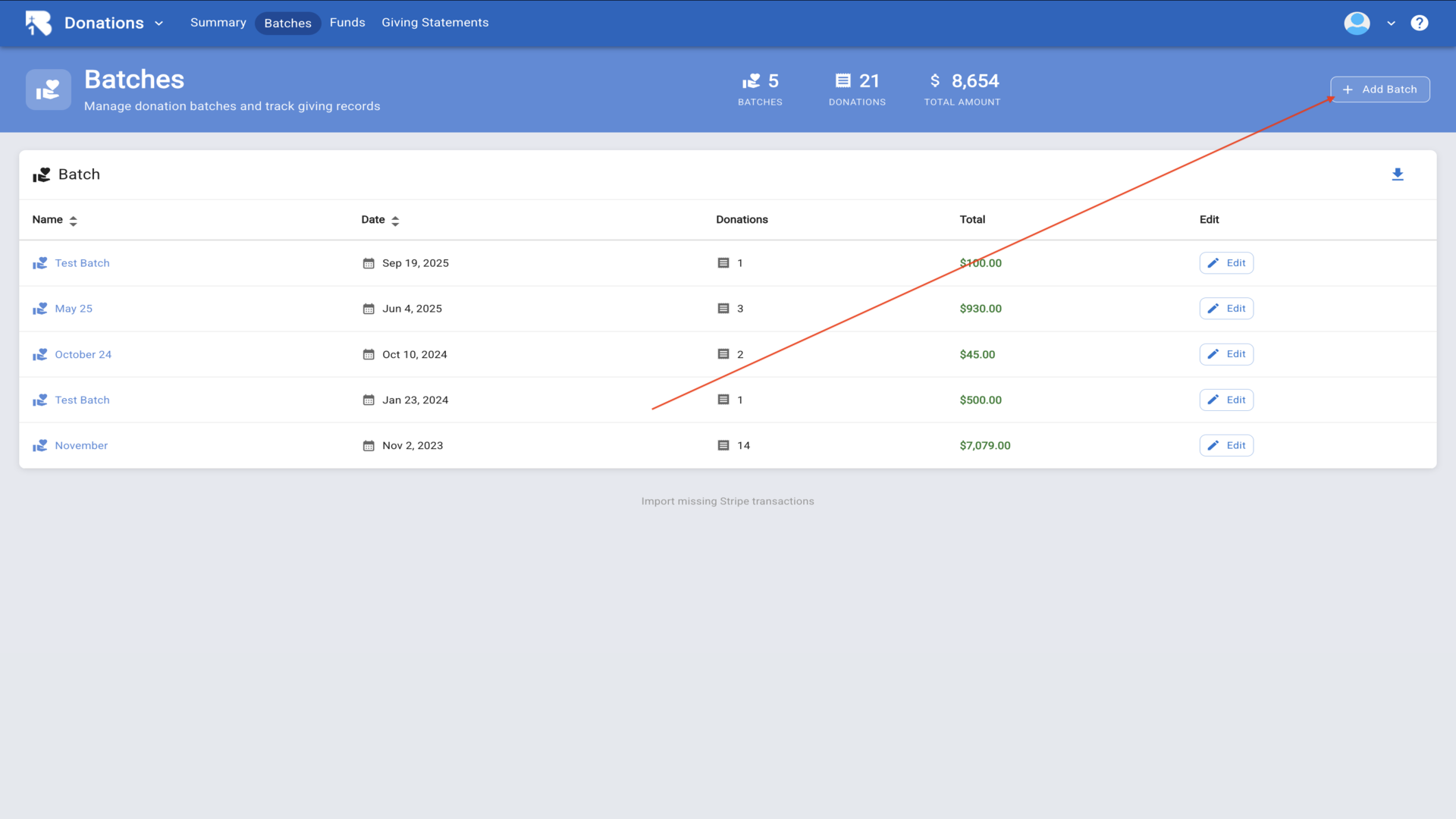
2.Navigate to the Batches page and click Add Batch to create a new batch for organizing donations.▼
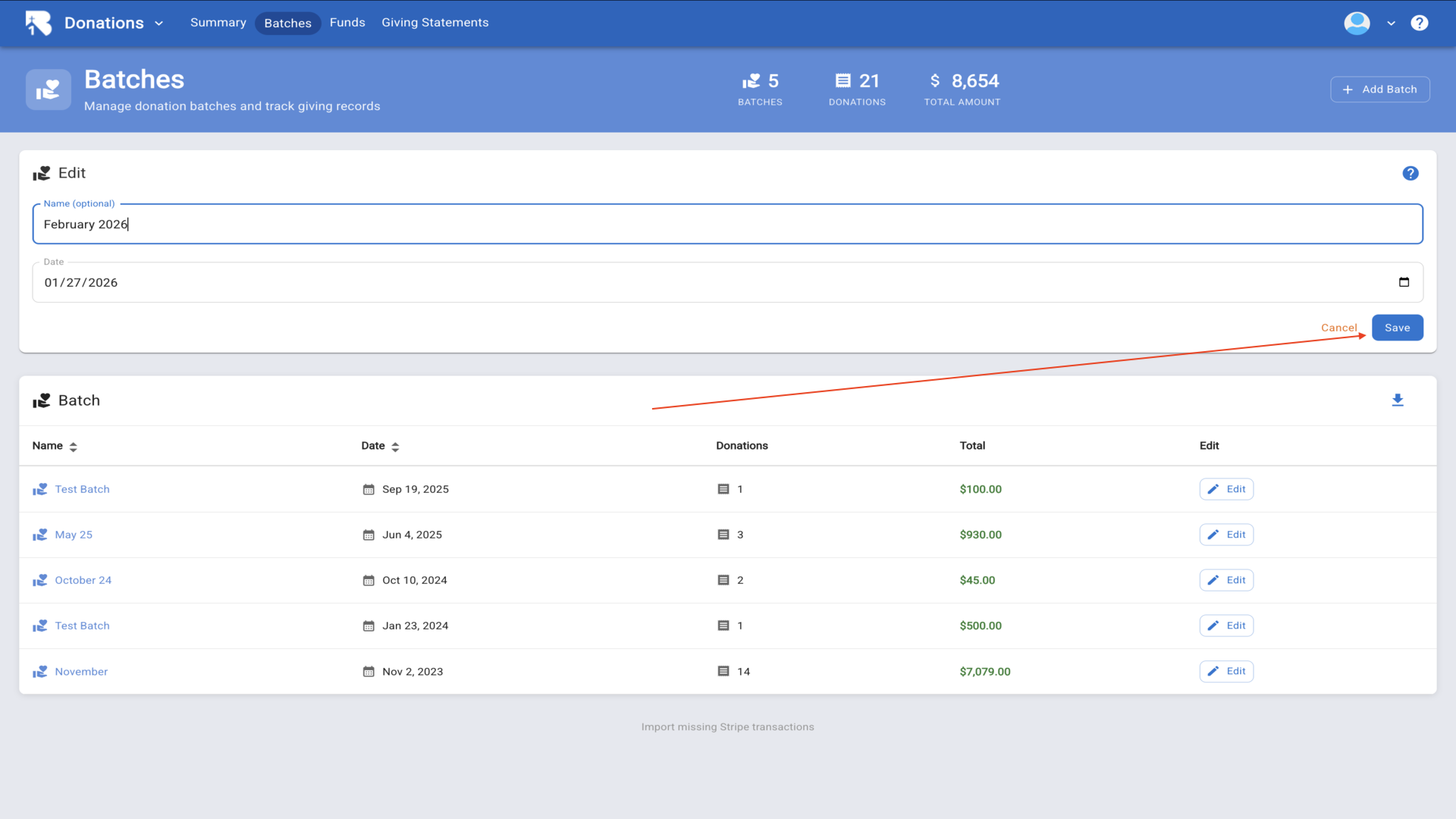
3.Enter a batch name and select the date, then click Save.▼
4.Your new batch appears in the list showing zero donations and zero dollars.▼
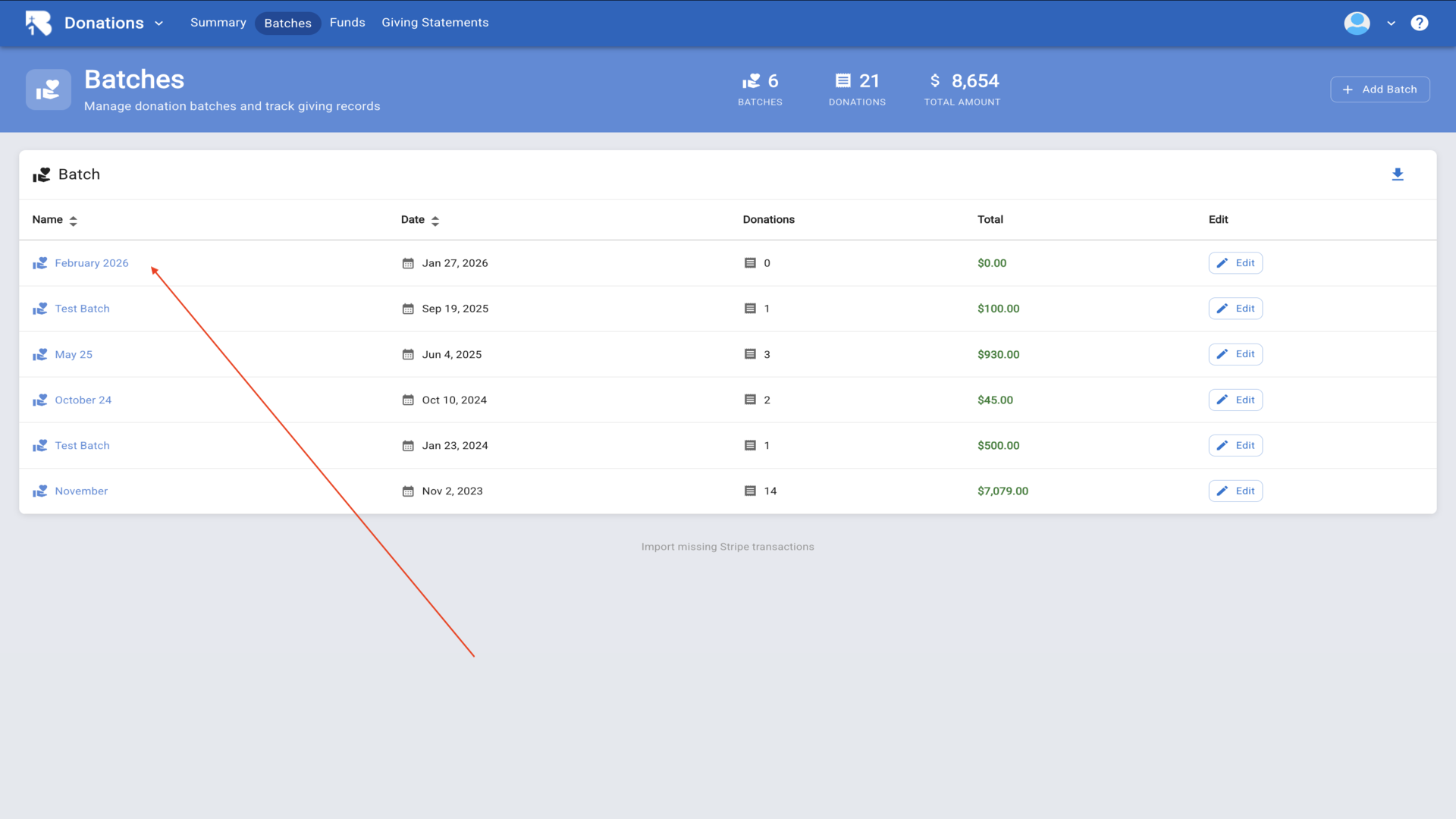
5.Click on the batch name to open it and begin entering donations.▼
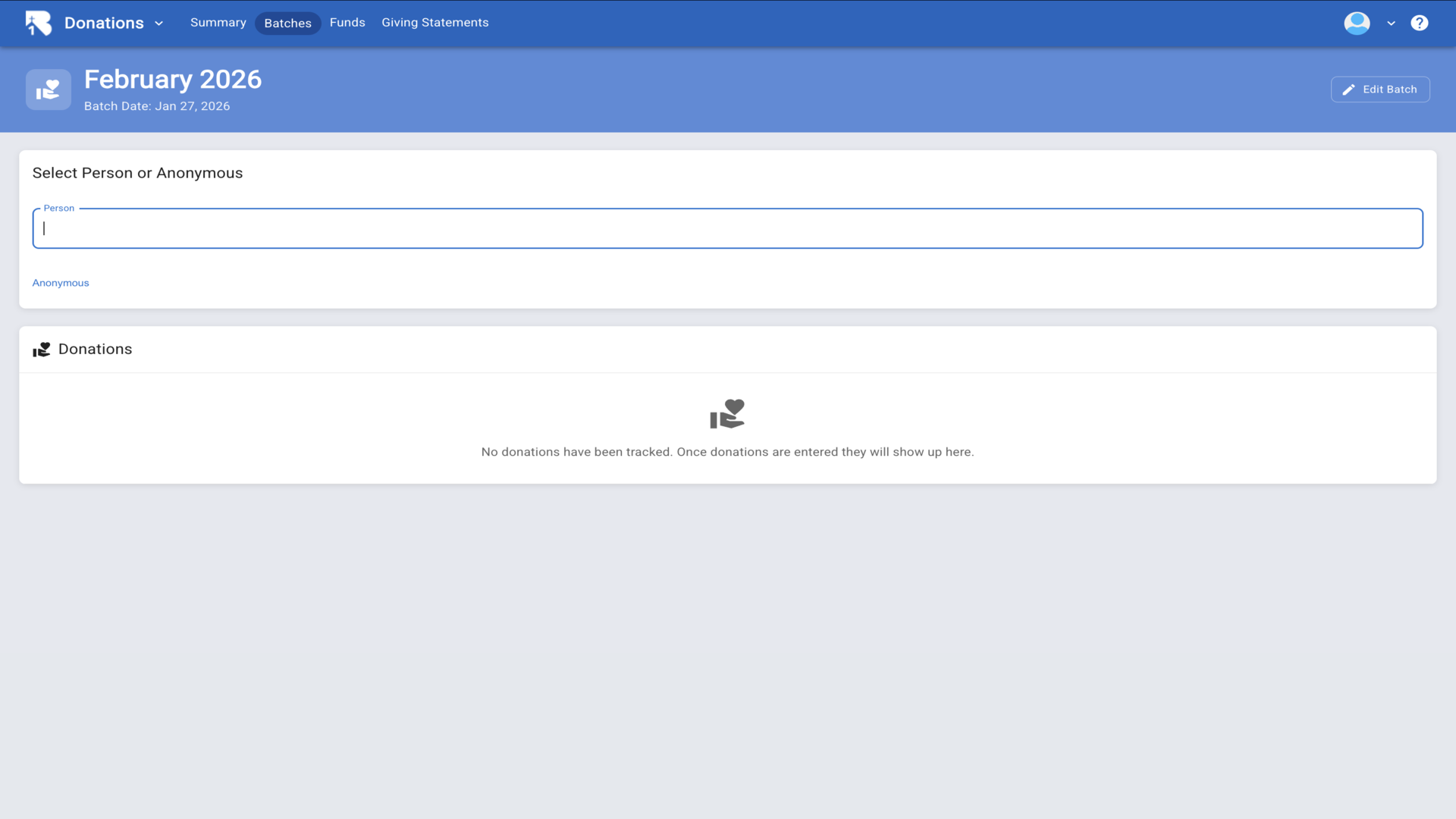
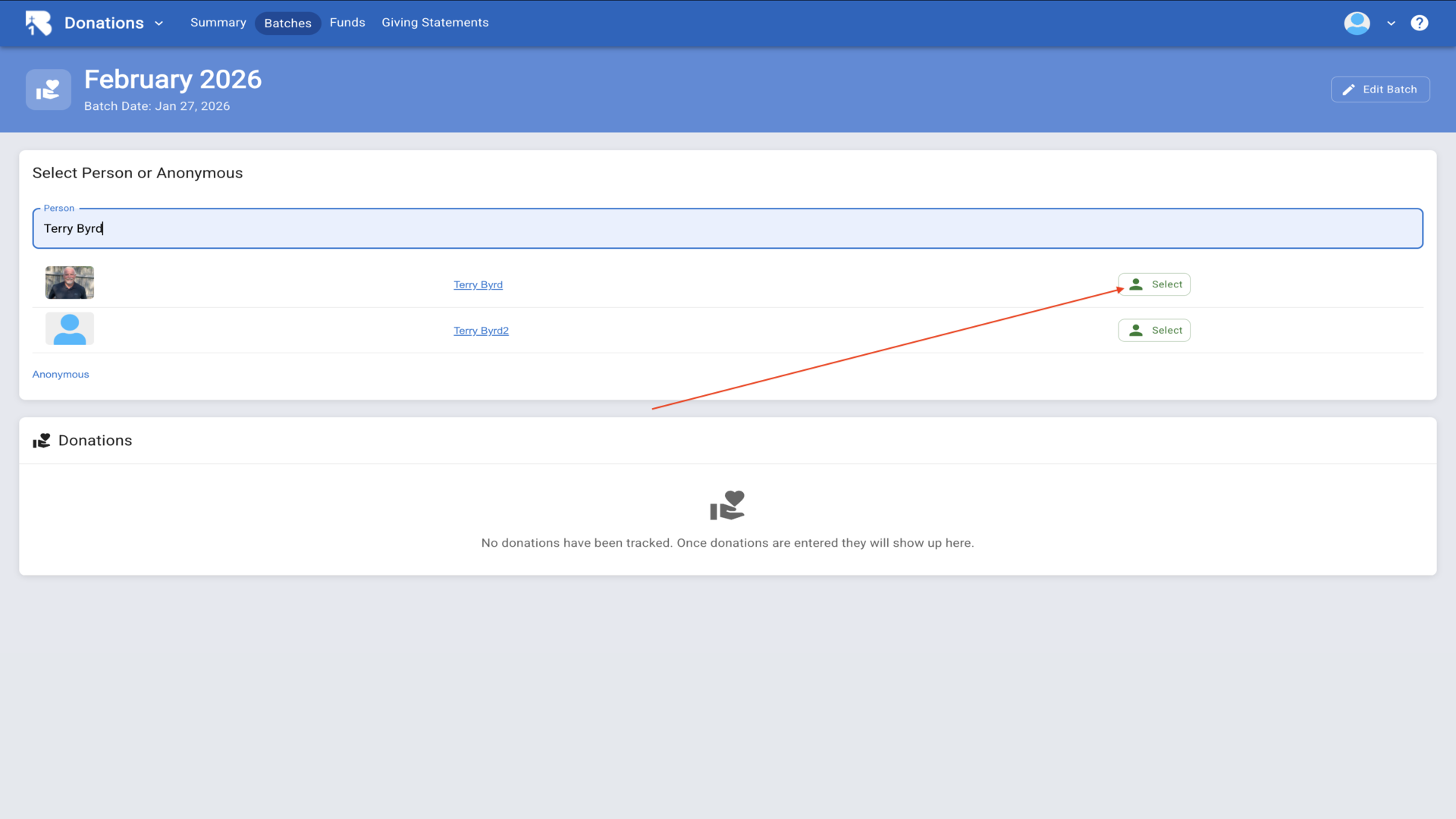
6.Type a person's name in the search field to find the donor.▼
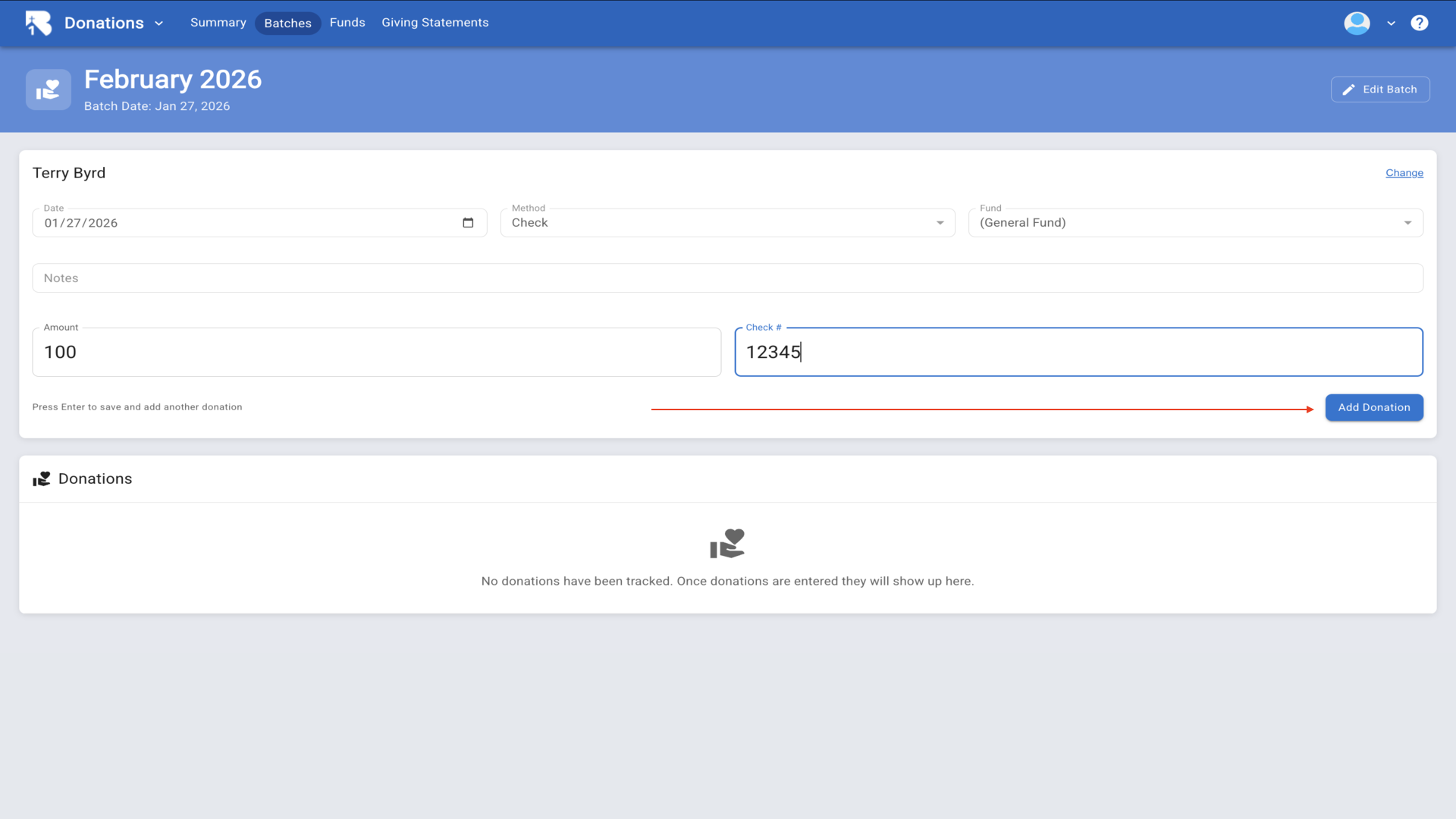
7.After selecting a person, the donation entry form displays with fields for date, payment method, fund, amount, and check number.▼
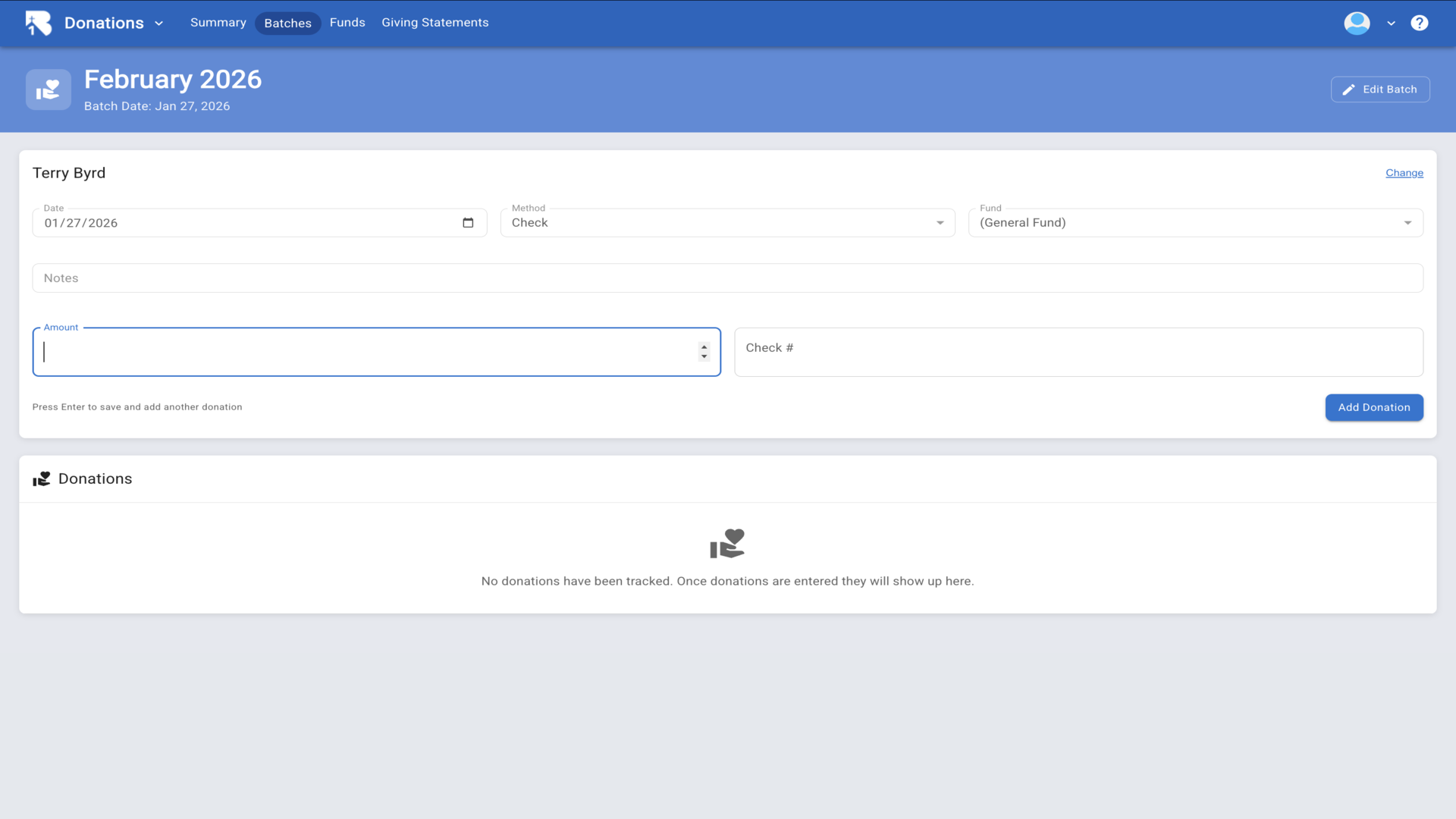
8.Fill in the amount and check number, then click Add Donation.▼
9.The donation is added to the table below and the form resets for the next entry.▼
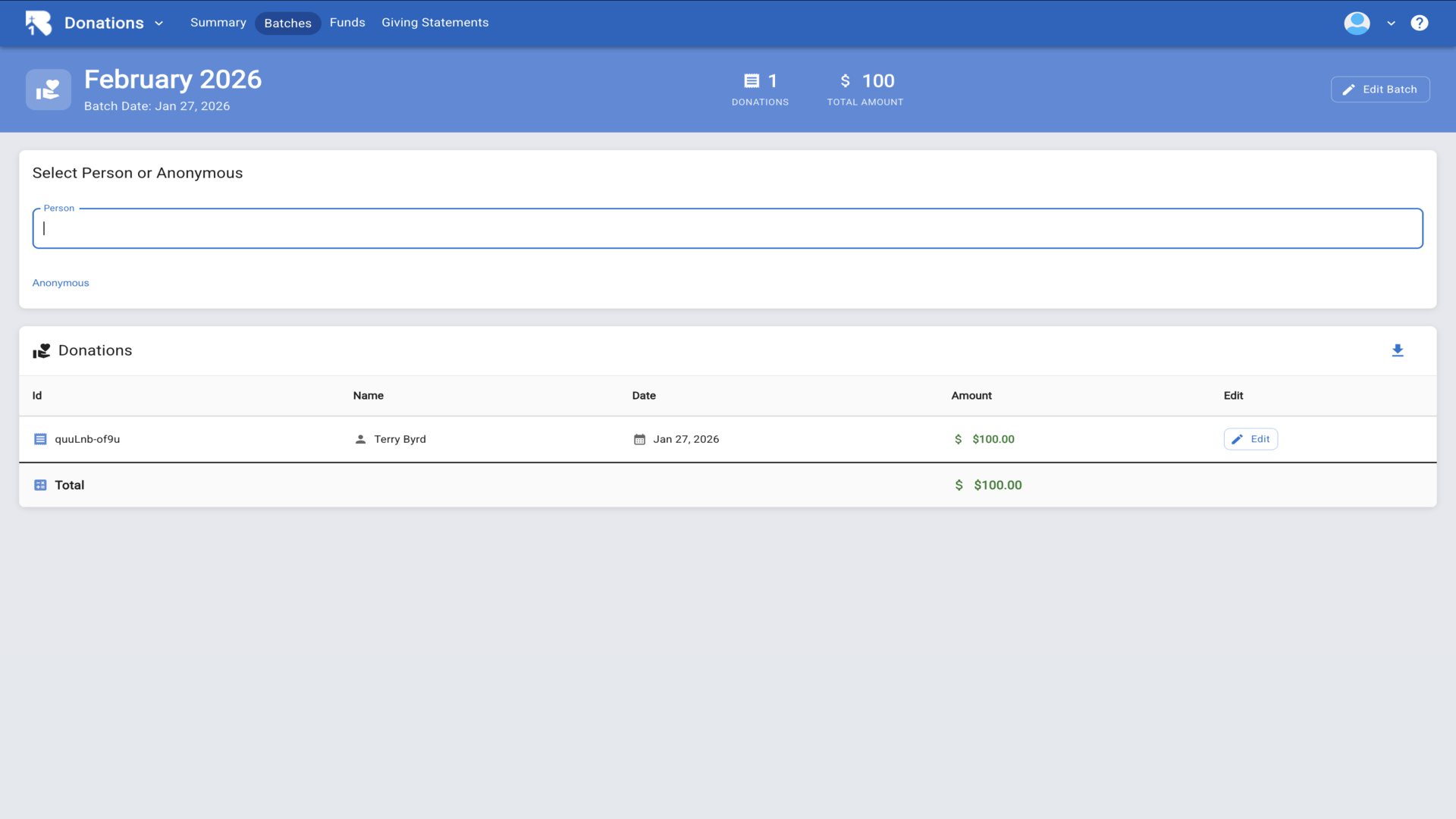
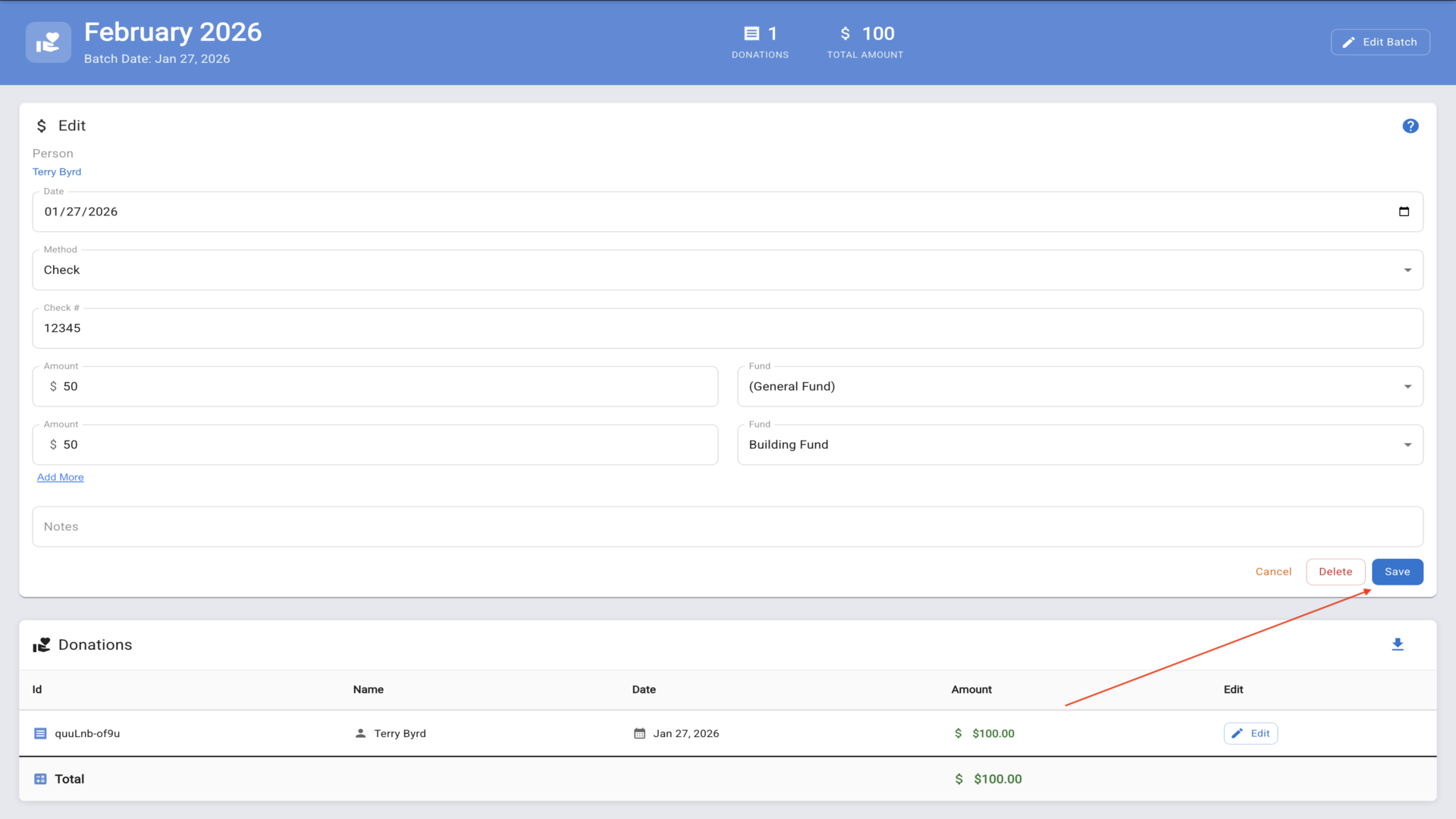
10.To split a donation across multiple funds, click the Edit button on the donation row.▼
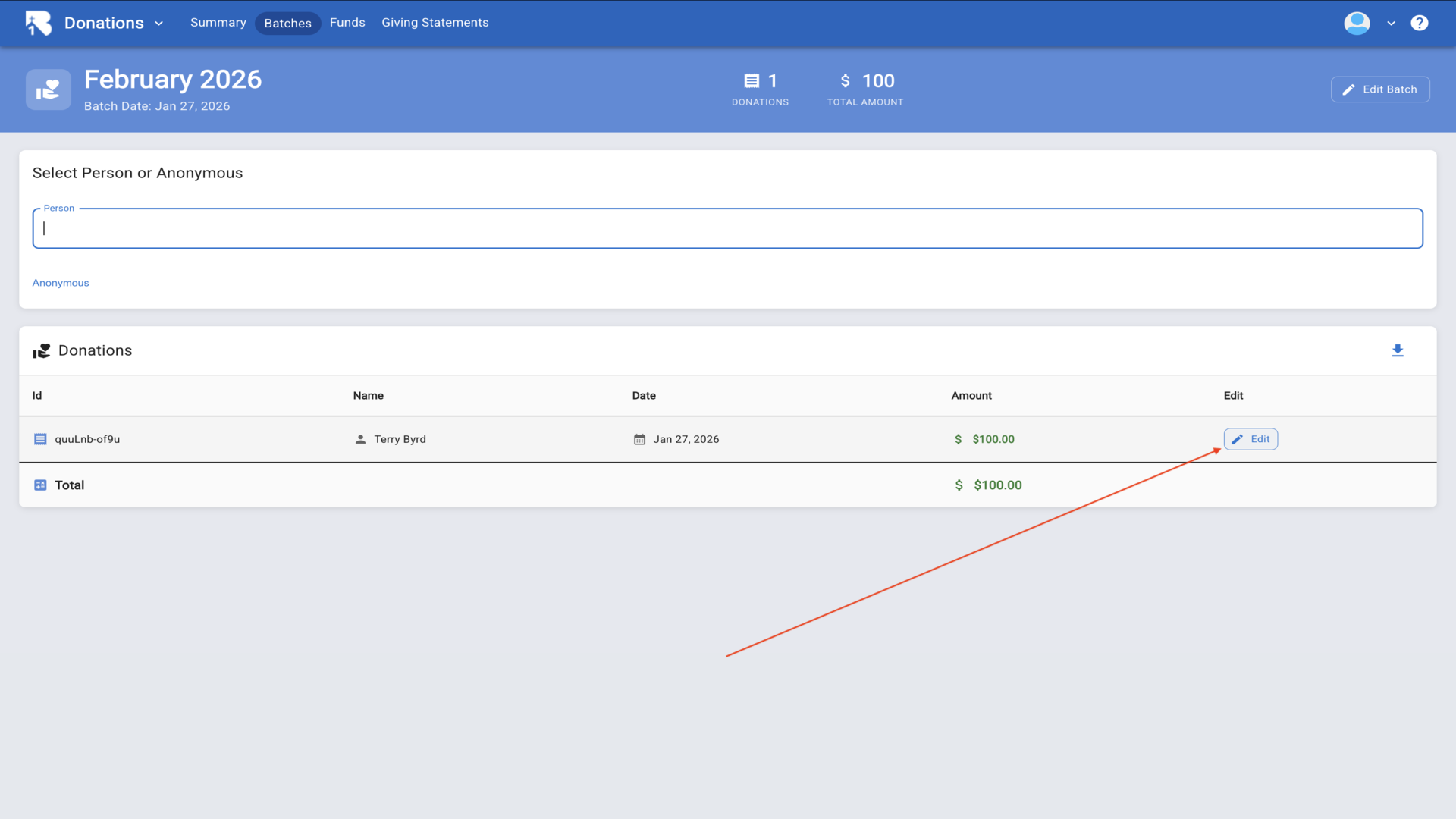
11.The edit form opens showing all the donation details that can be modified.▼
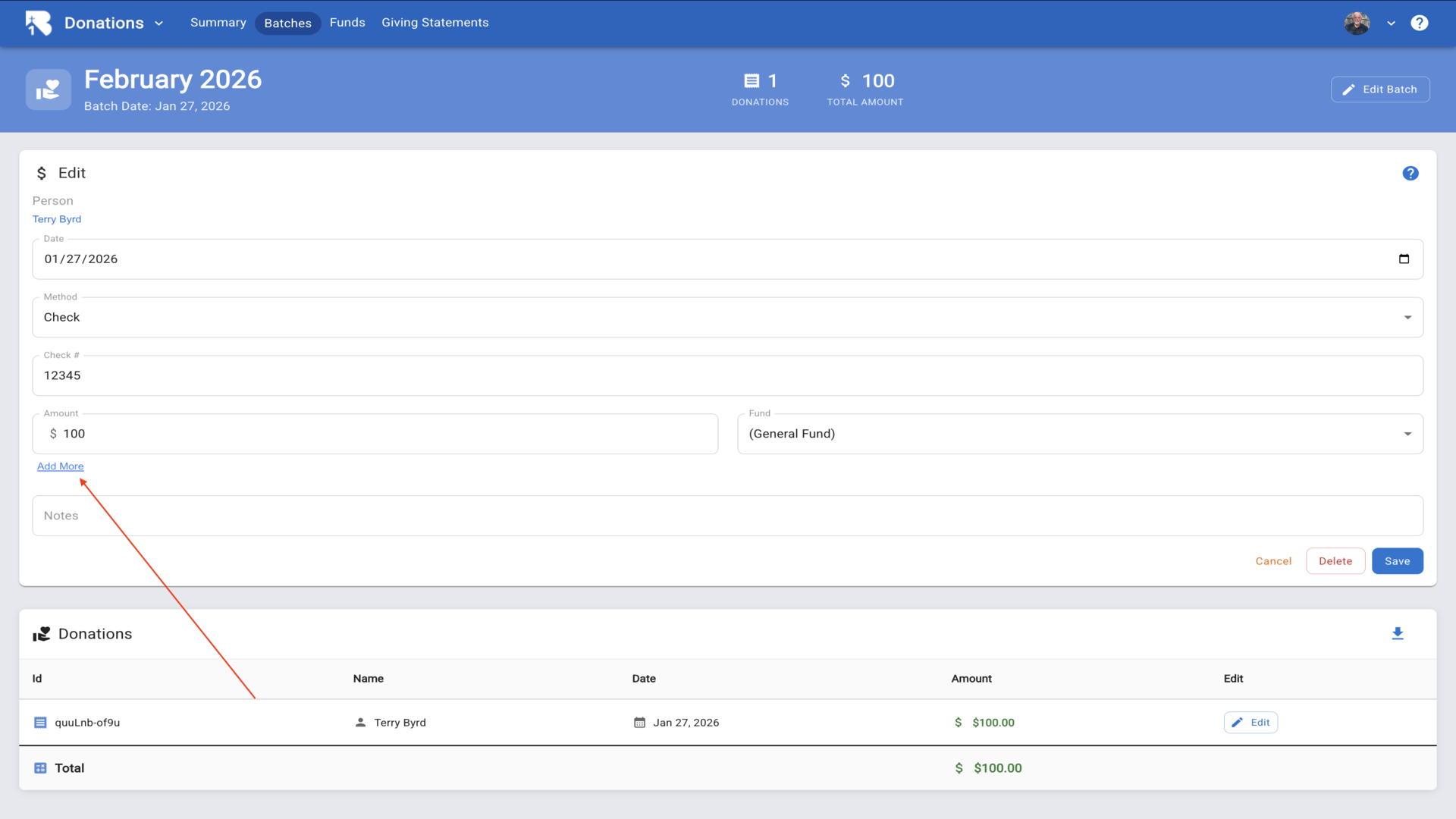
12.You can split a donation across multiple funds by adding amounts to different funds. The total will automatically calculate from the fund amounts.▼
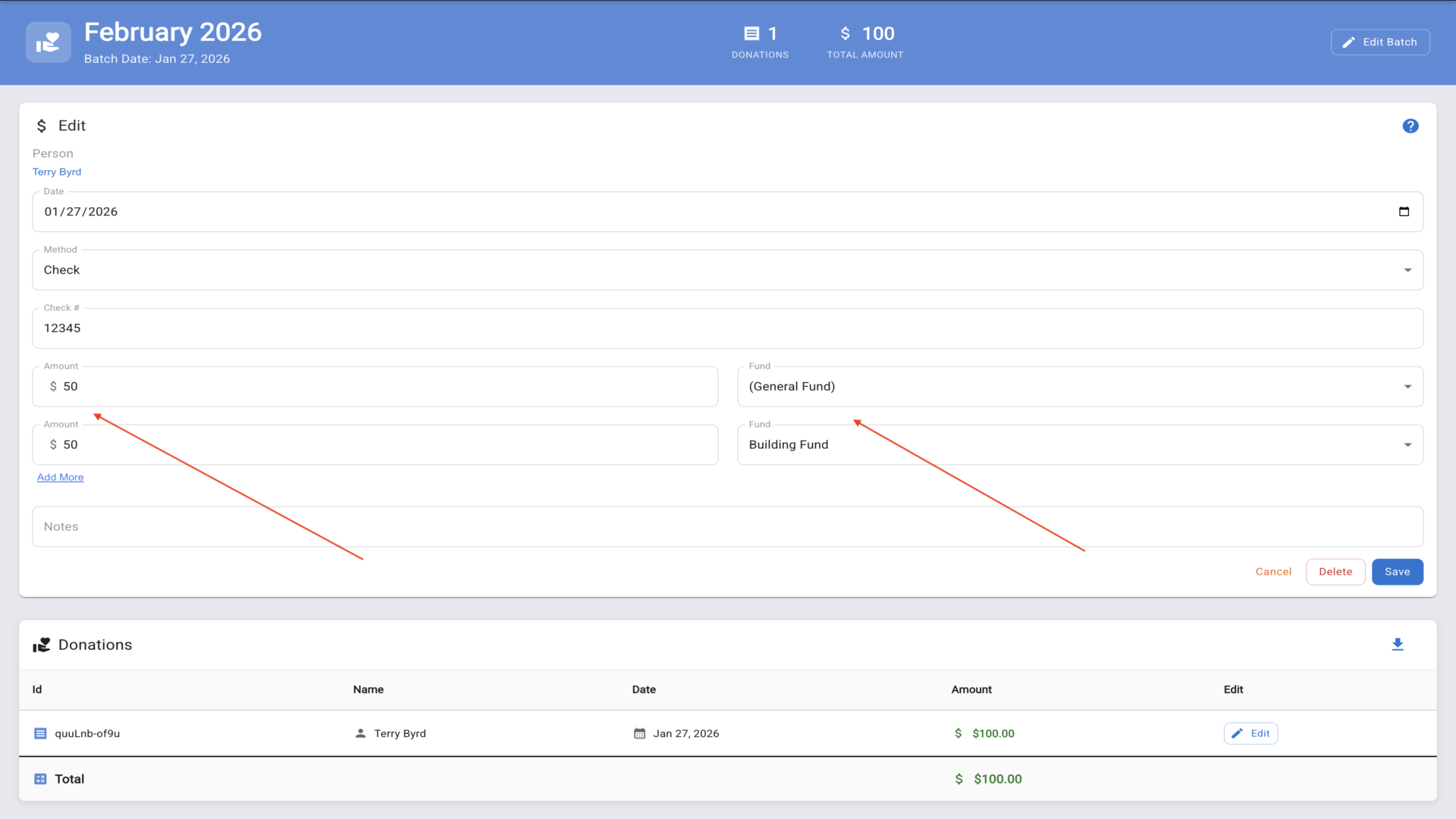
13.Click Save to update the donation with your multi-fund allocation. You now know how to manually enter donations and split them across multiple funds.▼