05 Donations
How to Generate a Donation Report in B1.church Admin
Steps
1.Welcome to the Donations and Giving Management tutorial for B1 Admin. This guide will show you how to manage donations, funds, and batches.▼
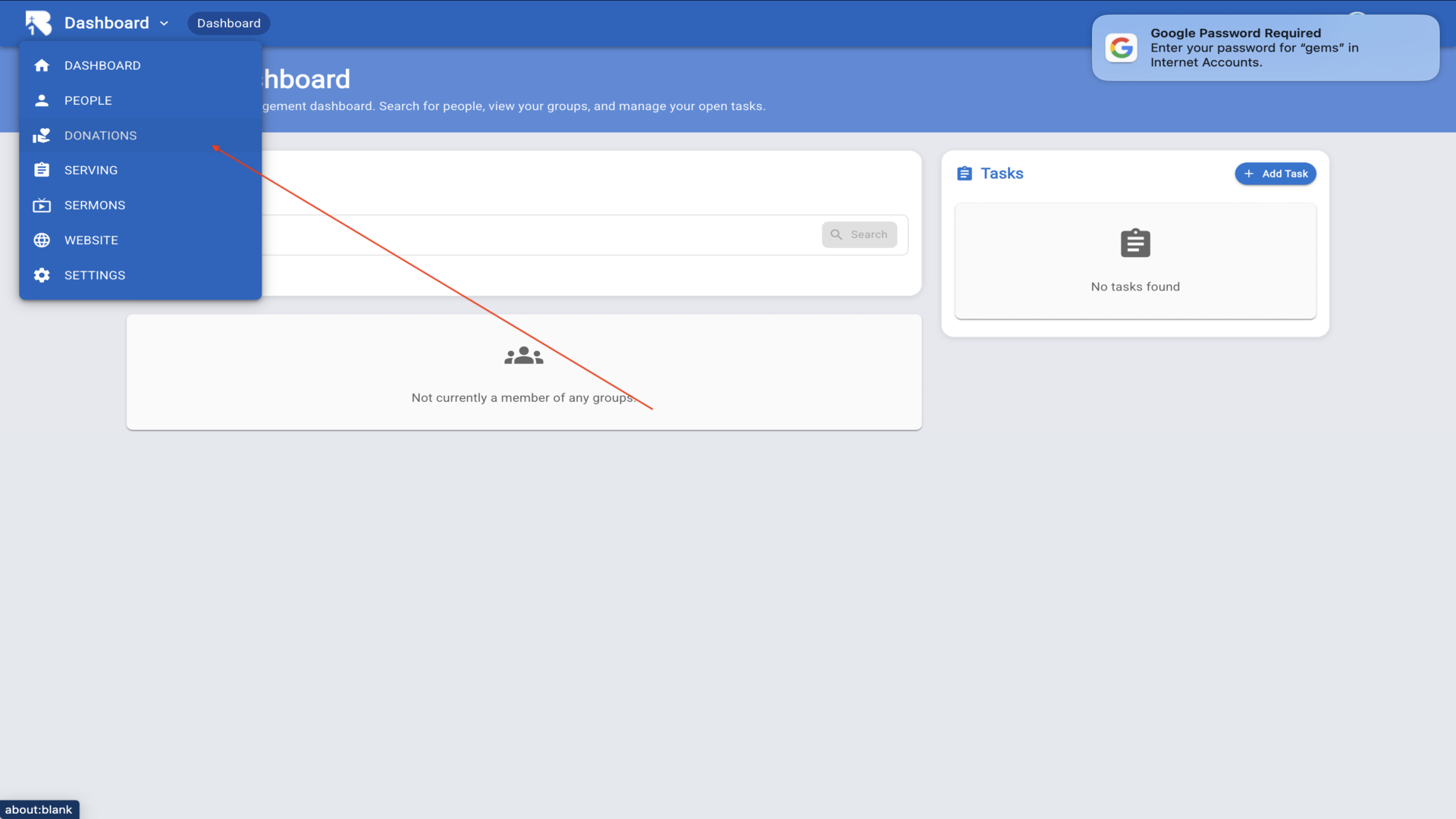
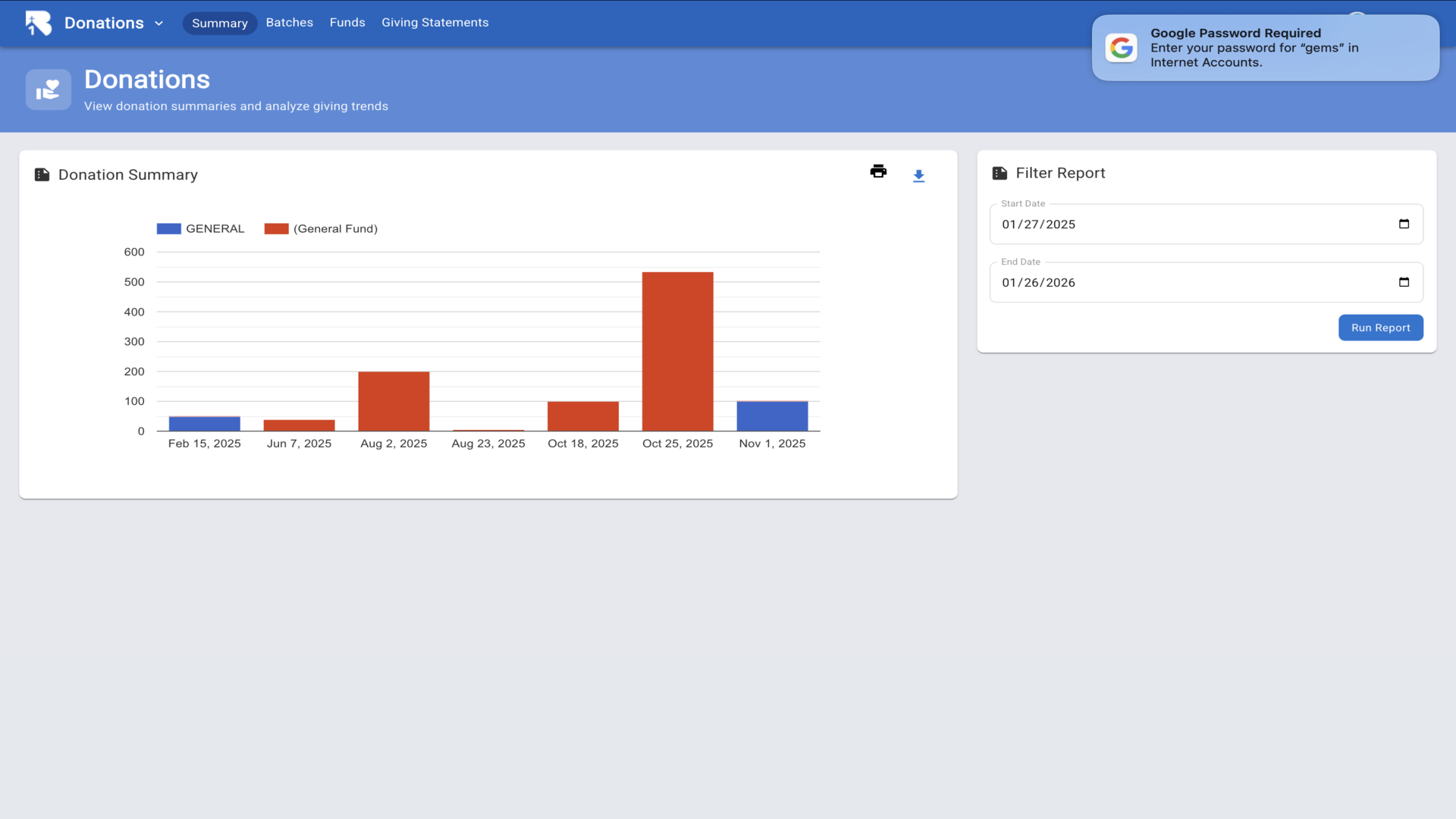
2.From the dashboard, click on Donations in the sidebar to view the donations summary page with charts and filters.▼
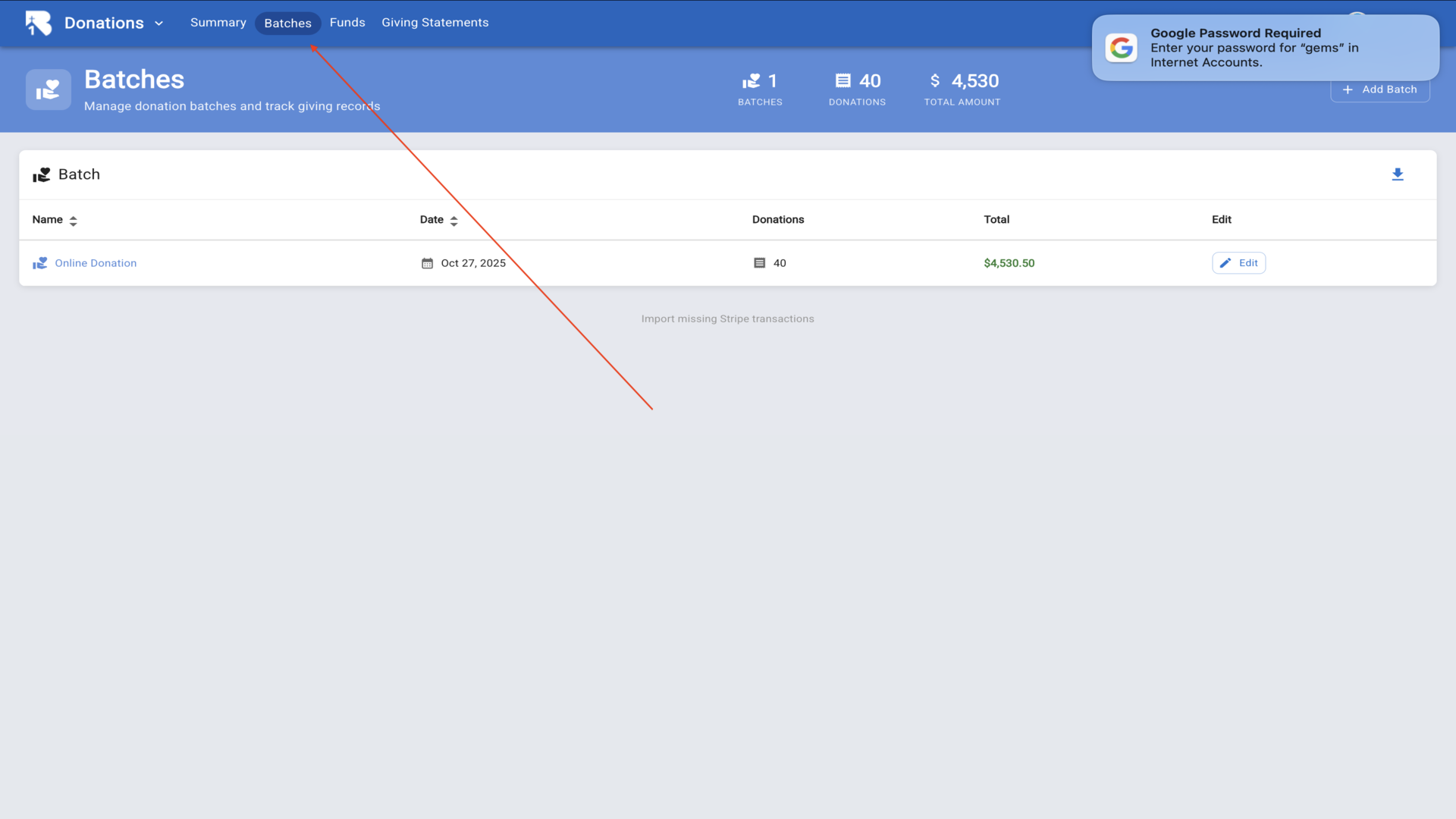
3.Click on Batches to manage your donation batches.▼
4.Click on Funds to view and manage donation funds.▼
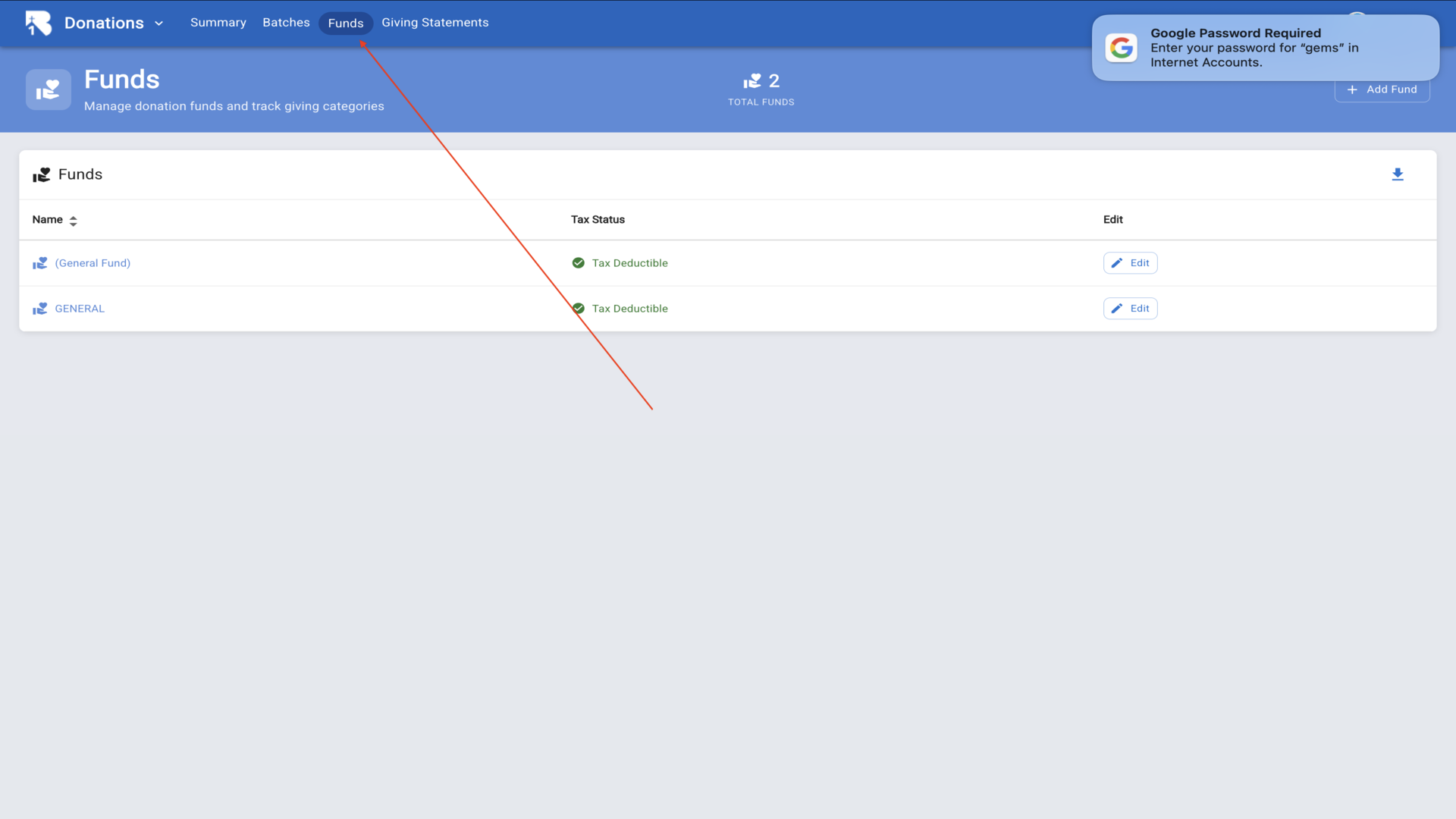
5.To create a new fund, click the Add Fund button.▼
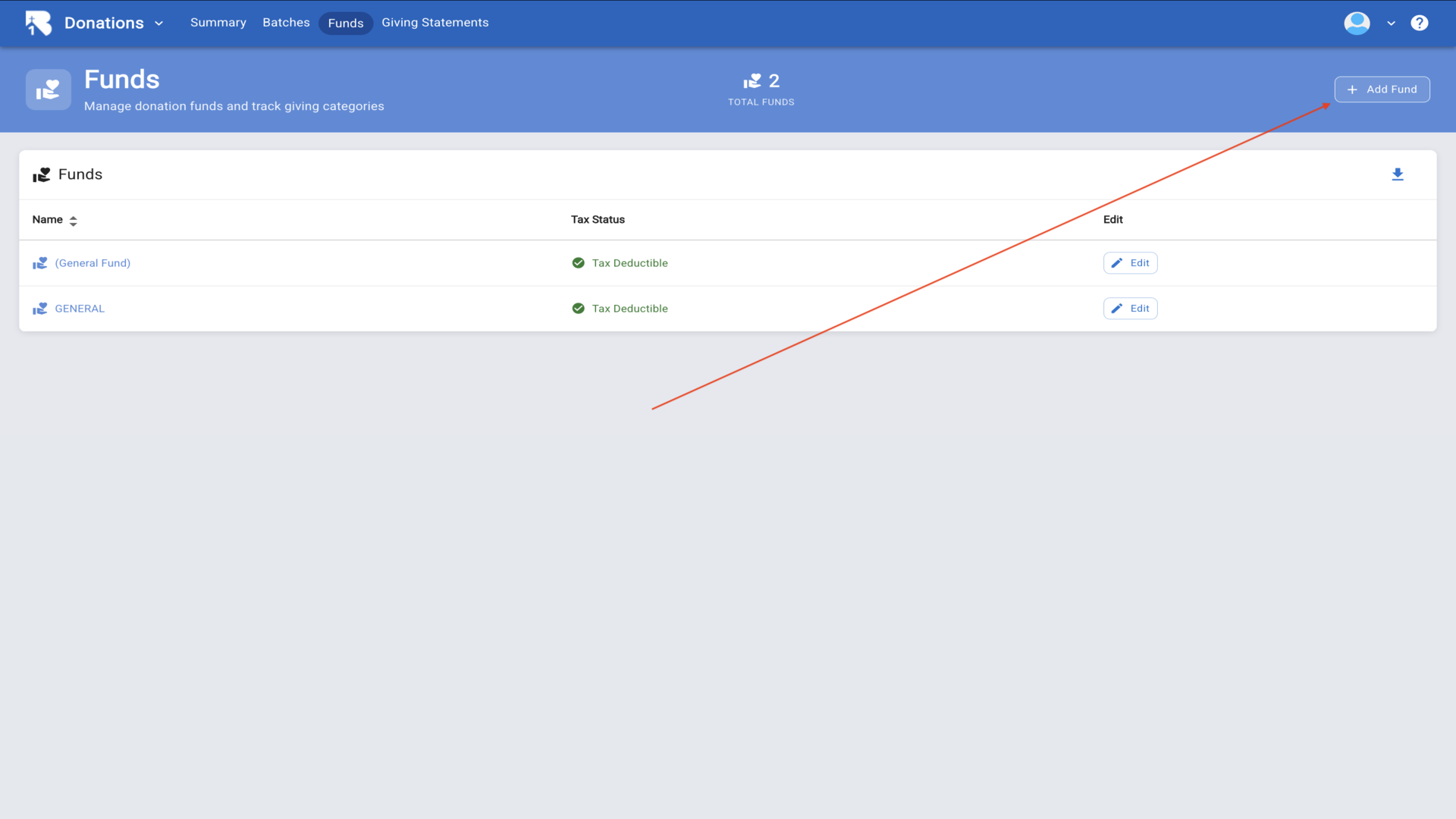
6.The fund edit form opens with fields for the name and tax deductible status.▼
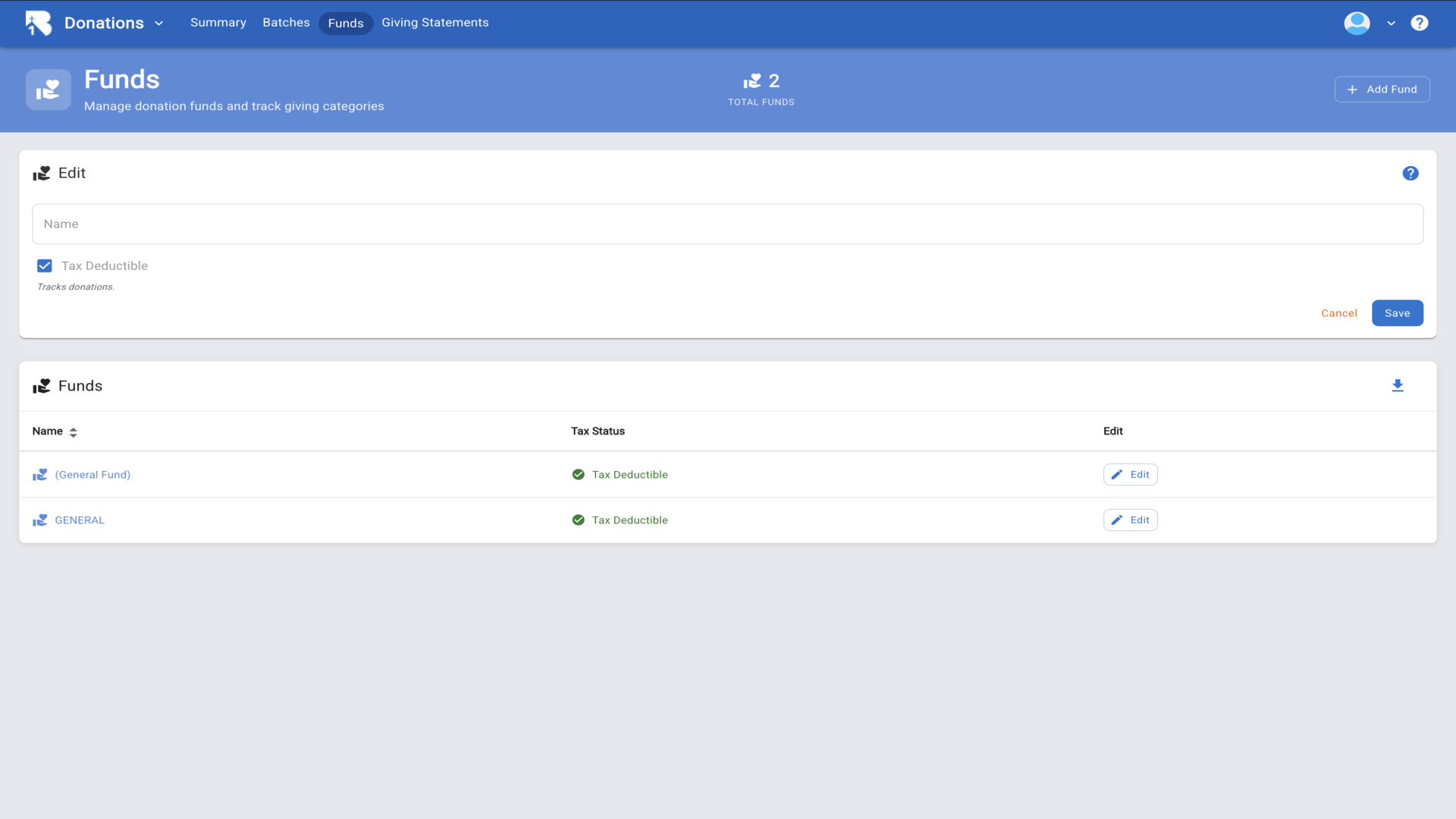
7.Enter a name for your fund, such as Building Fund.▼
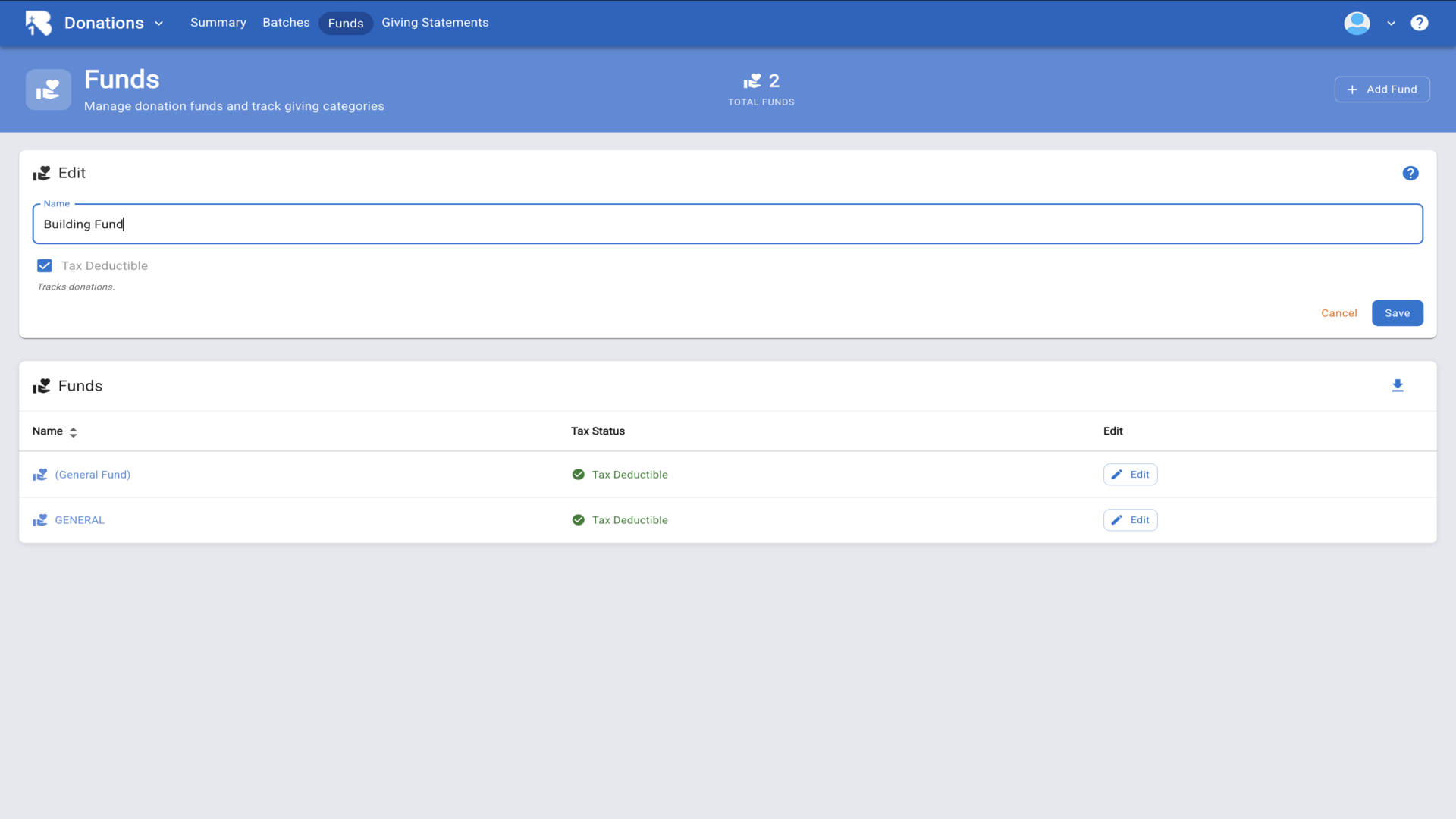
8.The Tax Deductible checkbox determines if donations to this fund are included in annual giving statements.▼
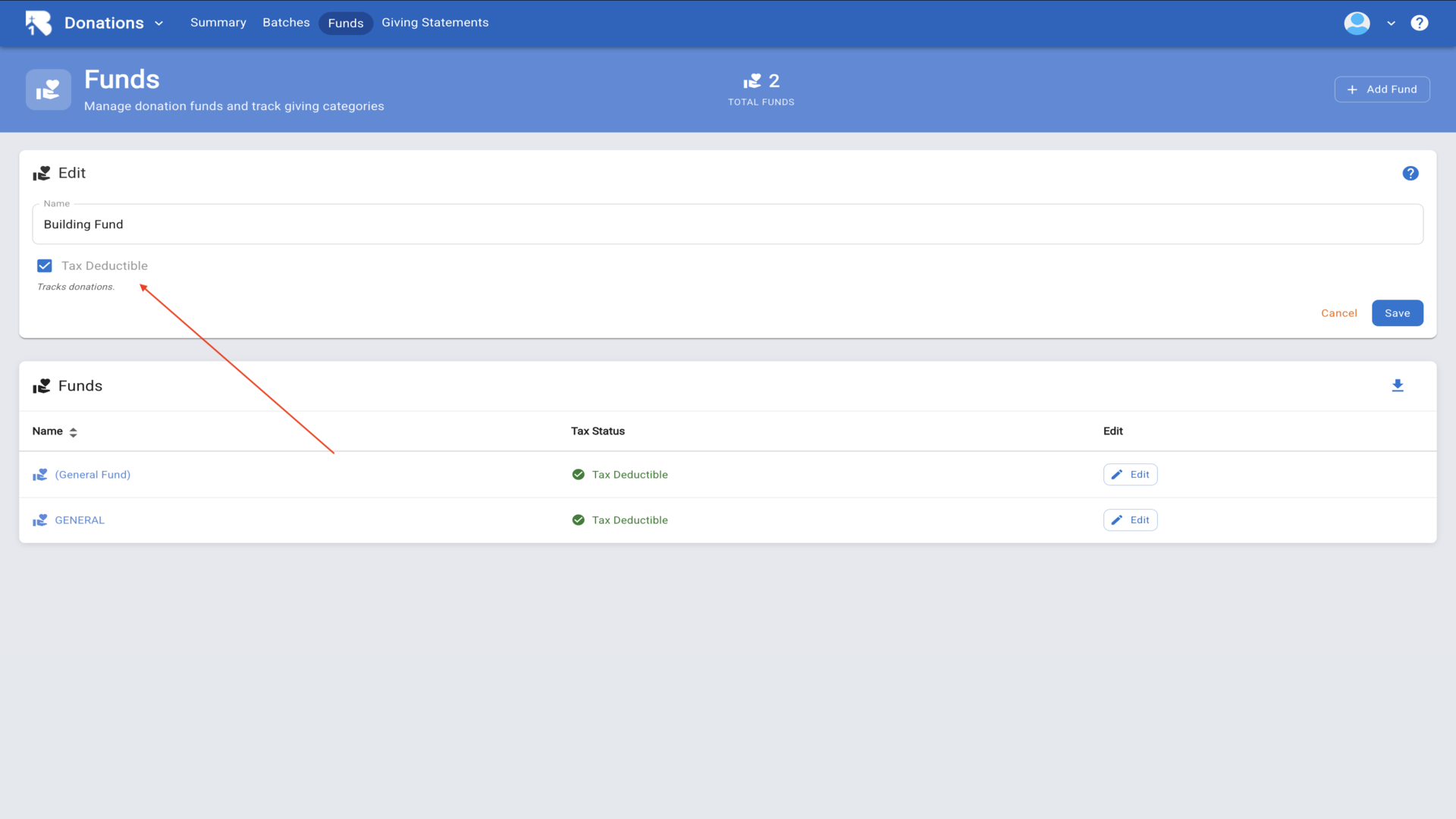
9.Click Save to create the fund.▼
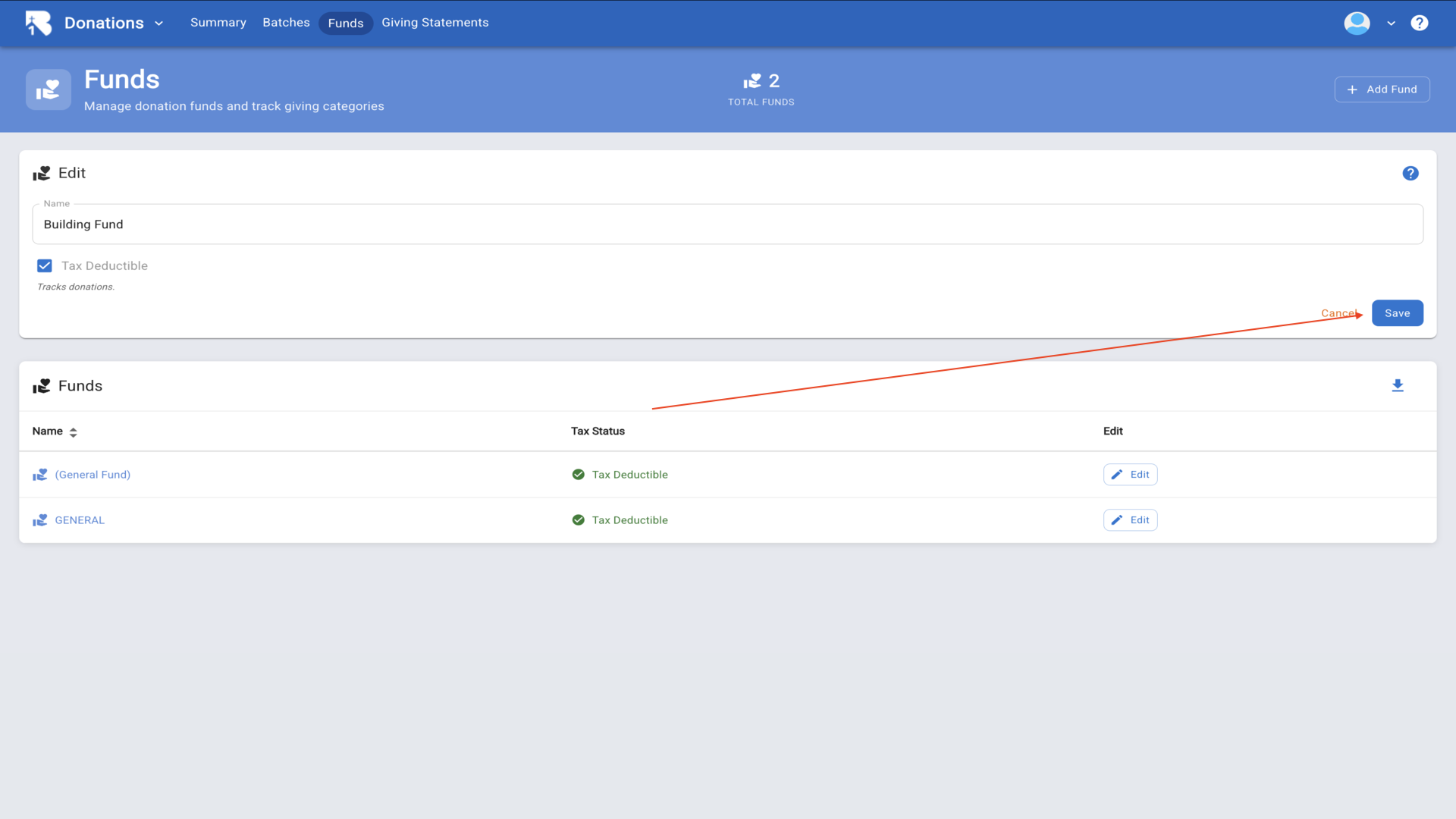
10.Your new fund now appears in the funds list along with any existing funds.▼
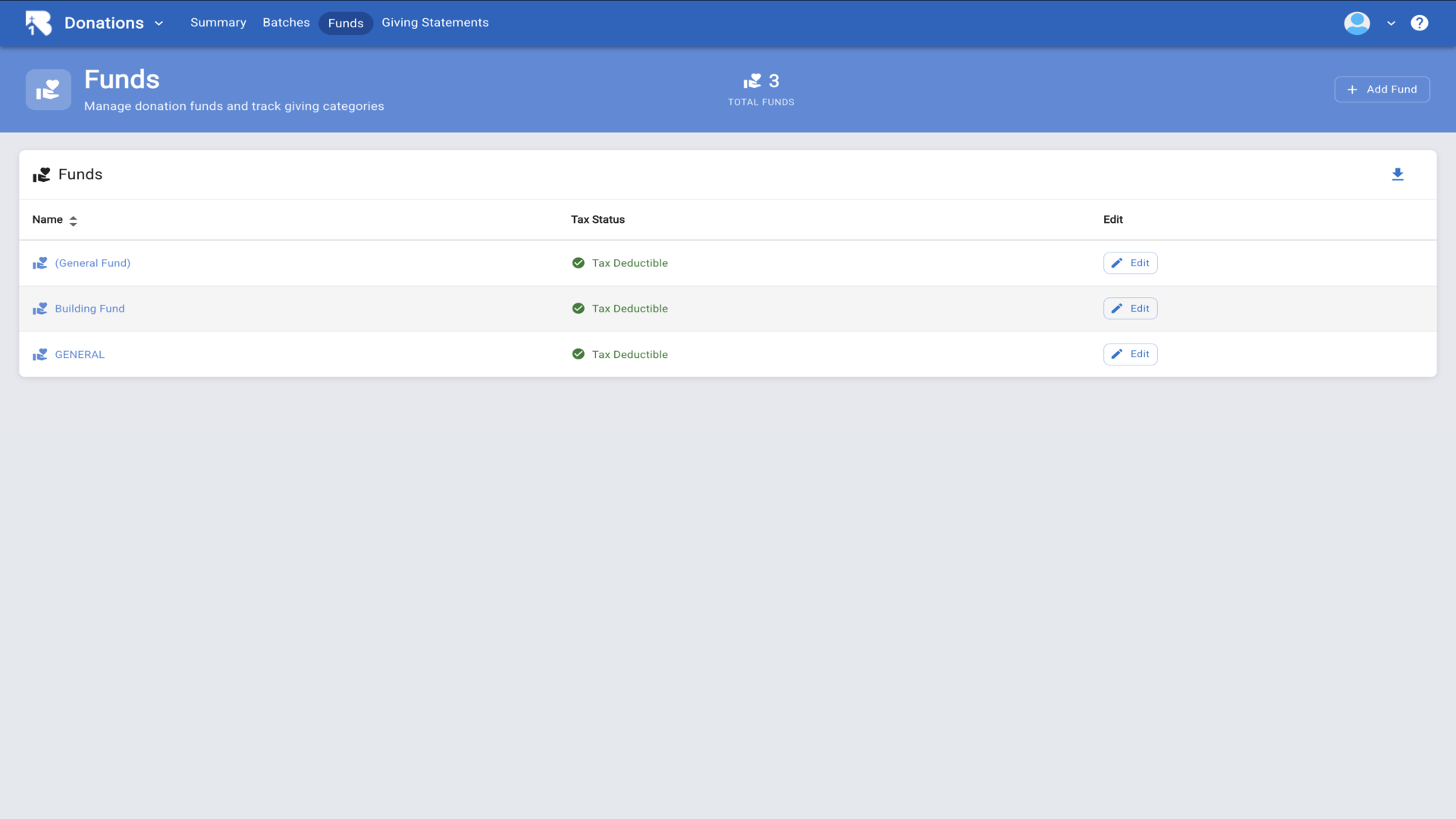
11.You can click Edit on any fund to modify its settings.▼
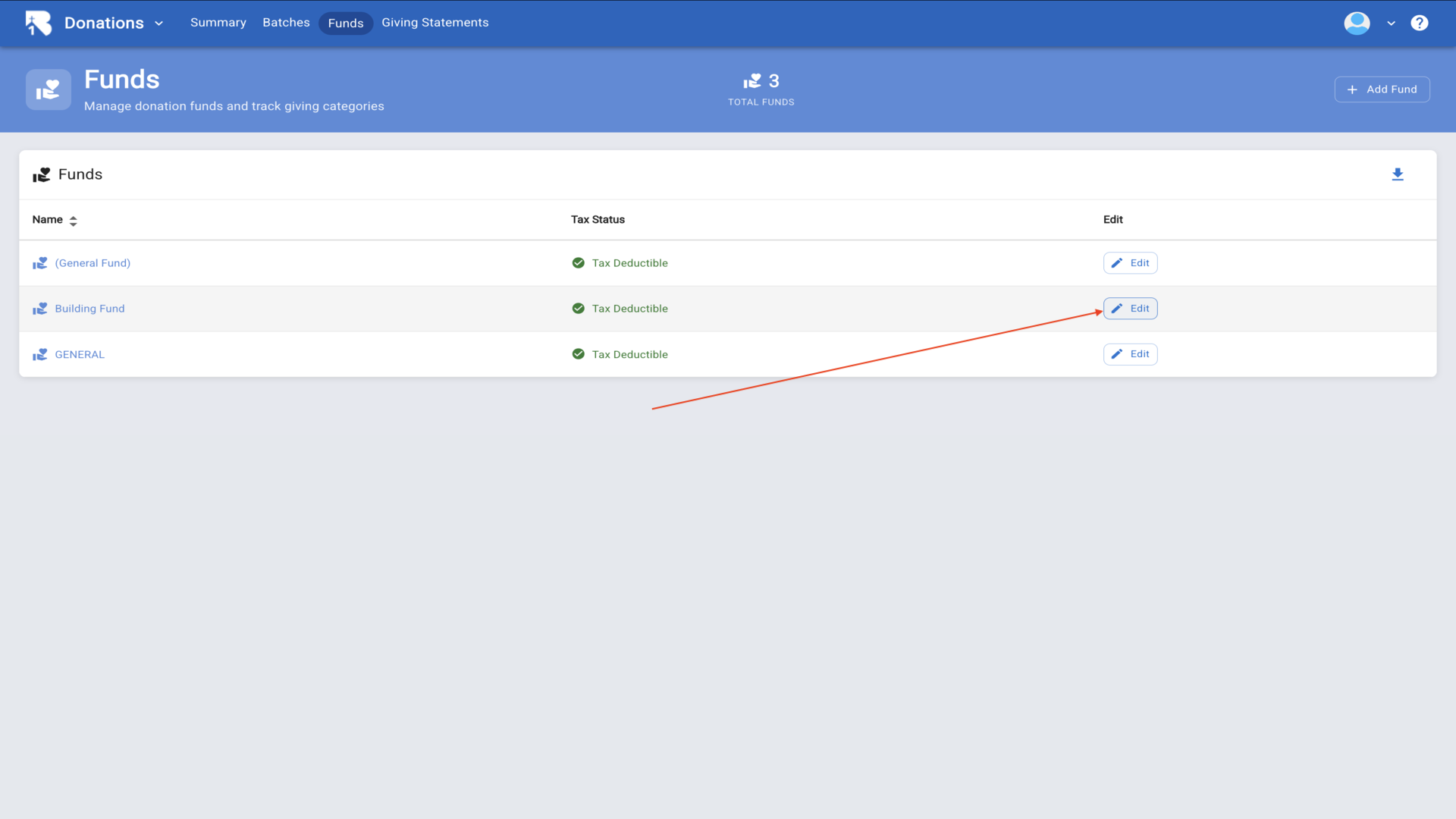
12.The edit form also includes a Delete button if you need to remove a fund.▼
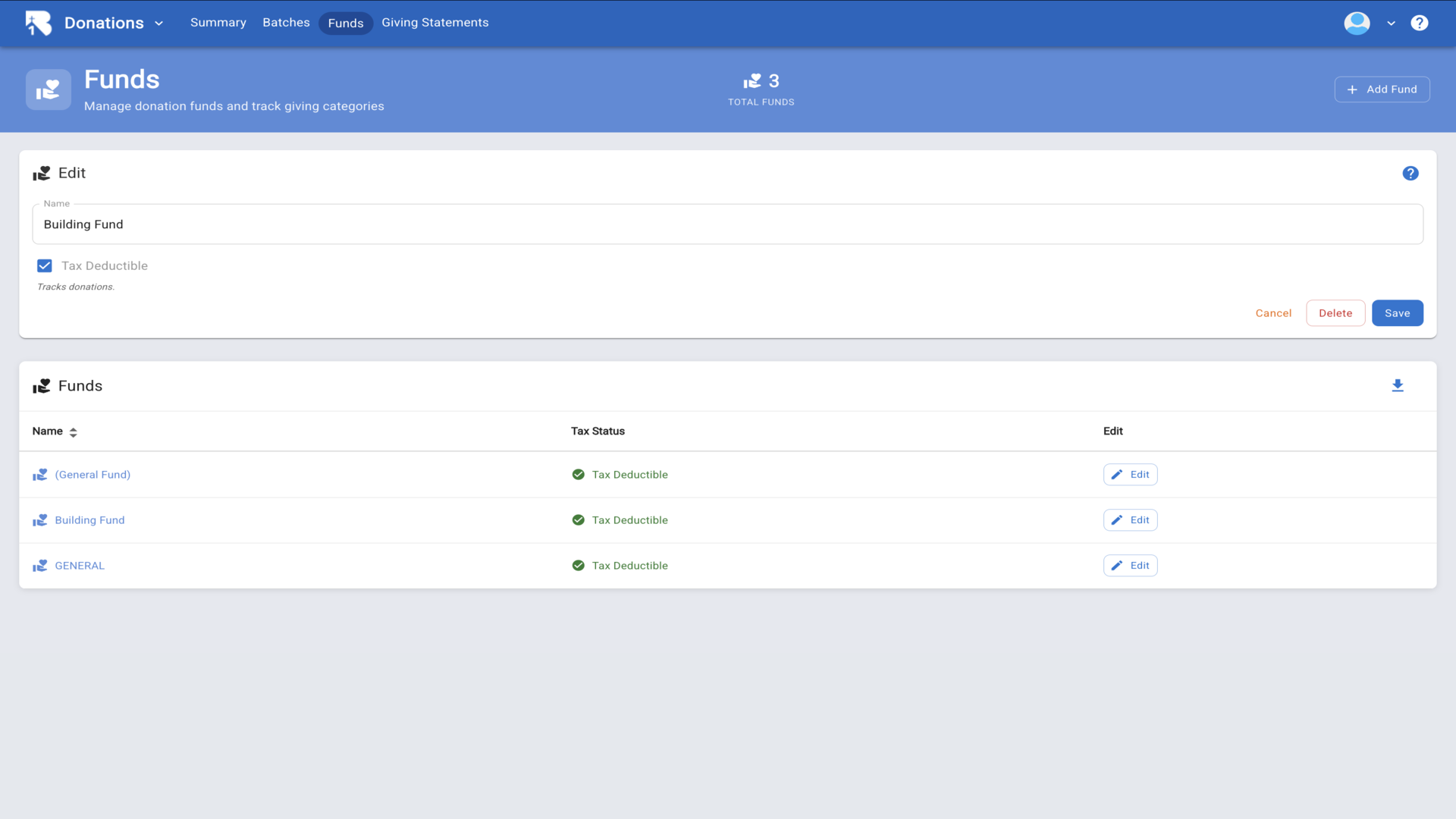
13.Click on a fund name to view detailed donation history for that specific fund.▼
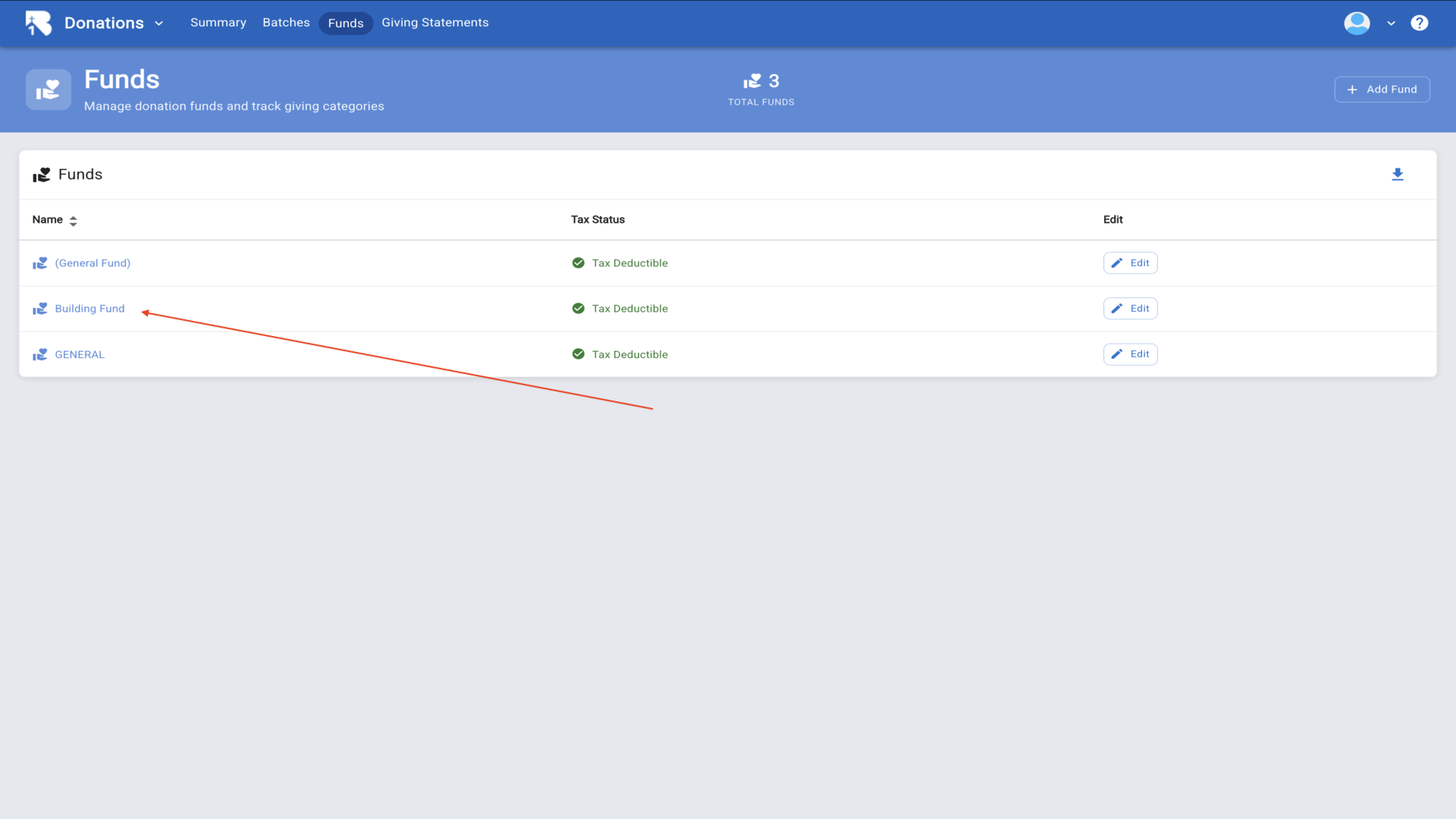
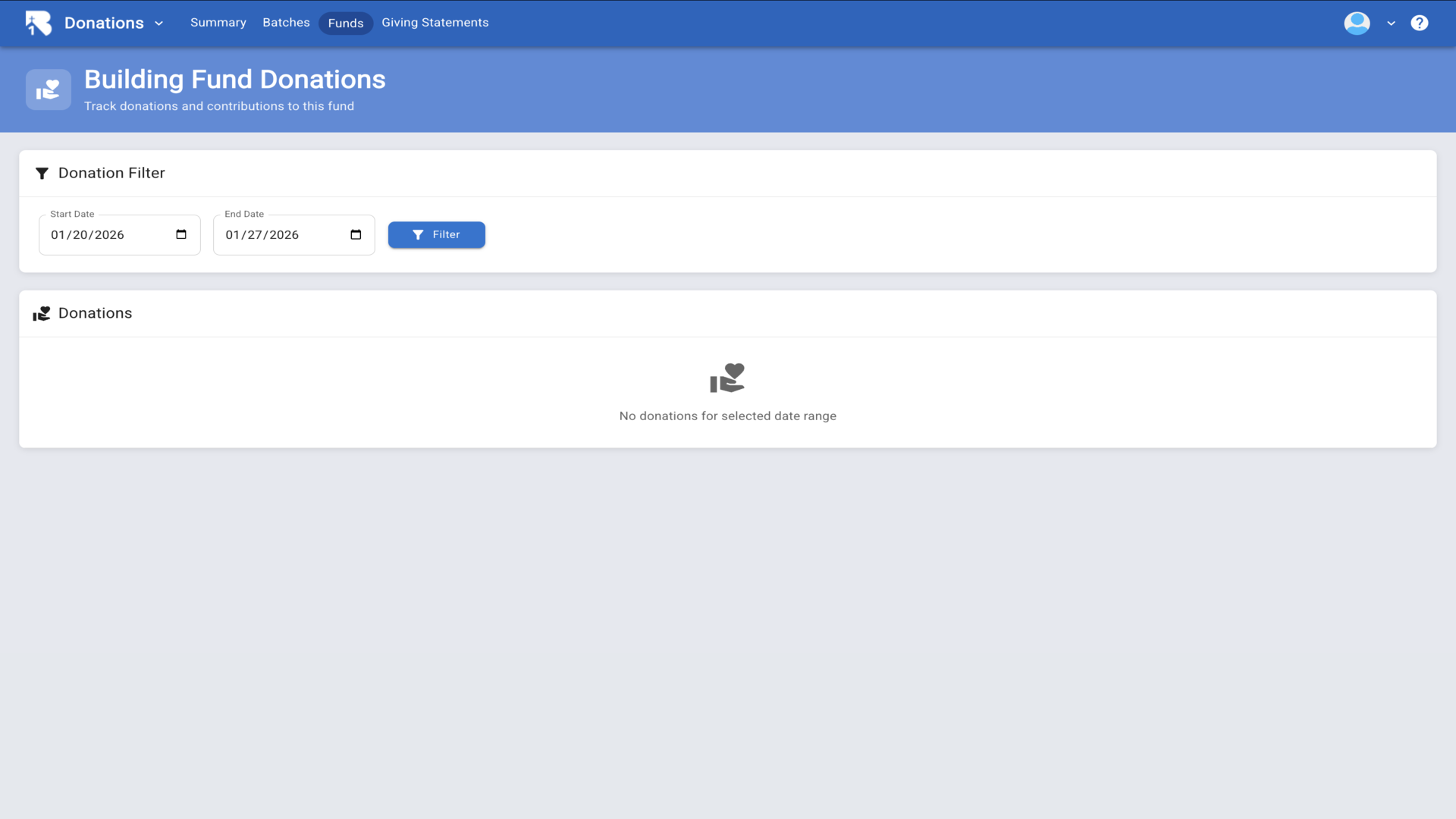
14.The fund detail page shows all donations with date range filters and summary statistics.▼
15.Now let's enter donations. Navigate back to the Batches page to manage donation batches.▼
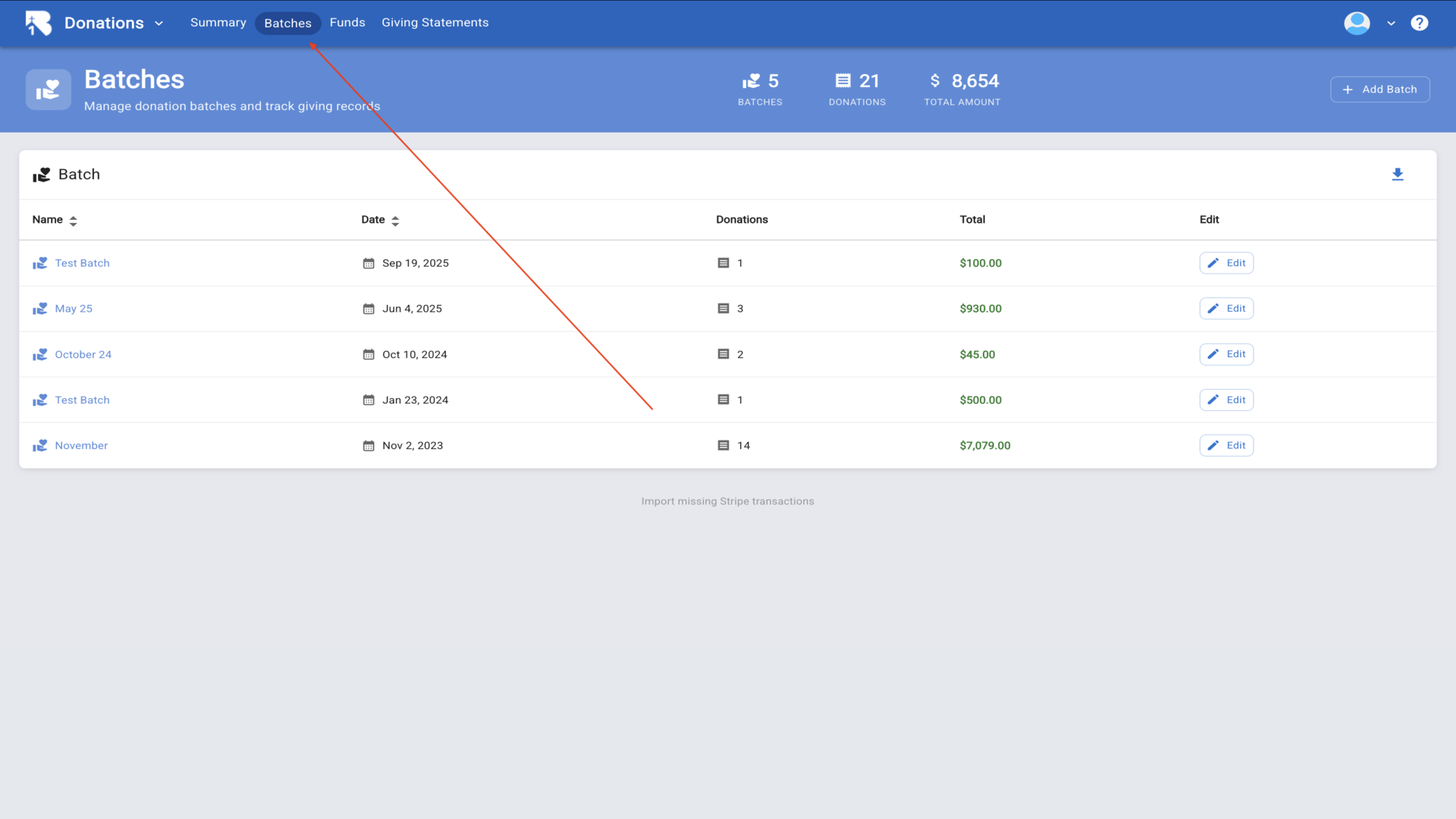
16.Click Add Batch to create a new batch for organizing donations.▼
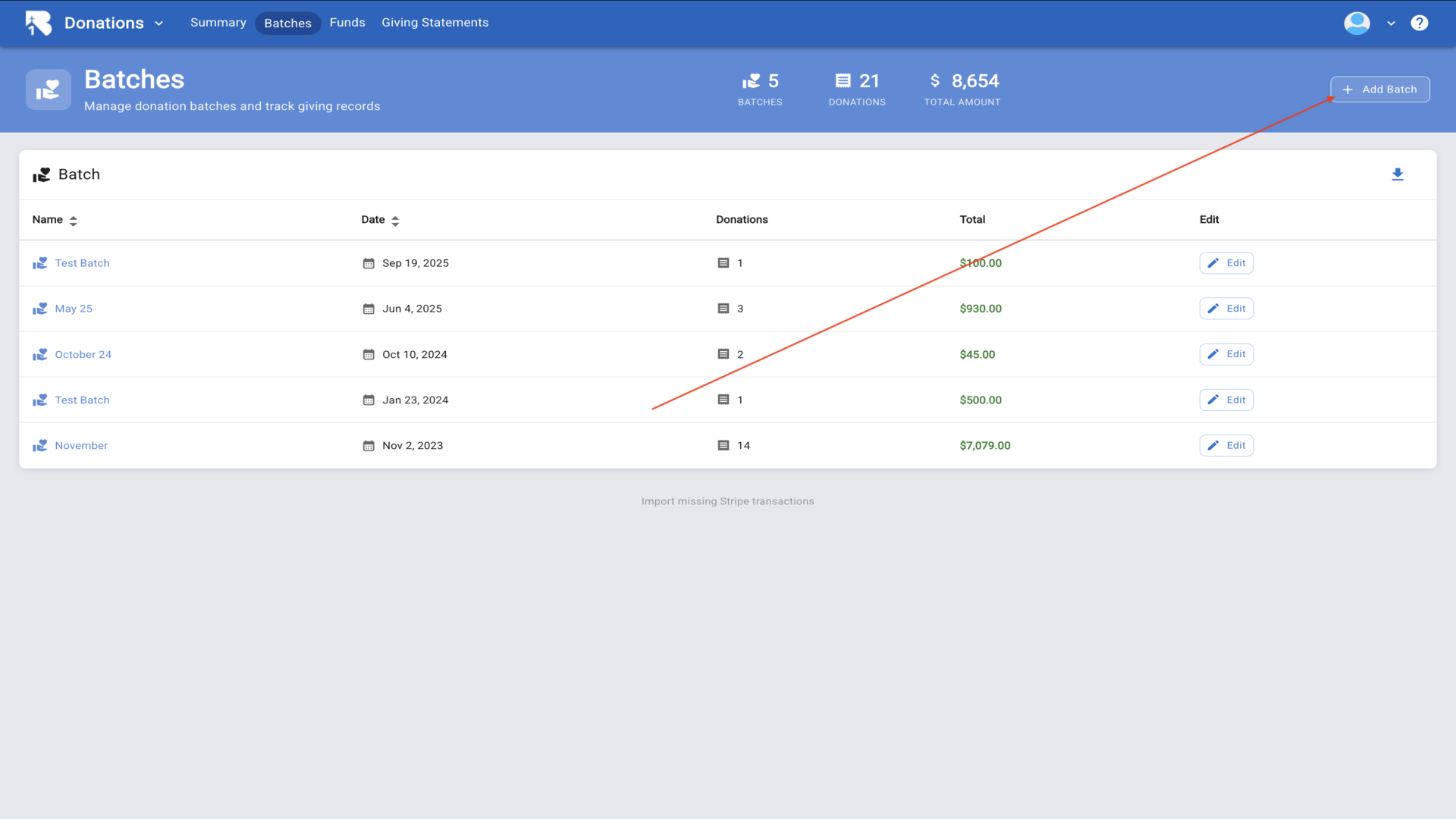
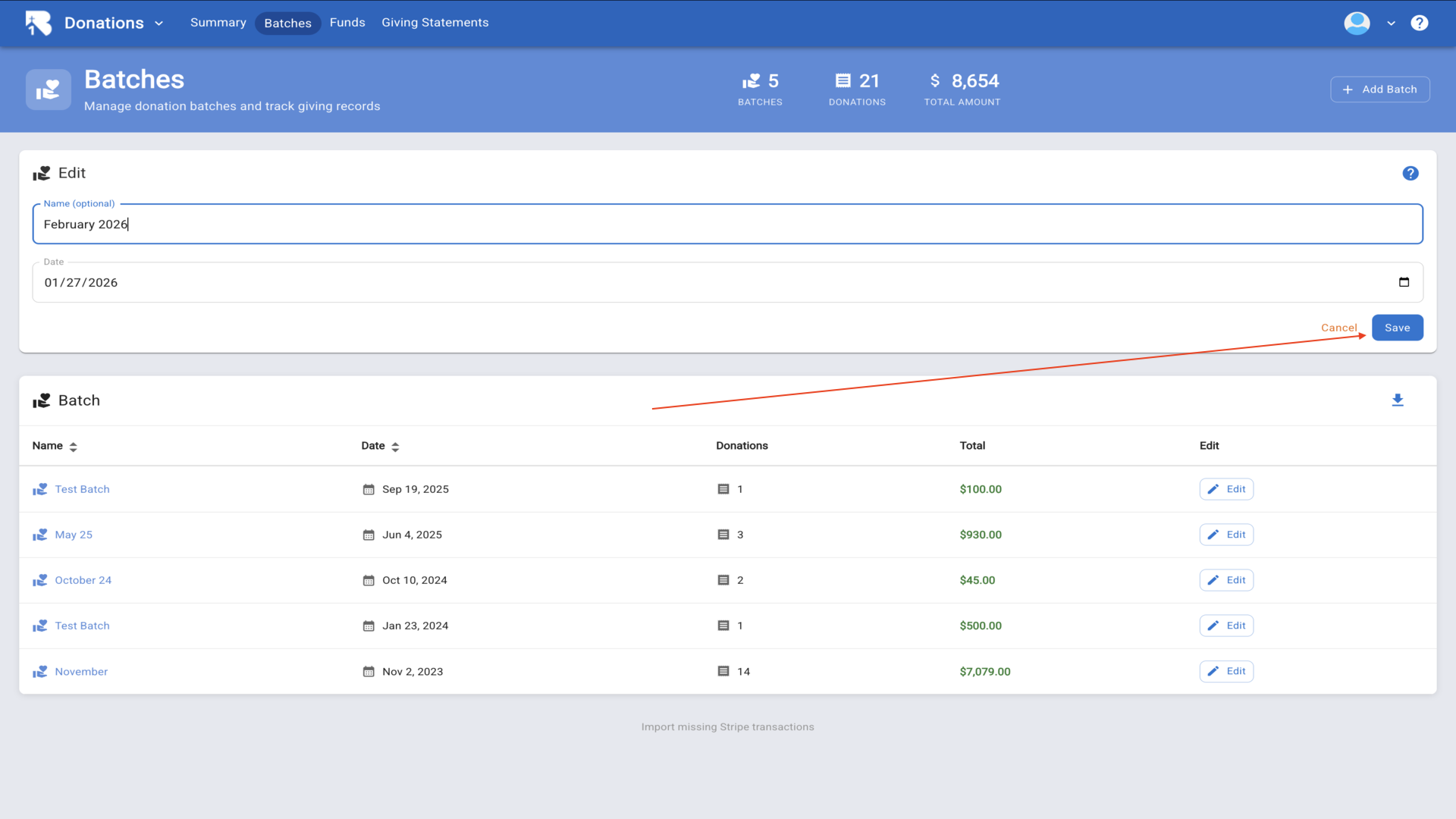
17.Enter a batch name and select the date, then click Save.▼
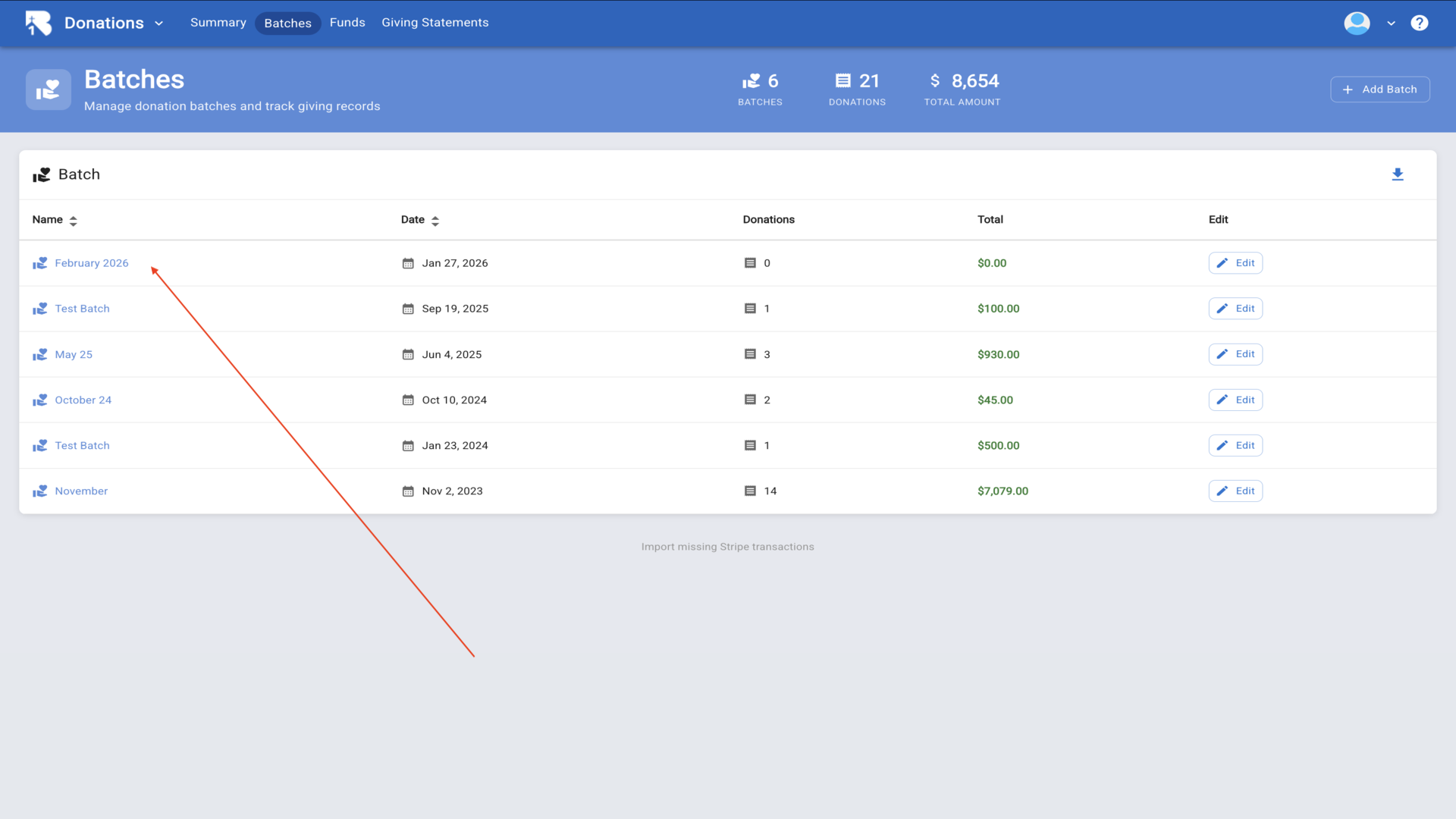
18.Your new batch appears in the list showing zero donations and zero dollars.▼
19.Click on the batch name to open it and begin entering donations.▼
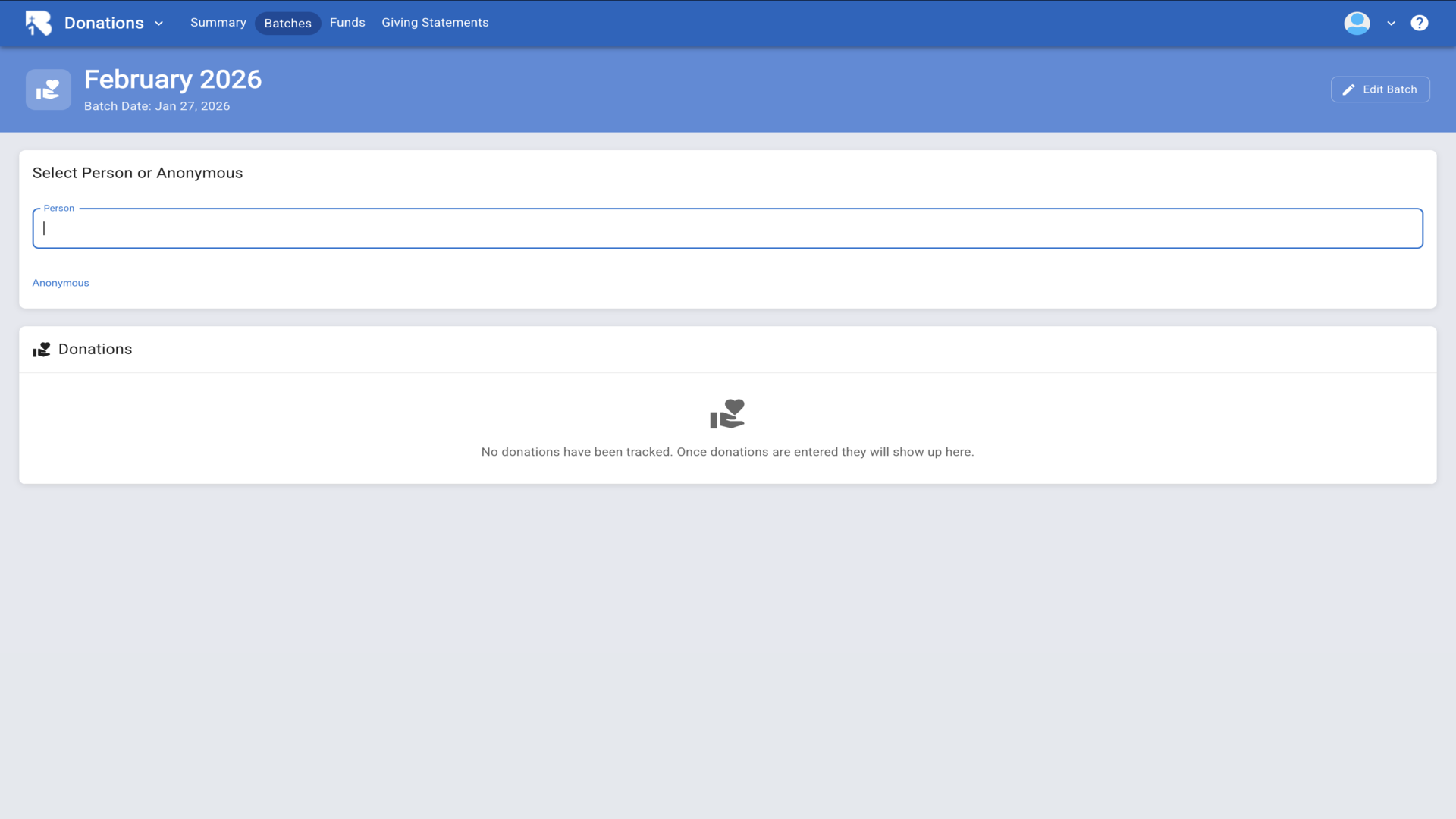
20.Type a person's name in the search field to find the donor.▼
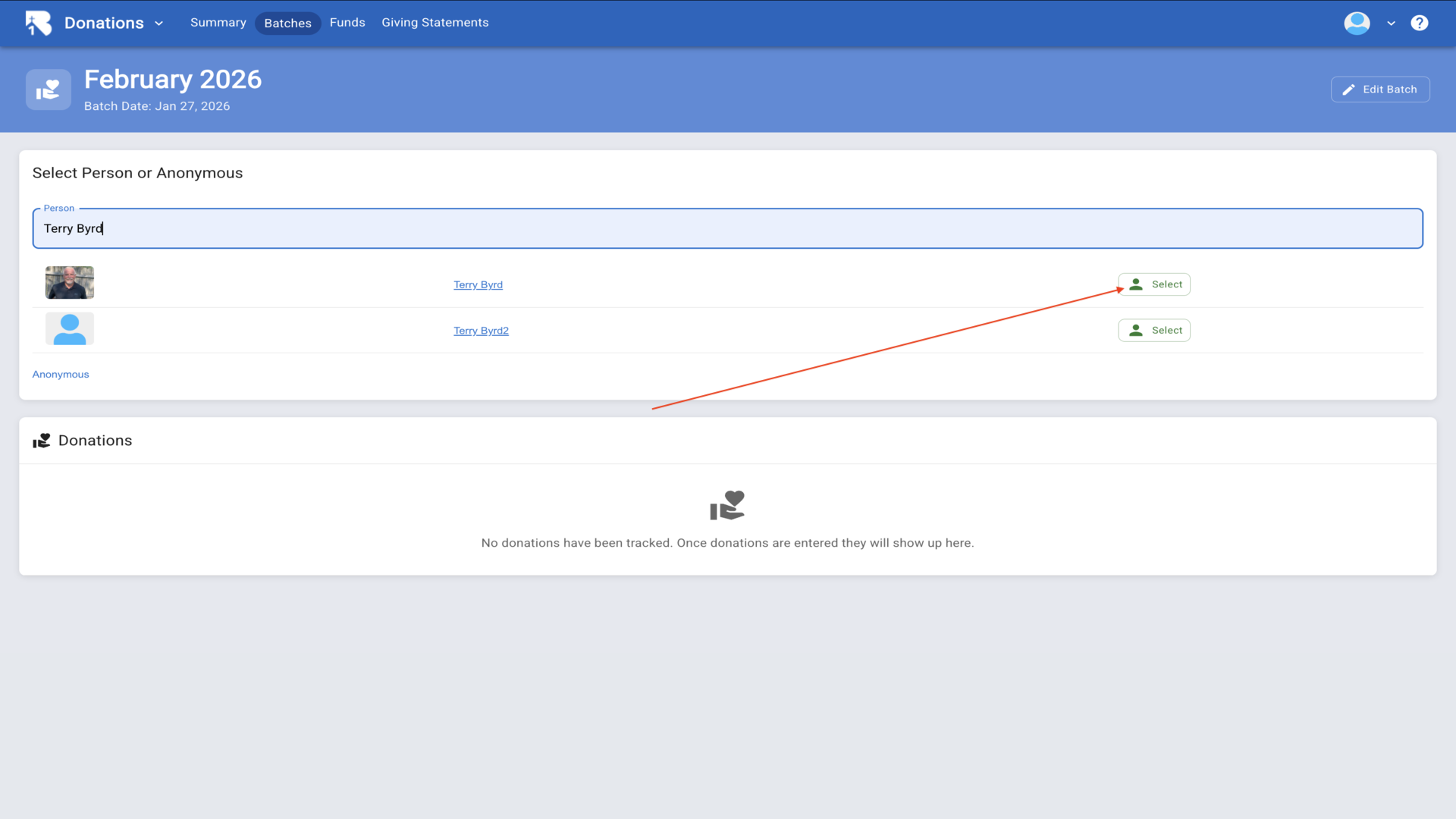
21.After selecting a person, the donation entry form displays with fields for date, payment method, fund, amount, and check number.▼
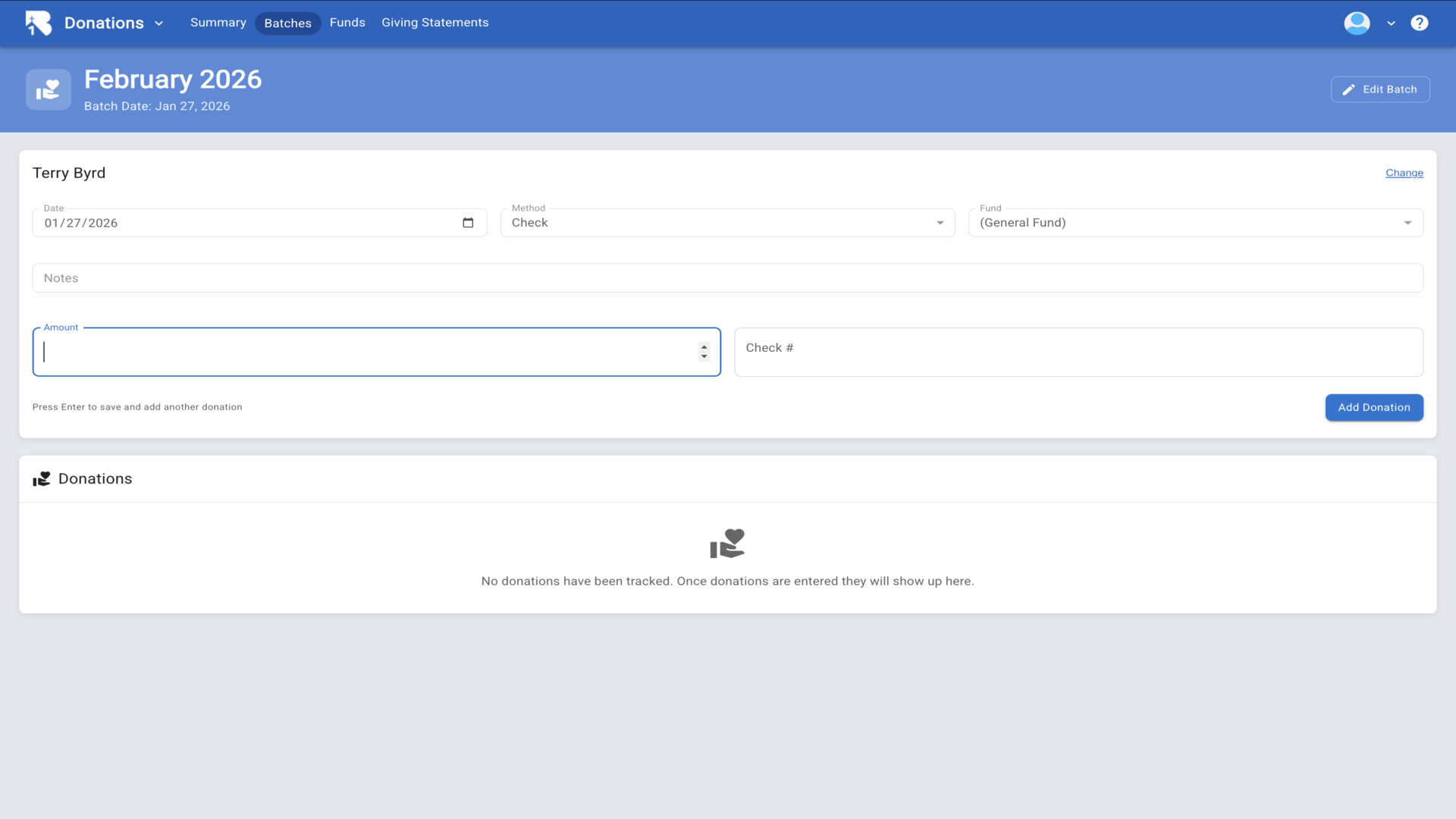
22.Fill in the amount and check number, then click Add Donation.▼
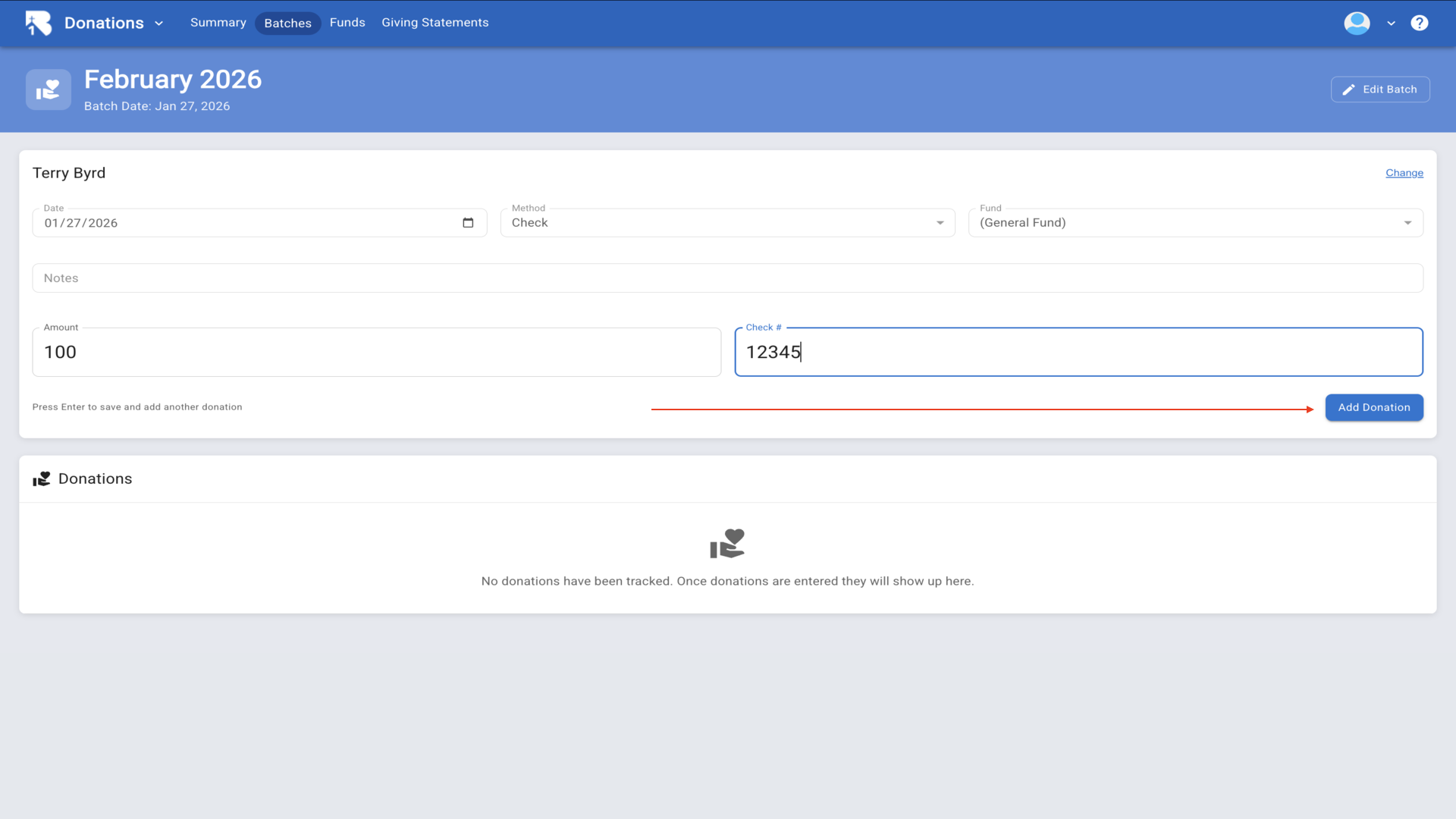
23.The donation is added to the table below and the form resets for the next entry.▼
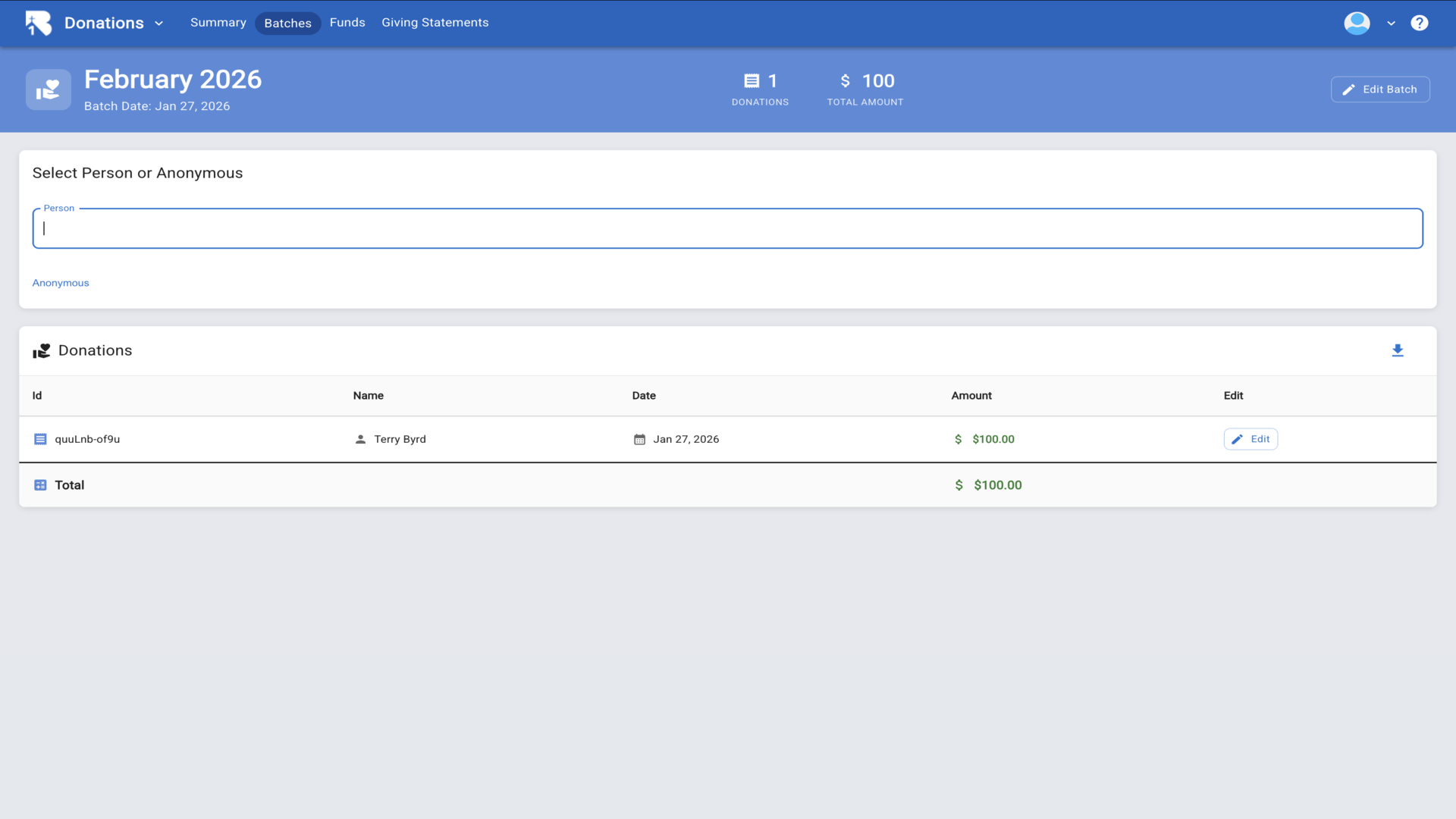
24.To edit a donation, click the Edit button on the donation row.▼
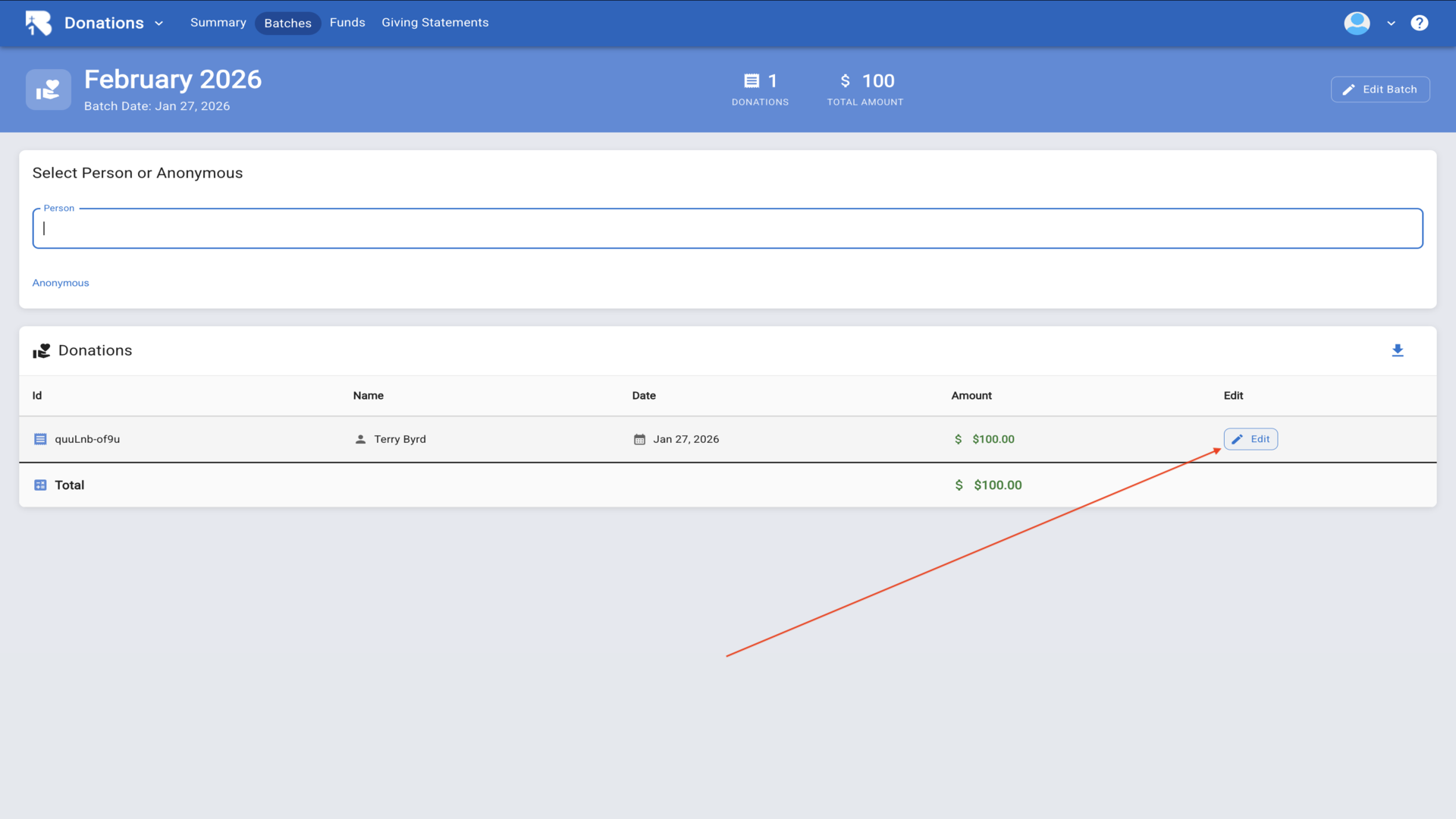
25.The edit form opens showing all the donation details that can be modified.▼
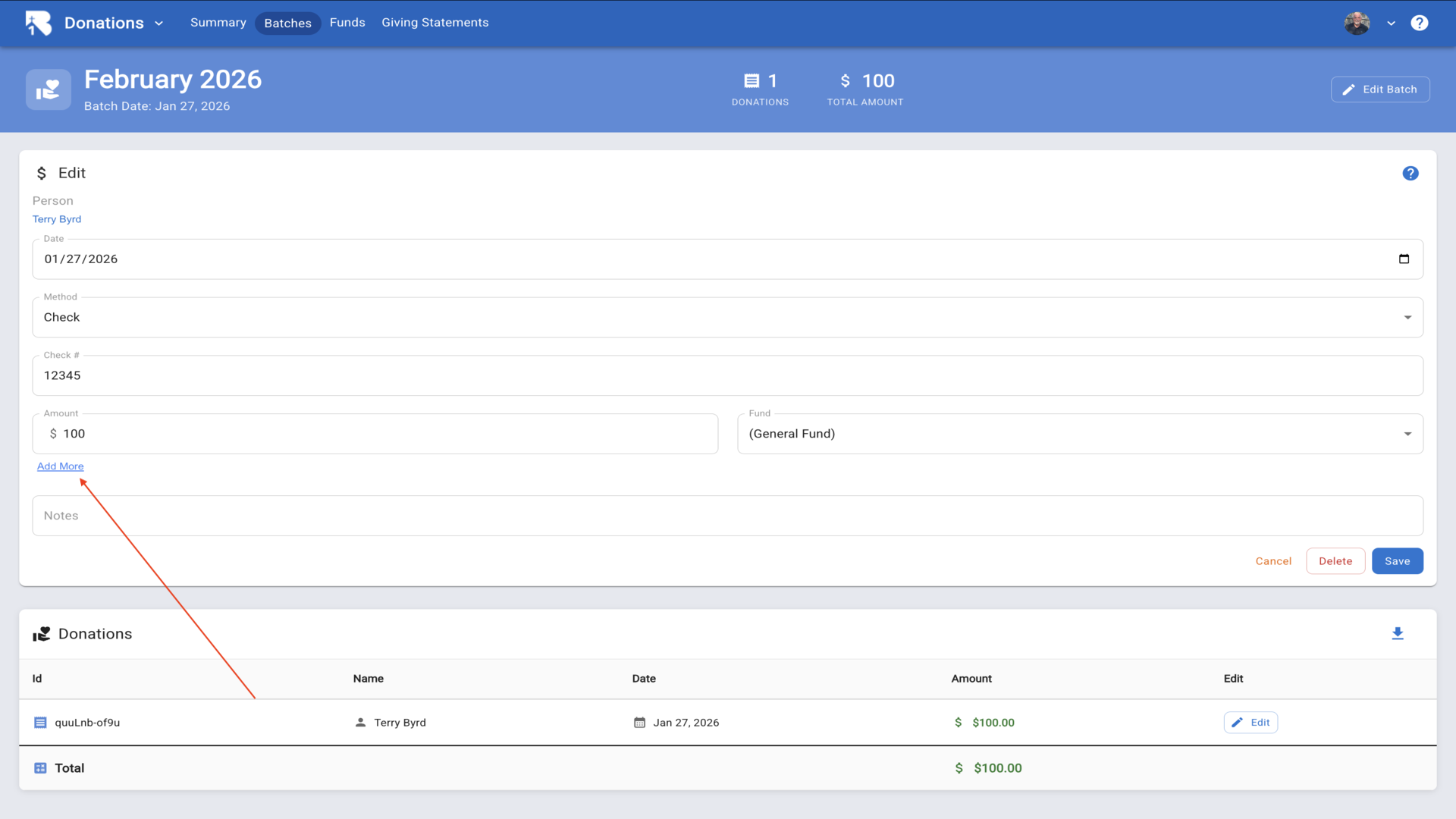
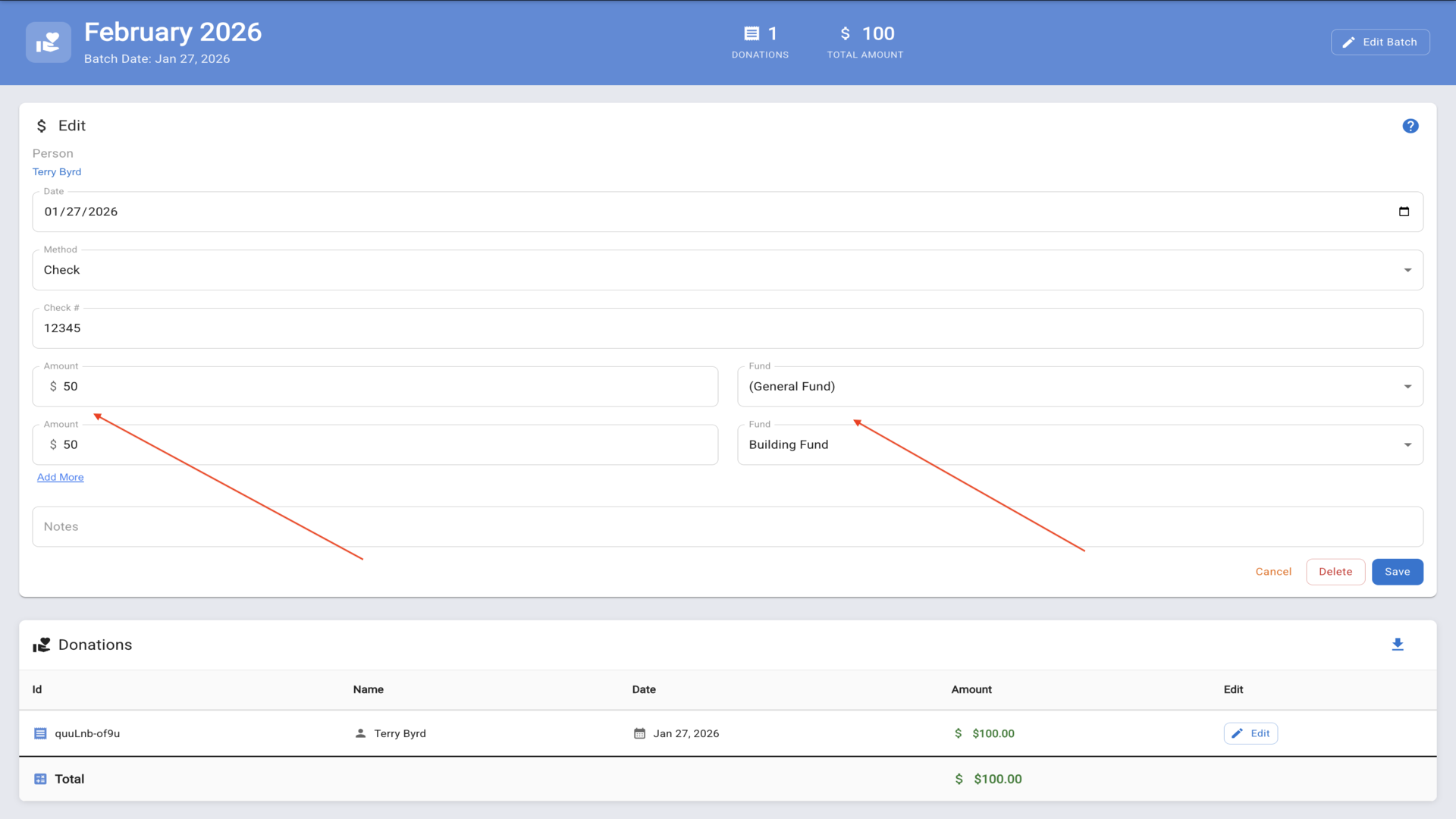
26.You can split a donation across multiple funds by adding amounts to different funds.▼
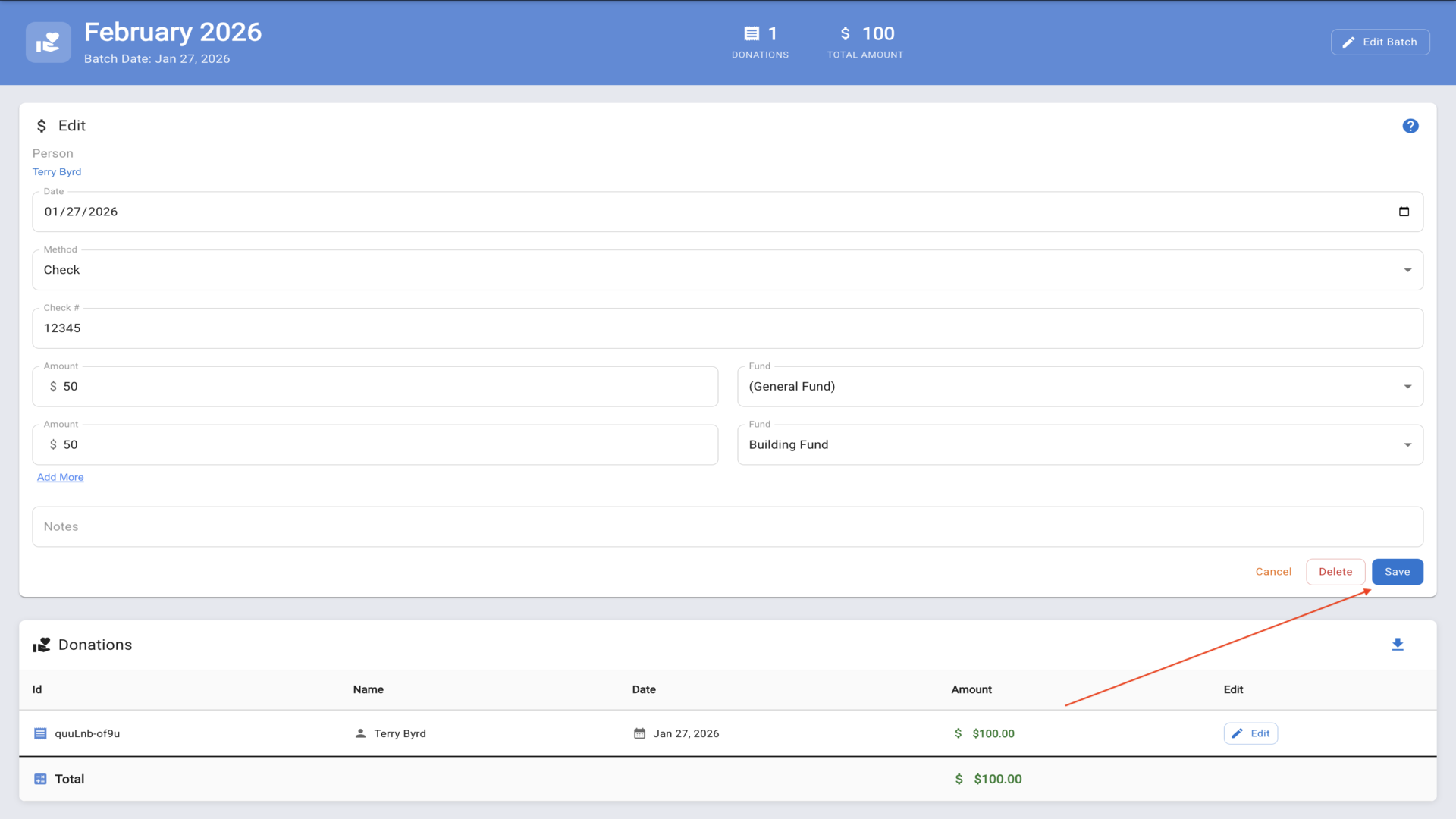
27.Click Save to update the donation with your changes.▼
28.The Donations Summary page shows visual reports with options to view different report formats.▼
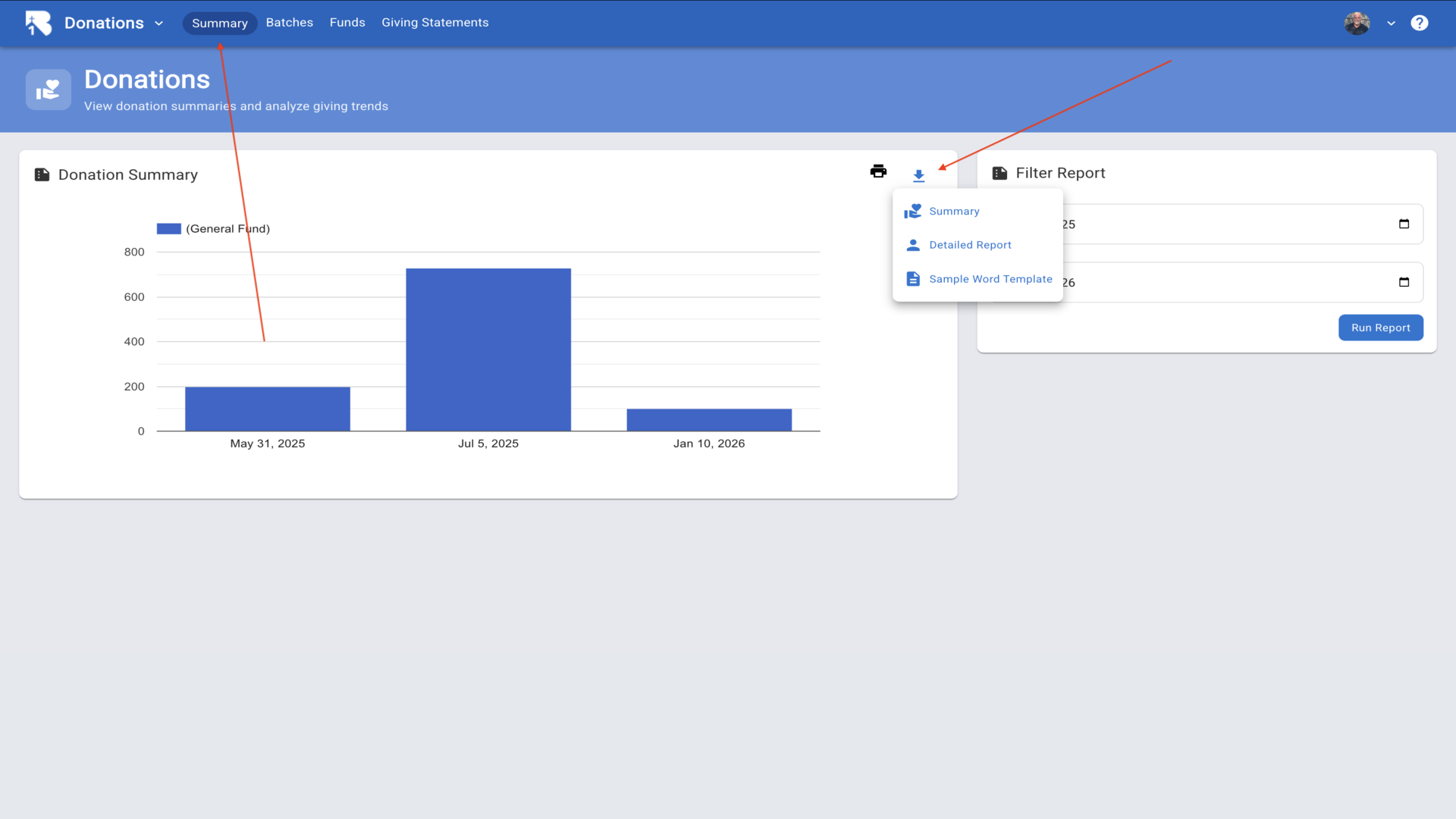
29.Navigate to Giving Statements to download tax receipts for all donors for a selected year.▼
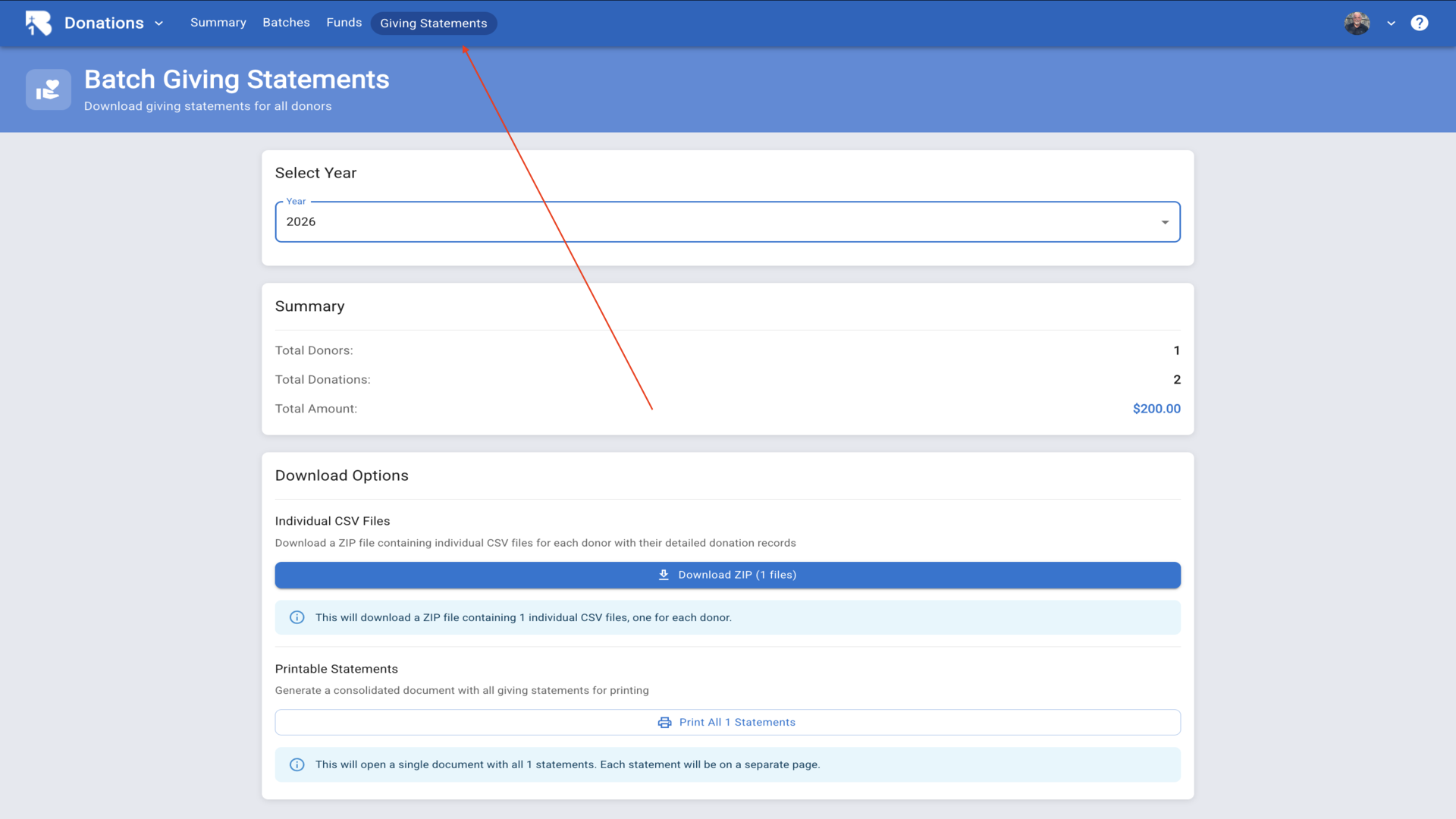
30.You can export a csv file for each donor or▼
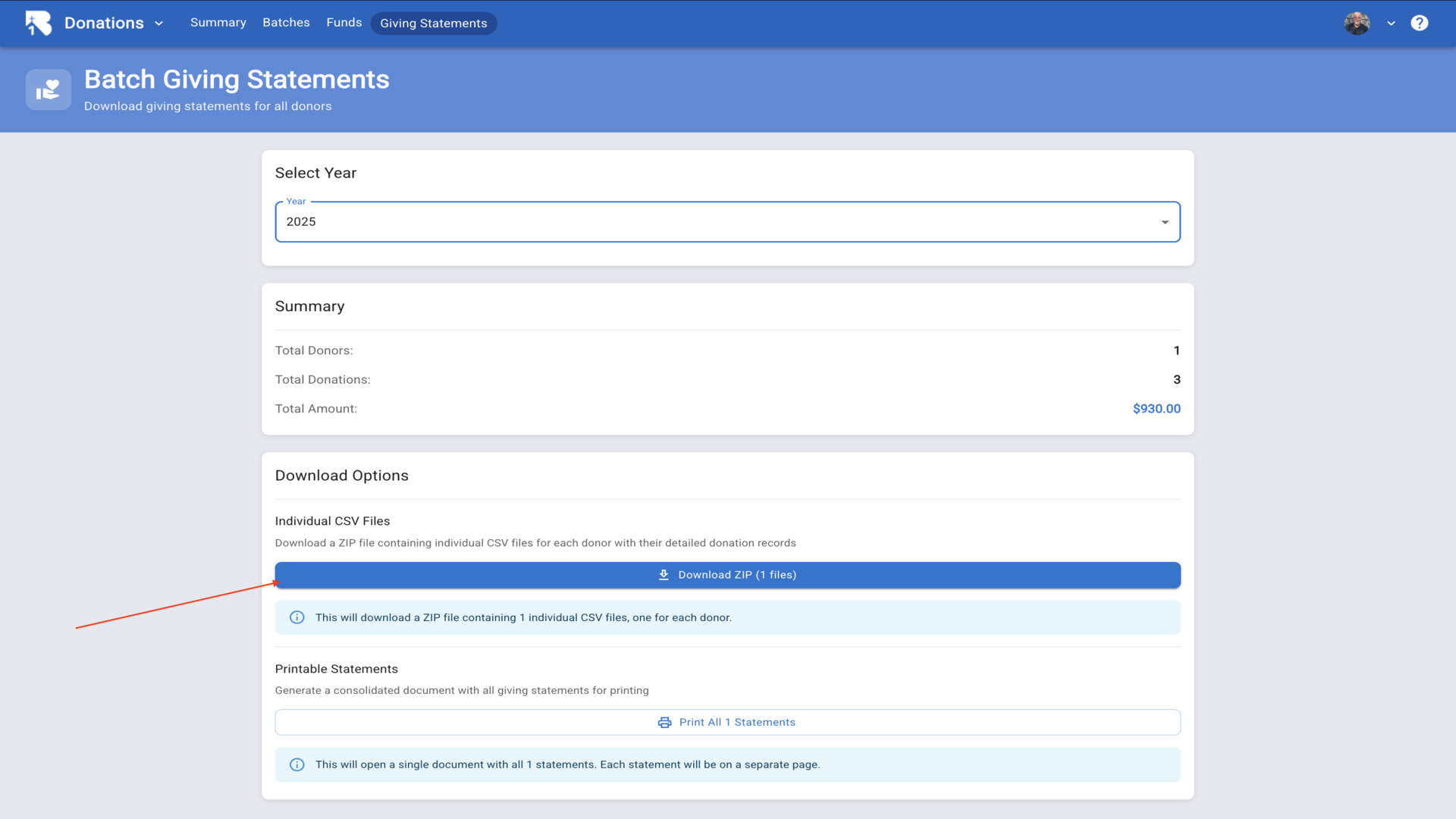
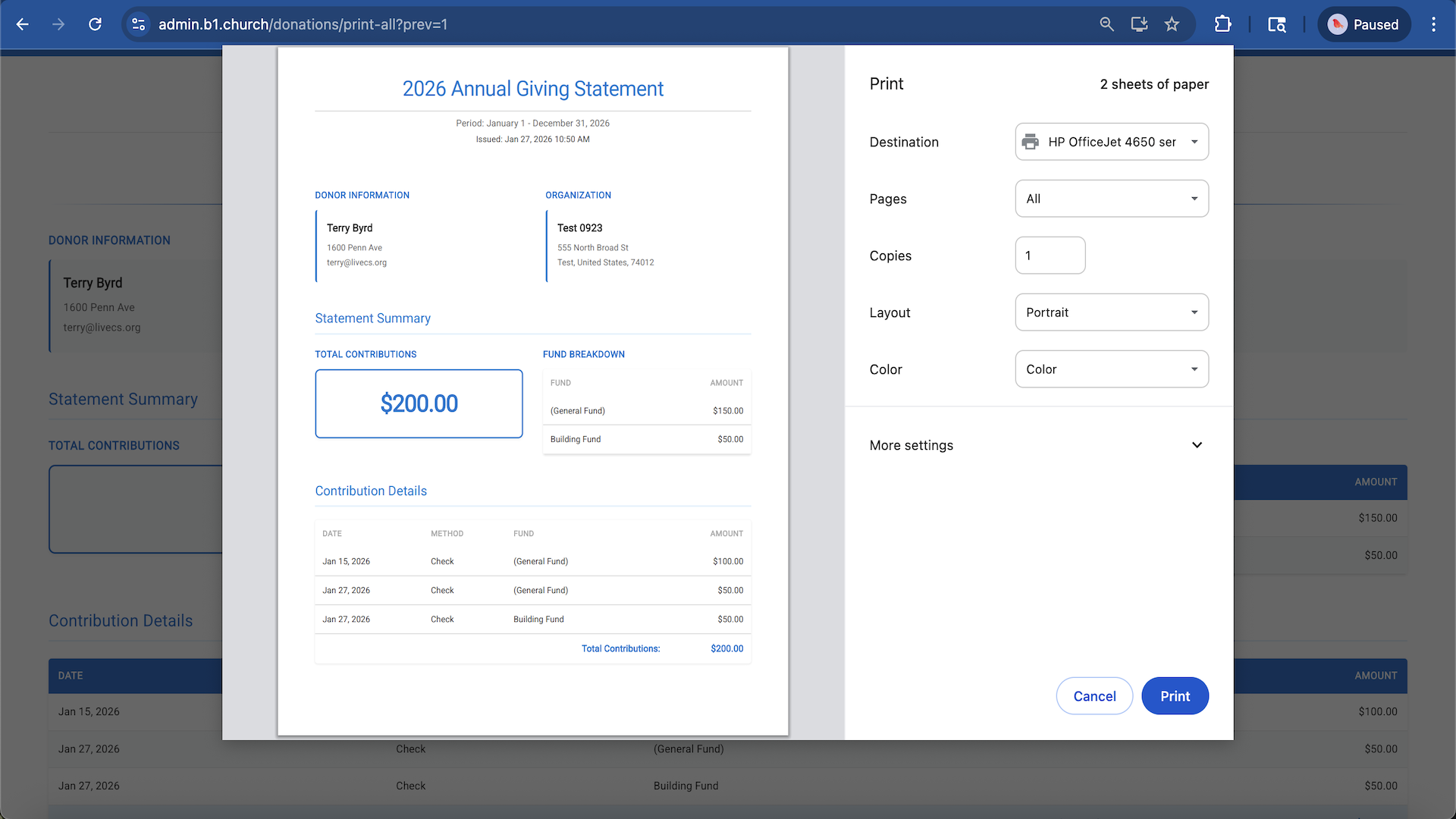
31.You can print all giving statements at once by clicking the Print All Statements button.▼
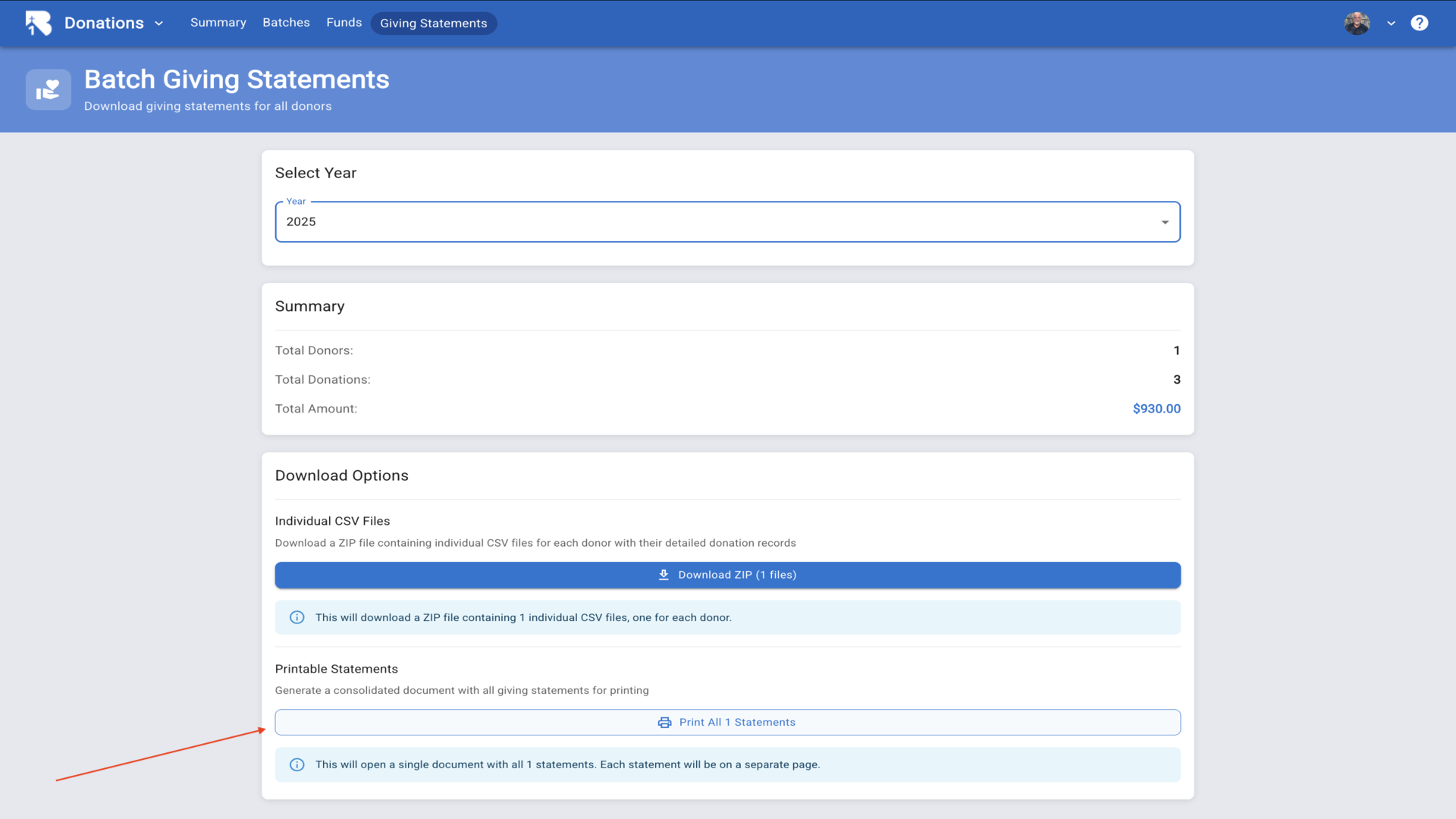
32.The print preview shows how each donor's annual giving statement will appear.▼
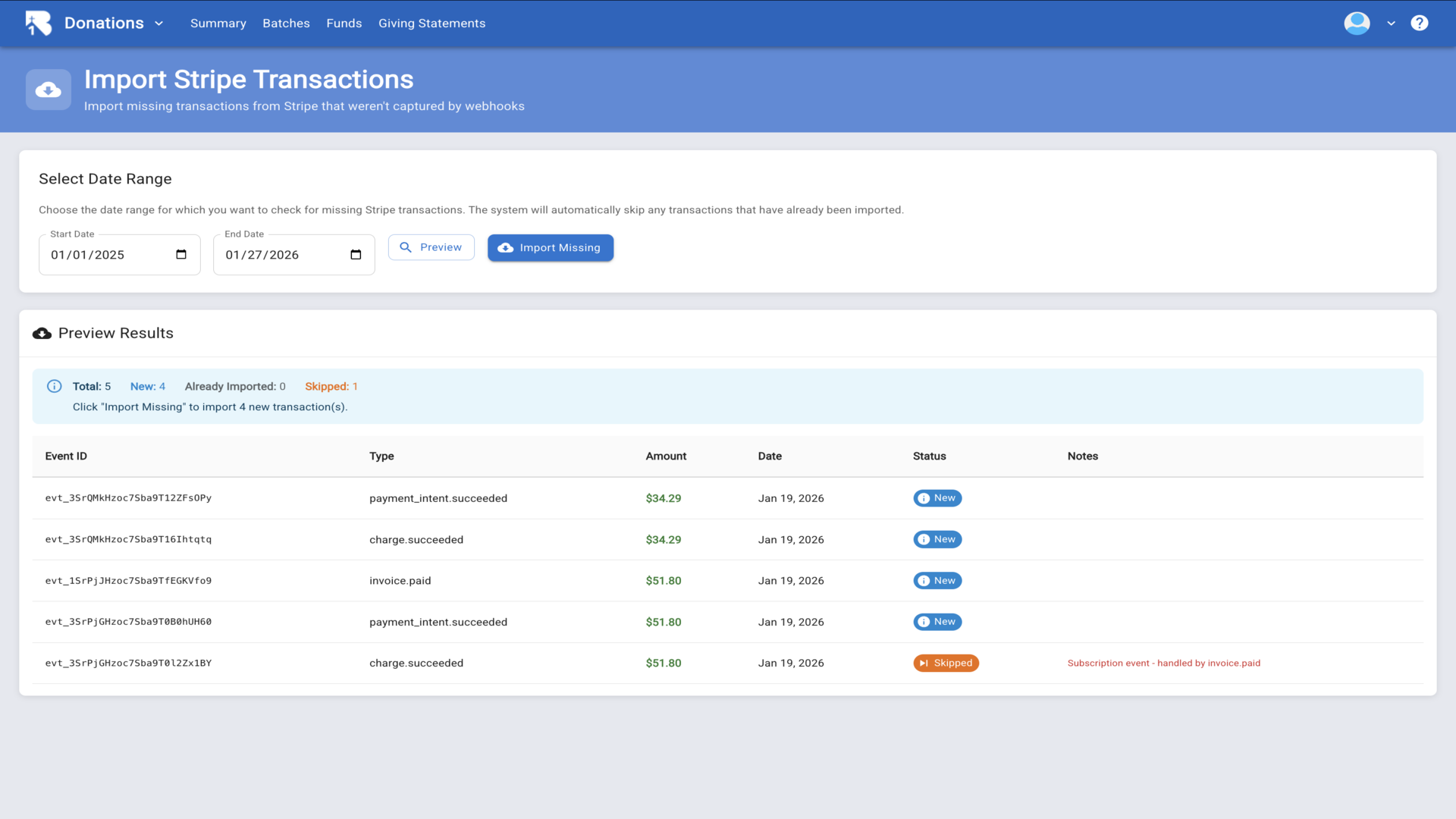
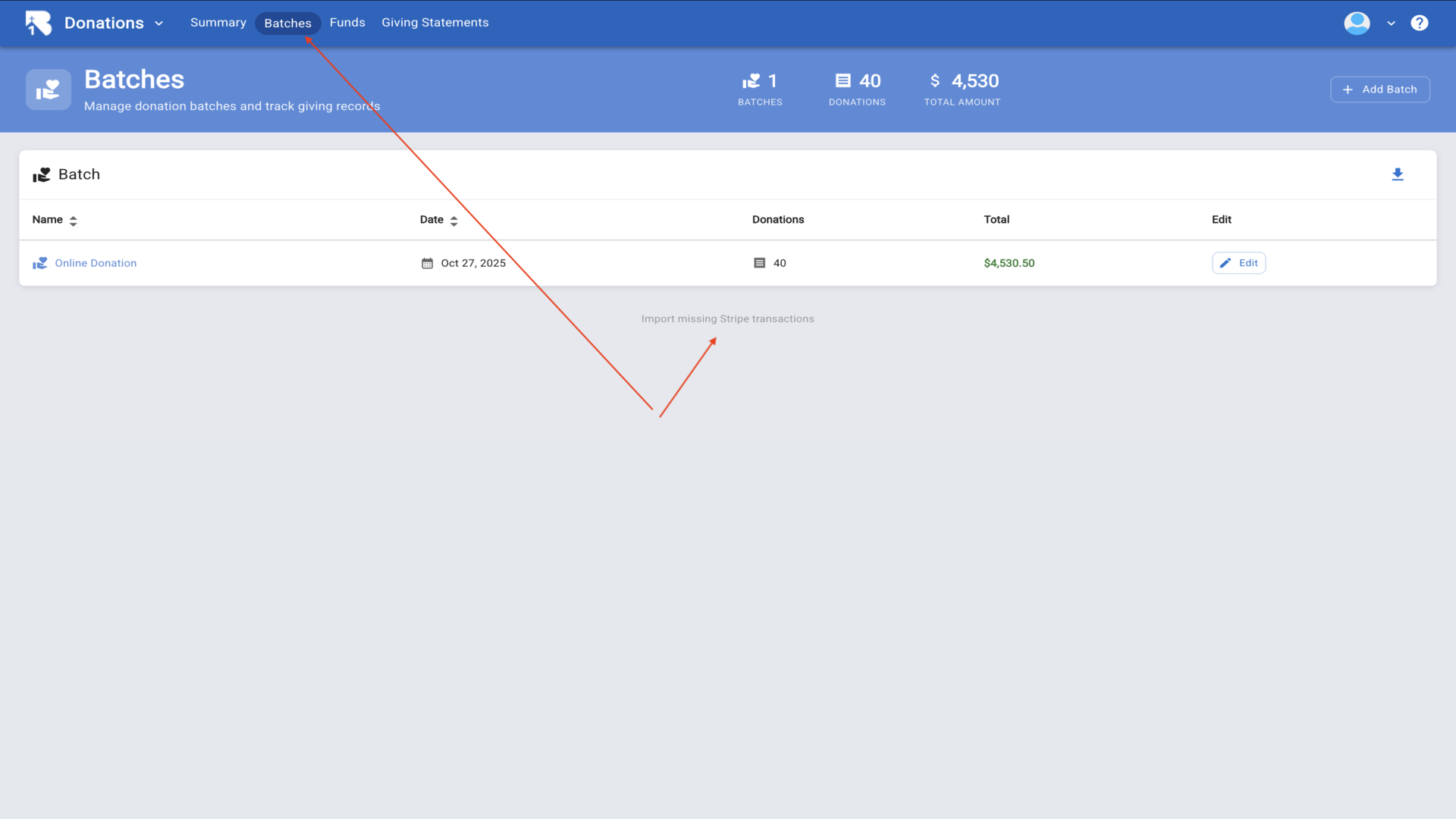
33.Back on the Batches page, you can access the Stripe import feature using the link at the bottom.▼
34.The Stripe Import page lets you select a date range to check for missing transactions.▼
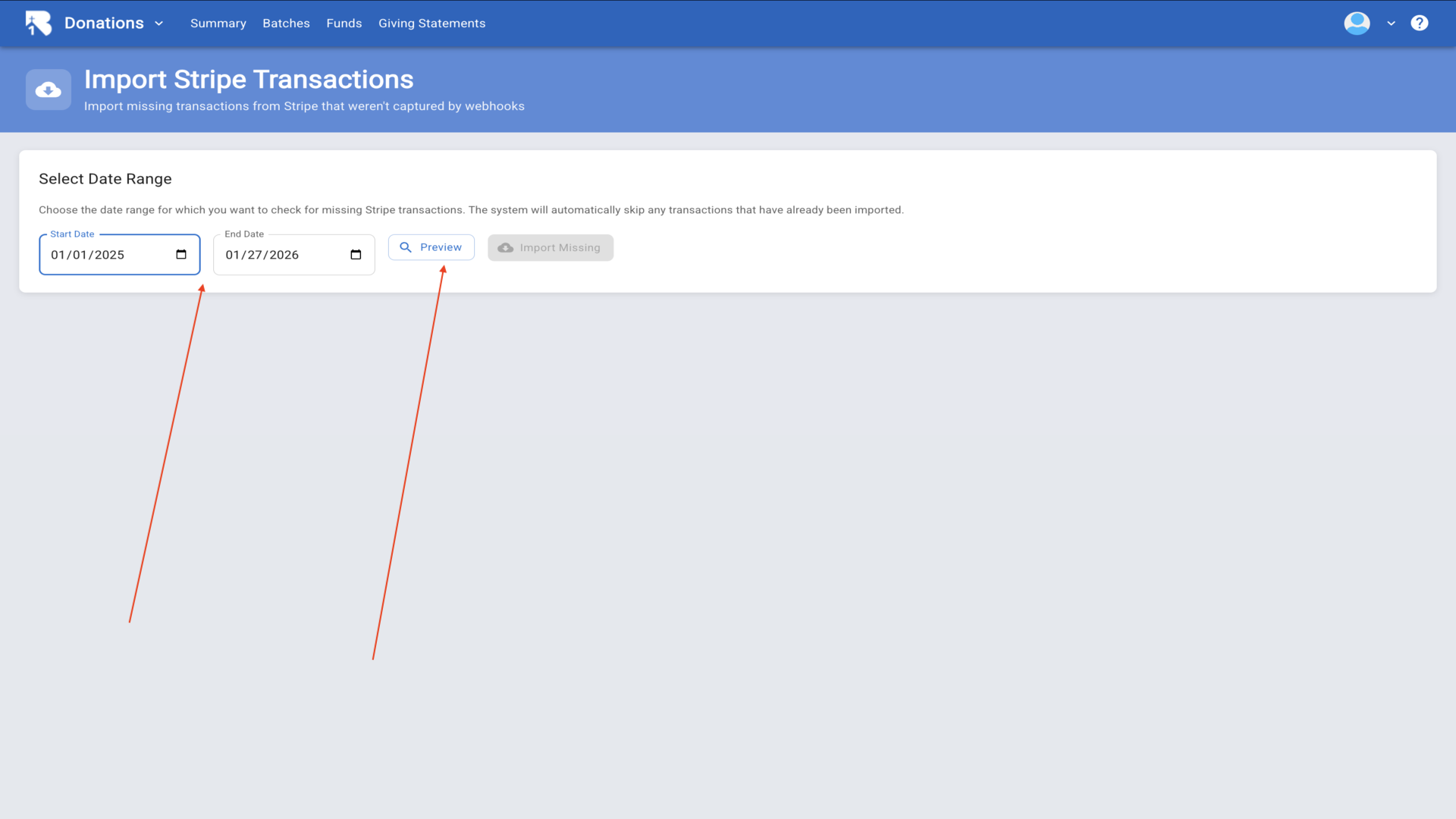
35.Click Preview to see which transactions would be imported, then Import Missing to complete the import. You now know how to create funds, manage batches, enter donations, and generate giving statements in B1 Admin.▼