12 Data
Exporting Data from B1.church Admin
Steps
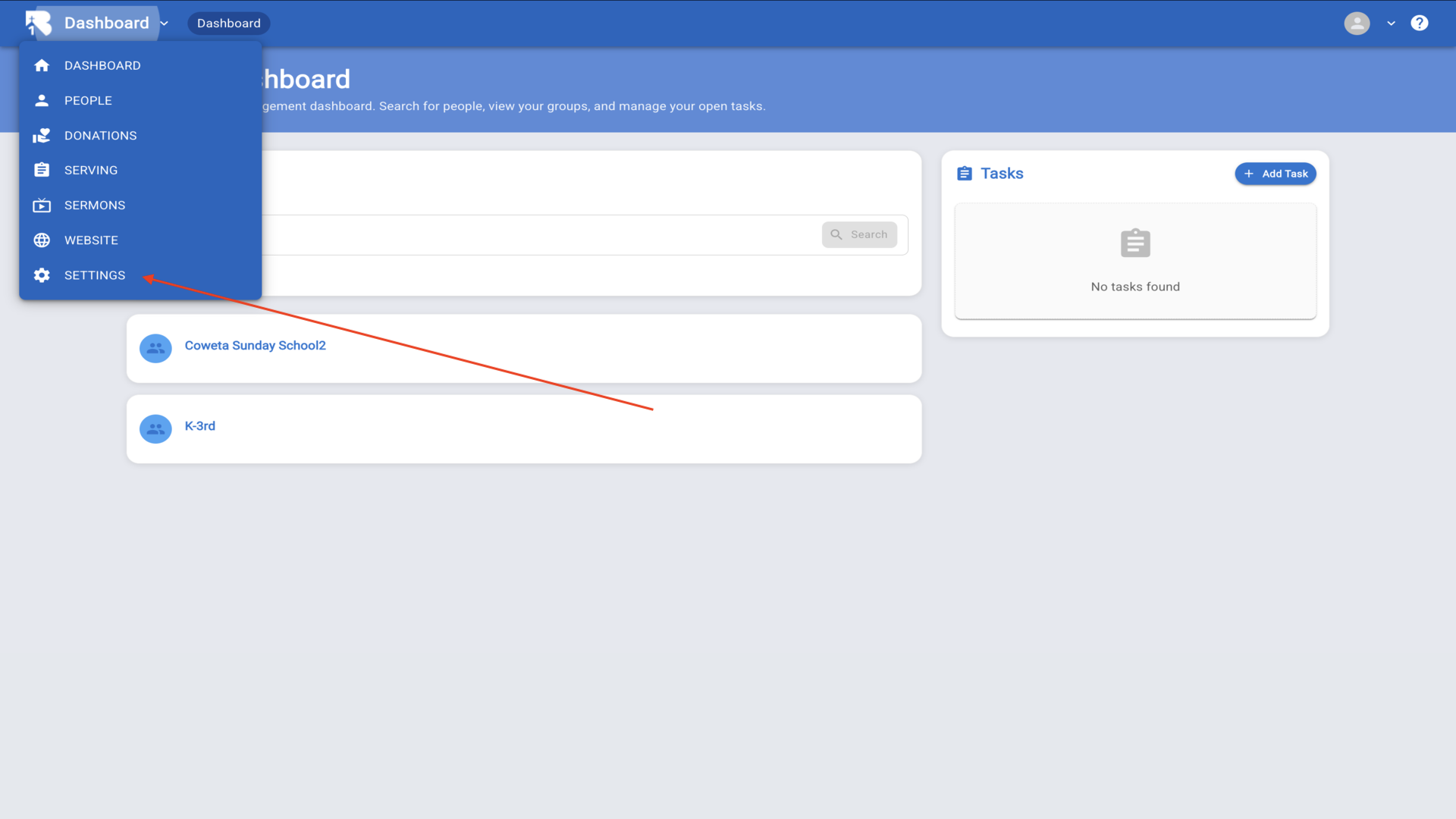
1.Click on the Settings icon in the B1.church Admin dashboard▼
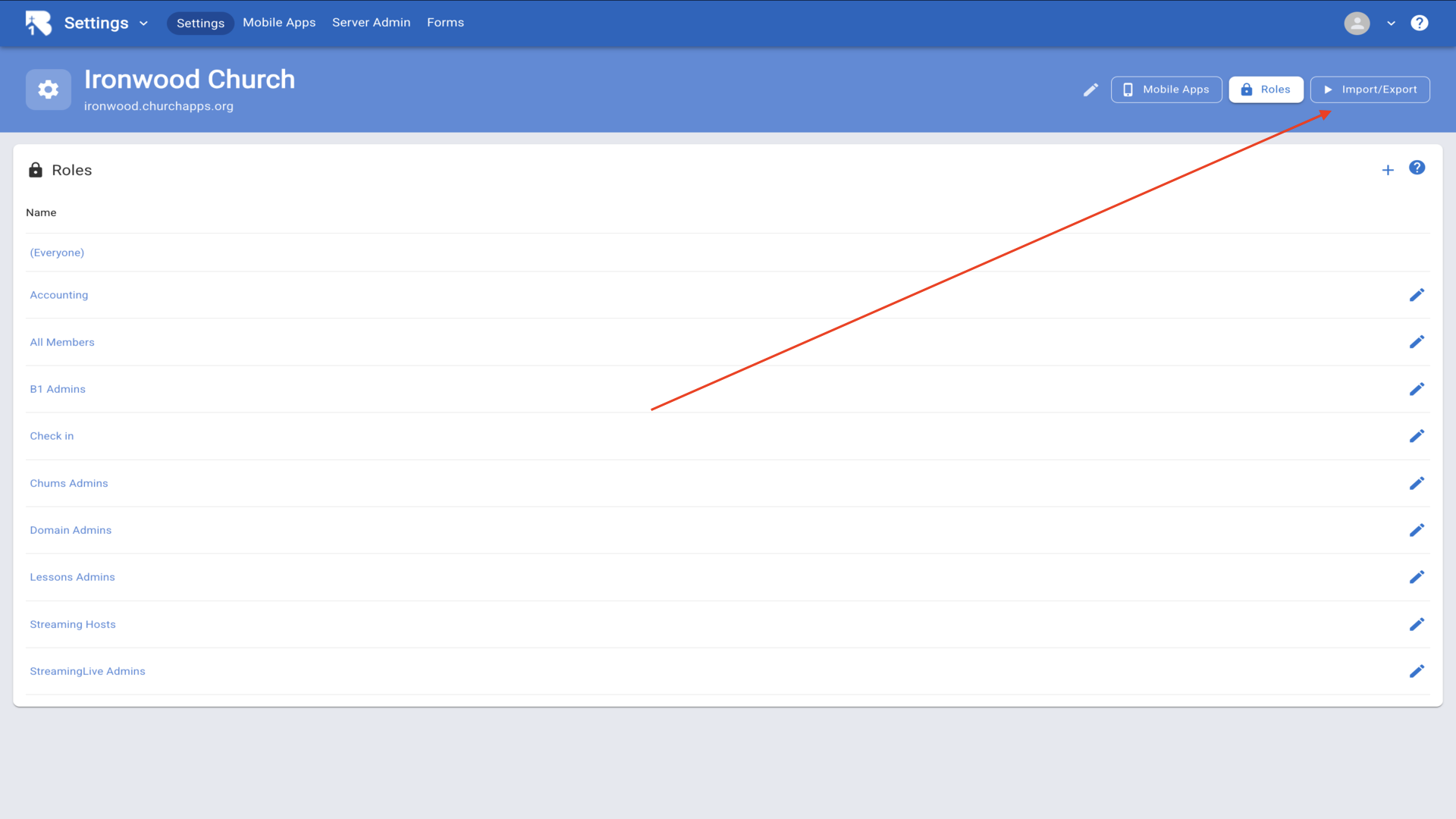
2.Click on the Import/Export button to access the import and export tool▼
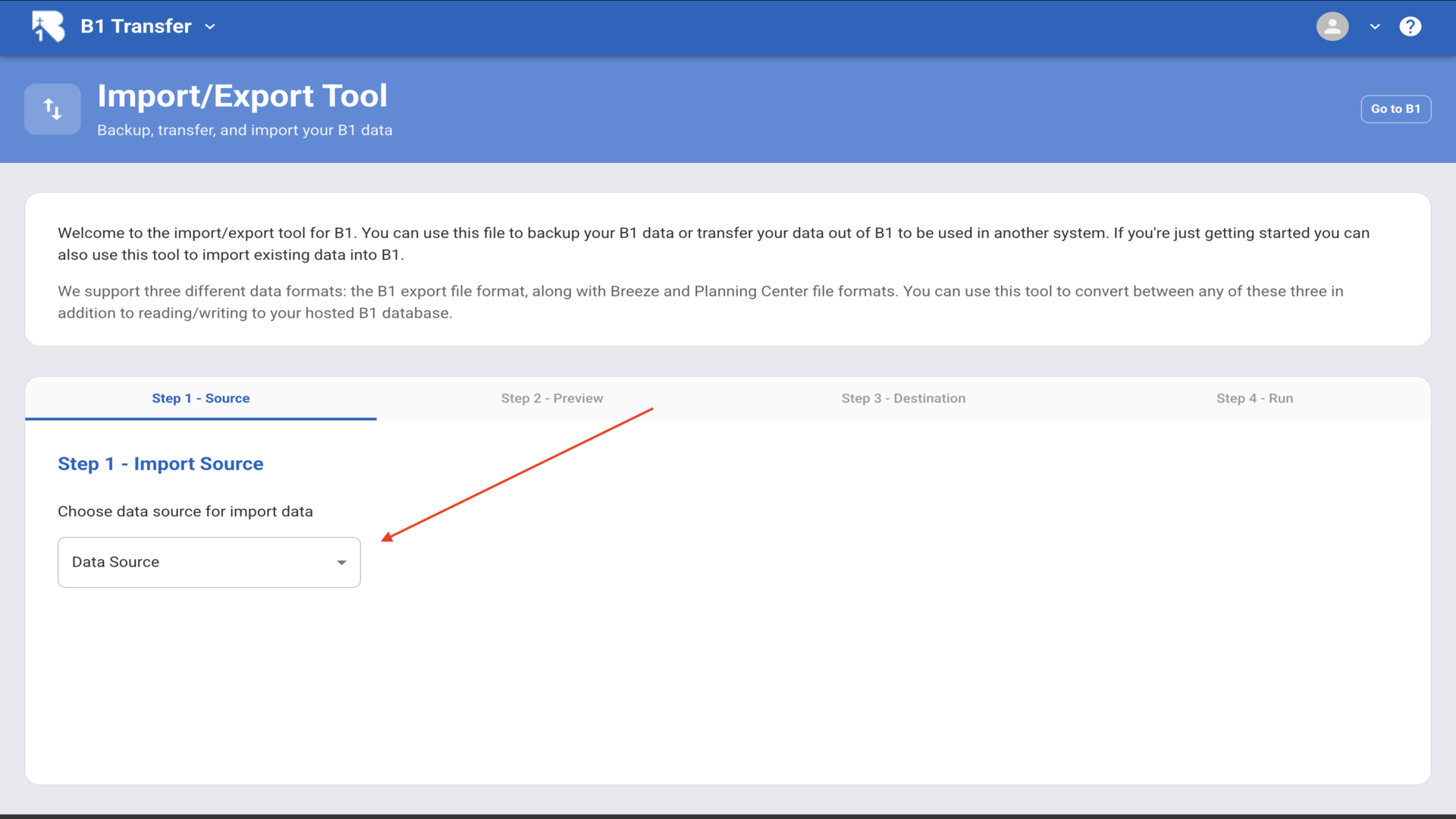
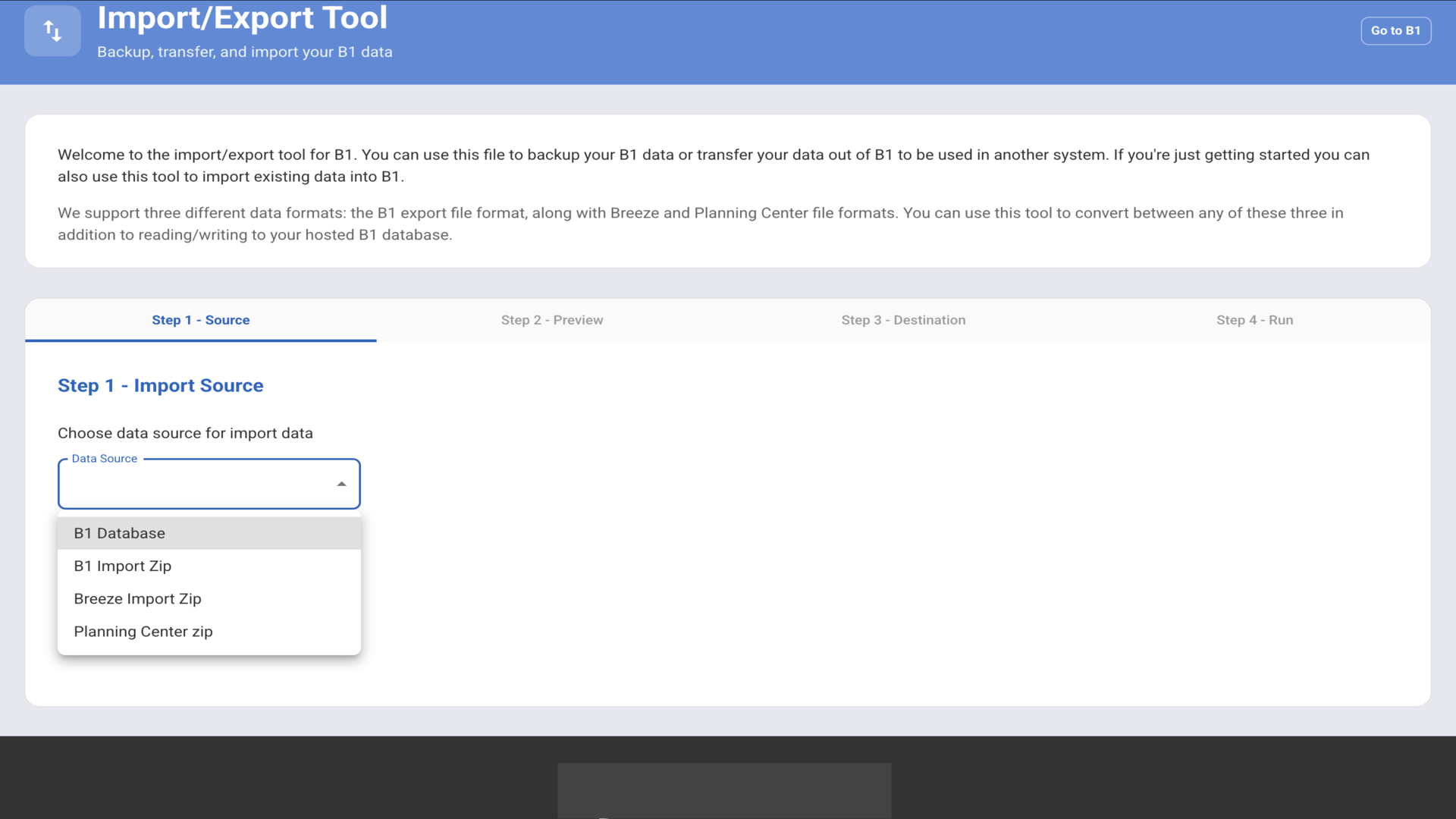
3.Click on the Data Source dropdown in Step 1 - Import Source▼
4.Select "B1 Database" from the dropdown menu to export your B1 church data▼
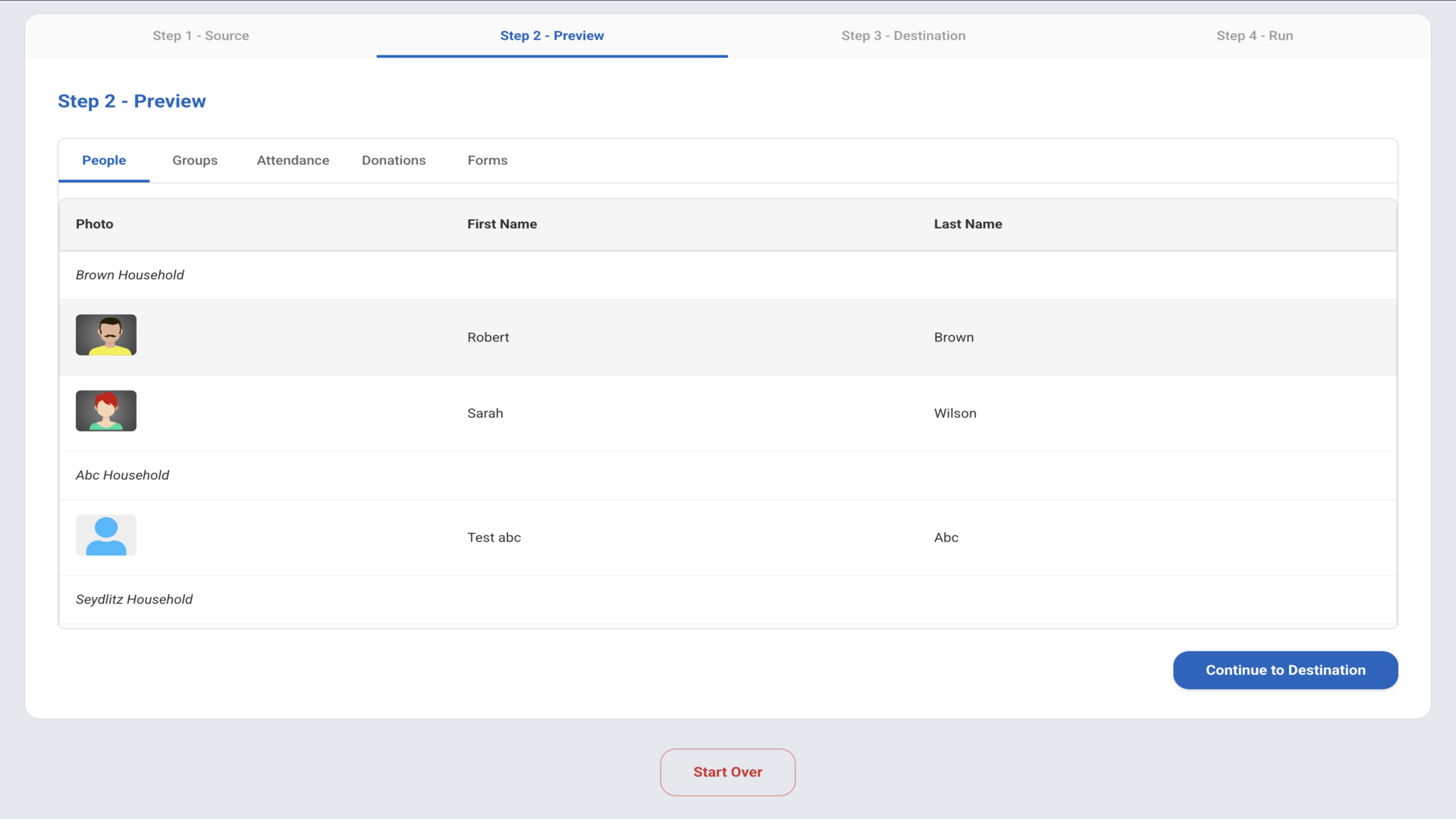
5.Review the preview of data to be exported and click "Continue to Destination"▼
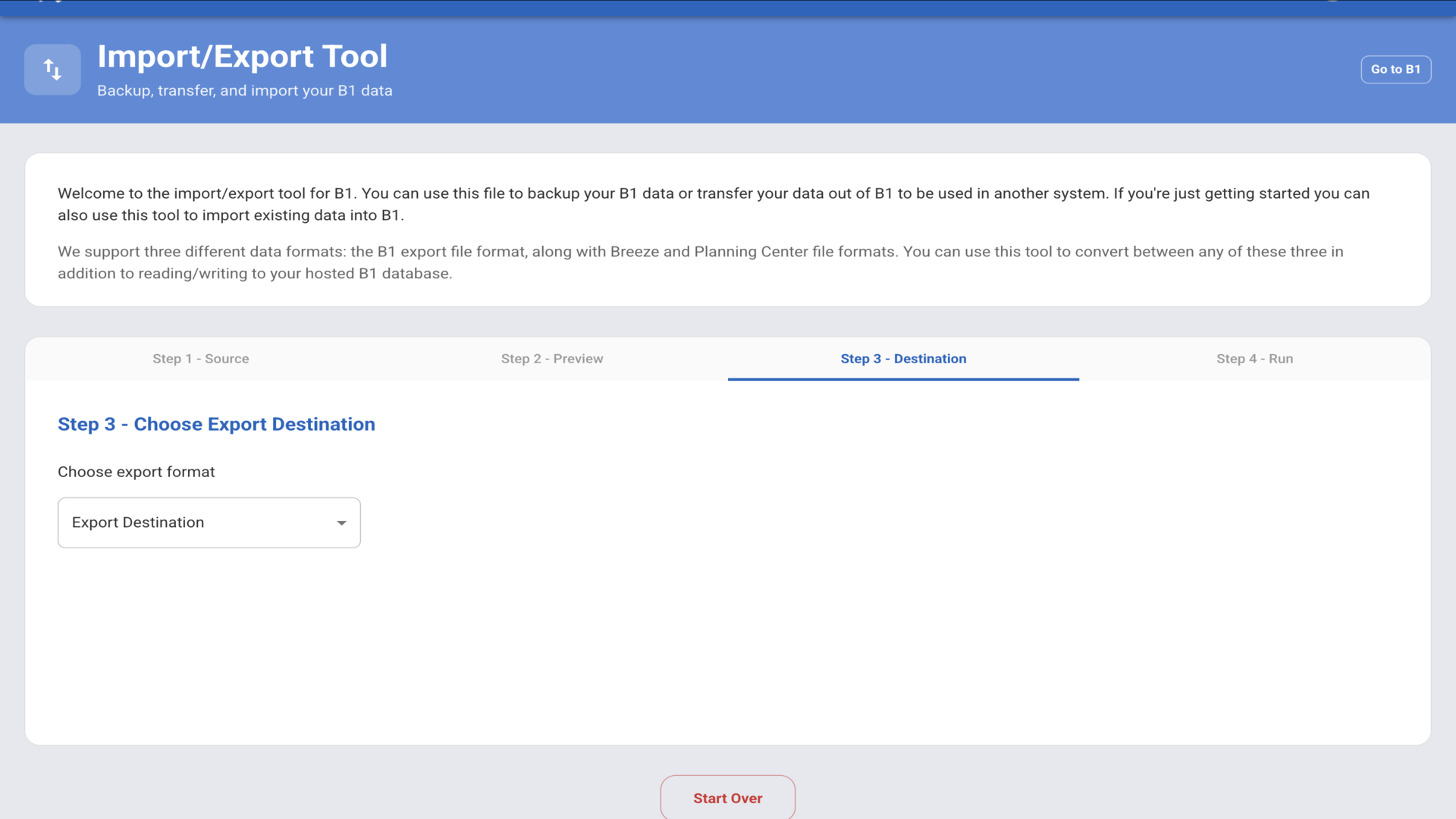
6.Click on the Export Destination dropdown in Step 3▼
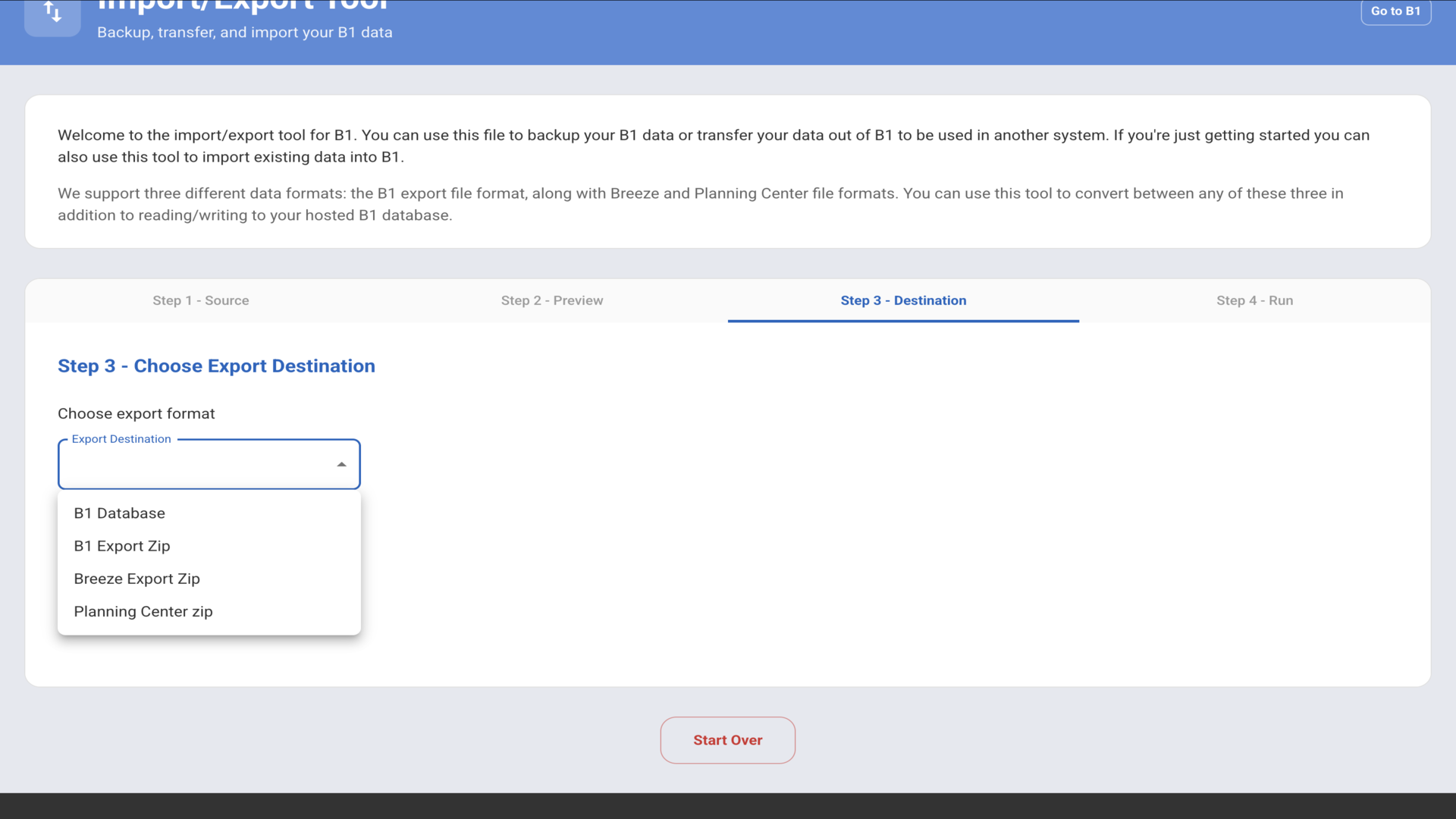
7.Select "B1 Export Zip" to create a zip file containing all your exported data▼
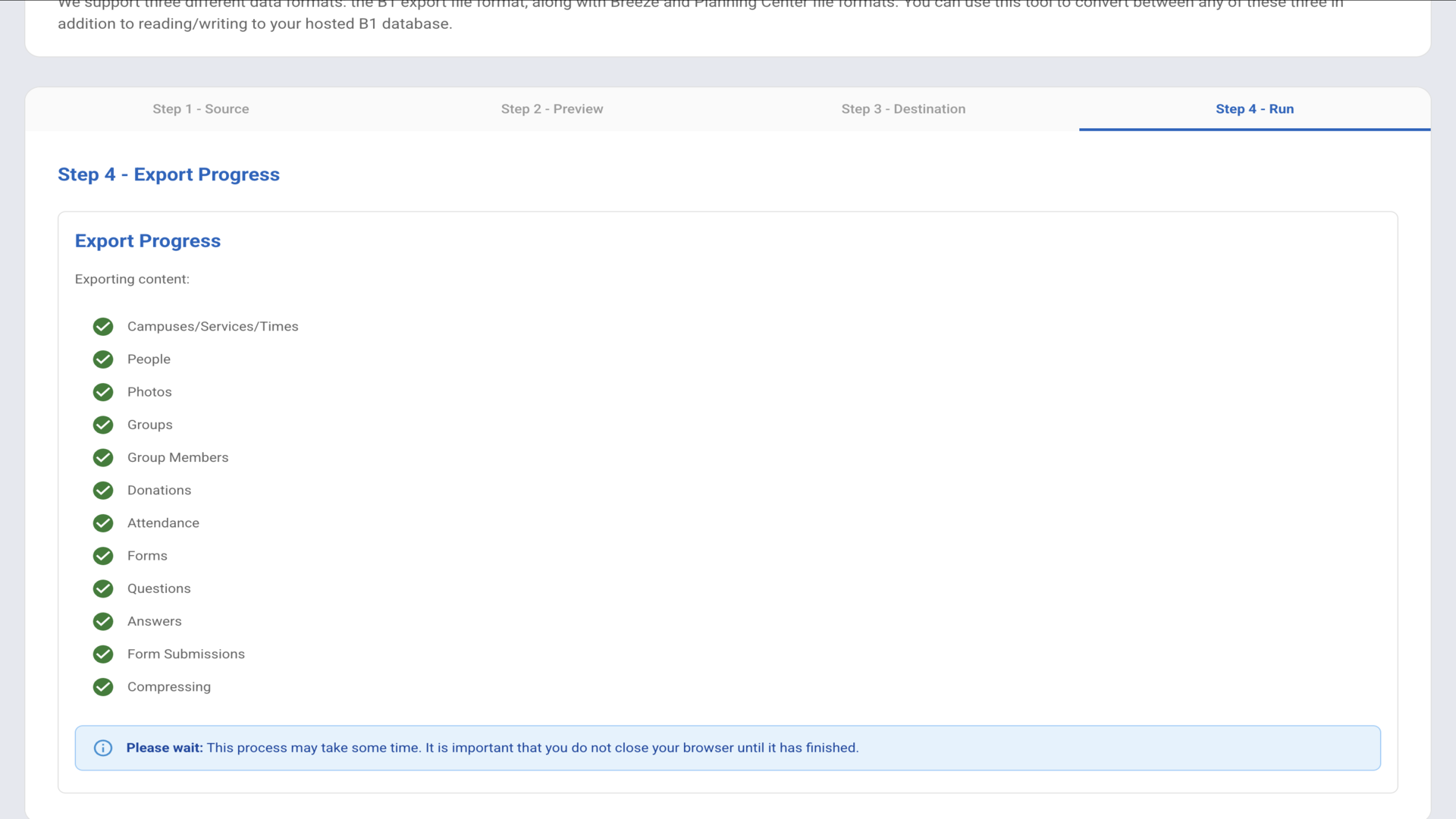
8.Monitor the export progress with green check marks. Wait for the process to finish▼
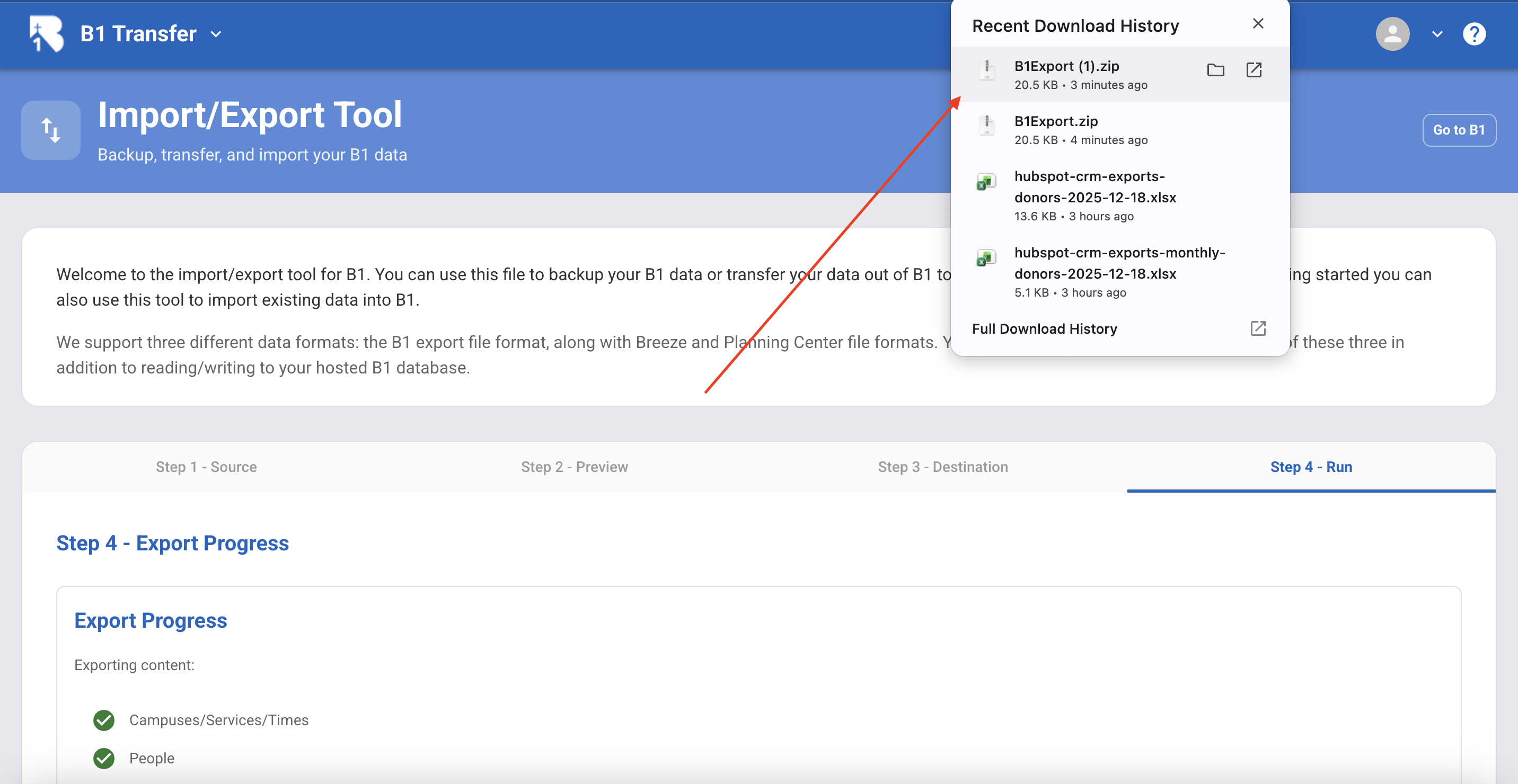
9.View the downloaded B1Export file in the Recent Download History▼
10.Locate and unzip the B1Export file in your downloads folder▼
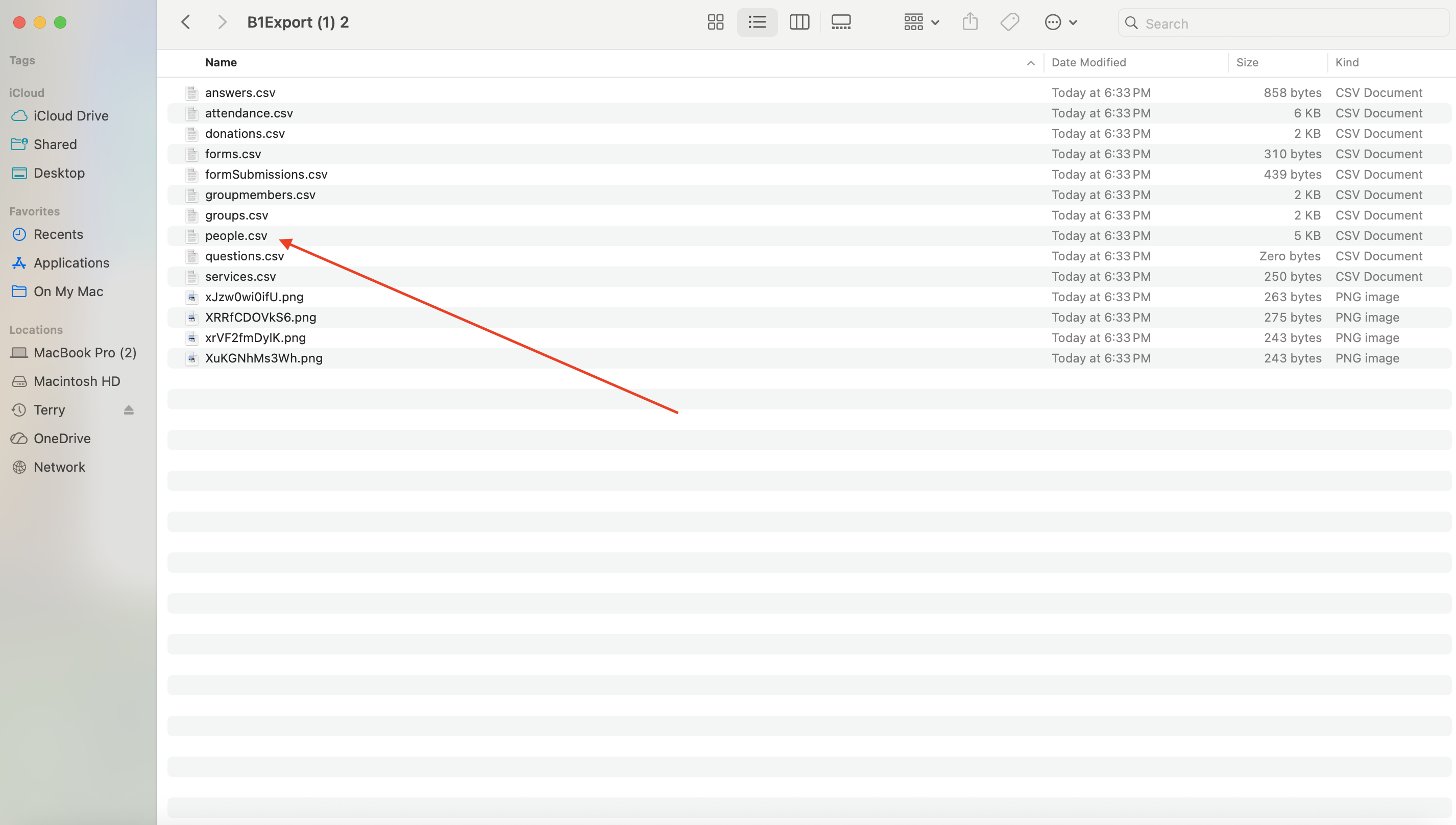
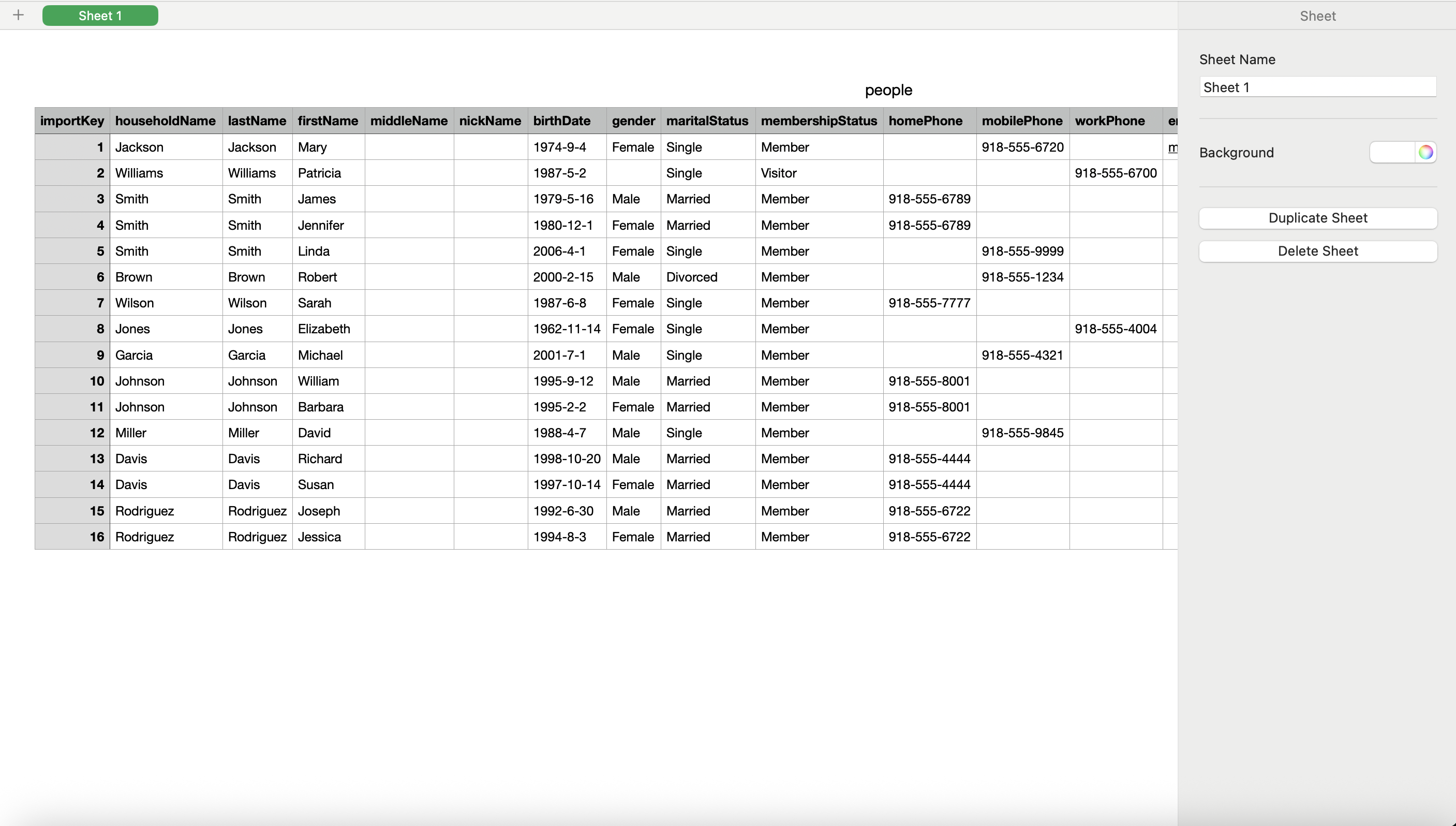
11.Open CSV files like people.csv with Excel or Numbers to view your exported data▼